
How to fix Twinmotion not open on Windows and macOS?
You’re trying to launch Twinmotion, and the software won’t open. You’ve come to the right place. This article explains the common reasons why Twinmotion does not open and some solutions for both Windows and macOS.
Describe the issue: Twinmotion not open
Many of our customers after installing Twinmotion through Epic Games Launcher, it does not open and shows the error ‘The code execution cannot proceed because VCRUNTIME140.dll was not found. Reinstalling the program may fix this problem.’
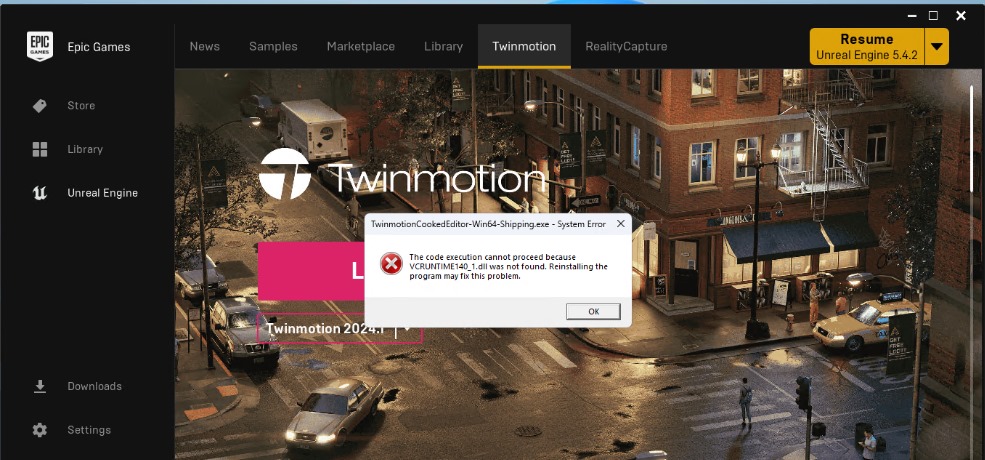
Another error when starting Twinmotion is ‘Launch Failed’ as shown below but the previous software version worked normally.
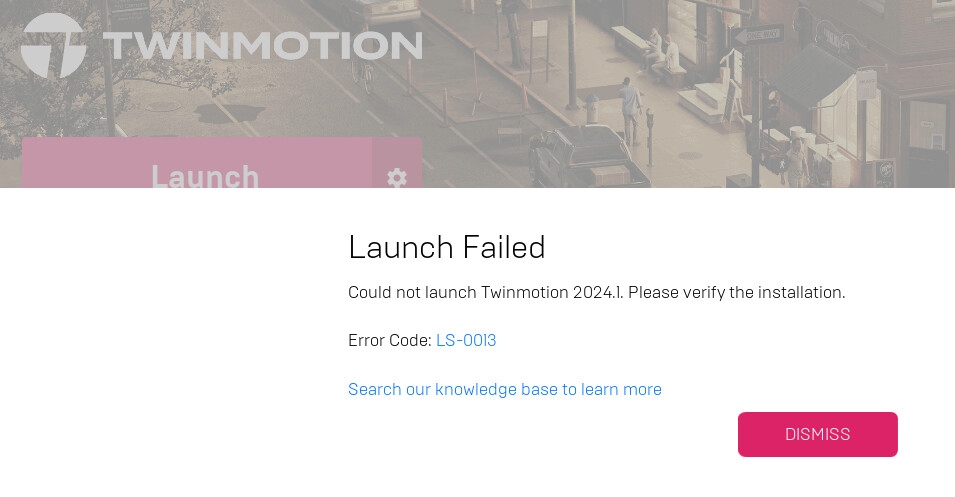
These errors prevent the program from running at all, which is annoying if you’re working on a tight deadline.
Why does it happen?
Twinmotion crashes on startup usually due to three main reasons:
- Problematic installation file
- Outdated GPU driver
- Graphics API and hardware mismatch
How to fix Twinmotion not open on Windows and macOS?
Check if you have the right computer spec
Before anything else, make sure your PC or Mac meets the Twinmotion system requirements. Many launch errors happen simply because the hardware is below the minimum spec. You can check the official requirements here.
Start Twimotion from its location
Sometimes Twinmotion fails to launch from the Epic Games Launcher. Instead, try starting it directly from its folder:
- Windows: C:\Program Files\Epic Games\Twinmotion2020.1
- Mac: Macintosh HD ▸ Users ▸ Shared ▸ Epic Games▸ Twinmotion2020.1
Log out of the launcher and restart the computer
If Twinmotion still doesn’t open, log out of the Epic Games Launcher, restart your system, and log back in. This often clears temporary errors.
Update GPU driver
Newer versions of Twinmotion are usually more compatible with the latest GPU drivers, so if you haven’t updated your drivers in a while, now is the time to do it. You should update your GPU driver using the standalone installer from NVIDIA.
If you’re using an iRender server:
- Go to the X drive on your remote machine
- Open NVIDIA RTX 4090 DRIVER > Studio
- Choose the latest driver by Date Modified
- Install it, restart the machine, and reconnect
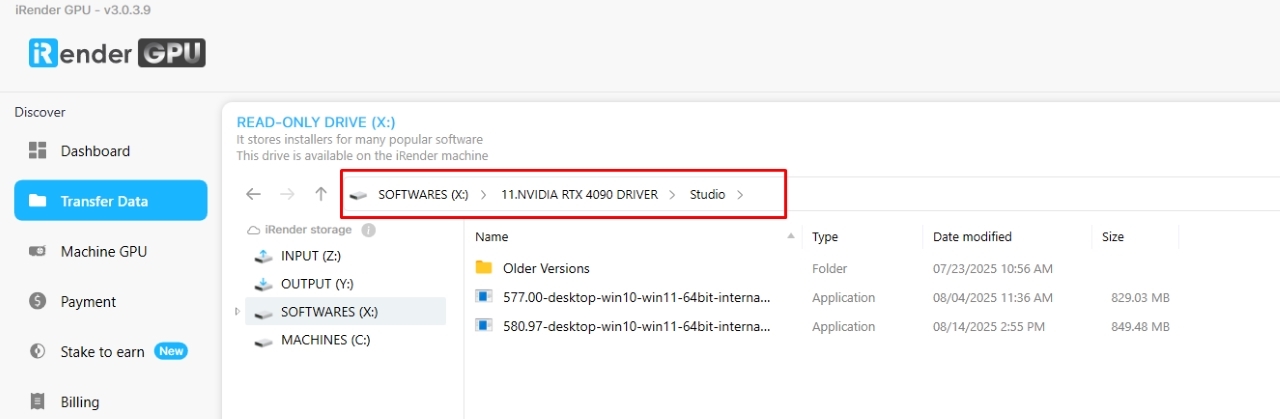
Note: New machines at iRender usually come with the latest drivers, but older ones may require manual updates. Many customers have fixed performance issues this way.
Clearing the web cache
If you see the Launch Failed error, clearing the cache may help.
For Windows:
- Make sure you are signed out and completely exit Epic Games Launcher.
- Press Windows + R and type “%localappdata%” to open File Explorer.
- Open the Epic Game Launcher folder.
- Try opening the Saved folder.
- Click on the webcache folder and delete it.
- Restart your computer and launch Epic Games Launcher.
Fix the missing VCRuntime DLL error
Fix missing DLL error by installing ‘Microsoft Visual C++ 2015 – 2022 Redistributable’. Download from the links below. We recommend installing both x86 and x64 versions.
Switch from DirectX 12 to DirectX 11
If Twinmotion still won’t open on Windows 11, the issue may be DirectX 12 instability. Switching back to DirectX 11 is often more stable.
In Twinmotion:
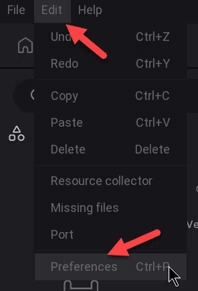
- Go to Edit > Preferences > Settings > Graphics Hardware Support.
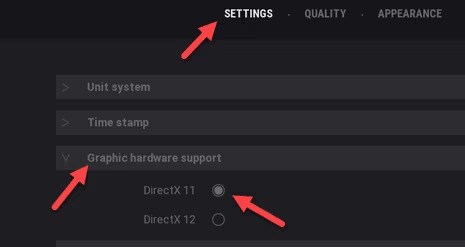
- Change from DirectX 12 to DirectX 11.
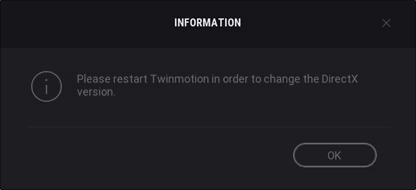
- Click OK, then restart Twinmotion.
Reinstall software
Another thing you should try is uninstalling the software and reinstalling it. However, you should not do this right away because the above methods will fix most common hangs. Only reinstall Twinmotion if you suspect a more serious problem or if the above tips do not work.
Contact Epic support
If Twinmotion still does not open, report the bug to Epic Support.
On the home page, click the Contact Us button and select Report a Bug. You will need to provide the following information:
- Copy the Callstack from the bug window and paste it into the corresponding field in the form.
- Copy and attach the ‘.log’ file to the bug report
Where to find the ‘.log’ file:
- Windows: %homedrive%%homepath%\AppData\Local\Twinmotion\Saved\Crashes
- Mac: Macintosh HD ▸ Users ▸ username ▸ Library ▸ Application Support ▸ Epic ▸ UnrealEngine ▸ 4.24 ▸ Saved ▸ Crashes
Speed up Twinmotion rendering with iRender render farm
If your current computer is too old to handle complex Twinmotion projects and upgrading to a new high-end workstation feels out of reach, using a render farm is the perfect solution.
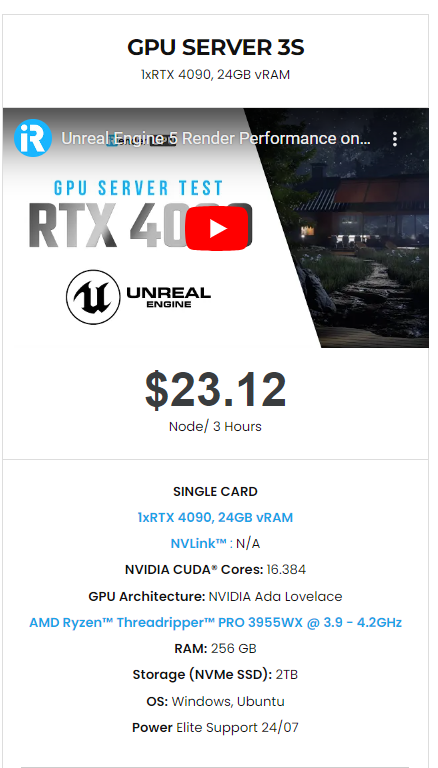
iRender supports all popular 3D software and render engines, including Twinmotion. We give you access to high-performance GPUs, so you can render faster and more efficiently, no need to upgrade your own hardware. All servers are equipped with:
- AMD Ryzen™ Threadripper™ PRO 3955WX (3.9-4.2GHz) or
- AMD Ryzen™ Threadripper™ PRO 5975WX (3.6-4.5GHz)
- (1/2/4/6/8x) – RTX 3090/4090
- 256GB RAM
- 2TB NVMe SSDs
Twinmotion utilizes a single-GPU, so this 3S (1xRTX 4090) is the best package at the most affordable price.
Why choose iRender?
Unlike other services, iRender lets you upload and download files without starting the server, saving you both time and money. We offer a Desktop app for Windows with a full feature set and a simple Drive app for macOS for easy file transfers. Here’s why iRender is a top choice for your rendering needs:
- 100% Software Support: We support all 3D software, their plugins, and render engines.
- Full Control: Our service will give you full control over the servers you rent. Therefore, you are free to create your own working environment.
- Go Green: We are committed to using 100% solar renewable energy towards environmental sustainability.
- Real-human 24/7 Support: Our professional support agents and technicians guarantee to bring you the best rendering experience.
Let’s see how Twinmotion performs on our server!

If you still wonder if this is the right place for your project, REGISTER NOW to get a trial and receive a 100% bonus promotion for your first transaction within 24 hours of registration with us.
For more detailed information, please contact us via Live chat 24/7 or WhatsApp: +(84) 912-785-500 or Email: [email protected]
iRender – Happy Rendering!
Related Posts
The latest creative news from Enscape Cloud rendering, Lumion Cloud rendering, V-Ray Cloud Rendering , Twinmotion Cloud Rendering , 3D VFX Plugins & Cloud Rendering.





