
Lumion for SketchUp: Transforming 3D Models into Attractive Visuals
SketchUp is beloved by architects, designers, and hobbyists for its intuitive approach to 3D modeling. With its direct modeling tools and vast library ecosystem, users can quickly draft conceptual designs or intricate construction details. However, SketchUp’s built-in visualization capabilities are limited when it comes to producing photorealistic images or immersive presentations for clients and stakeholders. Therefore, Lumion is a leading real-time rendering software that becomes an essential addition to the SketchUp workflow. Lumion brings life, context, and emotion to SketchUp models, enabling users to communicate their visions with unprecedented clarity and impact.
In today’s blog, iRender will delve into the topic‘ Lumion for SketchUp: Transforming 3D Models into Attractive Visuals’.
Lumion for SketchUp
Lumion for SketchUp is a powerful real-time rendering solution that enhances the visual quality of 3D models created in SketchUp. It allows architects, designers, and visualization professionals to transform simple SketchUp designs into stunning photorealistic images, videos. Lumion integrates seamlessly with SketchUp through direct file import or LiveSync, which enables real-time synchronization between the two programs. This means you can model in SketchUp while simultaneously viewing changes in Lumion’s rich, interactive environment. Lumion comes with an extensive library of realistic materials, environmental elements, and high-quality 3D objects such as trees, furniture, people, and lighting effects, which can be easily added to enhance the atmosphere and context of your design.
With its intuitive interface and rapid rendering capabilities, Lumion significantly reduces the time required to produce professional-grade visualizations, making it an essential tool for architects who want to communicate their design intent more effectively.
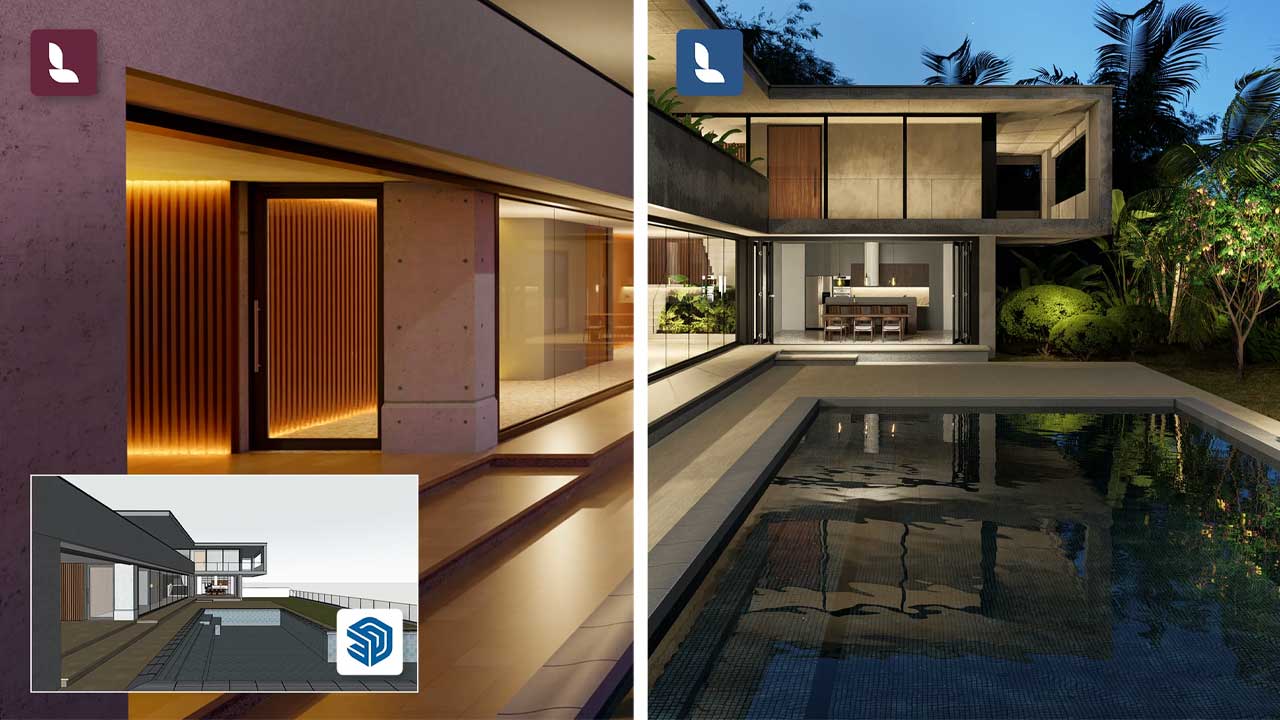
Why Lumion and SketchUp are a perfect match
SketchUp is excellent for conceptualizing designs quickly, allowing users to draw and refine their ideas in a flexible 3D space. Yet, SketchUp’s visuals can appear flat or cartoonish without the aid of rendering plugins. Lumion bridges that gap by offering:
- Seamless Integration: With direct import and LiveSync functionality, Lumion updates your SketchUp model in real time as you design.
- Massive Asset Library: Over 6,000 high-quality objects and 1,200 materials help populate your scene with everything from trees to furniture to realistic surfaces.
- Speed & Ease of Use: Even large, complex models render quickly thanks to Lumion’s real-time engine. It’s also intuitive enough for users with limited rendering experience.

How to download Lumion for SketchUp
Step 1: Install Lumion and SketchUp
To install Lumion LiveSync for SketchUp, start by opening your SketchUp application (version 2017 or newer is supported, but newer versions like SketchUp 2021 and above work best). Next, check if you have Lumion installed; if not, you can get it from the Lumion website. Once you have both programs, you can proceed with the installation of LiveSync.
Step 2: Install Extention
After you have downloaded the file from your Lumion Account, install the plugin via the Install Extension process in the SketchUp Extension Manager, using this RBZ file.
The current file is: Lumion_Plugins_for_SketchUp_2025.2.0.rbz (30 April 2025).
Locate the file in the download folder for your web browser. The usual Default folder is ‘Downloads‘.
If you have previously downloaded or installed Lumion_Plugins_for_SketchUp_2025.0.X.rbz (where X is 2 or 4) then please get the latest version from your Lumion Account.
These steps Install LiveSync for SketchUp 2025.2 and newer, along with Lumion View 2025.2.
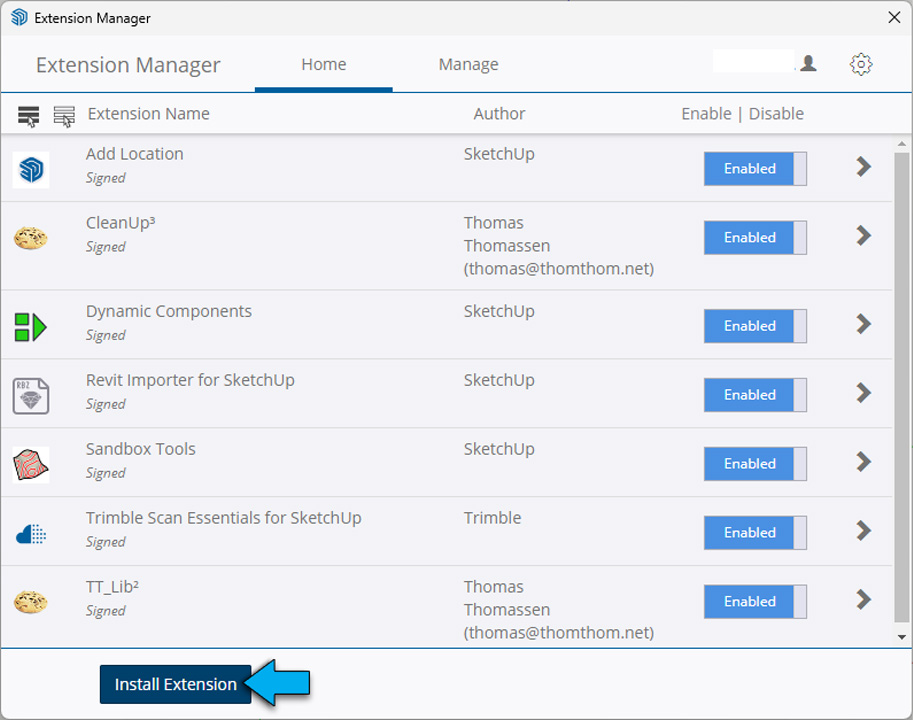
In the Sketchup Extension Manager click on the Install Extension button:
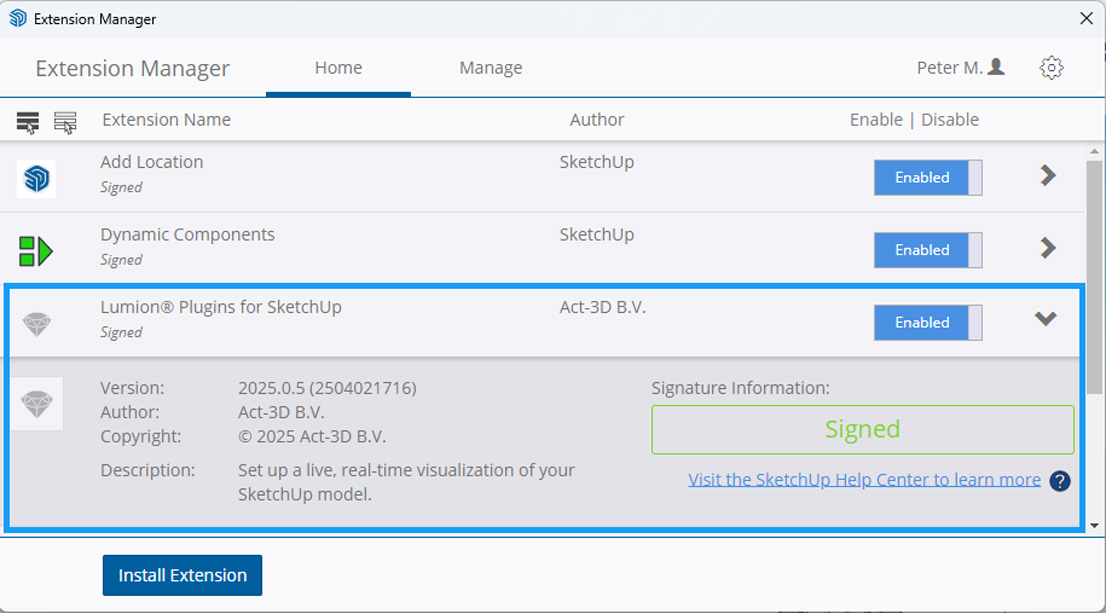
After a successful install you should see LiveSync for SketchUp plugin (only) listed in the Extension Manager automatically.
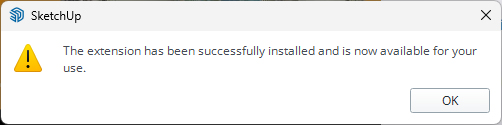
The Extension Manager, may but not always, provide a message the install is complete:
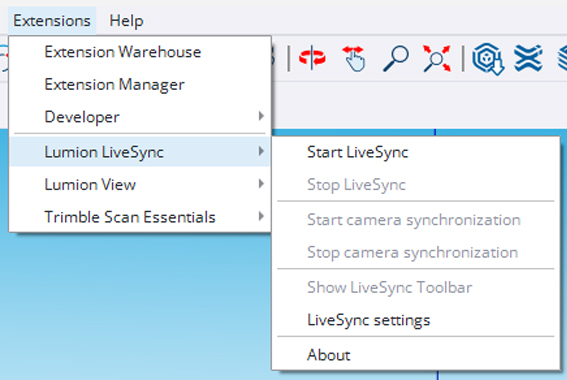
LiveSync for SketchUp and Lumion View should be available in the Extensions dropdown menu:
How to import SketchUp models into Lumion
Importing SketchUp models into Lumion is a straightforward process that can be done in just a few steps. Here’s a detailed guide to help you through:
Prepare Your Model in SketchUp
- Clean Up Your Model: Before exporting, make sure your SketchUp model is organized. Delete any unnecessary elements, and make sure groups and components are used wisely to streamline the model.
- Check for Textures: Ensure that the textures and materials are applied appropriately.
Export from SketchUp
- Use Lumion LiveSync (Optional):
- Open Lumion and start a new project.
- In SketchUp, install the Lumion LiveSync plugin if you haven’t already.
- With your model open in SketchUp, click on the LiveSync button to connect to Lumion. This facilitates real-time updates, reflecting changes made in SketchUp instantly in Lumion.
- Manual Export (if not using LiveSync):
- Go to
File>Export>3D Model. - Choose the COLLADA File (*.dae) format, which is compatible with Lumion.
- Save your file with an appropriate name and location.
- Go to
Import into Lumion
- Open Lumion: Start the Lumion application.
- Select a Scene: Choose or create a new scene where you want to import the SketchUp model.
- Import the Model:
- Click on the
Importbutton (usually represented by a folder icon). - Select the file you exported from SketchUp (the .dae file).
- Adjust the import settings if necessary
- Click on the
You can see the tutorial video following:

Final Thoughts
In conclusion, Lumion for SketchUp serves as a transformative bridge between architectural design and compelling visual storytelling. By integrating these two powerful tools, designers can elevate their 3D models into breathtaking visualizations that truly capture the essence of their creative vision. The ease of importing models, combined with Lumion’s robust rendering capabilities, allows users to showcase their work in high-quality images and animations that effectively communicate design intent to clients and stakeholders.
iRender - The best cloud rendering service for Lumion and SketchUp
As you all know, iRender provides high performance and configurable server system to customers who need to utilize the power of CPUs & GPUs such as 3D rendering, AI training, VR&AR, simulation, etc. With iRender IaaS service, you can access our servers through the Remote Desktop Application and do whatever you want and install any software you need on it. It is like you are using your own computer but with a powerful configuration and much higher performance.
At iRender, we offer you one package with powerful RTX4090, which is GPU server 3S. This server is the best option for Lumion as Lumion only uses one card to render.
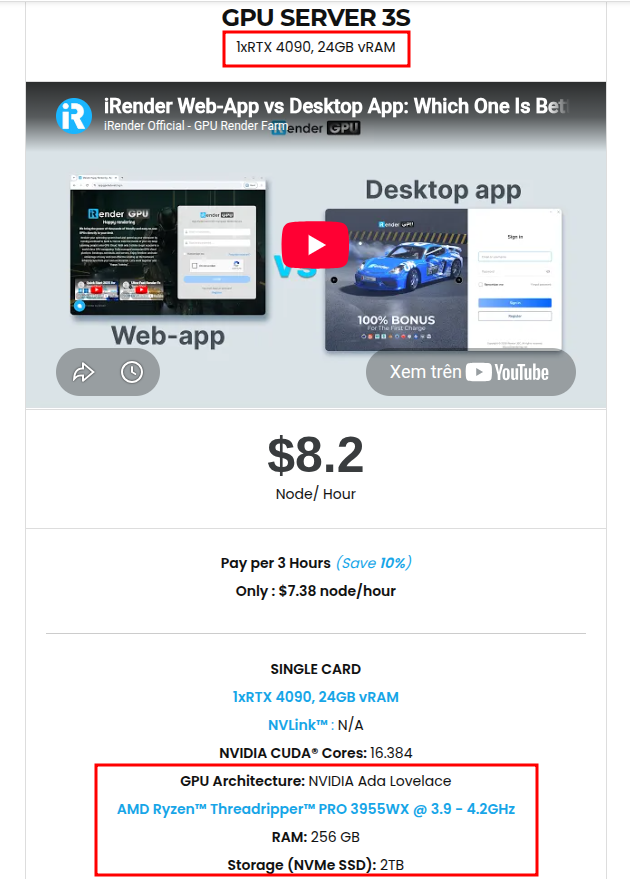
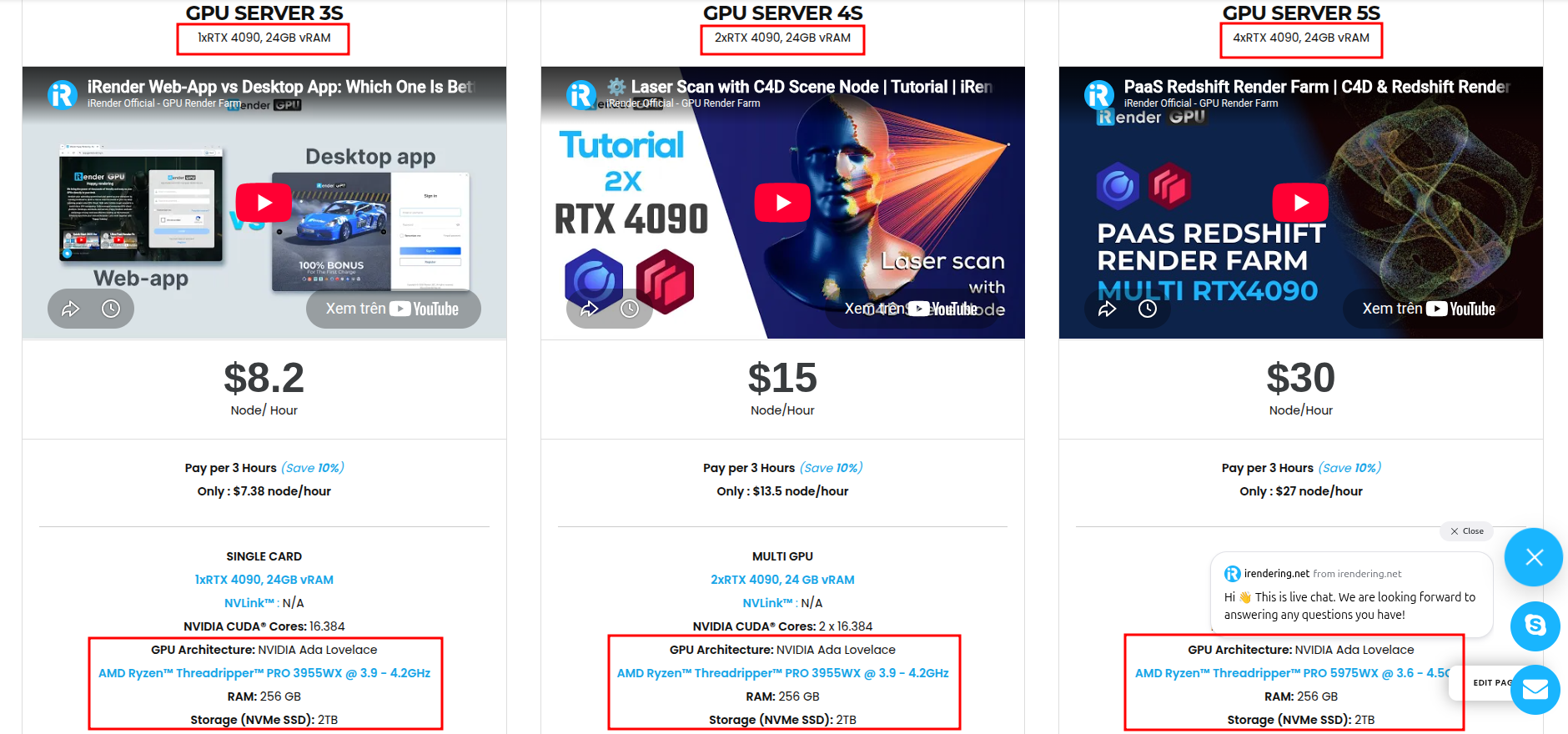
Lumion will need a processor with a single core clock as high as possible, and does not need more than 4 Cores, more cores also do not help processing speed in Lumion faster. We offer the most powerful RTX 4090 configuration packages on the market, all equipped with AMD RyzenTM ThreadripperTM PRO 3955WX @ 3.9 – 4.2GHz and AMD Ryzen™ Threadripper™ PRO 5975WX @ 3.6 – 4.5GHz processors, 256GB RAM and 2T NVMe SSD hard drive capacity.
In addition, iRender has many powerful server (1/2/4) – RTX 4090, you can choose the server that suits your needs to start the rendering process.
In case you have any problems or questions, don’t hesitate to contact support team. We will be happy to help you with your questions and problems.
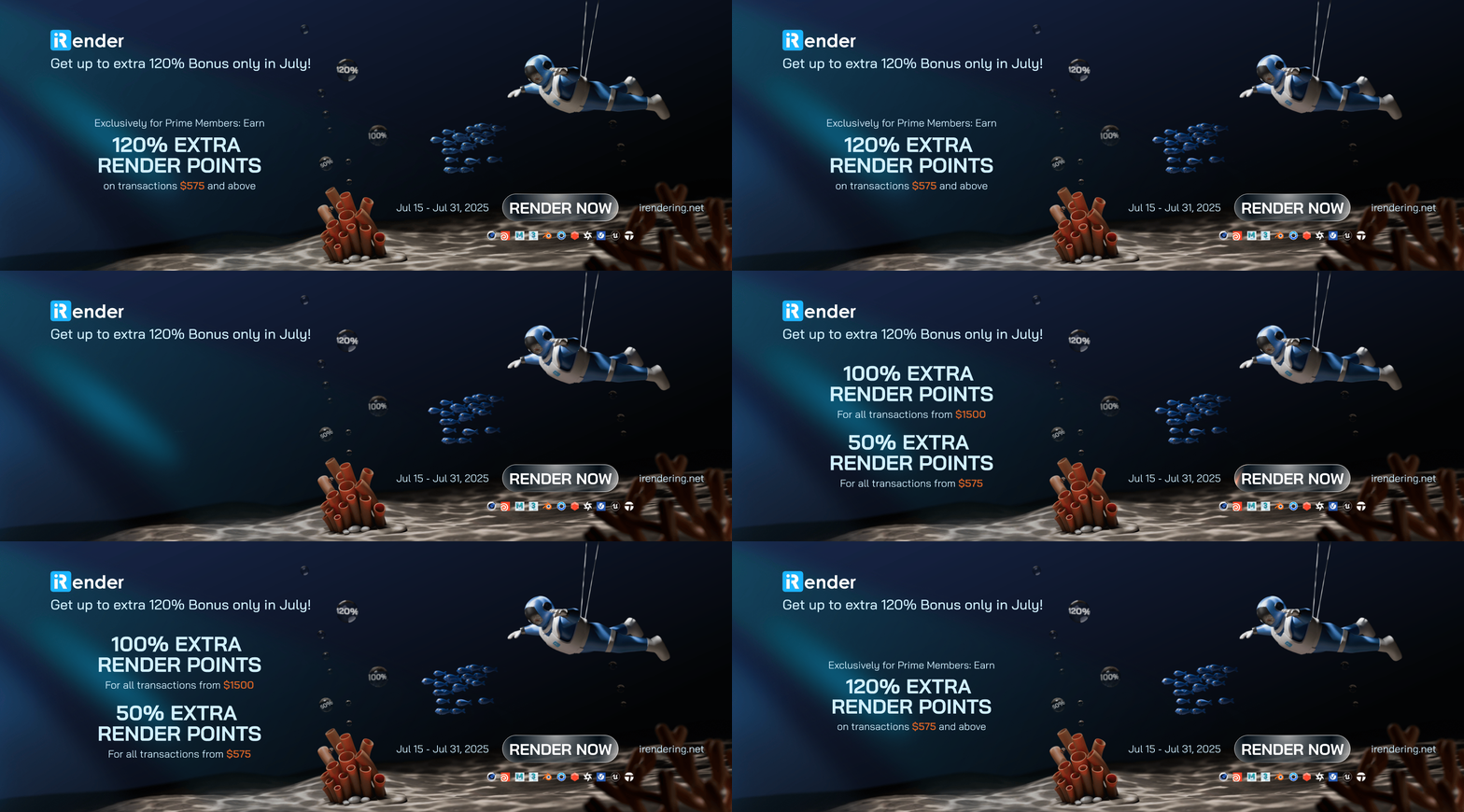
This month, we are running a SPECIAL OFFER: 100% Additional Bonus for new clients who register an account and make a top-up within 24 hours after their registration.
- 50% BONUS for all transactions from $575
- 100% BONUS for all transactions from $1500
Happy Rendering!
Related Posts
The latest creative news from Lumion Cloud Rendering, Twinmotion Cloud Rendering, V-Ray Cloud Rendering





