
Texture Memory vs Geometry Memory: What Actually Fills Your VRAM?
In most 3D scenes, textures consume more VRAM than geometry, but the answer depends on how your project is built. A scene with dozens of 8K textures and multiple UDIM sets can fill GPU memory much faster than a highly detailed mesh. On the other hand, dense geometry with heavy subdivision, displacement, or poorly optimized assets can quickly become the biggest memory consumer. From my experience, many artists focus only on polygon count when troubleshooting VRAM issues, while the real culprit is often somewhere else. Understanding texture memory vs geometry memory VRAM helps you identify what is actually occupying your GPU memory before deciding to simplify your scene or upgrade your hardware. Besides textures and meshes, VRAM must also store acceleration structures such as BVH, along with frame buffers and other rendering data that cannot be moved elsewhere. Some render engines can shift part of the texture or geometry data to system RAM through out-of-core rendering, but not every type of data can be paged this way. I also keep in mind that VRAM is not combined across multiple GPUs, so each GPU still needs enough memory to hold the entire scene.
What Actually Takes Up VRAM in a Render?
When I first started optimizing scenes, I assumed VRAM was almost entirely consumed by textures. After digging into renderer logs and profiling a variety of projects, I realized that VRAM is shared by several essential types of data. Every GPU render needs space for textures, geometry, acceleration structures such as BVH, and working buffers. If any one of these grows too large, the GPU can run out of memory even though the others remain relatively small.
Textures are usually the biggest VRAM consumer in everyday production. Every color map, roughness map, normal map, displacement map, opacity map, and other texture loaded into the scene occupies GPU memory. The higher the resolution, the more memory it requires. Multiple UDIM tiles can increase memory usage even further because each tile is treated as a separate texture. Large texture libraries, duplicated assets with unique maps, and excessive use of 8K textures are all common reasons VRAM fills up quickly. If you only need close-up detail on a few objects, reducing texture resolution elsewhere can make a noticeable difference without affecting image quality.
Geometry is another major contributor. Every mesh, vertex, polygon, and subdivision level must be stored in GPU memory before rendering begins. Features such as subdivision surfaces and displacement can dramatically increase polygon counts, making a model much heavier than it appears in the viewport. In addition to the meshes themselves, the renderer builds a Bounding Volume Hierarchy (BVH), an acceleration structure that helps rays find geometry efficiently. Although BVH speeds up rendering, it also requires VRAM. One useful optimization is instancing. Instead of storing the same mesh many times, instances reuse the original geometry, significantly reducing memory usage compared to creating full copies.
Finally, every render requires working buffers inside VRAM. These include frame buffers, sample buffers, ray data, denoising buffers, and other temporary information used while calculating the final image. Unlike textures or geometry, these buffers cannot simply be removed because they are essential to the rendering process. Some render engines support out-of-core rendering, allowing certain textures or geometry to be moved into system RAM when VRAM becomes full. However, BVH structures and many rendering buffers must remain in VRAM, so they continue to define the minimum memory required for a successful render.
When Textures Are Your Bottleneck
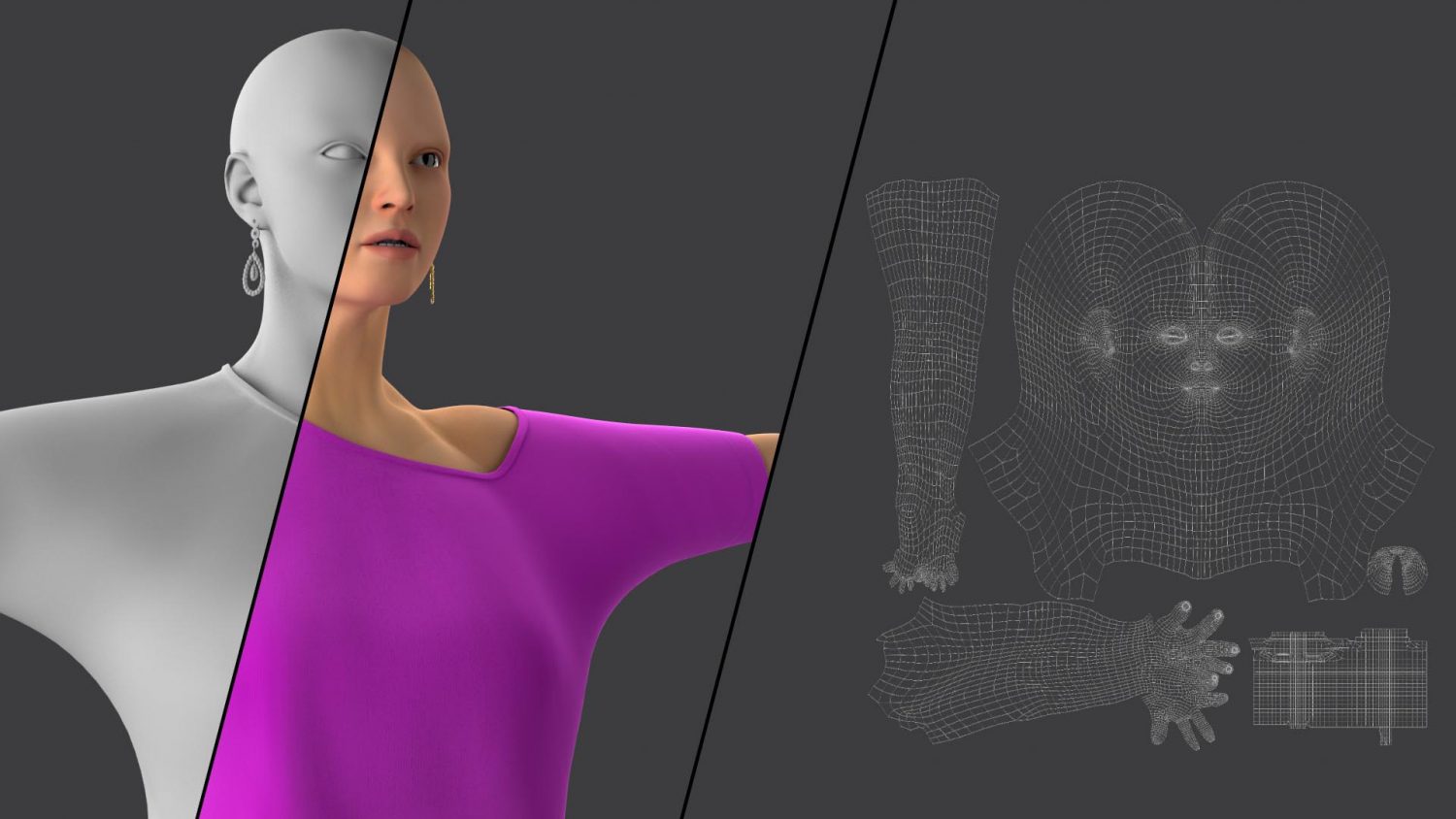
I usually suspect textures first when a scene consumes much more VRAM than expected. Most GPU render engines provide detailed logs showing memory usage during scene loading, including how much memory is allocated to textures, geometry, and other resources. If the log reports unusually high texture memory or lists dozens of large texture files and UDIM tiles, I know where to begin. Understanding texture memory vs geometry memory VRAM makes it much easier to identify whether textures are truly responsible instead of assuming geometry is the problem.
When textures become the bottleneck, I start by reducing resolutions that are unnecessarily high. Many background assets look identical with 2K or 4K maps instead of 8K. I also review my UDIM sets and remove unused tiles whenever possible. If the renderer supports compressed texture formats, I enable them to reduce memory consumption. These simple adjustments often free several gigabytes of VRAM while maintaining virtually the same visual quality.
When Geometry Is Your Bottleneck
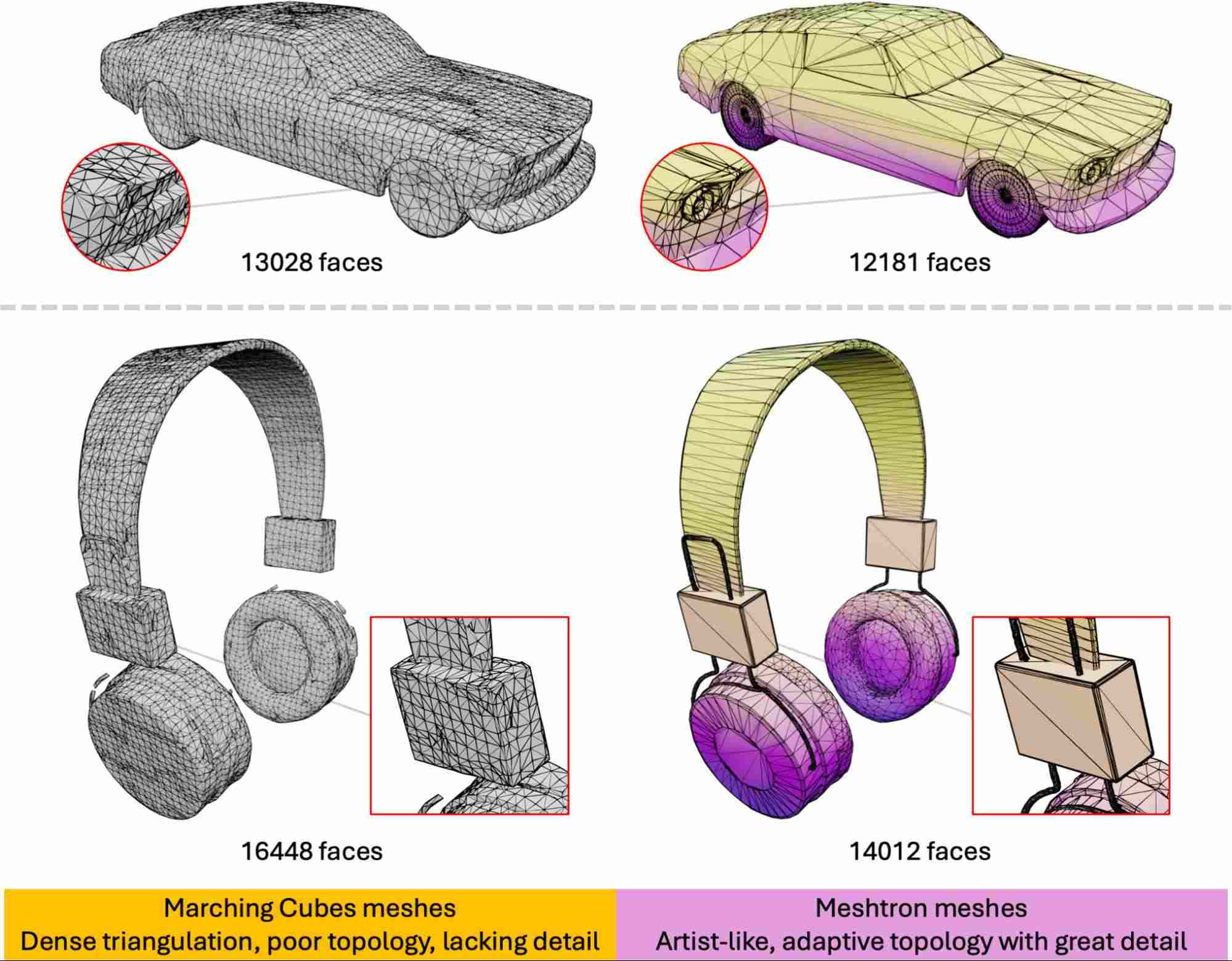
Geometry becomes the main VRAM consumer when a scene contains extremely dense meshes instead of oversized textures. I usually notice this during scene loading, when the renderer spends a long time building geometry before rendering begins. The renderer log is also a useful place to check because many engines report how much memory is used for meshes and acceleration structures. If geometry occupies significantly more memory than textures, I know where to focus my optimization.
To reduce geometry memory, I first simplify models that have unnecessary polygon density. Lowering subdivision levels often has a much bigger impact than expected, especially on background assets. I also review displacement settings because fine displacement can generate millions of extra polygons during rendering. Whenever I have repeated objects such as trees, furniture, or rocks, I replace duplicated meshes with instances. Since instances reuse the original geometry, they require much less VRAM while producing the same visual result. Small adjustments across multiple assets usually free enough memory to keep the render stable.
The Part You Cannot Page Out
Out-of-core rendering can move some textures and geometry into system RAM, but it cannot move everything. BVH, ray tracing data, and rendering buffers must remain in GPU memory throughout the render. Understanding texture memory vs geometry memory VRAM also means knowing that these essential resources always need dedicated VRAM.
If my renderer enables out-of-core memory but still reports insufficient VRAM, I know these mandatory resources have exceeded the available memory. Keeping some VRAM headroom by reducing texture or geometry usage is often enough to ensure the renderer has sufficient space for BVH and working buffers.
What Fills Your VRAM and How to Reduce It
| Memory Type | Consumes More VRAM When | How to Reduce It |
| Textures | 4K/8K textures, multiple UDIMs, many texture maps | Use appropriate resolutions, compress textures, reduce unnecessary maps |
| Geometry | High polygon counts, subdivision, displacement | Use proxies, instances, reduce subdivision levels |
| BVH / Acceleration Structure | Large or complex geometry | Optimize or simplify geometry |
| Frame Buffers | High output resolution, multiple render passes (AOVs) | Leave sufficient VRAM headroom |
How iRender Handles the Issue
An RTX 4090 on iRender provides 24 GB of VRAM, allowing demanding projects to run comfortably on a dedicated GPU. If your render engine supports out-of-core rendering and the scene exceeds available VRAM, the server also includes 256 GB of system RAM to help handle eligible texture and geometry data. Whenever you encounter memory-related issues, checking the renderer log is the fastest way to identify what is consuming VRAM.
Keep in mind that using multiple RTX 4090 GPUs does not combine their VRAM. Each GPU still has access to its own 24 GB memory. As with any cloud workstation, you should also plan for the initial software installation, which may take 15 to 30 minutes, and remember to shut down the server when it is idle to avoid unnecessary charges. If you’re new to iRender, you can also take advantage of the 100% first-deposit bonus to double your render credits.
Check out some of iRender’s test on RTX 4090:






