
Houdini Viewport Is Lagging With Heavy Caches: Practical Fixes
You load a heavy cache for a Houdini shot, wait for it to finish, and then discover that every camera orbit takes several seconds. The cache itself may be ready, but the viewport is still struggling to display it. In many cases, the problem comes down to two areas: too much geometry for the viewport to draw efficiently or insufficient GPU VRAM for the scene. Before moving to a faster GPU, it is worth identifying which limit you are actually hitting. Houdini provides several ways to reduce viewport workload, from packed primitive display modes and geometry culling to lighting, volume, and texture settings. This guide looks at practical fixes for a Houdini viewport slow heavy cache workflow and when the GPU itself really becomes the bottleneck.
Why Does the Viewport Crawl After Loading a Cache?
A heavy cache can slow the Houdini viewport for two main reasons: the viewport has too much geometry to draw, or the GPU is running short of VRAM. These problems can feel similar when you orbit or scrub the scene, but they need different fixes.
If geometry is the bottleneck, the scene may contain a very high polygon count, unpacked geometry, dense volumes, or objects that Houdini is drawing in more detail than you currently need. Reducing what the viewport displays can improve interaction without changing the underlying cache.
VRAM pressure is different. SideFX notes that when available GPU memory becomes too low, Houdini may reduce or disable some viewport features to stay within the GPU memory limit. If you start seeing missing geometry or other display features disappearing as the scene becomes heavier, VRAM deserves closer investigation. Before changing hardware, check which of these two limits your scene is actually hitting.
First, Find Out Which Problem You Have
Before changing viewport settings, check whether the slowdown comes from VRAM pressure or simply too much geometry to display. Houdini provides the gpumem HScript command for monitoring GPU memory. You can list the GPUs Houdini is using and inspect memory consumption by different clients, including the 3D viewport. The -U option provides a more detailed breakdown for the selected GPU device.
Watch what happens as the cache becomes heavier. SideFX notes that exceeding available VRAM can cause geometry, textures, and framebuffers to swap in and out of system memory, resulting in viewport stutter. In more severe cases, geometry may disappear or Houdini itself can become sluggish. If VRAM still has sufficient headroom, the next step is to investigate how much geometry and other scene data the viewport is being asked to display.
Identifying the bottleneck first avoids spending time on the wrong fix. VRAM pressure calls for reducing GPU memory usage, while a heavy display workload calls for reducing what the viewport has to draw.
Let Packed Primitives Do Their Job
For heavy Houdini scenes, packed primitives can reduce the amount of work required to represent repeated geometry. SideFX notes that packed primitives provide a more efficient representation and can support instancing, which is particularly useful when the same geometry appears many times in a scene.
The viewport can still become expensive if every packed primitive is displayed with its full geometry. When you do not need to inspect individual details, Houdini lets you change the packed geometry display to a simpler representation such as a bounding box or centroid. This reduces the geometry the viewport needs to draw while leaving the underlying packed data intact.
For large caches with many repeated objects, keep geometry packed whenever possible and switch to a lighter display mode while navigating or working on other parts of the shot. Return to full geometry only when you actually need the visual detail.
Display Settings That Buy Back Performance
Once the cache itself is under control, Houdini’s 3D Viewer Display Options can reduce the amount of work the viewport performs. Under Optimize > Culling, enable Distance-based Packed Geometry Culling and set an appropriate Scene Polygon Limit. When packed geometry exceeds that limit, Houdini replaces more distant packed primitives with bounding boxes first, reducing viewport load at the cost of distant visual detail.
For dense polygonal geometry, Remove Backfaces prevents polygons facing away from the camera from being drawn. SideFX notes that this can improve display speed on very heavy geometry, although it can hide surfaces you would otherwise see on open meshes. Lighting can also be expensive. SideFX identifies Scene Lights as its most performance-intensive viewport quality enhancement and recommends switching to Work Lights for the largest performance improvement, particularly in scenes with many or complex lights.
Volumes and textures offer additional room for adjustment. Lowering volume display quality reduces the cost of previewing dense volumes, while disabling texture mipmapping can reduce texture memory usage. SideFX notes that mipmapping improves display quality but increases texture memory consumption by about 50 percent. These are viewport-only compromises, so you can work with a lighter preview without changing the underlying simulation or render data.
| Setting | Helps by | What you give up |
|---|---|---|
| Display packed geometry as bounding box or centroid | Reduces the work required to display full packed geometry | Geometry detail is no longer visible |
| Distance-based Packed Geometry Culling | Replaces more distant packed geometry with bounding boxes when the polygon limit is exceeded | Less detail for distant geometry |
| Remove Backfaces | Avoids drawing polygons that face away from the camera | Some surfaces may disappear on open geometry |
| Switch to Work Lights | Reduces the viewport lighting workload compared with Scene Lights | You no longer see the actual scene-light preview |
| Reduce volume display quality | Reduces the detail required to preview dense volumes | Volume previews appear coarser |
| Disable texture mipmapping | Reduces the additional texture memory required for mipmaps | Texture quality may decrease, especially when viewed at smaller sizes or farther away |
Work Smarter With Heavy Caches
You do not always need the full-resolution cache available while building a shot. Load only the frame range you are actively working on when your cache workflow allows it, rather than keeping unnecessary cached data in the working scene.
The same principle applies to scene complexity. Hide or disable layers, objects, and effects that are not needed for the current task. If you are adjusting cameras or blocking animation, for example, there is little benefit in keeping every high-detail element visible.
For particularly heavy simulations or geometry caches, consider creating a lower-resolution cache for interactive work and switching back to the full-resolution version when the additional detail is required. This keeps the viewport responsive without changing the final high-resolution cache.
When the Card Is Genuinely the Limit
Viewport optimization should come first. But if you have already simplified packed geometry display, reduced unnecessary scene elements, adjusted lighting and volume quality, and confirmed that VRAM is still the bottleneck, the GPU itself may be the remaining limitation. At that point, a card with more VRAM can provide additional headroom for heavy caches, textures, and other viewport data.
This is where a cloud GPU can be useful for projects that temporarily exceed your local hardware. iRender currently provides RTX 4090 GPUs with 24GB VRAM and RTX 5090 GPUs with 32GB VRAM, including remote machines on which you can install and run Houdini.
For viewport work, however, hardware specifications are only part of the experience. You interact with the iRender machine through a remote connection, so network latency can affect how responsive camera movement and other interactive tasks feel. A short test with your actual Houdini scene is therefore more useful than assuming that a more powerful remote GPU will automatically make viewport interaction smooth.
iRender: More VRAM for Heavy Houdini Caches
Most Houdini viewport slow heavy cache problems should be tackled with the free optimizations above before spending money on faster hardware. Packed display modes, culling, lighter viewport lighting, lower volume quality, and simpler working caches can make a substantial difference without changing your GPU.
However, if gpumem confirms that your scene is still pushing against the available VRAM after those optimizations, moving to a GPU with more memory becomes a practical option.
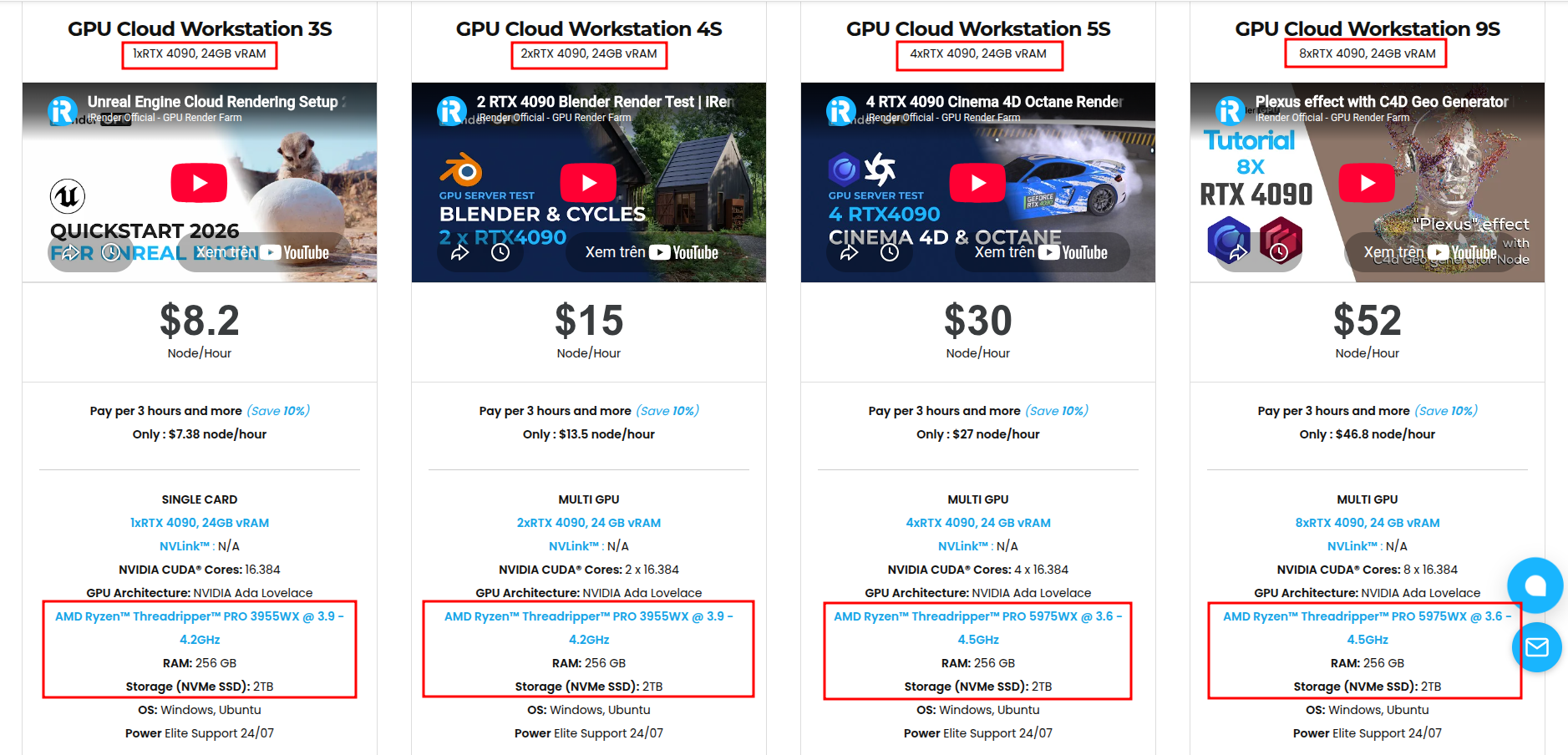
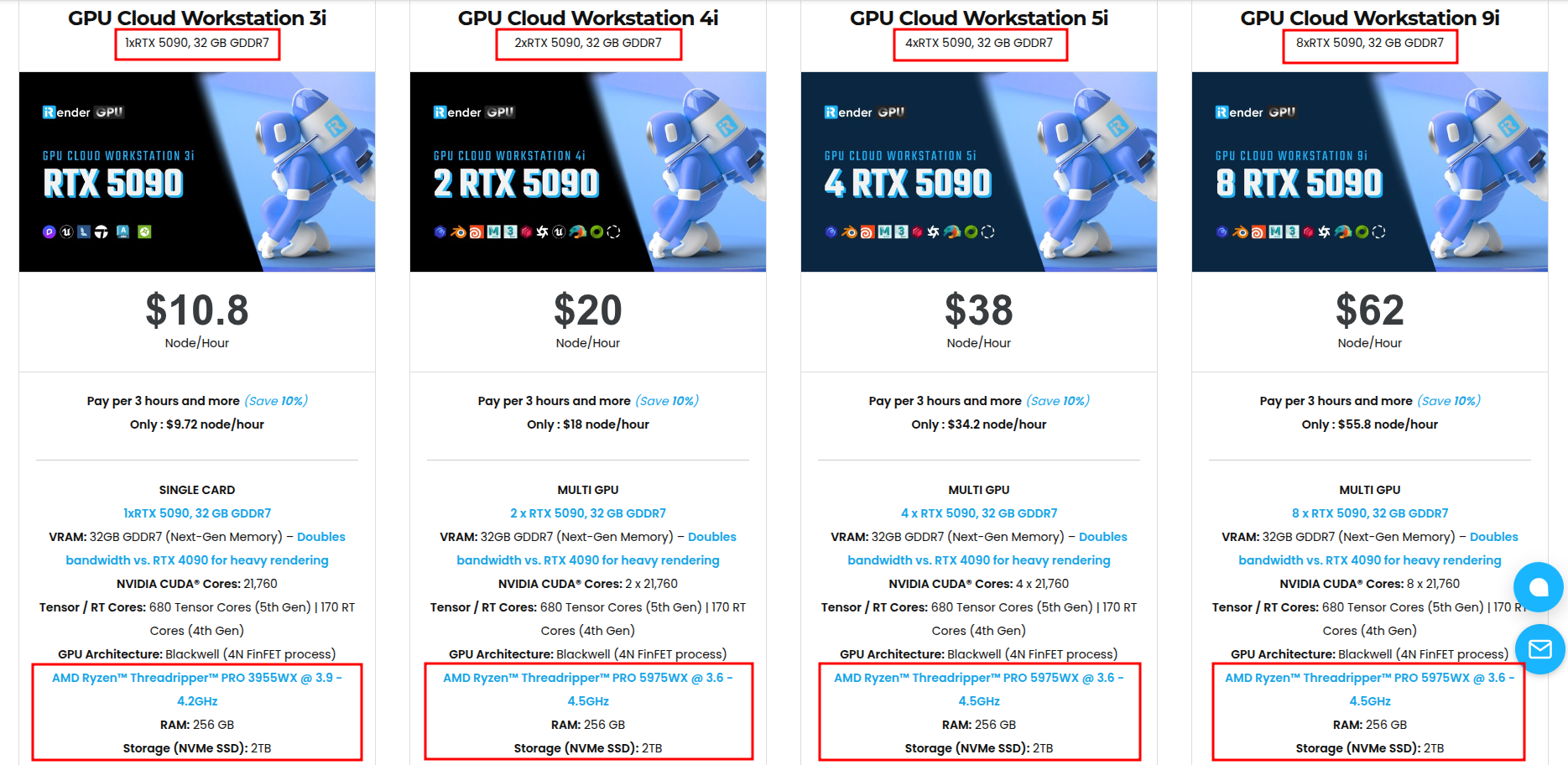
iRender currently offers cloud workstations with RTX 4090 GPUs with 24GB VRAM and RTX 5090 GPUs with 32GB VRAM. Its current pricing page also lists multi-GPU RTX 5090 configurations.
There is one important limitation for viewport work. You interact with the cloud workstation remotely, so network latency becomes part of how responsive Houdini feels. More GPU power does not automatically guarantee smoother camera navigation if the remote connection itself adds noticeable delay. For interactive work, test your actual scene in a short session before committing to longer usage.
Available configurations include:
- CPU: AMD Ryzen™ Threadripper™ PRO 3955WX (3.9-4.2GHz) and AMD Ryzen™ Threadripper™ PRO 5975WX (3.6-4.5GHz)
- GPU: 2/4/8 RTX 4090 with 24GB vRAM and 1/2/4/8 RTX 5090 with 32GB vRAM
For new users, iRender currently offers a 100% bonus on the first deposit within 24 hrs of registration, giving you additional rendering credits to get started with larger projects.
Maximum Speed – Absolute Freedom
Source: SideFX Docs
Let’s see how our service works:


FAQ
1. Why is my Houdini viewport slow after loading a heavy cache?
The two main causes are too much data for the viewport to draw efficiently or insufficient GPU VRAM. If changing display settings such as packed geometry culling improves performance significantly, the display workload was likely the main issue. If VRAM is exhausted and geometry starts disappearing or Houdini becomes sluggish, GPU memory may be the limiting factor. Identify the cause first because each problem requires a different fix.
2. Do packed primitives make the viewport faster?
They can. Packed primitives reduce data duplication and allow shared geometry to be referenced rather than repeatedly stored as separate geometry. However, displaying packed primitives as full geometry can still be expensive in a very heavy scene. When you do not need the detail, switch their viewport representation to a bounding box or centroid.
3. What is the single most effective viewport setting to change?
There is no single setting that will be fastest for every scene. For lighting specifically, SideFX identifies Scene Lights as the most expensive high-quality lighting mode and recommends switching to Work Lights for a significant performance improvement, particularly in scenes with many or complex lights. For geometry-heavy scenes, packed geometry culling, simpler packed display modes, and Remove Backfaces may have a greater impact depending on what is slowing the viewport.
Related Posts
The latest creative news from Houdini Cloud Rendering , 3D VFX Plugins & Cloud Rendering.





