
How to Fix OctaneRender Getting Slower with Each Frame in Cinema 4D?
If you’re rendering animations in Octane Render and notice that each frame takes longer than the previous one, even though the frames look almost identical, you’re not alone. This frustrating issue often appears in long animation sequences and can significantly slow down your render times.
Let’s iRender break down why this happens and how to fix it step-by-step to keep your Octane renders consistent and efficient.
The Symptom and Why This Happens
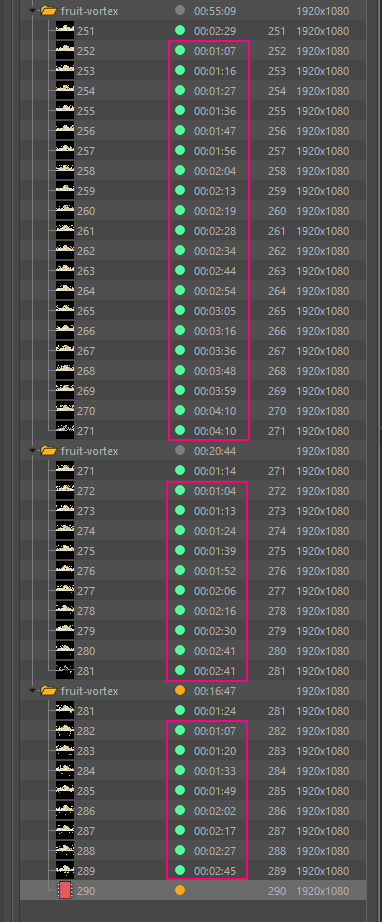
For example, you start rendering an animation in Octane Render, and everything seems fine at first: frame 1 renders in 30 seconds, frame 2 in 32 seconds, frame 3 in 35 seconds…By the time you hit frame 50, your render time has doubled.
This is a common issue among Octane users and usually happens due to GPU memory buildup, outdated Octane or NVIDIA drivers, or render settings that keep unnecessary data between frames.
Luckily, the fix is simple. Before diving deep into your scene setup, try these quick and effective solutions below that often resolve the problem instantly. These steps usually stabilize render times and stop Octane from getting slower with each frame
How to Fix the Issue
1. Restart The Machine to Clear GPU Memory
Sometimes, Octane’s GPU cache or system memory holds onto leftover data between render sessions, especially after long animation tests.
A simple system restart clears your GPU memory and resets Octane’s internal cache. It’s the easiest first step to ensure your next render starts clean. To restart the server, you can click the Power icon and choose Restart.
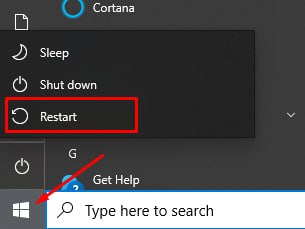
* Tip: If you’re rendering multiple animation jobs in a row, reboot your system (or restart the render node) before each batch. We recommend rendering your project frame by frame instead of as a video. This way, if the machine encounters any issue during the process, all previously rendered frames will still be saved.
2. Update Octane Render and NVIDIA Drivers
Keeping both OctaneRender and your NVIDIA drivers up to date ensures your system uses the latest performance optimizations, bug fixes, and GPU memory management improvements from both OTOY and NVIDIA.
Update Octane Render
- Visit the OTOY downloads page and check for the latest stable version of OctaneRender for Cinema 4D.
- Always prefer stable releases over experimental builds unless you’re specifically testing new features.
- After updating, restart Cinema 4D and clear your render cache to ensure the new plugin loads cleanly.
Update NVIDIA Drivers
- On the iRender servers, you can right-click on the desktop and click the NVIDIA Control Panel to check if it is the latest version.
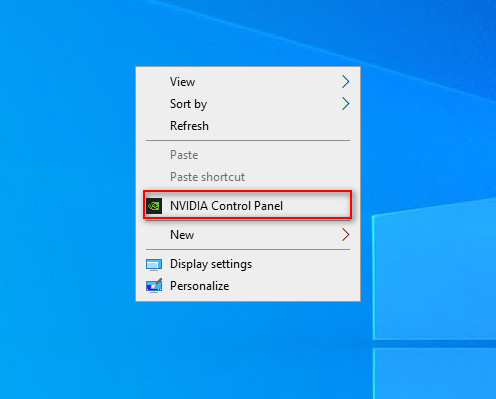
- If it is not the latest version, you can update the NVIDIA Studio Driver. You can always go to X drive of the remote machine, then take the latest driver to the remote desktop and run it. After updating the latest version of the NVIDIA Studio Driver, you need to restart your computer. Wait for 2-5 minutes, then reconnect to the remote server.

3. Adjust Octane Render Settings to “Resend All Scene Data”
If you notice that each frame in your animation renders slower than the previous one, the problem often comes from Octane not properly clearing scene data between frames. Over time, unused geometry, textures, or motion blur data can pile up in GPU memory, causing longer load times and slower renders as the animation progresses.
To reload the entire scene for every frame:
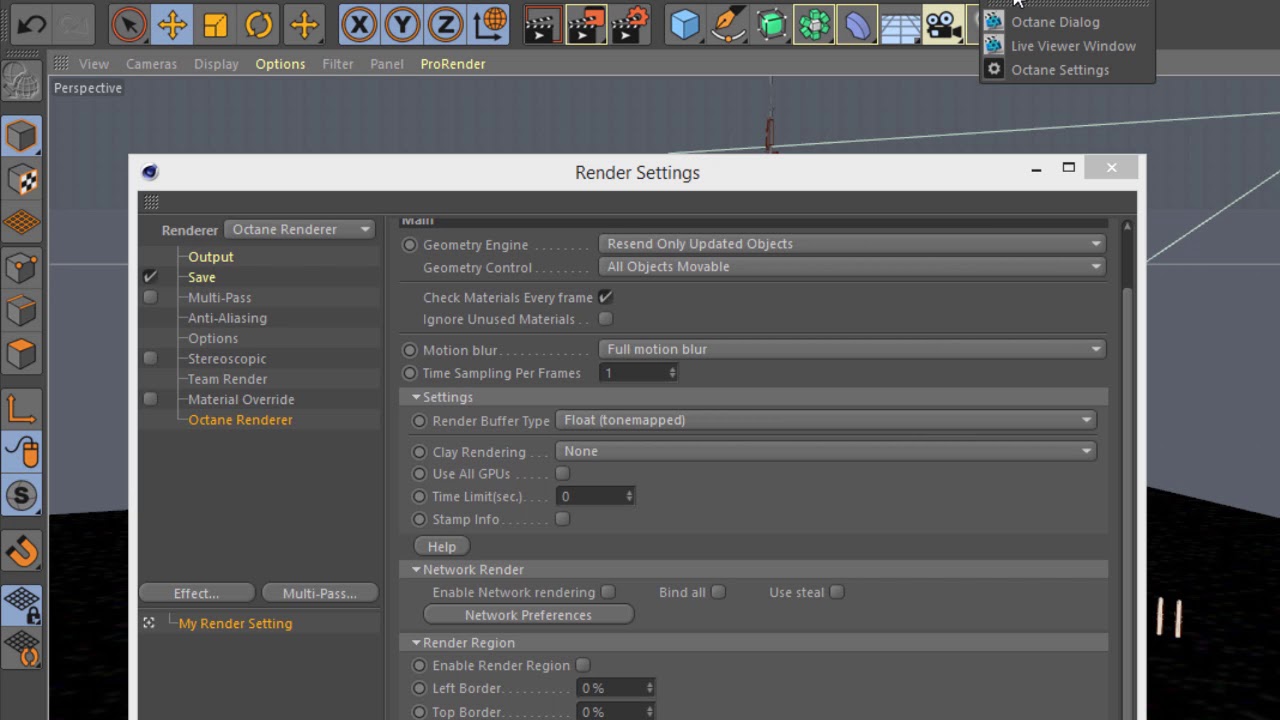
- Open Render Settings in Cinema 4D.
- Go to Octane Renderer → Main Tab → Geometry Engine.
- Change the setting from “Resend Only Updated Objects” to “Resend All Scene Data (Deprecated)”.
- Save your render settings and restart your render.
This forces Octane to clear old geometry and material data from GPU memory before rendering each frame. As a result, every frame starts clean, preventing the gradual slowdown that happens when data accumulates in memory over time.
Render faster on Octane Render with iRender’s Cinema 4D servers
iRender stands out as one of the most powerful and flexible rendering platforms available for Octane and Cinema4D users. iRender provides instant access to high-performance GPU servers, featuring top-tier hardware like the RTX 4090. Most importantly, we always update to the latest GPU technology, with options including 1/2/4/6/8 RTX 4090. We also have all servers with Cinema4D preinstalled and provide you with one license for free to use.
Under the IaaS (Infrastructure as a Service) model, you will have full control over the machine via a remote desktop app, similar to TeamViewer but more stable. You will be able to proactively install the software and use it on the server just like using a personal computer. In addition, you can find many server packages with high-end configurations that are extremely suitable for complex projects.
We’ve put the RTX 4090 and RTX 3090 to the test across different GPU configurations (1/2/4/6/8 GPUs) and the results are mind-blowing. In this video, we compare performance across 1, 2, 4, 6, and 8 GPUs to see how well Octane scales with more power. Let’s watch the results and find out which GPU configuration offers the best balance of speed and efficiency!

Why choose iRender?
- Rent machines with multiple GPUs (up to 8x RTX 4090)
- Flexible pricing based on your workflow
- Instant scaling—great for deadline crunches
- Perfect support for Redshift, Octane, Arnold, and more
- Access from Windows or macOS
Instead of spending thousands on hardware upgrades, you can scale your power only when you need it.
Below is information about iRender’s service packages:
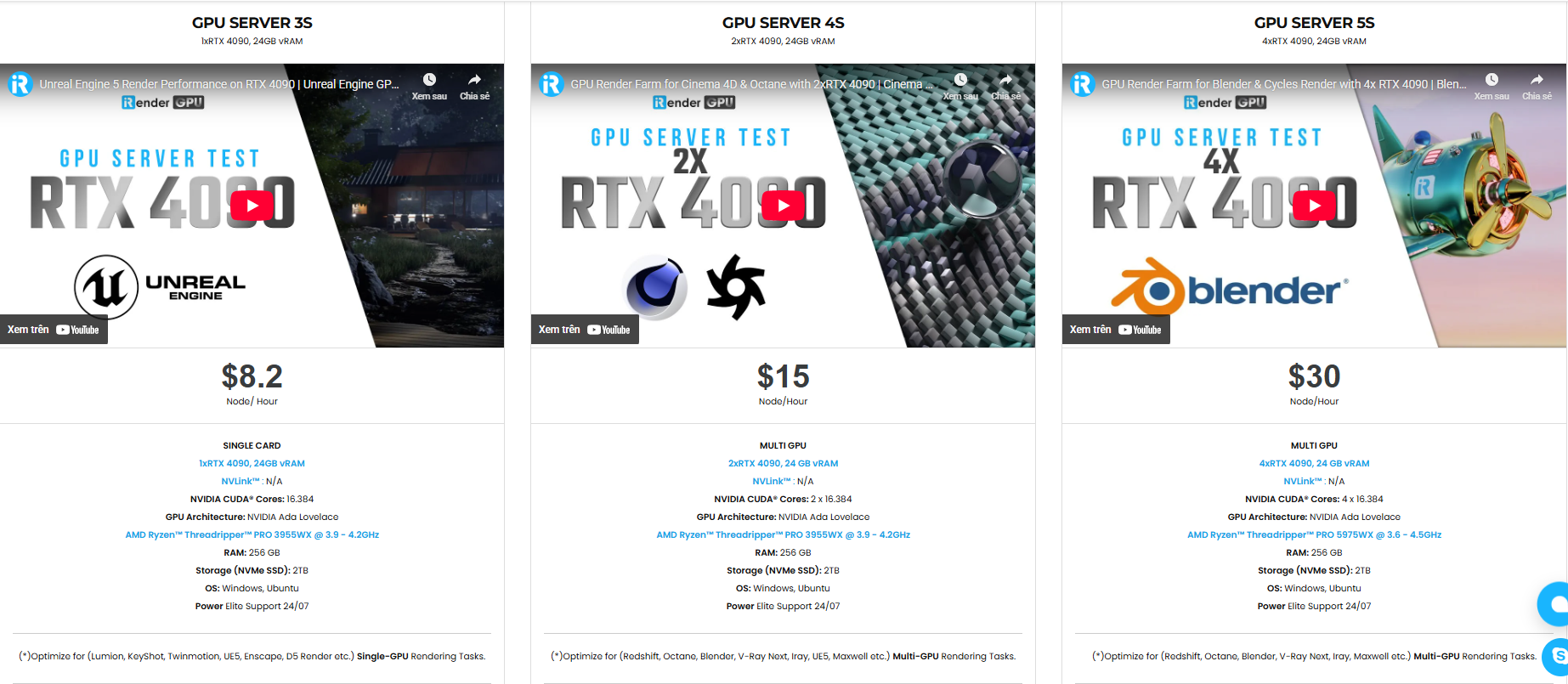
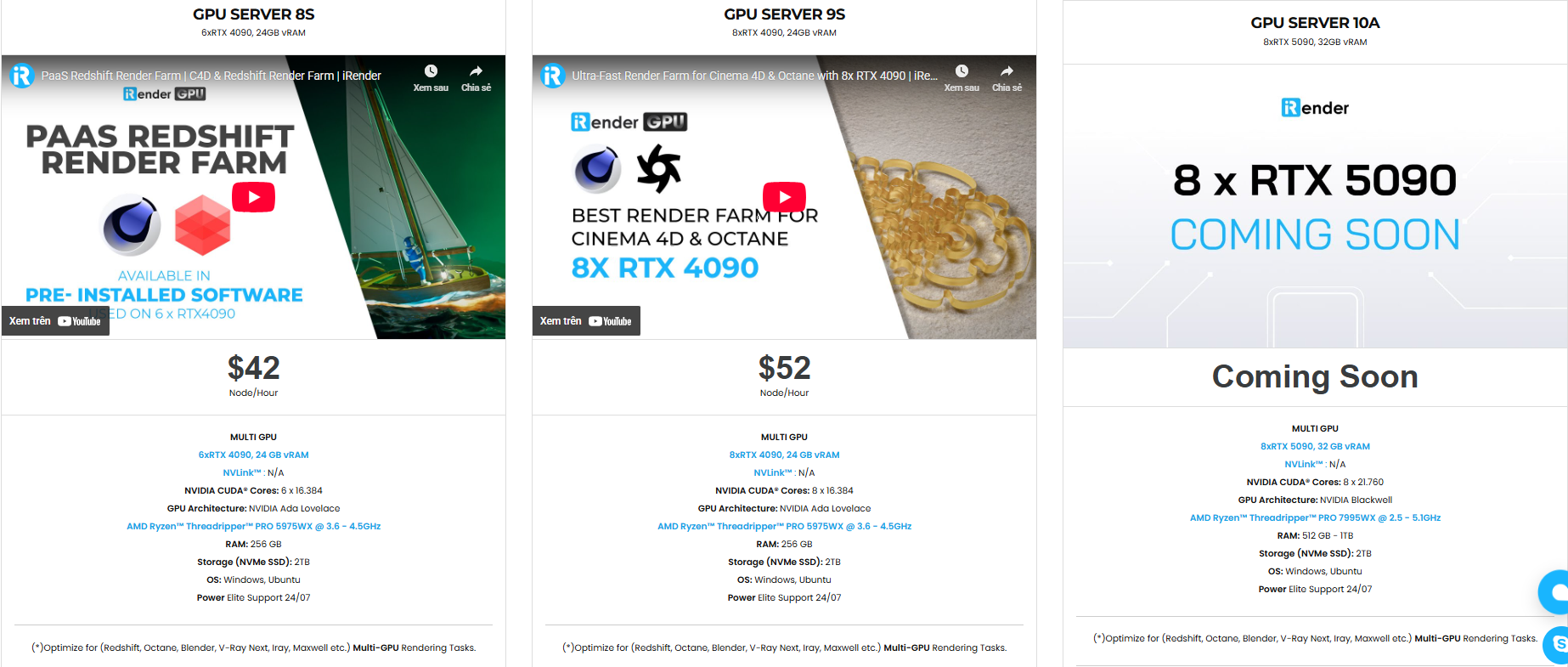
We’re always happy to help you with any questions. If you have any problems or questions, don’t hesitate to contact our 24/7 support team. Or via Whatsapp: 0912 785 500 for free advice and support.
Right now, iRender has a SPECIAL PROMOTION program with a 100% bonus for the first transaction within 24 hours of your registration. It means that you can get an extra 100% of the money you recharged the first time. And points never expire, so you can use them at any time.
Sign up for an account today to experience and enjoy our services.
Thank you & Happy Rendering!
Source and image: help.otoy.com

Related Posts
The latest creative news from Octane Cloud Rendering





