
How to Stop Lumion from Freezing or Crashing?
Lumion is one of the most popular real-time rendering tools for architects and 3D designers. Its ease of use and speed make it a favorite, but sometimes users run into a frustrating issue: Lumion not responding, hanging, or crashing during projects. This can occur when importing large models, rendering high-resolution videos, or simply navigating the scene.
In this blog, iRender will share common reasons why Lumion may become unresponsive and practical tips to prevent it from happening.
Common Reasons Why Lumion Freezes or Crashes
If Lumion is not responding during rendering, the issue is often due to several reasons:
- Hardware issues: Your PC may not meet Lumion’s system requirements.
- Heavy models: Large or unoptimized 3D models can overload the software.
- Outdated drivers: Old GPU drivers often lead to instability.
- Lumion settings: High editor quality or demanding effects may cause slowdowns.
- Corrupted files: Damaged projects or import files can trigger crashes.
How to Make Lumion Run Smoothly Again?
1. Adjust NVIDIA Power Management Settings
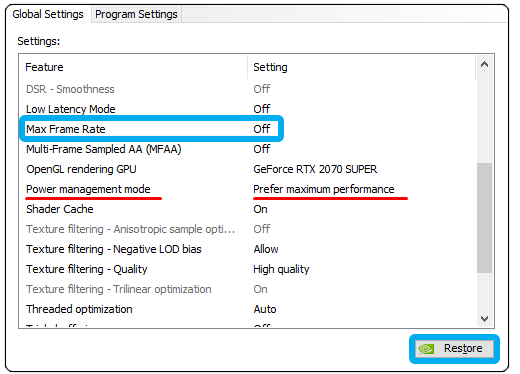
By default, your graphics card may not always run at its maximum performance, which can cause Lumion to appear unresponsive—especially when opening large project files. To resolve this issue, navigate to the NVIDIA Control Panel and set the Power Management mode for Lumion to “Prefer maximum performance.”
This ensures your GPU is running at full capacity whenever Lumion is active. Please note that large Lumion files can still take some time to load and may temporarily display a “Not Responding” message. In most cases this is normal, so please be patient and let the file finish opening.
2. Adjust Lumion’s Internal Settings
Tweak Lumion’s built-in quality settings so your system isn’t overwhelmed. By adjusting these internal settings, you can keep Lumion responsive while building scenes and reserve full quality settings for your final renders.
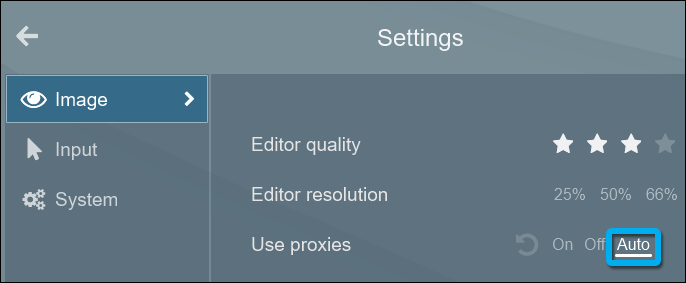
Use Proxies (Auto / On):
In Lumion 11 and later, Set Use proxies to On or Auto so complex imported models can be temporarily replaced with simpler wireframe boxes while editing, which helps maintain smoother frame rates:
Lower Editor Resolution & Quality:
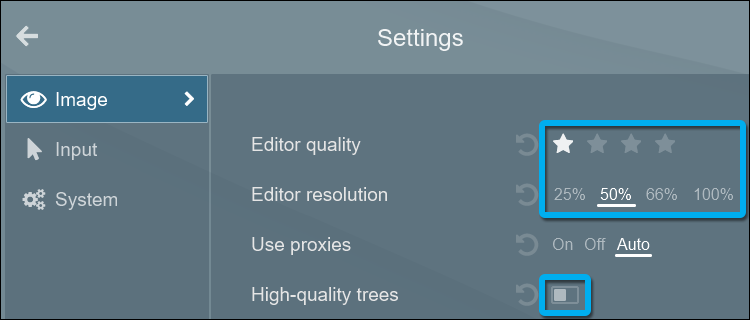
Lumion has to render fewer pixels and less detail, which eases GPU and memory load. Turn off “Enable high-quality trees” (and in older versions, “high-quality terrain”) to reduce rendering stress.
- Set the Editor Resolution to a lower percentage than 100% on the Settings screen.
- Set the Editor Quality to a lower star quality on the Settings screen.
- Turn off Enable high-quality trees on the Settings screen.
3. Keep Your Software and Drivers Up to Date
If you’re using a cracked or outdated version, instability is almost guaranteed. Make sure to install the latest official Lumion release and check Lumion’s forums or release notes for bug fixes.
If you’re using GPU rendering, installing the latest NVIDIA Studio Drivers is crucial. On the iRender servers, you can right-click on the desktop and click the NVIDIA Control Panel to check if it is the latest version.
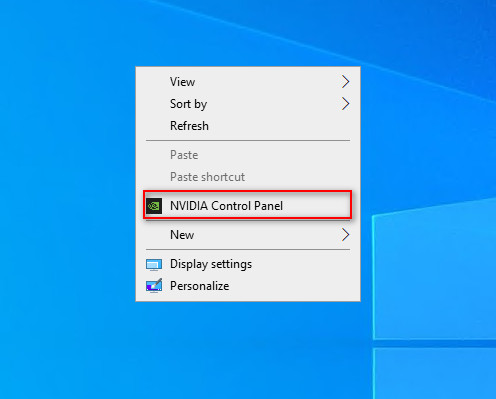
If it is not the latest version, you can update the NVIDIA Studio Driver. You can always go to X drive of the remote machine, then take the latest driver to the remote desktop and run it. After the latest version of NVIDIA Studio Driver is updated, you need to restart the computer. Wait for 2-5 minutes, then reconnect to the remote server.

Conclusion
Lumion is a powerful tool, but like any real-time rendering software, it needs the right hardware, optimized models, and careful settings to stay stable. By following the tips above, you can minimize crashes and keep your workflow smooth.
However, if your projects are too heavy for your current PC, upgrading isn’t the only option. With a render farm like iRender, you can access high-performance RTX GPUs optimized for Lumion. This lets you handle large scenes, complex animations, and high-quality renders without worrying about your local machine crashing or slowing down.
Maximize Stability and Speed in Lumion with iRender
If you’ve ever found yourself limited by your hardware when working with large models or rendering high-quality Lumion scenes, iRender high-performance cloud GPU service is the perfect solution. With powerful, customizable remote workstations optimized for Lumion, iRender enables you to:
- Render faster and in higher resolution without upgrading your local PC
- Work from anywhere, directly in your Lumion environment
- Access powerful GPUs on demand, including support for real-time rendering with LiveSync
- Scale your projects: whether you’re a solo architect or a full studio
iRender is proud to be one of the best GPU service providers on the market. We provide you with high-configuration models with advanced specifications such as AMD Ryzen™ Threadripper™ PRO 3955WX @ 3.9 – 4.2GHz or AMD Ryzen™ Threadripper™ PRO 5975WX @ 3.6 – 4.5GHz, 256GB RAM, 2TB NVMe SSD storage. Most importantly, we always update to the latest GPU technology, with 1/2/4 RTX4090.
With the benefits that iRender brings to you, as well as the configuration that is very suitable for all versions of Lumion, do not hesitate to use the service at iRender to have a great experience with your rendering time. Under the IaaS (Infrastructure as a Service) model, you will have full control over the entire rendering process and use it as your machine. Therefore, you can install any software and plug-ins you want, add your license, and render or modify your project yourself.
Below is information about our 3S package, which is the most suitable for Lumion:
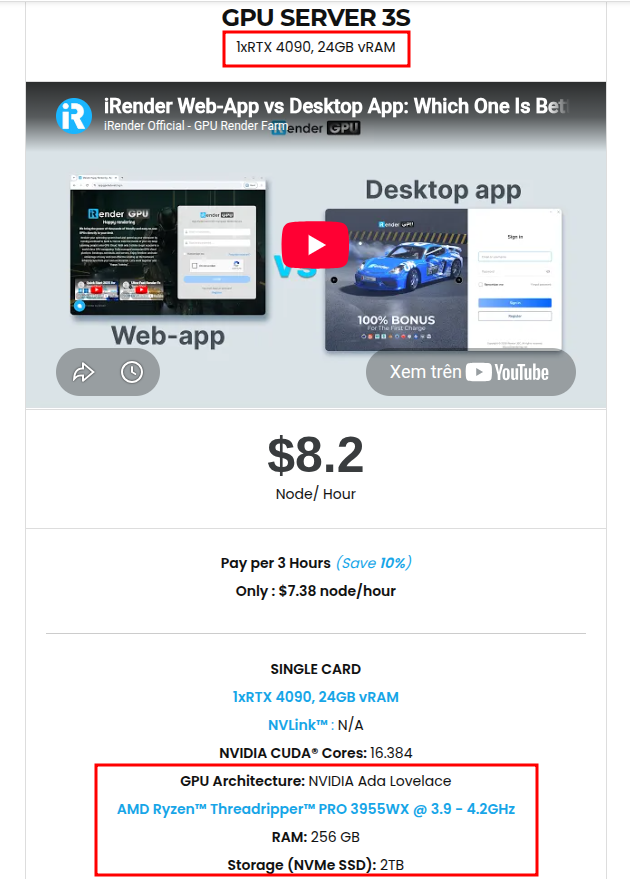
Not only does it have powerful configurations, but iRender also provides you with many more services. Free and convenient transfer tool, iRender drive for macOS and Linux users. For Windows users, we recommend the iRender GPU application, you will not need to access our website anymore. The price at iRender is also very flexible with hourly rental (pay as you use), and daily/weekly/monthly rental with 10% discount.
We’re always happy to help you with any questions. If you have any problems or questions, don’t hesitate to contact our support team. Or via Whatsapp: 0912 785 500 for free advice and support.
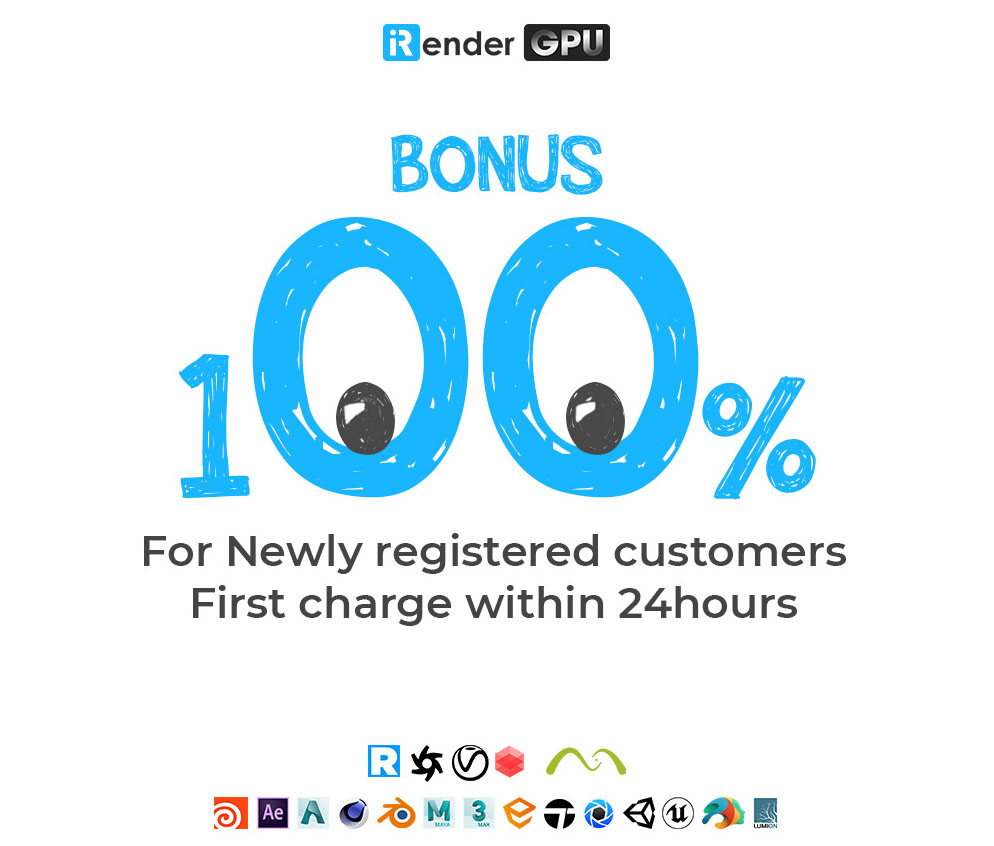
Right now iRender has a SPECIAL PROMOTION program with a 100% bonus for the first transaction within 24 hours of your registration. It means that you can get an extra 100% of the money you recharged the first time. And points never expire, so you can use them at any time.
Sign up for an account today to experience and enjoy our services.
Thank you & Happy Rendering!
Source and image:support.lumion.com
Related Posts
The latest creative news from Lumion Cloud Rendering





