
How to fix render errors or slow performance in Lumion?
Users of Lumion may occasionally experience slow performance or rendering errors, which can disrupt their workflow and lead to frustration. Rendering errors in Lumion can stem from various factors, impacting both the quality of the output and the efficiency of the rendering process. There are several steps you can take to troubleshoot and improve performance.
To resolve these issues, let’s discuss with iRender in this blog’ How to fix render errors or slow performance in Lumion’.
The common causes of render errors or slow performance
Render errors or slow performance in Lumion can come from a mix of hardware, software, and scene-related issues.
- A weak GPU or insufficient VRAM can quickly lead to rendering errors or slow performance, particularly when handling high-resolution textures or complex models.
- Low system RAM limits the software’s ability to process large projects.
- Furthermore, outdated drivers also contribute to compatibility issues. Inadequate or unbalanced hardware is one of the primary reasons behind slow rendering in Lumion.
- Sometimes, performance issues arise not from hardware but from how Lumion is configured. Rendering at extremely high resolutions or enabling too many post-processing effects can cause unnecessary strain or errors.
- Running multiple background applications simultaneously may also consume memory and GPU resources.
In short, there are lots of various reasons that cause render errors or slow performance in Lumion.
So, how to solve these problems? Let’s move on to the next part to discuss.

How to fix render errors or slow performance in Lumion?
Change Output Settings
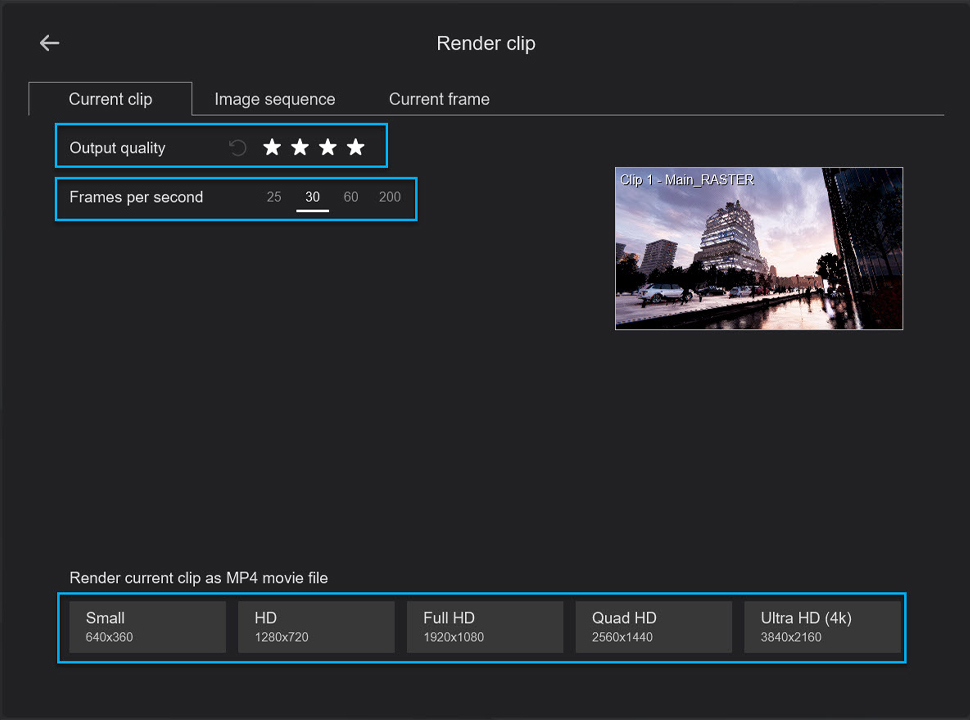
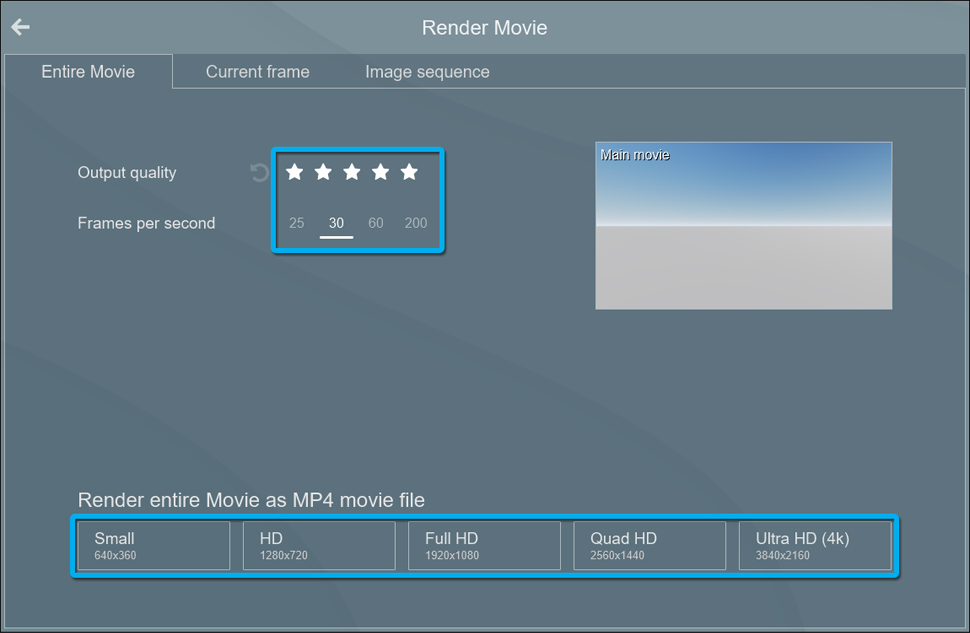
Changing output settings in Lumion is a practical way to shorten render times while still achieving decent visual quality. You can also shorten render times by reducing the Output quality, the Frames and the Output resolution.
For example, rendering a Clip at 1280×720 pixels in 3-star quality is a lot faster than rendering the Clip at 3840×2160 pixels in 5-star quality.
You can reduce Frame rate. If you’re rendering animations, consider lowering the frame rate from 60fps to 30fps. This can cut down the number of frames that need to be rendered. Also, you should consider rendering per Clip where only a specific Clip might need higher frame rates, rather than for all Clips.
Version 2023 and newer:
Version 12.5 and older:
Optimize Effects & Scene Complexity in Lumion
To optimize scene complexity and effects in Lumion, you can reduce Texture Resolution by using lower-resolution textures where high detail is not necessary. Aim for texture sizes that balance quality and performance (for example, 1024×1024 instead of 4096×4096).
Besides, you should simplify your 3D models. Many 3D libraries provide optimized versions of objects that look good while using fewer resources. If possible, replace highly detailed models such as trees, furniture, or vehicles with Lumion’s built-in assets because they are designed to render efficiently.
Solve the problems when working on iRender servers
Render and set output path on C drive/desktop
When you working on iRender servers, we suggest you work on C drive or Desktop. Opening files from C drive or Desktop can prevent the project from being crashed or render slow. If you open the Lumion file directly from Z drive, it’s likely to cause a crash due to loss of connection. So, remember to move your file to the Desktop before opening it.
Update NVIDIA Studio driver
At first, you should check the NVIDIA driver version to see if it is the latest version or not.
Right-click on Desktop » click NVIDIA Control Panel.
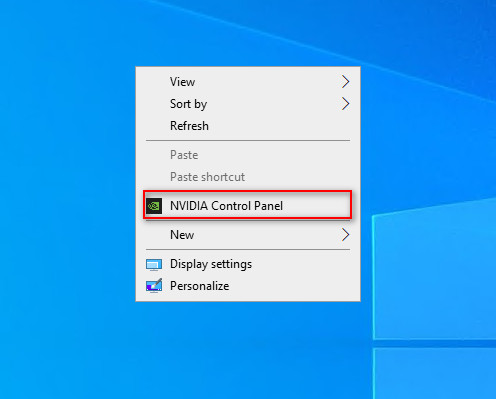
If it is not the latest version, you can update NVIDIA Studio Driver. You can always go to X drive of the remote machine, then click the part’ 11. NVIDIA RTX 4090 DRIVER > Studio > take the latest driver to the remote desktop and run it.

After the latest version of NVIDIA Studio Driver is updated, you need to restart the computer. Wait for 2-5 minutes, then reconnect to the remote server, and start using the server as normal.
Turn on Hardware-accelerated GPU
Hardware Accelerated GPU Scheduling enables more efficient GPU scheduling between applications. This reduces latency & increases video playback performance. Therefore, when you got Lumion error or slow performance, you should enable Hardware Acceleration.
To enable hardware-accelerated GPU scheduling using Windows 11/10 Settings, follow this procedure:
- Open Settings
- Select System > Display tab
- Locate Multiple displays
- Click on Graphics Settings
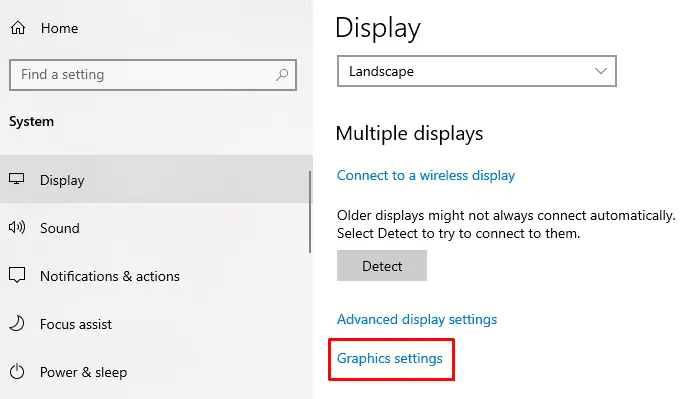
To enable the feature, toggle ON the button next to the Hardware-accelerated GPU scheduling.
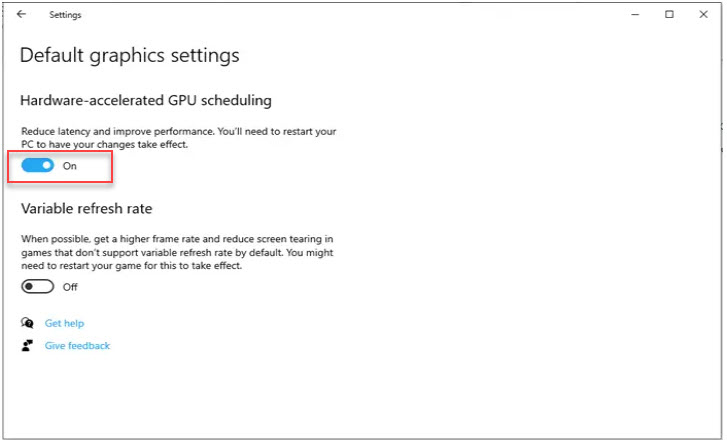
After that, you should also restart the server and then connect again after a few minutes to work normally.
Why should you use iRender for Lumion rendering?
iRender is a render farm that provides high-powered servers and GPUs for users. If you want to accelerate Lumion rendering, especially for complex scenes or tight deadlines, iRender is the best option. You will only need to install your software Lumion for the first time, add your license to render your project as you want. Next time you connect to the computer everything is ready for use.
As Lumion only uses single card, we suggest you use our server 3s single card RTX 4090 for speeding up your Lumion rendering. You can check its configuration following:
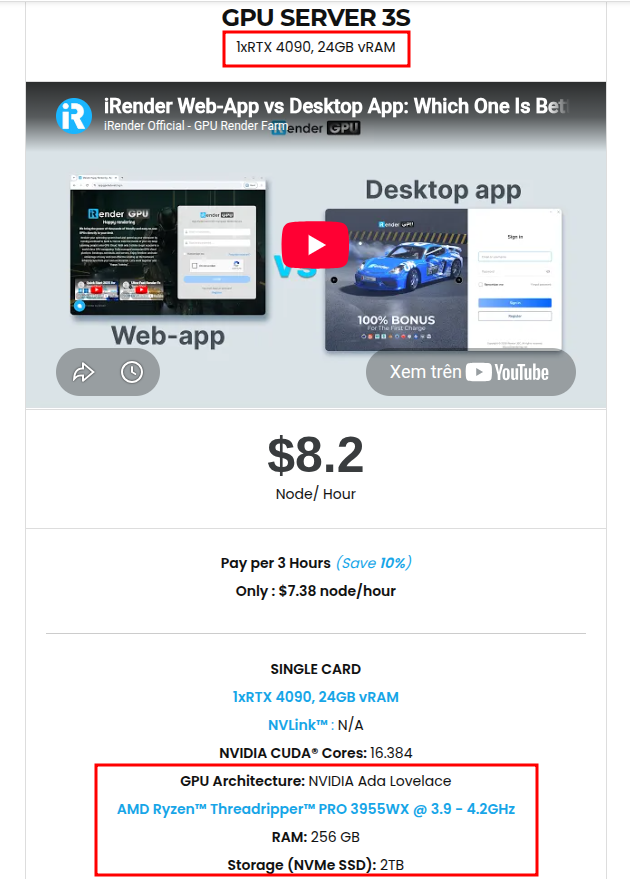
Our server 3s is equiped with strong CPU AMD Ryzen Threadripper processor, 24 GB V-RAM, 256 GB RAM, 2 TB of storage (NVMe SSD). This server costs $8.2 for 1 hour of rental (minimum), allows you to test out the newest card and enjoy using it in a customized pipeline just like you always had with your own PC.
We suggest Windows users work with our all-in-one application, iRender GPU instead of coming our website. For Linux or macOS users, we provide a helpful and free transferring program called iRender drive.
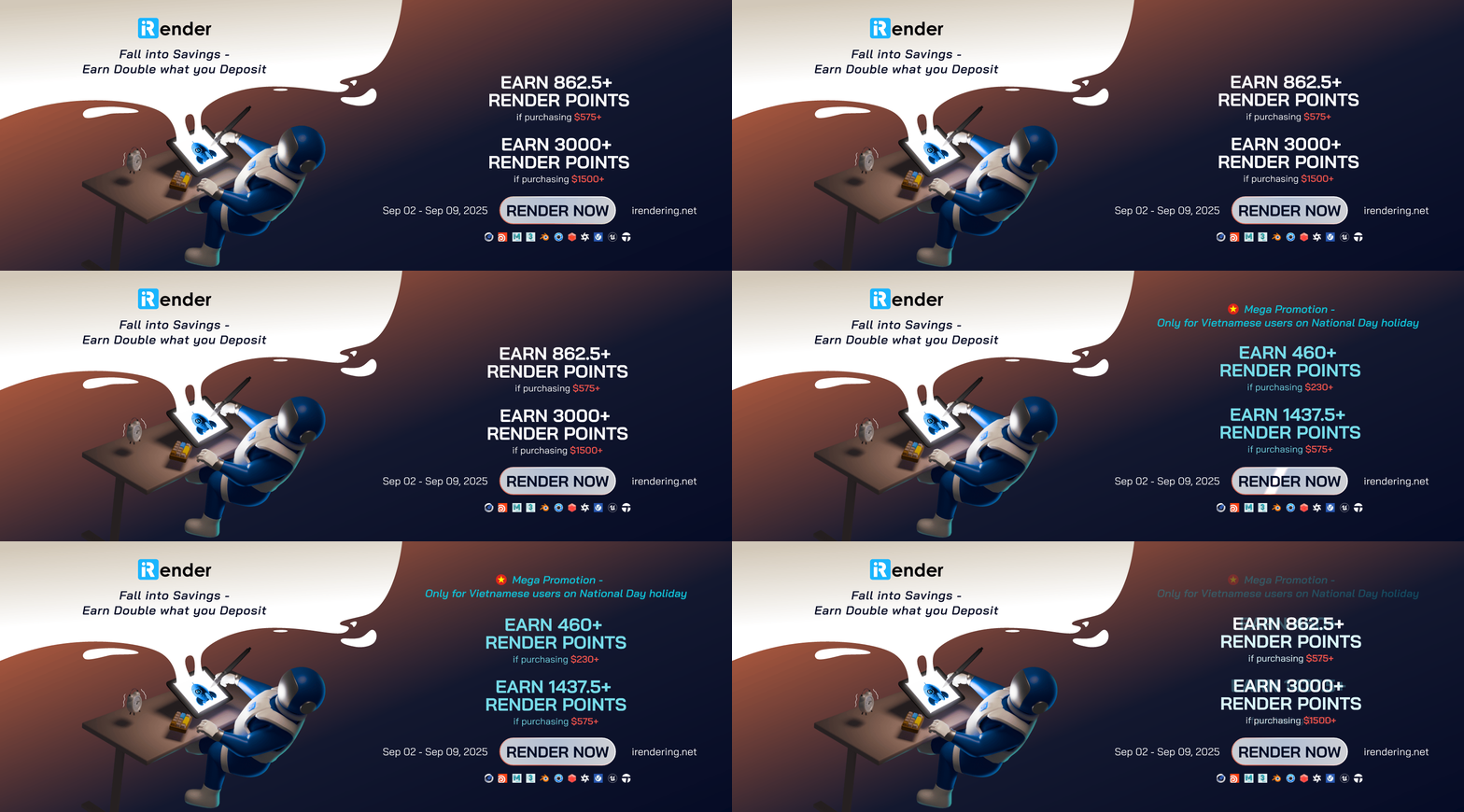
On the occasion of Independence Day, we are pleased to present an exclusive rewards promotion:
- Earn 862.5+ render points with purchases of $575 or more
- Earn 3000+ render points with purchases of $1500 or more
This limited-time offer is designed to provide additional value for your creative projects. Take advantage of these rewards and maximize your rendering potential this holiday season.
In case you have any problems or questions, don’t hesitate to contact the support team. We will be happy to help you with your questions and problems at all times.
Happy Rendering!
Related Posts
The latest creative news from Lumion Cloud Rendering , 3D VFX Plugins Cloud Rendering





