
How to troubleshoot errors or slow performance in Houdini?
Houdini, a procedural 3D animation and VFX tool developed by SideFX, is known for its flexibility and power in creating complex simulations and visual effects. However, as scene complexity increases, many 3D artists often encounter some problems during rendering.
This blog will discuss about the topic’ How to troubleshoot errors or slow performance in Houdini?‘ Let’s get started!
Why do error or slow performance happen?
Hardware Limitations
Houdini relies heavily on the CPU, and insufficient processing power can lead to slow performance. Houdini can consume a lot of memory. Having insufficient RAM can result in crashes or sluggish performance.
If your GPU isn’t powerful enough or if the drivers are outdated, slow rendering can occur.
Software Issues
If you’re running an older version of Houdini or using outdated GPU drivers, you will likely encounter compatibility issues. This can cause unexpected crashes, making your workflow unstable, which leads to errors or slow rendering in Houdini.
Plugin or Engine Conflicts
Houdini supports a wide range of third-party render engines and plugins, such as Redshift, Arnold, V-Ray, and Octane, to extend its rendering capabilities. However, conflicts between different render engines or mismatched plugin versions can cause a variety of issues, including crashes, errors, or slow performance.
Some error cases in Houdini rendering and how to fix
Case 1:
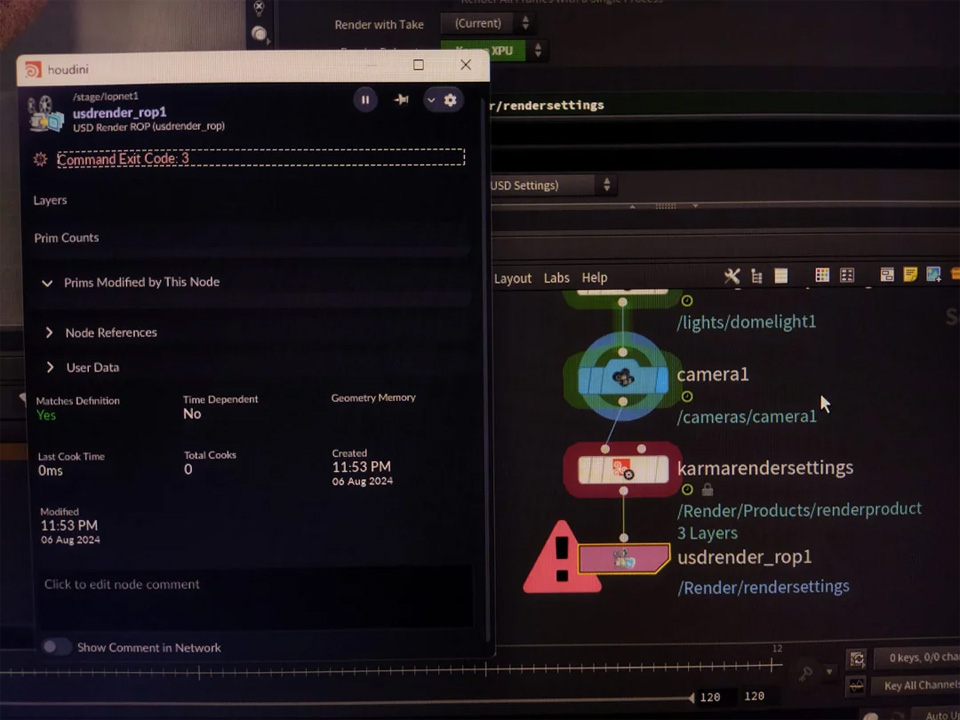
Sometime you got this error occuring while hitting the render option in Karma renderer in Houdini.
Solution:
This error happens because you might miss selecting the Houdini Karma licence while setting up the installation process using the keygen. Therefore, you should make sure that you copy and paste the Karma license into the manual license installation process.
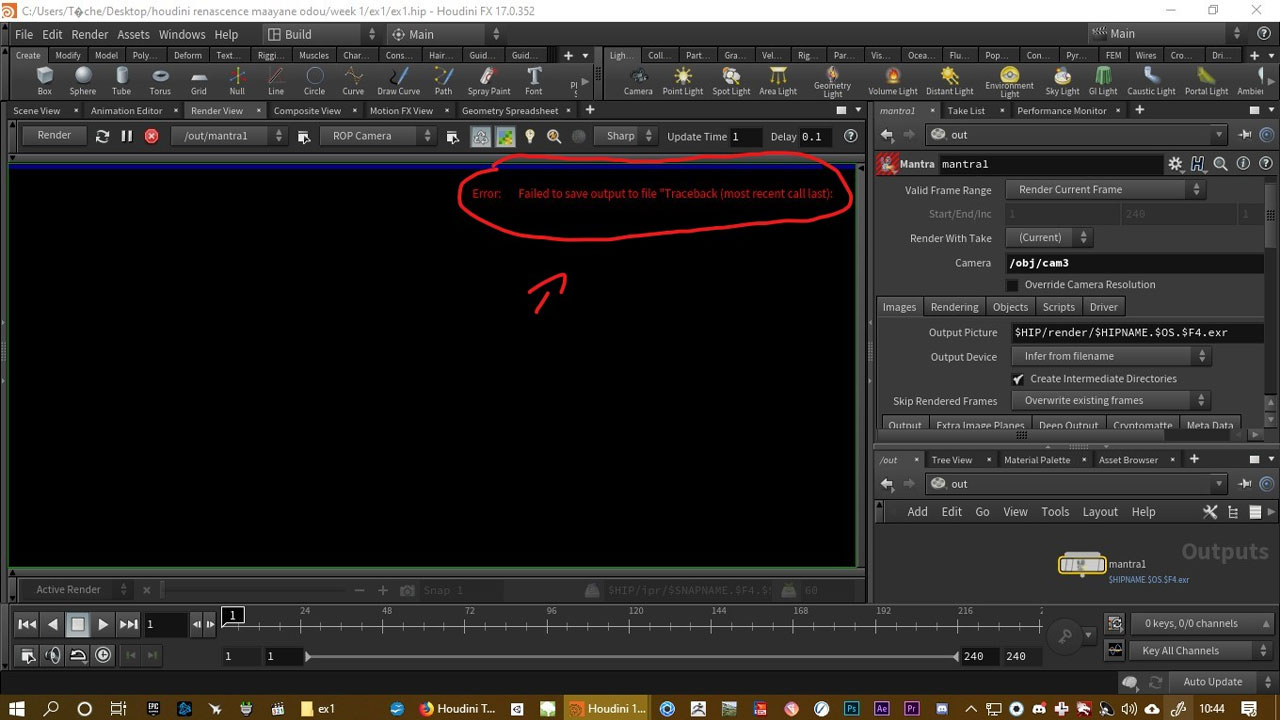
Case 2: “Failed to save output to file “Traceback (most recent call last)
Here is the case our user used to encounter.
When he went to the render viewport in Houdini 17.0.352, he got the following message “Error : failed to save output to file “traceback (most recent call last):” He was trying to render a frame manually (save to jpeg), which also led to an error.
Solution:
It happens when you have non-Latin characters in your user account name.
Your account and computer name should always be in Latin characters. It’s important for many programs to work properly, not only Houdini.
How to troubleshoot errors or slow performance in Houdini?
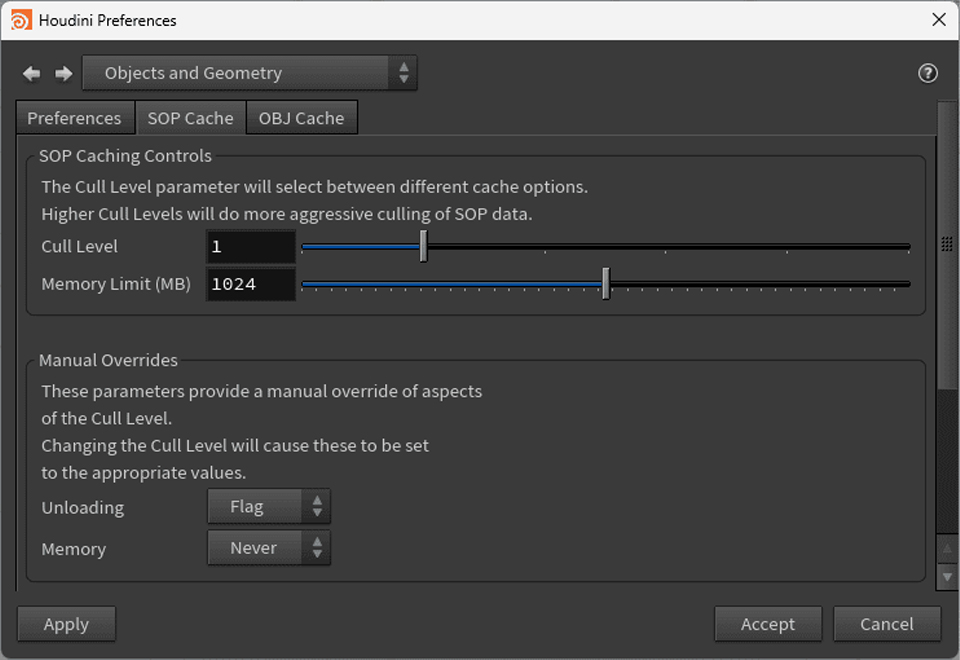
Optimize Houdini Preferences
Even if your computer meets Houdini’s hardware requirements, the software can still crash or run slowly. This often happens because of incorrect settings inside Houdini. Changing some preferences can help make Houdini more stable. It can also help the software run more smoothly, especially when working on complex projects.
Address GPU-Specific Issues
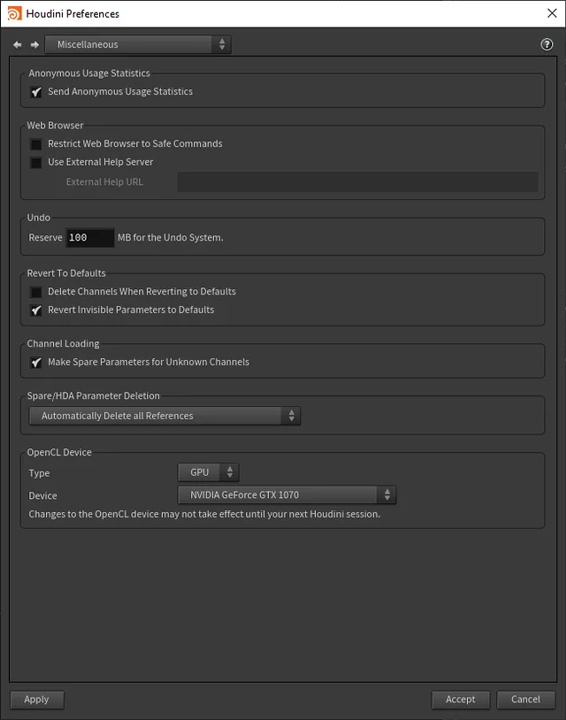
GPUs are very important for Houdini’s performance. They help speed up tasks like OpenCL acceleration, high-resolution textures, and real-time simulations. However, if the GPU is not supported, it can cause errors or slow rendering.
Therefore, you can try switching between OpenCL and CUDA rendering modes by going to Preferences > Miscellaneous> OpenCL.
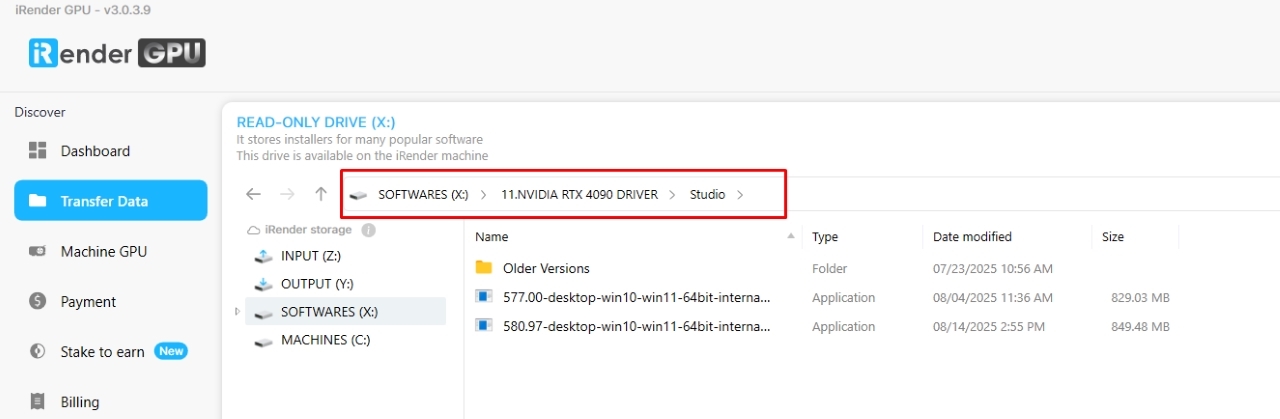
Update NVIDIA Studio Driver
Keeping your drivers up to date is one of the simplest yet most effective ways to prevent Houdini errors. Outdated GPU drivers, in particular, are a common cause of instability, slow performance so you should update to the latest driver to fix this issues.
Please follow the following steps:
Step 1: Go to the X: Drive on the remote machine and open the folder: 11. NVIDIA RTX 4090 DRIVER > Studio
Step 2: Find the latest Studio Driver installer
Step 3: Copy it to the remote desktop and run it.
Step 4: After installation, restart the machine.
Turn on Hardware-Accelerated GPU
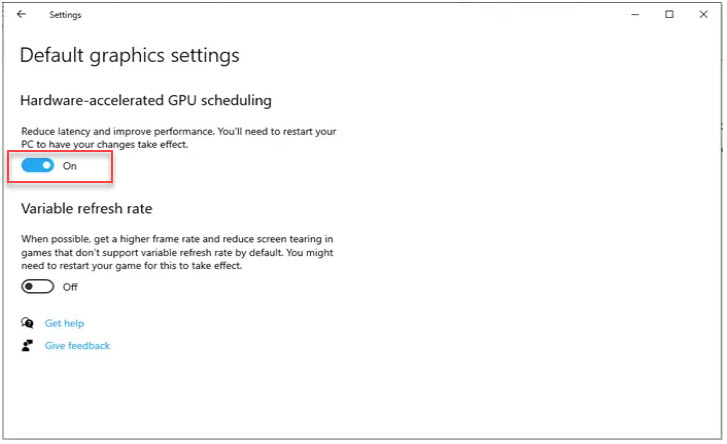
Turning on Hardware-Accelerated GPU rendering can help fix some rendering errors in Houdini. You can follow all the steps following:
Step 1: Open Windows Settings> Go to: System → Display
Step 2: Access Graphics Settings. Click on Graphics Settings under Multiple Displays
Step 3: Locate: Hardware-accelerated GPU scheduling then switch the toggle to ON
Step 4: Restart the machine
Conclusion
All in all, errors or slow rendering in Houdini can be very frustrating. But that doesn’t mean you can’t stay on schedule. You can work in a way that avoids delays.
Like we’ve learned in this blog, most crashes come down to a few key issues, hardware limitations, outdated drivers, corrupted files, or incorrect settings. To fix these issues, you can try some ways such as updating NVIDIA Studio driver, turn on GPU Hardware Accelerated or Optimize Houdini Preferences as well.
Is iRender “the best render farm” for Houdini?
Yes, iRender is the best render farm for Houdini.
iRender provide to you high performance and configurable server system for 3D rendering, AI Training, VR & AR, simulation, etc. With our server, you can install any software you need, add your license, and do whatever you like with your project.
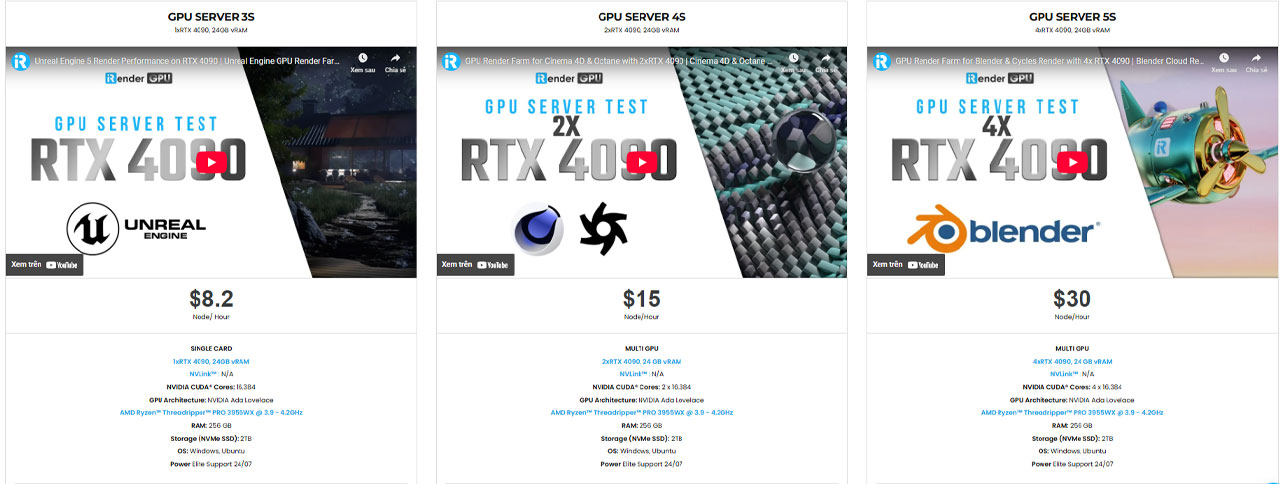
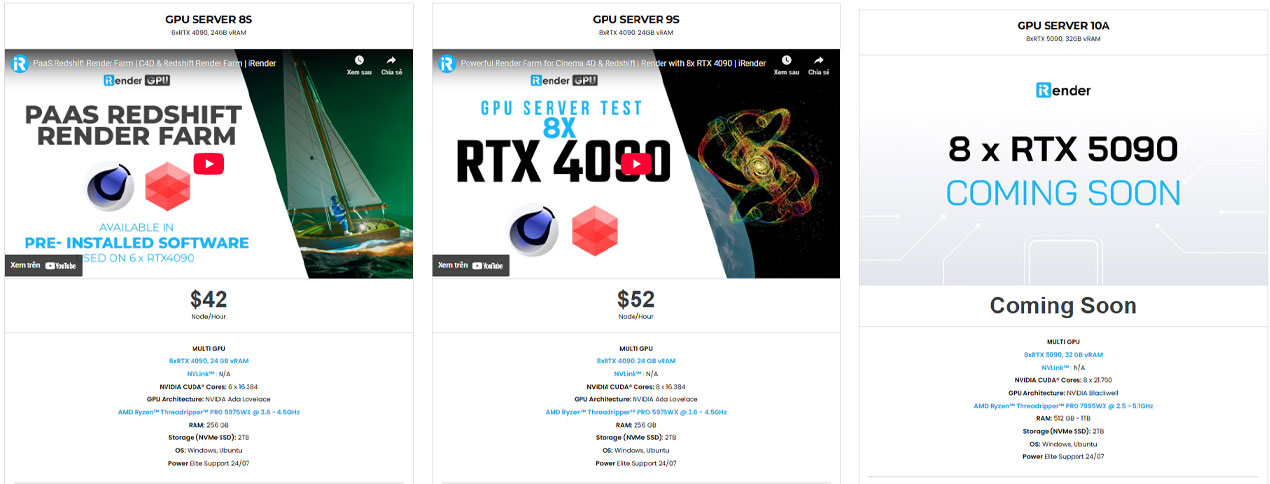
For Houdini, it often comes with third render engines like Redshift, Octane, V-Ray, Arnold. Whether or not you use any of those render engine, you still can find a suitable package at iRender, ranging from 1/2/4/6/8 x RTX 4090.
Let’s see all the configuration of our servers RTX4090 following:
Let’s see the performance of Houdini with its render engine on our servers:


iRender offers a powerful and free file transfer tool: iRender drive for macOS and Linux user. You can transfer all the necessary data into our iRender drive tool at any time without connecting to the server. The data will be automatically synchronized in the Z drive inside the server, ready for you to use.
The tool is also integrated into iRender GPU app, an all in one application where you can free your workflow from accessing iRender website, and just have to work on the iRender GPU app.
In case you have any problems or questions, don’t hesitate to contact the 24/7 support team. We will be happy to help you with your questions and problems at all times.
We are running a SPECIAL OFFER: 100% Additional Bonus for new clients who register an account and make a top-up within 24 hours after their registration.
Additionally, this month we also have Special Promotion ‘Purchase Less – Harvest More Value’
From 16 Sep – 30 Sep, 2025, unlock extra Render Points when you top up at iRender:
✨ Earn 1150+ Render Points when purchasing $575+
✨ Earn 345+ Render Points when purchasing $230+
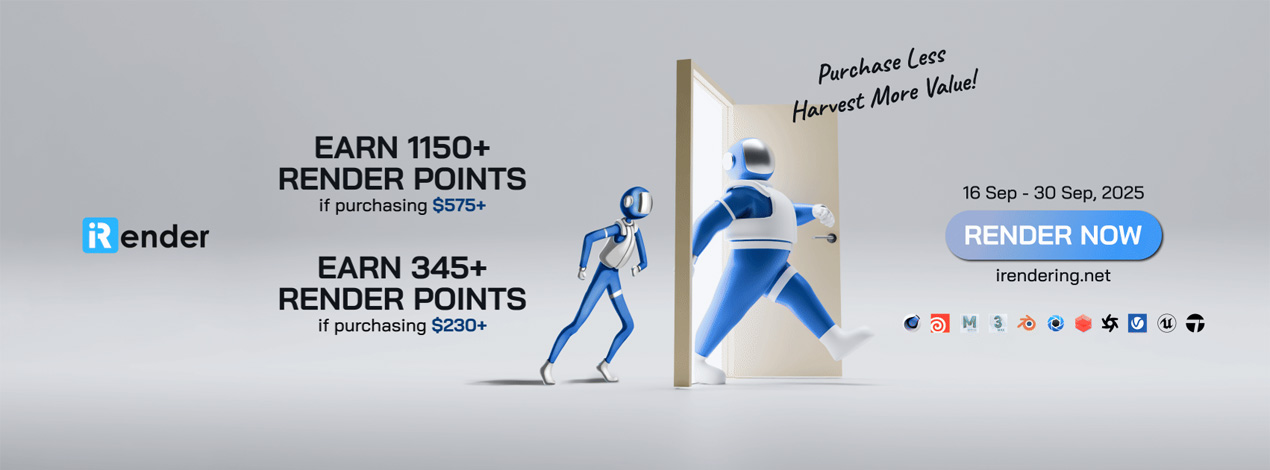
Take advantage of this limited-time offer to maximize your rendering power and boost your productivity. Don’t miss out—upgrade your projects with more value today!
Register an account today to experience our service or contact us via the email [email protected] or WhatsApp: (+84) 912075500 for advice and support.
Happy Rendering!
Related Posts
The latest creative news from Houdini Cloud Rendering





