
Render Queue Chaos: Managing Many Frames and Many Projects
When several projects are rendering at the same time, the queue can become messy surprisingly fast: unclear job names, uncertain priorities, failed frames mixed with completed ones, and no reliable estimate of what will finish before the deadline. The problem is often not a lack of rendering power, but a lack of organization. Managing render queue multiple projects starts with a clear system for naming jobs, splitting frame sequences, setting priorities, and tracking actual render times. This article covers these practical habits and how they can keep a growing render workload under control.

Why does the render queue always turn into a mess?
Render queue chaos often starts with unclear organization rather than a lack of tools. Without consistent job names, folder structures, and priorities, it becomes harder to see what is running, what has finished, and what needs attention next.
Three signs your render queue is getting out of control:
- You cannot quickly identify which project, shot, or version a job belongs to.
- You lose track of which frames are finished, failed, or still waiting.
- You are unsure which job should render next when several deadlines overlap.
These problems are easier to address when the workflow has clear conventions from the start.
Name things so future you can read them
A clear naming convention makes every render job easier to identify and trace. Include the project, shot, version, and frame range in the job name, then use a folder structure that follows the same project, shot, and version hierarchy. This keeps each output connected to the correct source and reduces confusion when several jobs are running at once.
For example:
ProjectA_Shot010_v03_F001-120
This is one of the simplest changes you can make to a render workflow, but it becomes increasingly useful as the number of jobs and projects grows.

Render sequences, never one big file
For animation, rendering to an image sequence makes it easier to track progress because each completed frame is saved as a separate file. If rendering stops, the finished frames remain available and you can continue from the missing frame instead of starting the entire sequence again.
For long frame ranges, split the render into smaller batches. This makes failed or missing frames easier to identify and limits how much of the job needs to be rerun when a problem occurs.
For more on handling interrupted or failed renders, see our guide to recovering interrupted render jobs: Corrupted or Black Render Output: Recovering and Preventing It
Order the queue by deadline, not by arrival
A render queue does not always need to follow first in, first out. If a short job has an urgent deadline, it may make sense to run it before a much longer job that is not due yet. This prevents one long render from blocking work that needs to finish sooner.
To make better scheduling decisions, record the actual render time of completed frames or jobs. Over time, this gives you project-specific data for estimating how long similar work may take, instead of relying on assumptions.
Running several projects at once
Independent render jobs can run at the same time when they are assigned to separate machines. This allows several projects to progress in parallel instead of waiting in a single queue.
Running two demanding jobs on the same machine is different. They may compete for resources such as CPU, GPU, RAM, or VRAM, which can reduce performance for one or both jobs. When possible, keep heavy render jobs on separate machines rather than forcing them to share the same hardware.

When a queue manager earns its place
A dedicated queue manager becomes useful when the number of jobs, machines, or users makes manual tracking difficult. It can help centralize job submission, priorities, status, and machine allocation, but a small workload may not need that extra layer.
When choosing one, focus on practical requirements such as software compatibility, priority control, failure handling, worker management, and how well it fits your existing pipeline. The goal is to solve the management problems you actually have, rather than add another tool to maintain.
What changes when each job has its own machine
Assigning each render job to a separate machine removes direct resource competition between those jobs. An urgent project can also start without waiting for another long render to release the same machine.
The tradeoff is management. More machines mean more jobs, outputs, and machine status to track. With rented infrastructure, each additional machine also adds usage cost, so it is important to monitor active machines and shut them down when they are no longer needed.
This is where an IaaS render farm such as iRender can fit into the workflow, giving each project access to a separate remote machine when needed.
Managing multiple render jobs with iRender
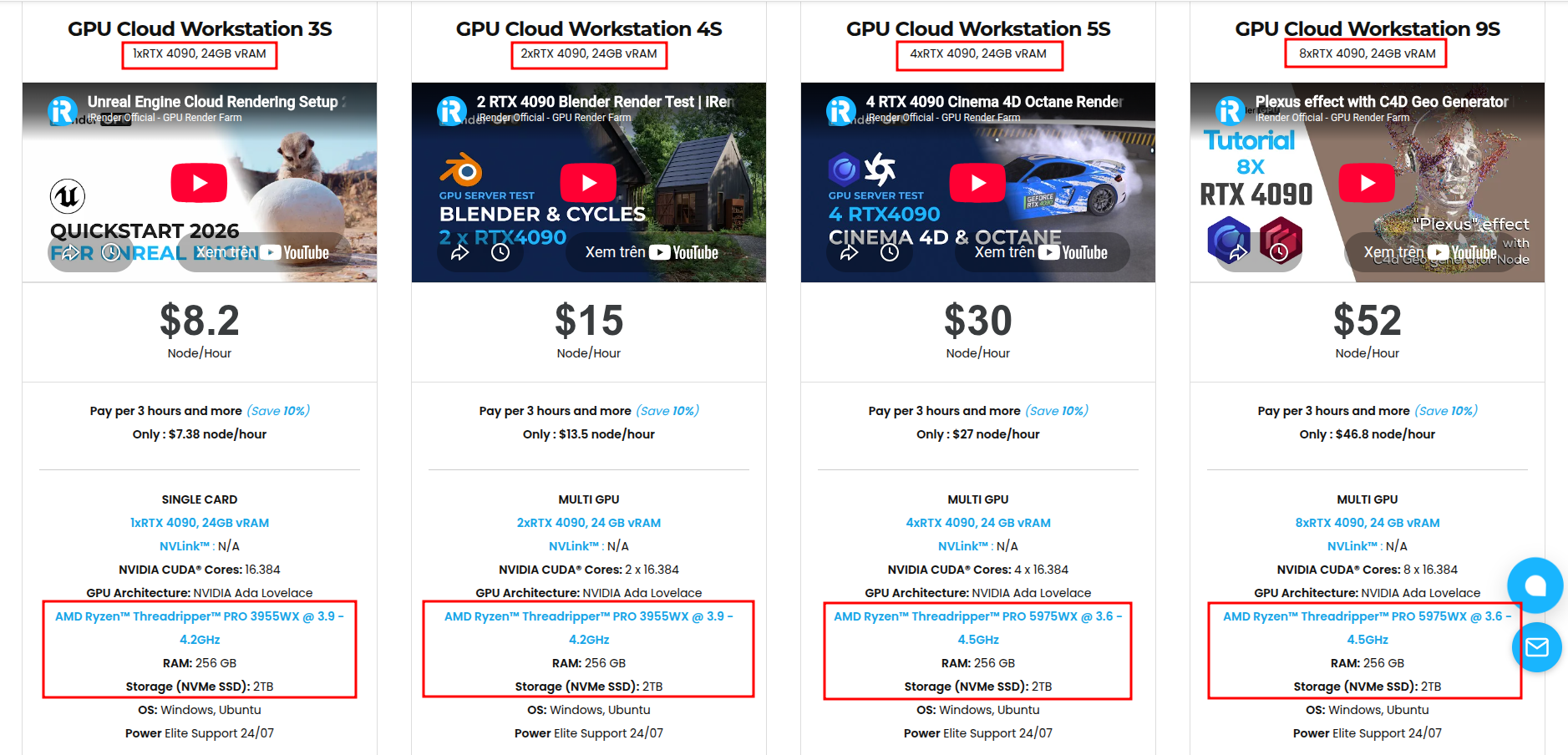
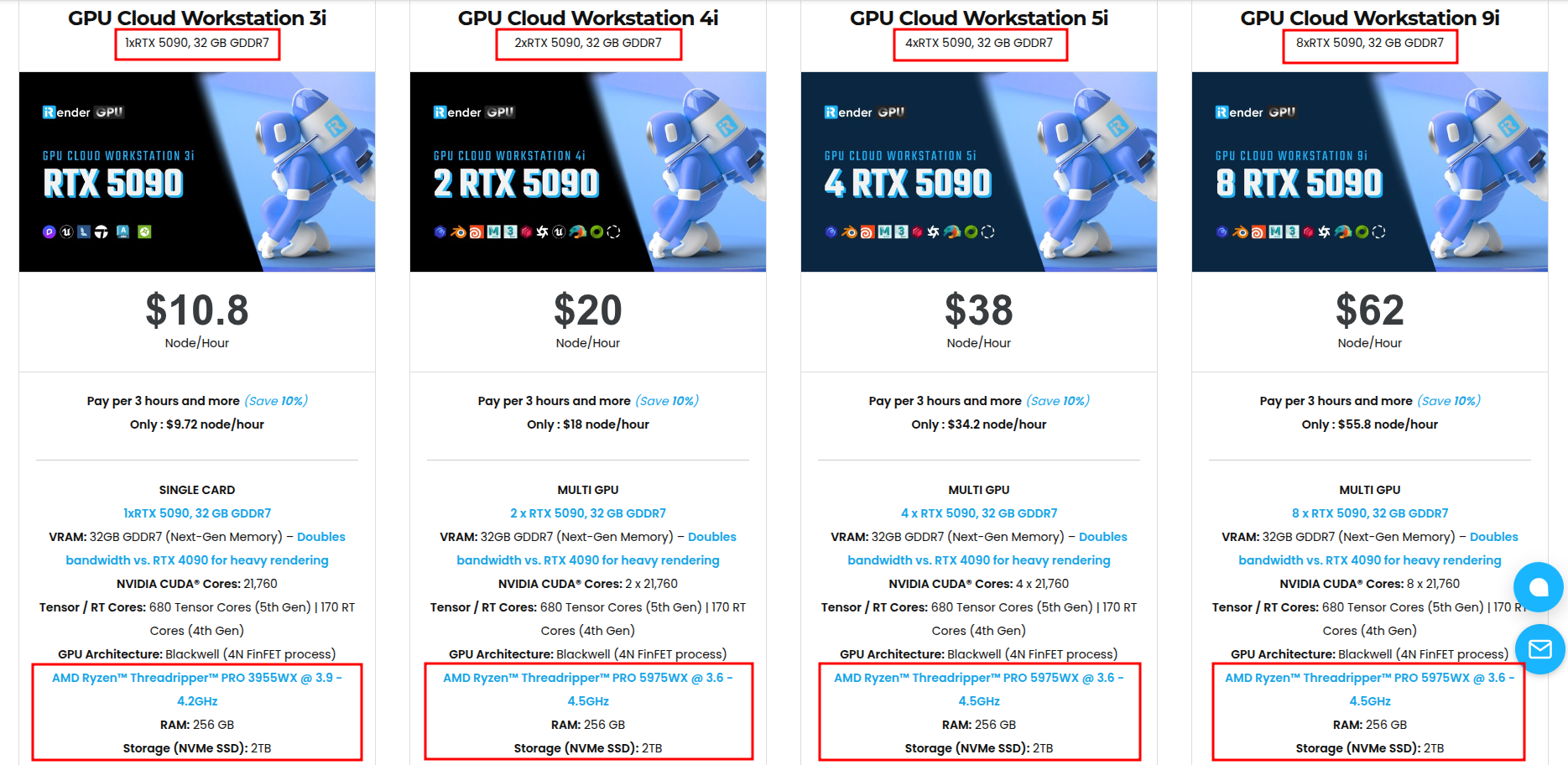
iRender provides dedicated GPU cloud workstations, so separate render jobs can run on separate machines instead of competing for the same local hardware. This can be useful when several projects need to progress at the same time or when an urgent job cannot wait behind a long render. Because iRender gives you access to the full remote workstation, you can install and configure the software, plugins, and versions required by each project.
Available configurations include:
- CPU: AMD Ryzen™ Threadripper™ PRO 3955WX (3.9-4.2GHz) and AMD Ryzen™ Threadripper™ PRO 5975WX (3.6-4.5GHz)
- GPU: 2/4/8 RTX 4090 with 24GB vRAM and 1/2/4/8 RTX 5090 with 32GB vRAM
For new users, iRender currently offers a 100% bonus on the first deposit within 24 hrs of registration, giving you additional rendering credits to get started with larger projects.
Maximum Speed – Absolute Freedom
Let’s see how our service works:


FAQ
1. How do I manage multiple render jobs at once?
Start with a consistent naming convention that includes the project, shot, version, and frame range. Render to image sequences so completed frames are easy to track, then prioritize jobs by deadline rather than simply by submission order. If several heavy jobs need to run at the same time, assigning them to separate machines can prevent them from competing for the same hardware resources.
2. Should I render to a video file or an image sequence?
For animation and multi-frame rendering, an image sequence is generally safer. Each completed frame is stored separately, so if rendering stops or a frame fails, you can identify the affected frames and rerender only what is needed instead of restarting the entire sequence.
3. When do I need a render queue manager?
A dedicated queue manager becomes useful when the number of jobs, machines, or users makes manual tracking difficult. Before adding one, establish clear naming, folder structures, job priorities, and output conventions. This gives the queue manager a well-organized workflow to manage rather than adding software on top of an unclear process.
Related Posts
The latest creative news from Cinema 4D Cloud Rendering , 3D VFX Plugins & Cloud Rendering.





