
How to solve the error 'Failed to complete render: exit code 139’ in Houdini Karma
If you’ve encountered the error message ‘Failed to complete render: exit code 139’ during your Houdini rendering workflow, you’re not alone. This is a common issue that frustrates many Houdini users—especially when it appears right in the middle of a render that seemed to be going smoothly.
In this blog, iRender will dive into what exit code 139 means, why Houdini Karma might throw this error, and what you can do to fix it.
What does the error' exit code 139' mean?
Exit code 139 generally means the process crashed due to a segmentation fault (SIGSEGV). A segmentation fault occurs when software tries to access memory that isn’t allowed to, such as reading or writing to a null or invalid pointer. In simpler terms, the program (Houdini or the render engine) attempted to use memory incorrectly and was terminated by the operating system.
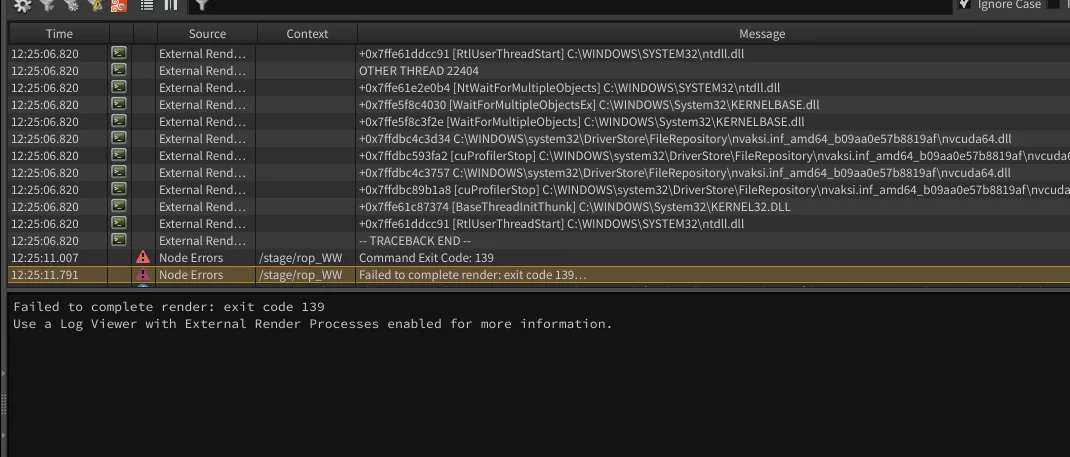
Why does this error happen in Houdini Karma?
Rendering in Houdini using the Karma renderer is a resource-intensive process. It heavily relies on CPU, GPU, RAM, and VRAM. When things go wrong, the issue is often rooted in one or more of the following areas:
Out-of-Memory Error
- Houdini tried to allocate more memory than is available (RAM or VRAM).
- Scene complexity might be too high.
- Rendering high-resolution frames (e.g., 4K or above).
GPU Driver Issues or Incompatibilities
- Outdated or buggy GPU drivers can cause segmentation faults.
- Incompatibility between Houdini and third-party renderers.
Multithreading Bugs
- Thread-related bugs can sometimes cause memory crashes, especially on older CPUs or in virtualized environments.
How to solve the error: Failed to complete render: exit code 139’ in Houdini Karma
Setting Maximum Threads to 1
When your render or simulation crashes (like with exit code 139), the problem can sometimes be due to threading issues, such as:
- Race conditions
- Memory access problems (segfaults)
- Unstable multithreaded nodes or plugins
By setting Maximum Threads = 1, you force Houdini Karma to run in single-threaded mode, which avoids these complex timing issues. If the crash disappears, it’s a sign the issue is threading-related. This is a common first step when trying to figure out why Houdini crashes.
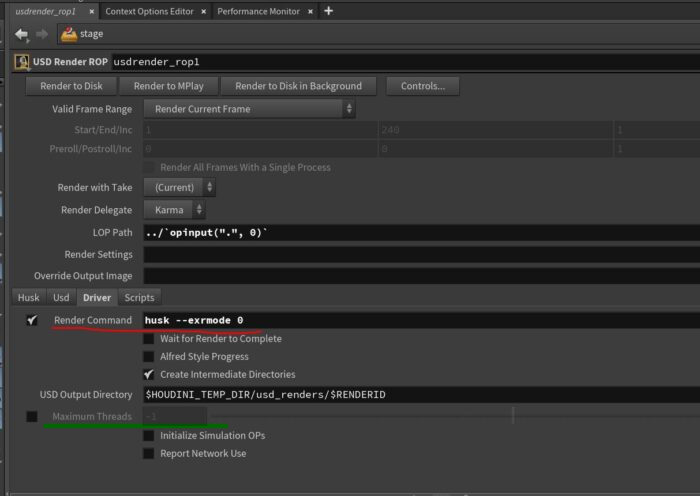
Switch between CPU and XPU (Karma vs Karma XPU)
Switching between Karma CPU and Karma XPU can absolutely help isolate or even fix the “Failed to complete render: exit code 139” error in Houdini.
Why Switch Between Karma CPU and XPU?
Karma CPU
- More stable and fully featured
- Better for debugging and production rendering
Karma XPU
- Leverages GPU + CPU and render faster
- Doesn’t support all shader types or geometry feature

Update or Reinstall Houdini
If you’re using an older version of Houdini, the crash might be caused by a known bug that has already been fixed in a newer version. Therefore, updating or reinstalling Houdini can help fix the “Failed to complete render: exit code 139” error.
If you want to perform a clean reinstall, start by uninstalling Houdini from your system. On Windows, go to Control Panel > Programs > Uninstall a Program, and uninstall Houdini from the list.
Update NVIDIA Studio Driver
Karma XPU is a GPU-accelerated renderer. If your GPU drivers are outdated, buggy, or incompatible, it can cause segmentation faults or crashes (which is what exit code 139 means). Updating NVIDIA Studio driver might help this error.
Please follow the following steps:
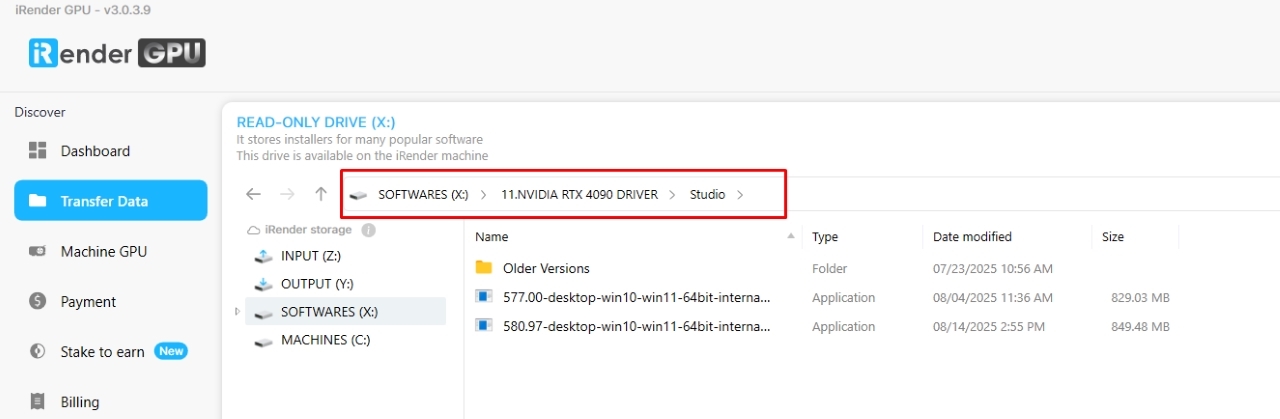
Step 1: Go to the X: Drive on the remote machine and open the folder: 11. NVIDIA RTX 4090 DRIVER > Studio
Step 2: Find the latest Studio Driver installer
Step 3: Copy it to the remote desktop and run it.
Step 4: After installation, restart the machine.
Final Thoughts
In conclusion, the “Failed to complete render: exit code 139” error in Houdini Karma means something caused the render to crash. This could be a problem with your hardware, drivers, plugins, or something in your scene. To fix it you should update driver, set Maximum Threads to 1 and make sure everything is set up correctly.
iRender - The best render farm for Houdini Karma
iRender provide to you high performance and configurable server system for 3D rendering, AI Training, VR & AR, simulation, etc. With our server, you can install any software you need, add your license, and do whatever you like with your project.
Whether or not you use any of those render engine, for example Karma, you still can find a suitable package at iRender, ranging from 1/2/4/6/8 x RTX 4090.
Let’s see all the configuration of our servers RTX4090 following:
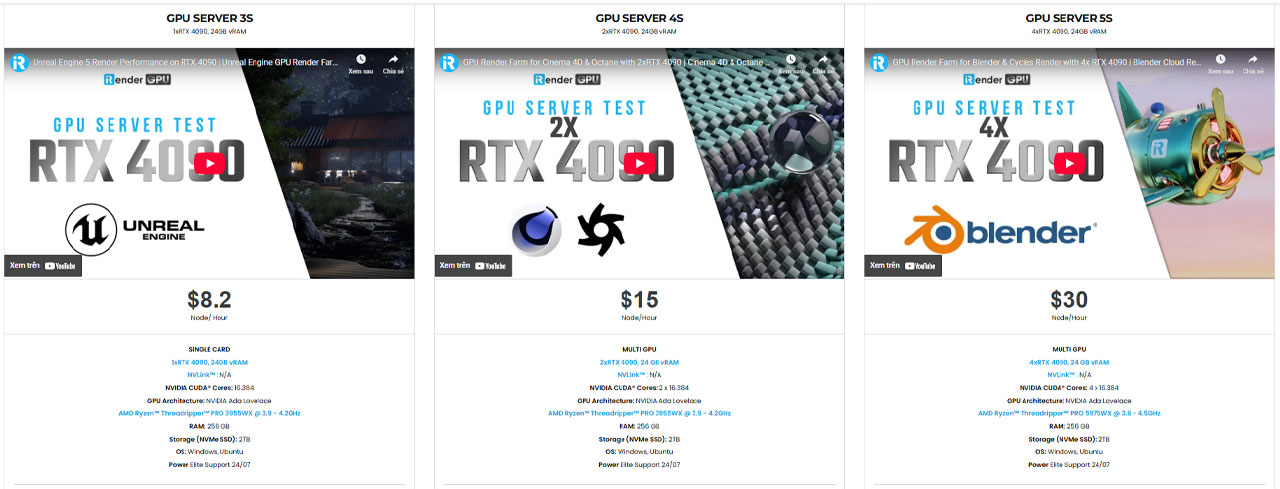
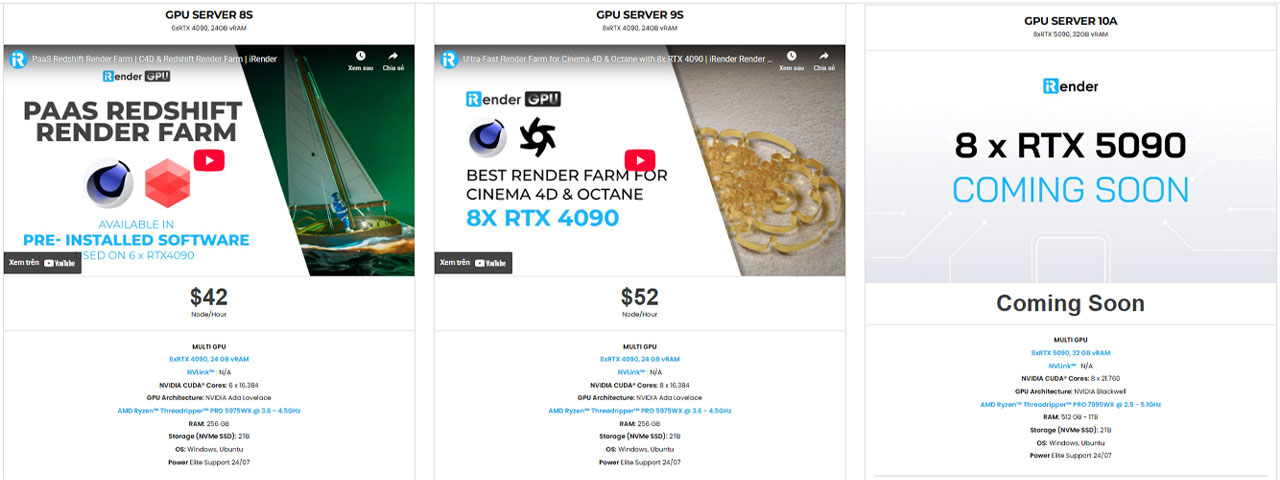
Let’s see the performance of Houdini with its render engine on our servers:


iRender offers a powerful and free file transfer tool: iRender drive for macOS and Linux user. You can transfer all the necessary data into our iRender drive tool at any time without connecting to the server. The data will be automatically synchronized in the Z drive inside the server, ready for you to use.
The tool is also integrated into iRender GPU app, an all in one application where you can free your workflow from accessing iRender website, and just have to work on the iRender GPU app.
In case you have any problems or questions, don’t hesitate to contact the 24/7 support team. We will be happy to help you with your questions and problems at all times.
We are running a SPECIAL OFFER: 100% Additional Bonus for new clients who register an account and make a top-up within 24 hours after their registration.
Register an account today to experience our service or contact us via the email [email protected] or WhatsApp: (+84) 912075500 for advice and support.
Happy Rendering!
Related Posts
The latest creative news from Houdini Cloud Rendering





