
Pyro Sim Dies Halfway Through: Voxel Resolution, Substeps and Memory
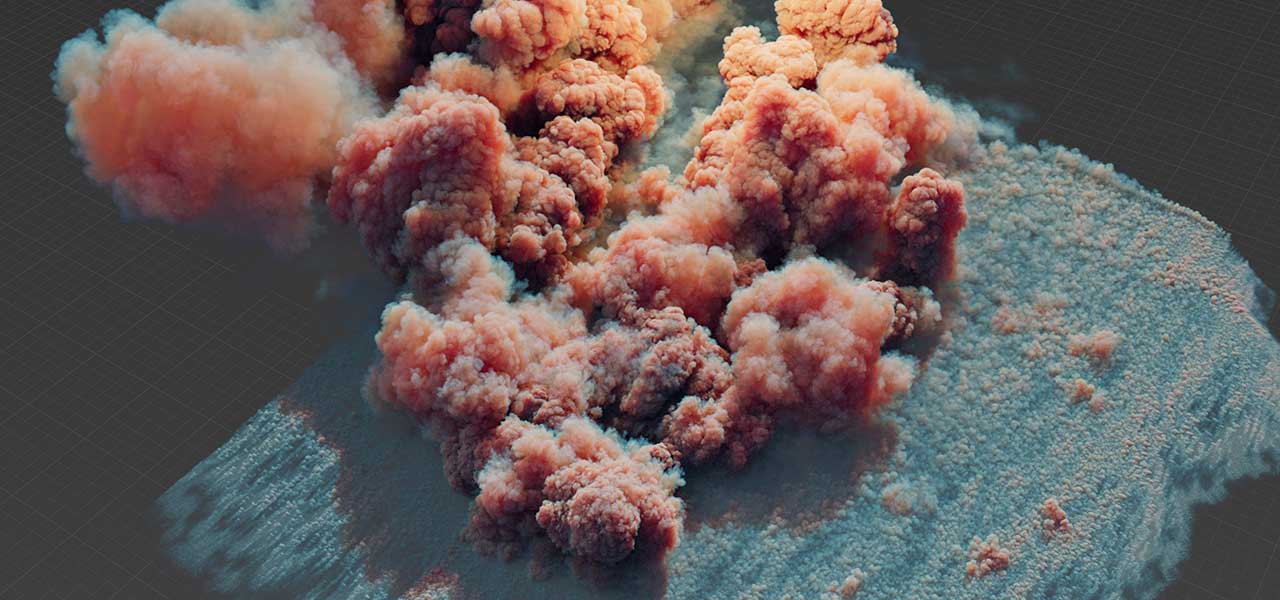
A Pyro simulation can run normally for dozens of frames and then suddenly make Houdini disappear around frame 80. This often happens because the simulation grid expands as smoke and fire travel through the scene. More movement means more voxels, which gradually increases memory usage. The problem may not appear during the early frames. By the time pyro simulation crash memory Houdini becomes visible, the simulation may already be close to the machine’s RAM limit. Understanding how the grid grows is essential before changing voxel resolution, substeps, or other settings.
Why does a Pyro sim run fine and then die?
A Pyro simulation grid can expand as smoke and fire move through the scene. As the grid covers more space, the voxel count increases and Houdini needs more RAM. This gradual growth is a common cause of pyro simulation crash memory Houdini problems.
The early frames can look completely safe because the grid is still relatively small. As the simulation progresses, memory usage keeps climbing. This can make the crash feel sudden, even though the workload has been increasing for many frames.
Watch the grid grow, not just the RAM
If you want to track how a Pyro grid changes over time, the Geometry Spreadsheet gives you a useful view of the volume data. Open the Geometry Spreadsheet tab and select the Primitives icon, which looks like a small polygon cube. Houdini treats volumes as primitives, so their grid information appears there. Look for the res column to see the grid dimensions along X, Y, and Z. The voxels column shows the exact total voxel count for that field. Checking these values across frames makes grid growth much easier to spot before memory becomes a problem.
Place Task Manager beside Houdini while the simulation runs. You may see RAM usage rise as the voxel count increases.
Another early warning sign is being unable to rewind the full simulation. This can happen when topology or point counts change over time, which is common when a growing grid adds or removes cells.
Cap the grid before it caps you
Set a maximum size for the simulation grid to prevent it from expanding indefinitely. A limit that is too tight can cut off smoke at the boundary, so leave enough space for the expected motion.
You can also restrict the simulation to the area visible to the camera. If a region never appears in the shot, simulating it only adds voxels and memory usage without contributing to the final image.
Voxel size is the biggest lever
Voxel grids scale with volume, not just length. If you reduce voxel size by half in X, Y, and Z, the voxel count can increase by roughly eight times. That can push memory usage up dramatically.
A small change in voxel grid size can completely change whether a simulation runs successfully. It directly affects memory usage and computation time, while also influencing numerical stability. Pyro, FLIP, and other Houdini solvers rely on grids to calculate simulation data, so higher resolution can quickly become expensive.
When a larger voxel size makes the result look too soft, several Houdini techniques can help recover detail. Density fields can be sharpened mathematically after the solve. Procedural noise can add back small-scale variation without simulating every detail. Velocity blur and up-resing can also improve the final result, while optimized vector fields can reduce unnecessary VRAM usage during GPU workflows.
Sparse solving and where substeps fit
A sparse solver calculates active regions instead of processing the entire grid uniformly. This can save substantial resources, especially when smoke spreads across a large area with relatively little active data.
Substeps mainly affect simulation timing and stability. They are not the primary setting for reducing memory usage, so changing them will not solve every memory problem.
Pyro can also use OpenCL GPU acceleration when enabled in Houdini Preferences. This can speed up certain workflows, but VRAM becomes another resource limit that needs to be monitored.
Protect the frames you already have
Cache your Pyro simulation to disk and split long frame ranges into smaller sections. This protects completed work and makes it easier to recover after a crash or failed solve.
If the shot requires high voxel resolution and your workstation cannot handle it, a cloud workstation can provide more CPU, GPU, RAM, and storage capacity. Services such as iRender can be useful for heavy simulations as well as rendering, especially when a pyro simulation crash memory Houdini issue comes from hardware limitations rather than the setup itself.
What each parameter affects in a Pyro simulation
| Parameter | Memory impact | Time | Note |
|---|---|---|---|
| Voxel size | Very high, scales cubically | Very high | The strongest lever. Adjust this first |
| Maximum grid size | High, prevents unlimited grid growth | High | May cut off smoke at the boundary |
| Sparse solving | High for spreading smoke | High | Check the terminology for your Houdini version |
| Substeps | Less direct | Very high | Used for stability, not primarily for reducing memory |
| OpenCL on GPU | Shifts the load to VRAM | Can reduce it | Must be enabled in Preferences. Results vary by simulation |
iRender: The RTX 5090 cloud workstation for Houdini
Most Pyro crashes can be avoided by controlling grid growth and adjusting voxel size, so I would work through those optimizations first. For hero shots that need high resolution and a large simulation grid, however, memory requirements can become too high to reduce further. iRender provides cloud workstations with 256GB RAM and multi-core CPUs, giving large Pyro simulations more room to run. For OpenCL workflows, you can also use an RTX 4090 with 24GB VRAM or RTX 5090 with 32GB VRAM. Remember that VRAM is a separate limit and does not combine across GPUs.
There are still a few things to manage on a cloud workstation. Set a sensible grid limit and cache the simulation to disk, because an unlimited grid can eventually exhaust even a powerful machine. Prepare the scene before starting the workstation, then enable auto-shutdown after the cache finishes. This helps prevent unnecessary runtime charges while the machine is idle.
Right now, iRender is launching the 100% bonus for new user’s first deposit and a bonus promotion from September 5 to 20, 2026, check it out:
-
-
-
- 50% bonus on deposits from $1,000
- 100% bonus on deposits from $1,500
-
-

Check out some of iRender tests on RTX 4090:


FAQ
Q: Why does my Pyro simulation crash partway through?
The simulation grid can expand as smoke and fire move through the scene, increasing the voxel count and RAM usage over time. That is why a sim may run normally at first and crash halfway through. For a pyro simulation crash memory Houdini problem, set a sensible grid limit and monitor memory as the simulation progresses.
Q: How does voxel size affect Houdini Pyro memory?
Voxel size has a major effect because voxel count scales cubically. If voxel size is reduced by half in all three dimensions, the grid can contain roughly eight times as many voxels. Memory usage can rise accordingly. This is the strongest setting to adjust when you need to reduce the simulation’s memory footprint.
Q: Do more substeps reduce Pyro memory usage?
No. Substeps mainly affect simulation time and stability rather than memory usage. If memory is the problem, focus first on voxel size and the maximum grid size. Use substeps when the simulation needs better stability or smoother behavior, rather than treating them as a memory optimization setting.
Register an account on iRender to claim your 100% bonus for the first deposit and render without limitations.
iRender – Maximum Speed – Absolute Freedom.

Related Posts
The latest creative news from Houdini Cloud Rendering





