
Do Unreal Engine or Twinmotion Support Multiple GPUs?
Many 3D artists wonder whether Unreal Engine or Twinmotion can take advantage of multiple GPUs to speed up rendering. After all, doubling GPU power should deliver faster results, but does it really work that way?
In this article, let’s iRender explore how Unreal Engine and Twinmotion truly handle multi-GPU performance in 2025 and what you can do to make the most of your GPU investment.
Unreal Engine Multi-GPU Support: Real-Time vs Path Tracer
If you’re rendering complex architectural scenes or cinematic environments in Unreal Engine, you might assume adding more GPUs means faster rendering. Unfortunately, the truth is more nuanced.
1. Real-Time Rendering: Single GPU Only
Unreal Engine (UE5 and later) primarily uses one GPU for real-time rendering. Features such as Lumen, Nanite, and Path Tracing are optimized for a single powerful GPU, rather than distributing workloads across multiple cards.
Traditional NVIDIA SLI or NV Link configurations are no longer supported, as Unreal Engine now relies on DirectX 12 and Vulkan, which are designed for single-GPU pipelines.
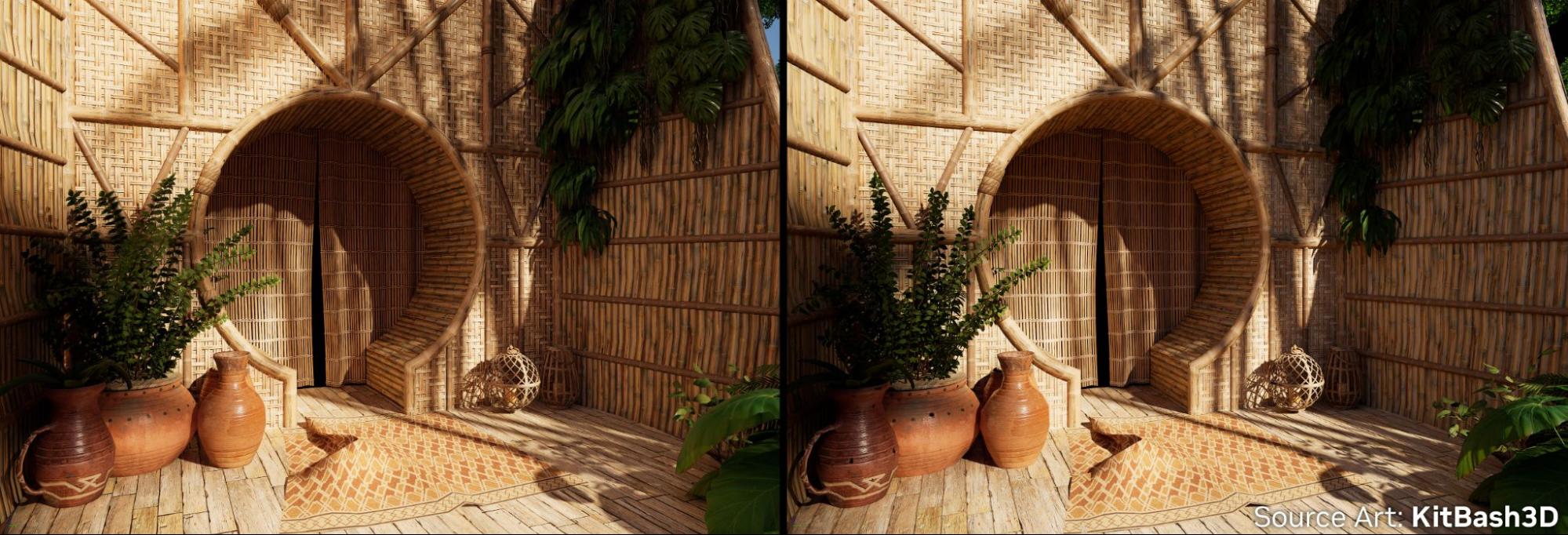
2. Path Tracer (Experimental Multi-GPU in UE 5.1)
Epic briefly introduced experimental multi-GPU (SLI-based) support for the Path Tracer in Unreal Engine 5.1.
You could enable it via the following commands:

However, according to multiple Epic Games Developer discussions and community reports, this feature was disabled in UE 5.3 and 5.4 due to driver instability and inconsistent scaling results.
Twinmotion Multi-GPU Rendering: Real-Time vs Path Tracer
Twinmotion, powered by Unreal Engine, handles GPU performance differently depending on which rendering mode you’re using.
1. Real-Time Rendering (Viewport / Presentation Mode)
In normal real-time mode what you see in the viewport or during live presentations – Twinmotion runs entirely on a single GPU.
All real-time lighting, reflections, and post-processing effects are computed on your primary graphics card, with no scaling across multiple GPUs.

2. Path Tracer (Final Renders: Still Images & Videos)
For high-quality final outputs, Twinmotion’s Path Tracer introduces true multi-GPU support.
It uses NVIDIA SLI to distribute ray tracing workloads across multiple GPUs, significantly reducing render times for photorealistic images and animations.
You can enable it via:
Edit → Preferences → Path Tracer → Multi-GPU
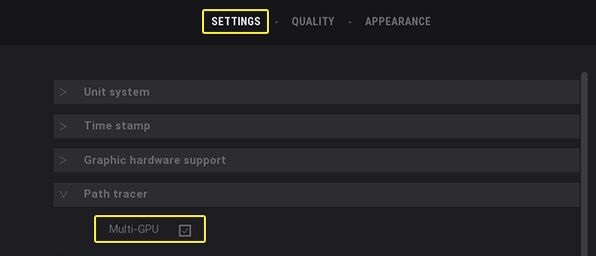
According to Epic Games Developer documentation and community testing, enabling Multi-GPU in Twinmotion’s Path Tracer can yield 50–200% faster performance, depending on your hardware, driver version, and scene complexity.
Conclusion
If your goal is faster Twinmotion Path Tracer rendering, and you’re running SLI-capable RTX GPUs (like dual RTX 3090s), enabling multi-GPU can deliver real benefits — often boosting performance by 50–200%, depending on your scene and drivers. However, keep in mind that newer GeForce RTX 40-series cards no longer support NVLink/SLI, meaning multi-GPU acceleration isn’t possible on those GPUs.
For Unreal Engine real-time work, you’ll always get the best results from one powerful GPU rather than multiple mid-range cards. If you’re working in virtual production or LED-wall environments, multiple GPUs can help distribute viewports across displays using nDisplay — but that’s about parallel output, not raw rendering speed.
Scale Smartly with iRender’s RTX 4090 Cloud Servers
Instead of investing in complex local SLI setups, you can unlock high-end GPU power instantly with iRender.
For most Unreal Engine and Twinmotion artists, the best option is Server 3S (1× RTX 4090), offering outstanding single-GPU performance, massive 24 GB VRAM, and top-tier ray tracing speed.
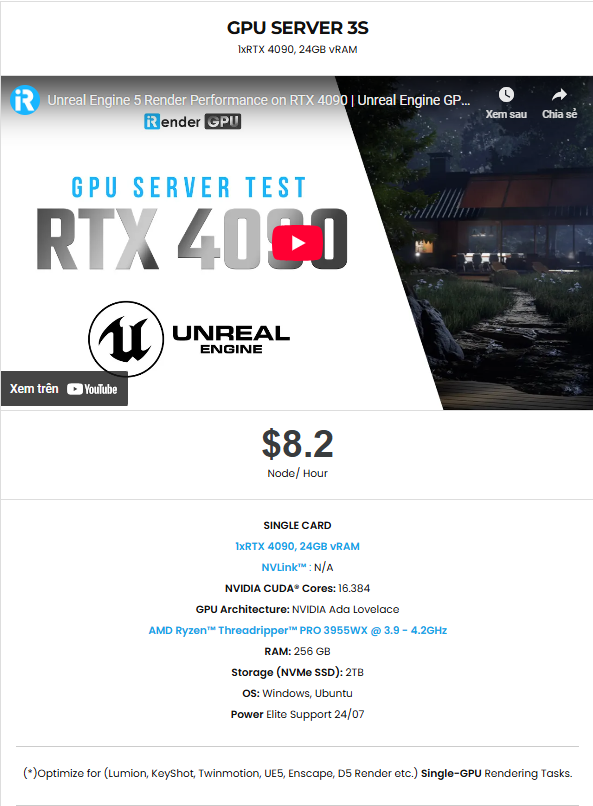
With iRender, you can take full control of your rendering power just like working on your local workstation under the IaaS (Infrastructure as a Service) model. Therefore, you can install any software and plug-ins you want, add your license, and render or modify your project yourself.
Not only does it have powerful configurations, but iRender also provides you with many more services. Free and convenient transfer tool iRender drive for macOS and Linux users. For Windows users, we recommend the iRender GPU application; you will not need to access our website anymore. The price at iRender is also very flexible, with hourly rental (pay as you use), and daily/weekly/monthly rental with a 10-20% discount.
We’re always happy to help you with any questions. If you have any problems or questions, don’t hesitate to contact our 24/7 support team. Or via Whatsapp: 0912 785 500 for free advice and support.
Right now iRender has a SPECIAL PROMOTION program with a 100% bonus for the first transaction. It means that you can get an extra 100% of the money you recharged the first time. And points never expire, so you can use them at any time.
Sign up for an account today to experience and enjoy our services.
Thank you & Happy Rendering!
Source and image: unrealengine.com, twinmotion.com

Related Posts
The latest creative news from Unreal Engine Cloud Rendering






