
How to fix dark areas on a mesh in Blender
When working in Blender, you might encounter an issue where some faces on your mesh appear unexpectedly dark, even though your lighting and material settings seem perfectly fine. This shading issue can disrupt the look of your model and make the result ruin. These dark areas are usually caused by incorrect “normals” and understanding how they work is the key to solving the problem. In this article, we’ll explain why this shading error occurs and how you can fix dark areas on a mesh in Blender using a few simple, reliable techniques.
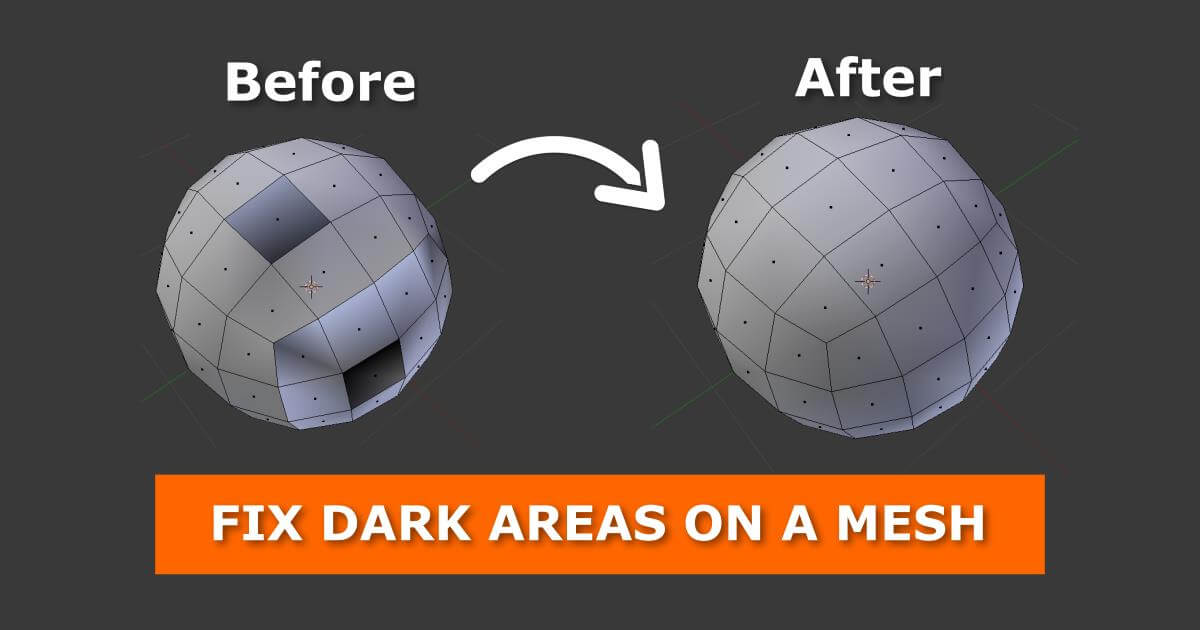
Why do dark areas on a mesh appear in Blender?
Dark areas typically appear on a mesh when the normals of certain faces are oriented incorrectly. If the normals flip or point inward, Blender interprets the lighting in the wrong direction, which results in some faces looking unusually dark. Understanding this behavior is essential when trying to fix dark areas on mesh in Blender, as correcting the normals usually restores proper shading across the model.
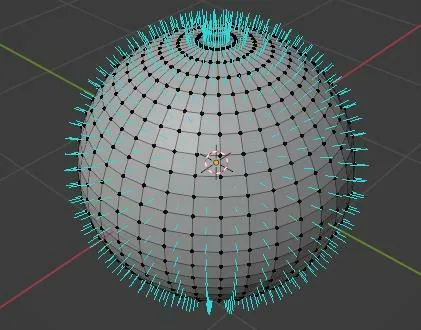
Each blue line in the above picture shows the normal of a specific face on the sphere. These lines extend outward at a right angle from their corresponding faces. You can enable the display of normals through the Mesh Display options.
How to fix dark areas on a mesh in Blender
Recalculate the normals of your model to make it as clean as possible to eliminate dark regions on your mesh. Here is the way you recalculate normals in Blender:
- Select your mesh and press Tab to switch to Edit Mode
- Press A to choose all faces on your mesh
- Use Shift + N or under Mesh → Normals → Recalculate… (you can also access the entire menu with Alt + N)
- Flip normals of selected faces while in Edit mode by coming to the 3D Viewport Header, then go to Mesh → Faces → Flip Normals

OR If you want to adjust all normals at once, you can use these commands directly from the 3D Viewport Header while in Edit Mode:
- Mesh → Normals → Recalculate Outside (Ctrl + N)
- Mesh → Normals → Recalculate Inside (Shift + Ctrl + N)
Keep in mind that Blender recalculates normals only for the faces you currently have selected, so make sure to press A before recalculating.
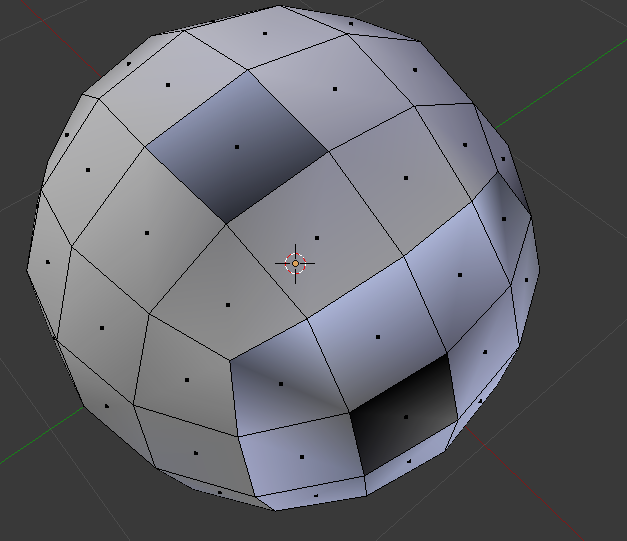
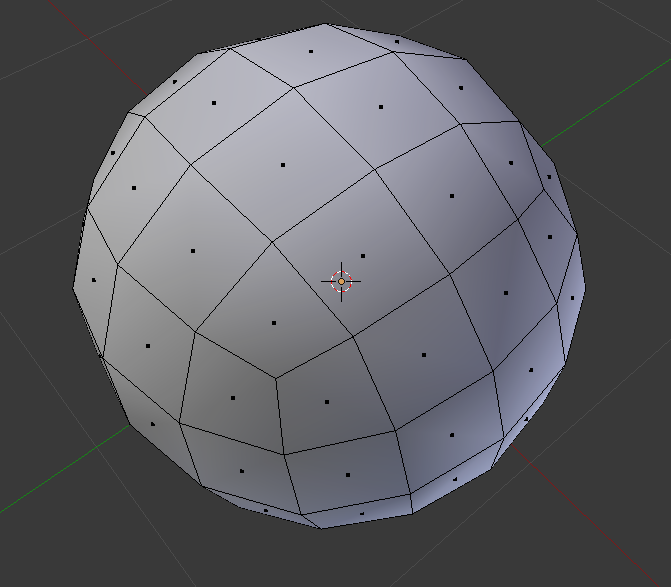
After recalculate normals:
Conclusion
Dark shading on a mesh is almost always the result of misaligned or flipped normals and correcting them is one of the quickest fixes you can apply in Blender. By recalculating or flipping the normals when needed, you can restore clean and consistent lighting across your model. Understanding how normals work not only helps you fix dark areas on mesh in Blender, but also improves your overall workflow when sculpting, modeling, or preparing assets for rendering. With properly oriented normals, your mesh will display accurately and be ready for the next steps in your project.
iRender - Powerful Render Farm for Blender
At iRender, you can install and run any 3D software or render engine you need, including Blender on our high-performance remote servers. Moreover, we have Blender pre-installed for you, so you can save time and money. Whether your workflow relies on CPU or GPU power, iRender gives you the flexibility to choose the right configuration for your projects.
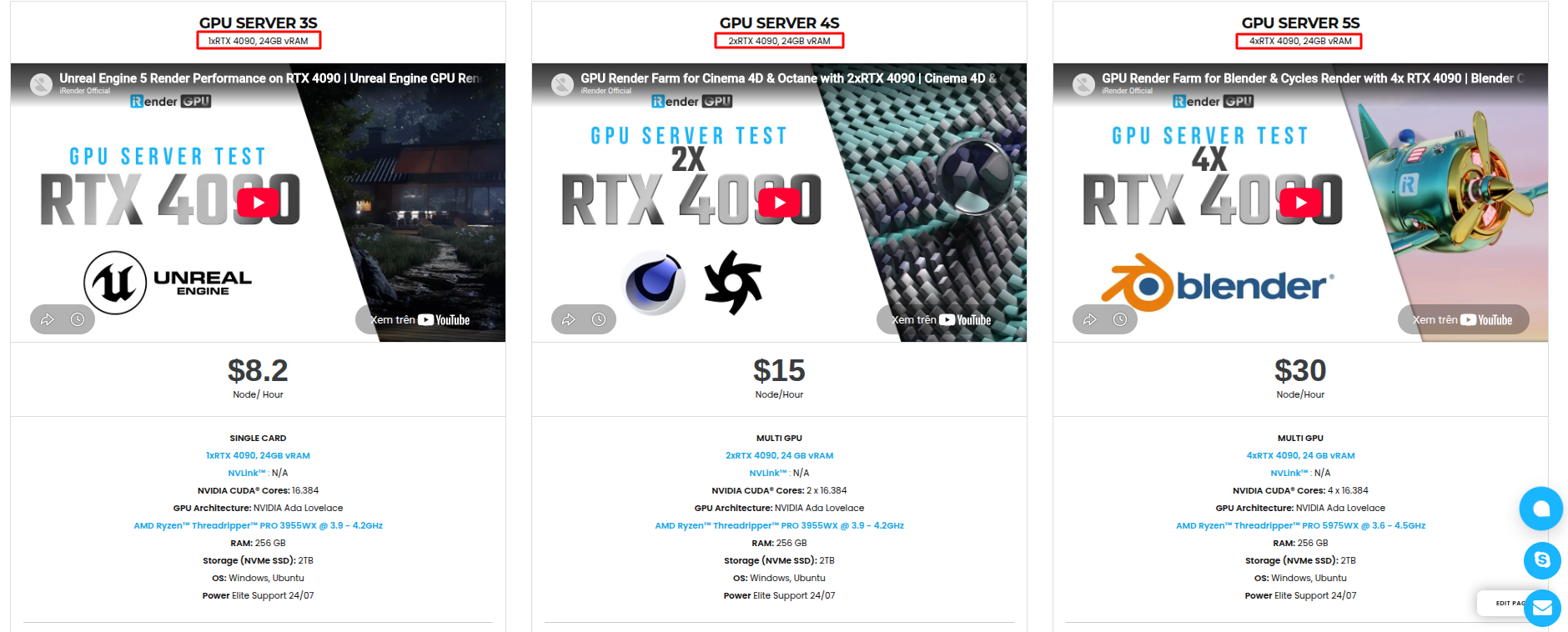
With access to powerful hardware such as the RTX 4090 GPUs and high-core CPUs (CPU AMD Ryzen Threadripper Pro 3955WX @ 3.90GHz – 4.2GHz and AMD Ryzen™ Threadripper™ PRO 5975WX @ 3.6 – 4.5GHz), you can:
- Render faster without being limited by your local workstation
- Scale your projects seamlessly, whether you’re working on small interiors or large architectural scenes
- Enjoy the freedom to set up your preferred tools, add your licenses, and work as if it were your own computer only faster and more reliable
Here is all our servers with detailed information:
Why choose iRender?
As your projects become more complex, even a powerful local workstation can start to struggle: slower processing, freezing during heavy tasks, and longer render times,… With iRender, you can bypass these hardware limitations by accessing high-performance remote servers that deliver full power on demand. This ensures a smoother workflow, faster results, and greater flexibility for any software you use.
- Powerful performance: GPU RTX 4090 workstations, compatible with all 3D/AI software, CPU AMD Ryzen Threadripper Pro 3955WX @ 3.90GHz – 4.2GHz and AMD Ryzen™ Threadripper™ PRO 5975WX @ 3.6 – 4.5GHz, RAM 256GB and 2TB SSD NVMe Storage
- Flexible usage: Use the remote server anytime you want
- Secure & Privacy: Guarantee for your data safety and privacy
- Fast support: A customer support team ready to assist 24/7
- Cost-effective: Pay-as-you-go, pay for the time used
If you are still wondering, register now to get a free trial and receive a 100% bonus points (double your credits) for your first transaction.
🎁 Special Offer from iRender
From December 11 to December 17, 2025, iRender is running a special promotion:
- Get 25% Bonus Points with purchases from $575+
- Get 50% Bonus Points with purchases from $1500+
It’s the perfect time to try iRender’s high-performance servers with CPU or GPU, whatever is suitable for your projects.
Ice-Cold Weather, Red-Hot Credit Boost!

REGISTER now to experience and for more detailed information, please contact us via Live chat 24/7 or WhatsApp: +(84) 962 868 890 or Email: [email protected].
iRender – Happy Rendering!
Source: gachoki.com, blender.stackexchange.com
Related Posts
The latest creative news from Blender Cloud rendering.





