
How to fix Houdini Render Crashing with Exit Code 139?
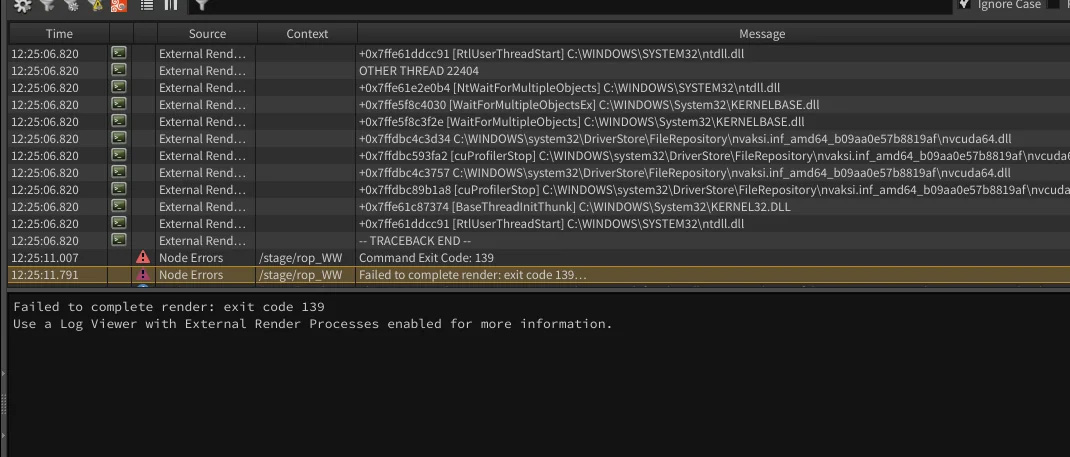
If your render suddenly fails with the message: “Command Exit Code: 139 – Failed to complete render”, this indicates a segmentation fault (SIGSEGV), one of the most serious types of runtime crashes in professional 3D pipelines. This issue is especially common during heavy simulation or rendering workflows in Houdini, particularly when working with GPU render engines such as Karma. In this guide, iRender will break down why it happens during rendering and the most reliable solutions to fix it permanently.
Most Common Causes of Exit Code 139 in Rendering
Exit Code 139 is almost always linked to memory instability or software conflicts. The most frequent causes include:
- Outdated Houdini or GPU drivers
- Incorrect RAM or GPU VRAM usage
- Broken plugins or third-party add-ons
- Excessive scene complexity
- Hardware limitations
How to Fix Exit Code 139 in Houdini
1. Update Drivers and Houdini Software
Keeping both your GPU driver and Houdini build fully up to date is the most important step in preventing segmentation faults.
Update NVIDIA Studio Driver
If you are using a GPU from NVIDIA, outdated or incompatible drivers are one of the biggest triggers for Exit Code 139. These drivers can contain:
- Memory leaks
- GPU memory allocation bugs
- Simulation instability
To update on the iRender server: right-click the desktop and open the NVIDIA Control Panel to check if it is the latest version.
If it is not the latest version, you can update the NVIDIA Studio Driver. You can always go to X drive of the remote machine, then take the latest driver to the remote desktop and run it. After updating to the latest NVIDIA Studio Driver, you need to restart your computer. Wait for 2-5 minutes, then reconnect to the remote server.

Update or Reinstall Houdini
Always upgrade to the latest stable Houdini production build. If problems continue, perform a clean reinstall to refresh all libraries, USD dependencies, and render modules
Keeping both Houdini and your GPU drivers up to date helps prevent memory-related crashes and improves render stability.
2. Optimise Houdini Preferences
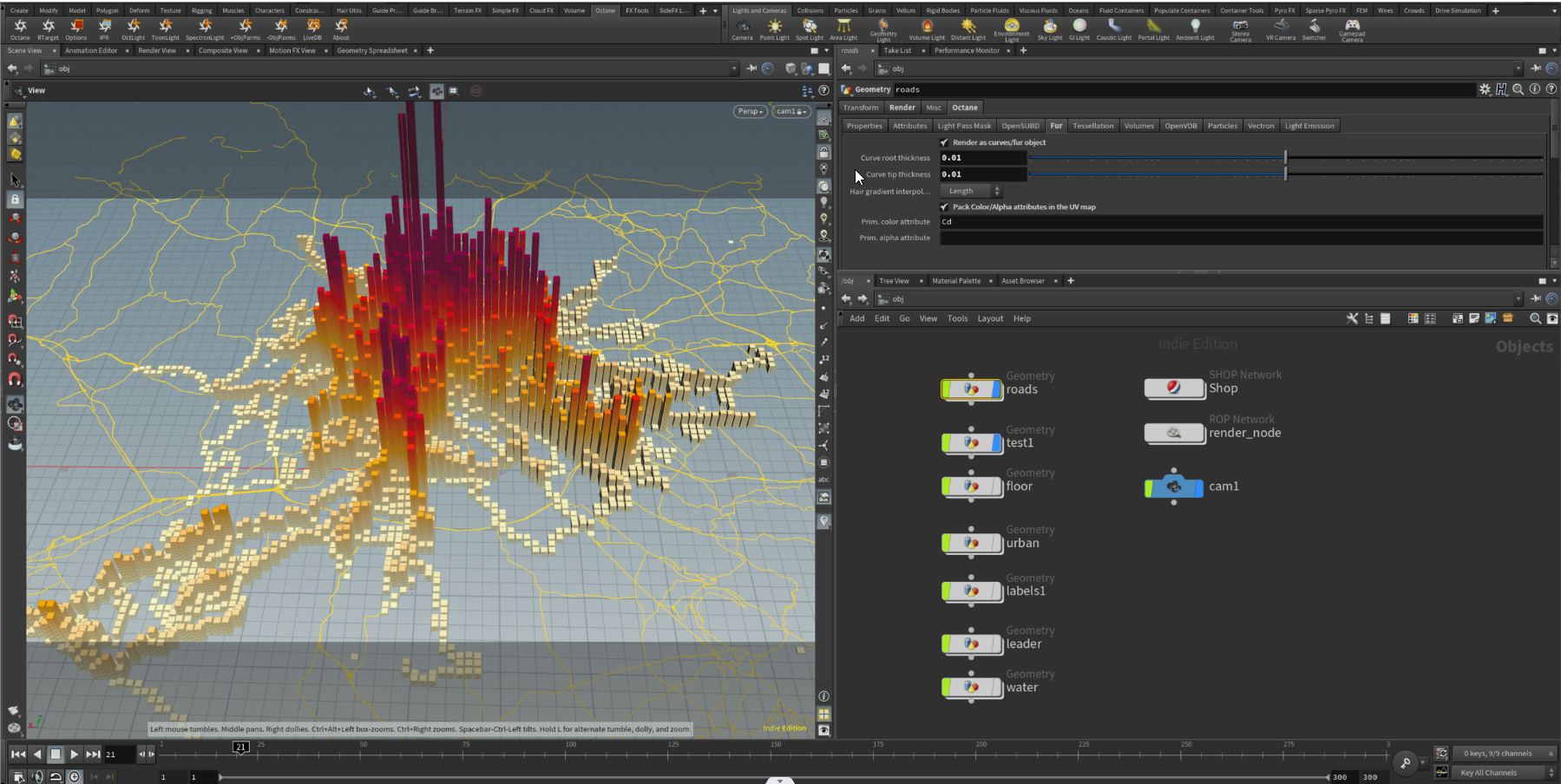
The fastest way to isolate this crash is to simplify your scene and identify the problematic element.
Elements to Temporarily Disable:
Start by bypassing nodes that consume the most memory:
-
High-resolution VDB volumes
-
FLIP, Pyro, Vellum simulations
-
Dense instanced geometry
-
Complex shader networks
-
High-sample motion blur, subdivision, and displacement
These often cause VRAM spikes, which can immediately result in segmentation faults.
Step-by-Step Testing Process:
-
Save a backup of your HIP file.
-
Use Houdini’s bypass flag to disable heavy nodes.
-
Try rendering a simplified version of the scene.
-
If it succeeds, re-enable nodes one by one.
-
When the crash returns, you’ve found the problematic node or system.
When the crash returns, you’ve identified the exact node or system causing the issue.
3. Resolve Plugin Conflicts
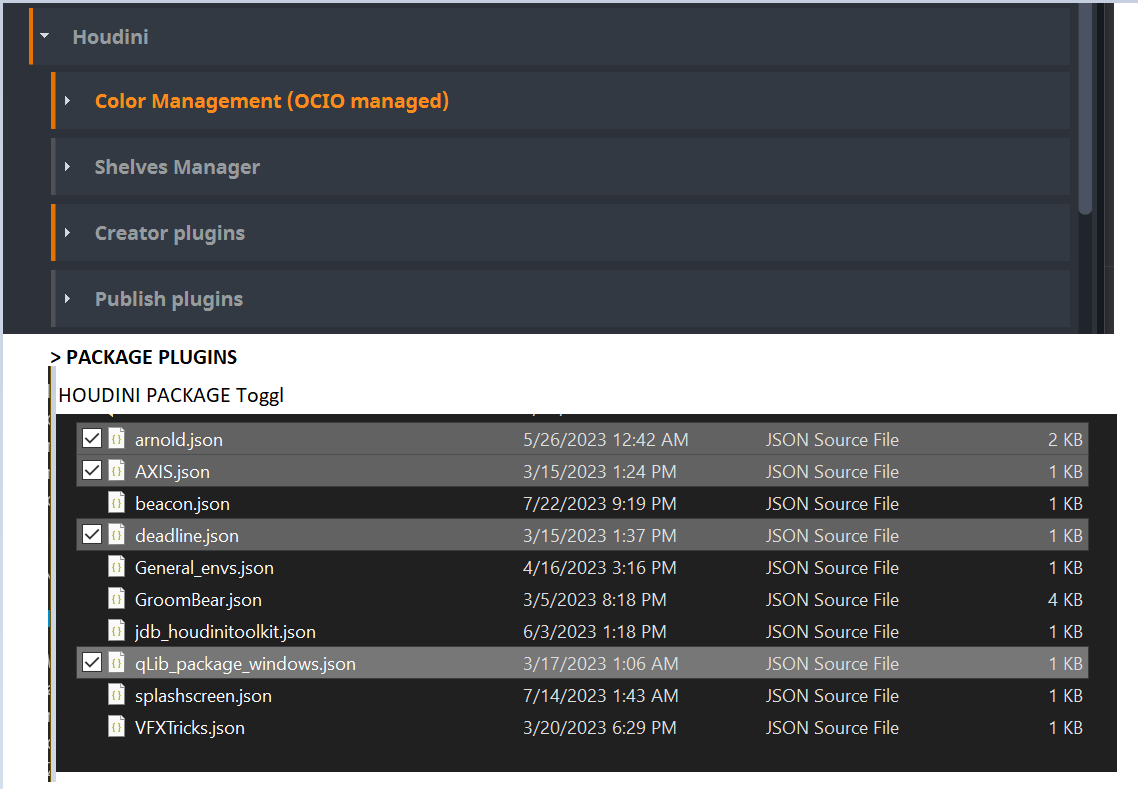
Plugins can greatly enhance Houdini, but outdated or incompatible ones frequently cause crashes—especially segmentation faults.
How to Troubleshoot Plugin Issues
-
Disable all plugins temporarily and test Houdini.
-
If stable, re-enable plugins one at a time, testing after each one.
-
Update or reinstall the plugin that causes the crash.
-
If no update exists, use an alternative or contact the developer.
This method isolates plugin-related crashes without disrupting your workflow.
Conclusion
Exit Code 139 in Houdini is a serious segmentation fault error that should never be ignored. By following the solutions in this guide: updating your NVIDIA Studio Driver, keeping Houdini on a stable build, simplifying heavy scenes, and systematically isolating plugin conflicts, you can effectively identify the root cause and restore full render stability. These steps not only help fix Exit Code 139 but also improve overall performance and reliability in long-term production.
For artists and studios who need maximum stability, powerful GPU hardware, and professional technical support, iRender offers a high-performance remote rendering solution optimized for Houdini, Karma, and GPU-based workflows. If Exit Code 139 is slowing down your production, applying these fixes or leveraging iRender’s stable GPU environment can help you render faster, safer, and without interruptions.
iRender - The best powerful rendering solution for Houdini
iRender is proud to provide suitable configuration packages for all software to bring you a great experience in the rendering process. With the benefits that iRender brings to you, as well as the configuration that is very suitable for all versions of Houdini, do not hesitate to use the service at iRender to have a great experience with your rendering time.
At iRender, we provide remote workstations where you can use them as your own computer. Under the IaaS (Infrastructure as a Service) model, you will have full control over the entire rendering process and use it as your personal machine. Therefore, you can install any software and plug-ins you want, add your license, and render or modify your project yourself.
Below is information about our packages, which are suitable for Houdini:
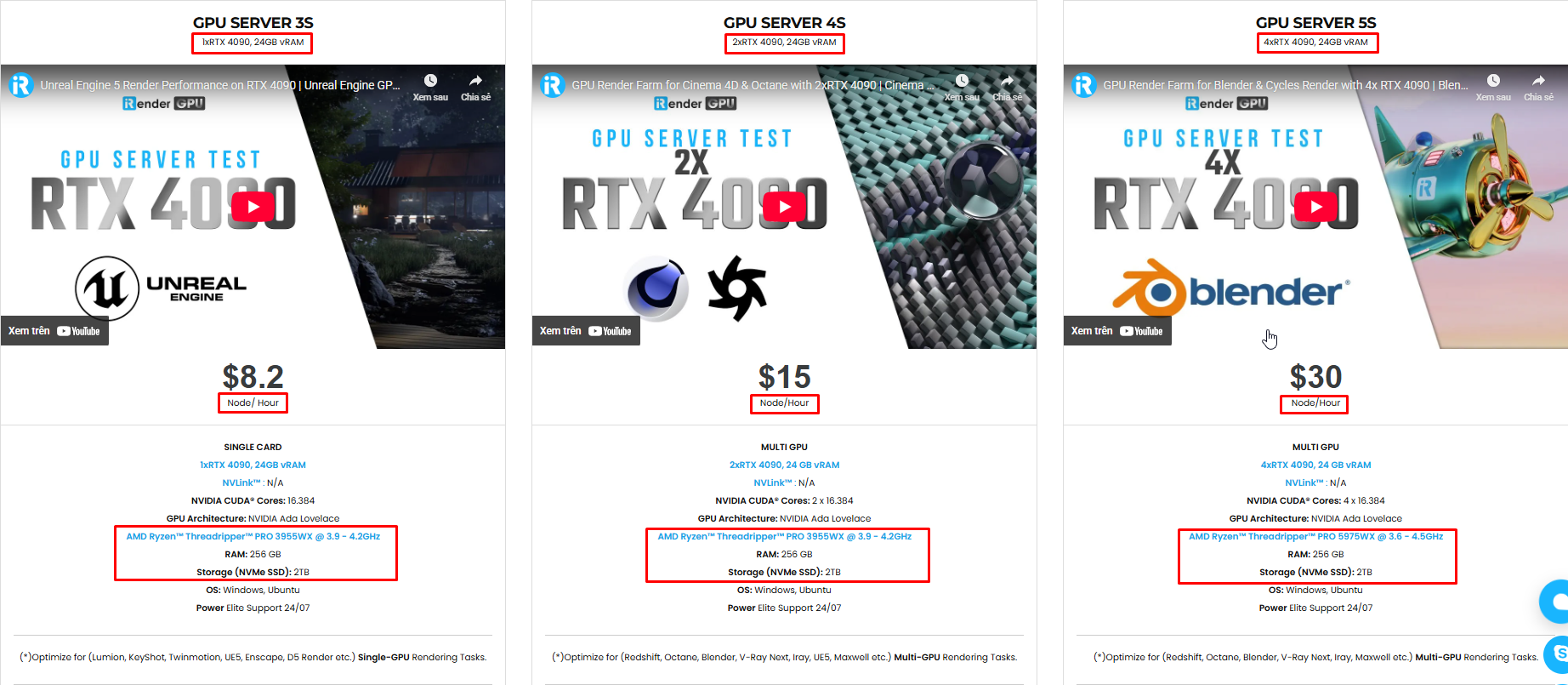
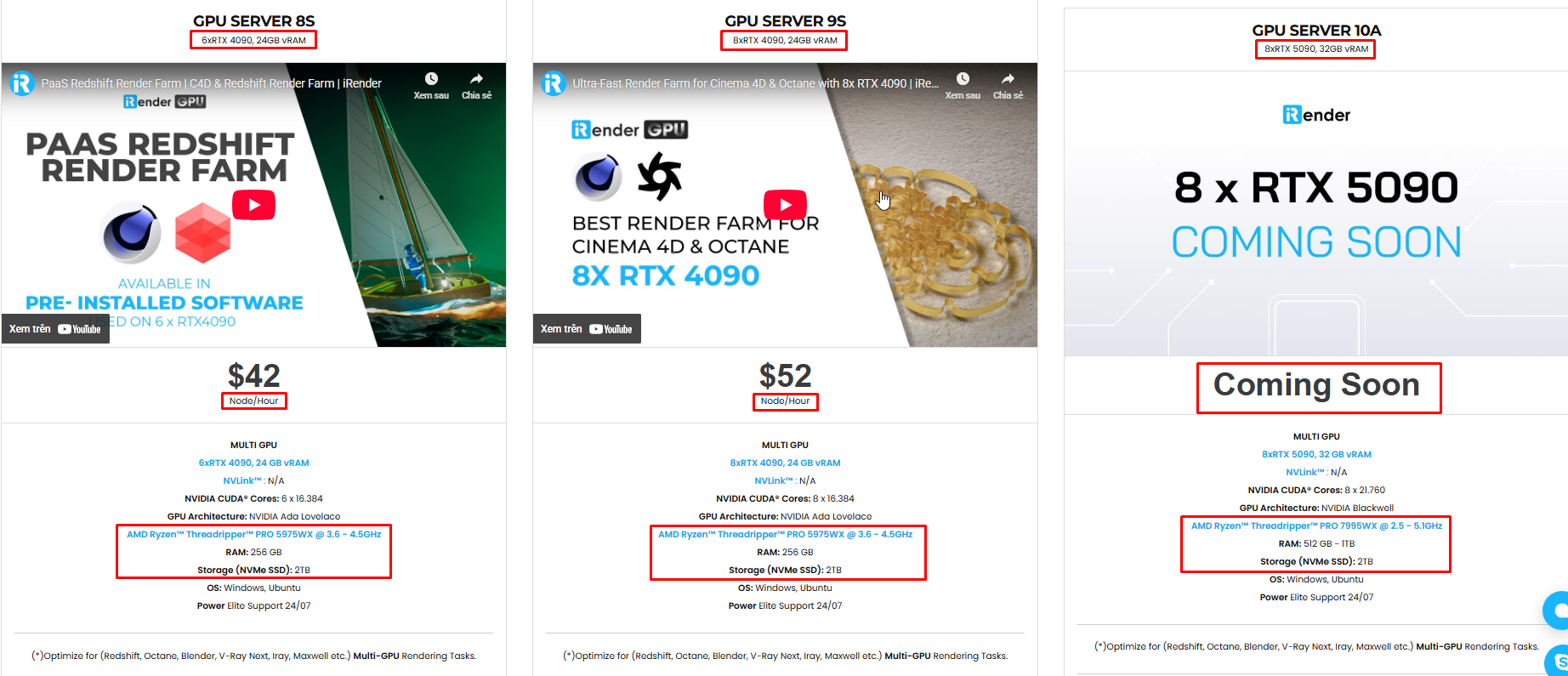
Let’s check the video testing real production scenes using Houdini to measure render speed, GPU scaling, and overall performance, and wonder how fast Octane can render on iRender’s 8 RTX 4090.


Not only does it have powerful configurations, but iRender also provides you with many more services. Free and convenient transfer tool iRender drive for macOS and Linux users. For Windows users, we recommend the iRender GPU application, you will not need to access our website anymore. The price at iRender is also very flexible with hourly rental (pay as you use), and daily/weekly/monthly rental with a 10-20% discount.
We’re always happy to help you with any questions. If you have any problems or questions, don’t hesitate to contact our 24/7 support team. Or via Whatsapp: 0912 785 500 for free advice and support.
iRender is currently offering a SPECIAL PROMOTION: enjoy a 100% bonus on your first top-up. This means your first deposit will be doubled, and your points never expire, allowing you to use them whenever you need.
Sign up for an account today to experience and enjoy our services.
Thank you & Happy Rendering!
Source and image:sidefx.com
Related Posts
The latest creative news from Houdini Cloud Rendering





