
How to Fix the ShaderCompileWorker.exe System Error in Unreal Engine?
If you work in Unreal Engine long enough, especially on large projects, you’ll eventually run into shader compilation issues. One of the most common is the dreaded:
“ShaderCompileWorker.exe – System Error”
This error can stop shaders from compiling, prevent your project from loading, and significantly slow down your workflow. It’s completely fixable. In this guide, we’ll explain what causes the error, provide step-by-step instructions on how to fix it, and offer guidance on how to prevent it from happening again. Let’s explore this blog with iRender!
What Is ShaderCompileWorker.exe & Why Does the Error Appear?
ShaderCompileWorker.exe is a core Unreal Engine process responsible for compiling shaders. If this executable is corrupted, blocked, or missing essential dependencies, Unreal Engine will not be able to process shaders correctly.
Common Causes of ShaderCompileWorker.exe Errors
- Missing or broken Microsoft Visual C++ Redistributables
- Corrupted or incomplete Unreal Engine installation
- Antivirus/Windows Defender is blocking the .exe
- Outdated or unstable NVIDIA/AMD GPU drivers
- Permission or access restrictions in Windows
- Corrupted Derived Data Cache files
These issues lead to missing DLL files, shader compilation failures, or Unreal being unable to launch ShaderCompileWorker.
How to Fix ShaderCompileWorker.exe System Error in Unreal Engine
1. Install or Repair Visual C++ Redistributables
Unreal Engine relies heavily on Microsoft Visual C++ Redistributable packages. These packages contain essential runtime libraries required for executables such as ShaderCompileWorker.exe.
If they are missing or corrupted, the shader worker won’t launch, resulting in system errors.
Steps to Fix It:
- Download the Visual C++ Redistributable:
-
-
- Go to the Microsoft download page for the latest supported Visual C++ Redistributables.
- Download both the x86 (32-bit) and x64 (64-bit) versions of the package for the Microsoft Visual C++ 2015-2022 Redistributable
-
- Run both installers:
+ If they are already installed, select ‘Repair’.
+ If not installed, choose Install
- Restart your computer.
- Open Unreal Engine again and wait for shaders to compile.
2. Update NVIDIA Drivers
Older or incompatible GPU drivers can prevent Blender from compiling kernels correctly. To update on the iRender server: right-click the desktop and open the NVIDIA Control Panel to check if it is the latest version.
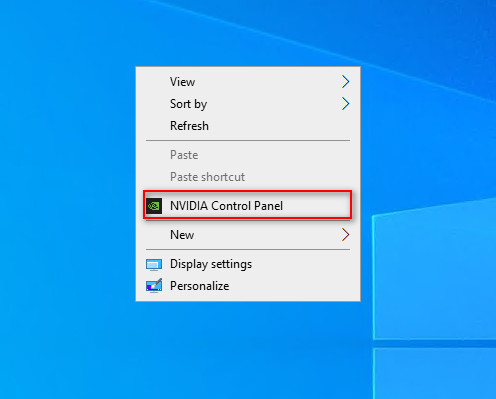
If it is not the latest version, you can update the NVIDIA Studio Driver. You can always go to X drive of the remote machine, then take the latest driver to the remote desktop and run it. After updating to the latest NVIDIA Studio Driver, you need to restart your computer. Wait for 2-5 minutes, then reconnect to the remote server.

3. Verify Unreal Engine Installation (Repair Missing Engine Files)
Corrupted engine binaries are one of the most common reasons ShaderCompileWorker.exe fails. Verification scans all Unreal Engine files and automatically replaces broken or missing ones.
Steps to Verify UE from Epic Games Launcher:
- Open Epic Games Launcher.
- Go to Unreal Engine → Library.
- Find your installed engine version.
- Click the ▼ arrow next to the Launch button.
- Select Verify.
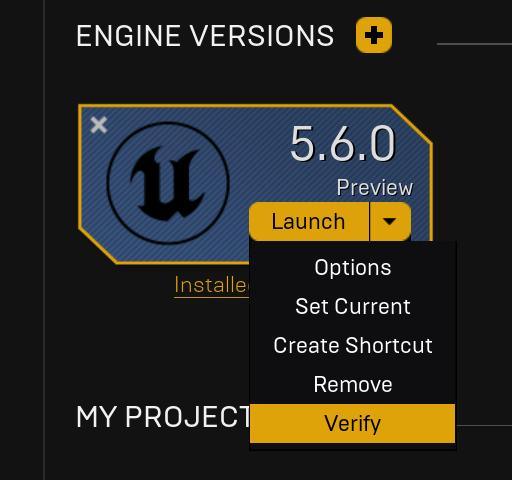
The launcher will scan all engine files, redownload damaged ShaderCompileWorker binaries, and rebuild required folders. This process may take several minutes, depending on your engine version and disk speed.
4. Add Antivirus/Defender Exceptions for ShaderCompileWorker.exe
Many antivirus programs, especially Windows Defender, Avast, and Bitdefender, mistakenly flag ShaderCompileWorker.exe as suspicious because it spawns multiple worker processes during the shader compilation process.
This can result in: The executable being quarantined, DLL files being blocked, and background shader compilation failing
Steps to Fix It:
- Open Windows Defender
- Click Virus & Threat Protection
- Under Virus & Threat Protection Settings, click “manage settings.”
- Scroll down to Exclusions and select “Add or remove exclusions.”
- On the next window, select “Add an Exclusion” then choose “Process.”
- Under process name type “ShaderCompileWorker.exe.”
- You can also add another process for “UnrealEditor.exe.”

5. Run Unreal Engine as Administrator
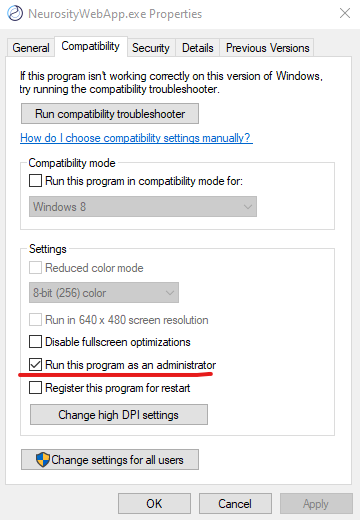
Sometimes Windows restricts certain executables from spawning subprocesses, which includes ShaderCompileWorker.exe. Running Unreal Engine with admin rights ensures it has full permission to access.
Follow these steps:
- Right-click your Epic Games Launcher shortcut.
- Click Run as administrator.
- Launch the game.
iRender - The best powerful rendering solution for Unreal Engine
iRender is proud to provide suitable configuration packages for all software to bring you a great experience in the rendering process. With the benefits that iRender brings to you as well as the configuration that is very suitable for all versions of Unreal Engine, do not hesitate to use the service at iRender to have a great experience with your rendering time. At iRender, we provide remote workstation(s) where you can use it as your own computer. Under the IaaS (Infrastructure as a Service) model, you will have full control over the entire rendering process and use it as your personal machine. Therefore, you can install any software and plug-ins you want, add your license, and render or modify your project yourself.
Below is information about our 3S package, which is the most suitable for Unreal Engine:

Not only does it have powerful configurations, but iRender also provides you with many more services. Free and convenient transfer tool iRender drive for macOS and Linux users. For Windows users, we recommend the iRender GPU application, you will not need to access our website anymore. The price at iRender is also very flexible with hourly rental (pay as you use), and daily/weekly/monthly rental with a 10-20% discount.
We’re always happy to help you with any questions. If you have any problems or questions, don’t hesitate to contact our 24/7 support team. Or via Whatsapp: 0912 785 500 for free advice and support.
iRender is currently offering a SPECIAL PROMOTION: enjoy a 100% bonus on your first top-up. This means your first deposit will be doubled, and your points never expire, allowing you to use them whenever you need.
Sign up for an account today to experience and enjoy our services.
Thank you & Happy Rendering!
Source and image:unrealengine.com,dev.epicgames.com

Related Posts
The latest creative news from Unreal Engine Cloud Rendering






