
Octane Won't Render My Scene? Fixing OctaneRender VRAM Crashes
The render kernel fails to launch, or it dies a second after you hit render, and the log mentions running out of device memory. Octane is a pure GPU renderer, so unlike a hybrid engine it has nowhere to fall back to. If the scene does not fit in your card’s VRAM, it simply does not render. That is harsh, but it also means the fix is narrow and learnable: get the scene under your card’s memory, or give the card more room to spill into.
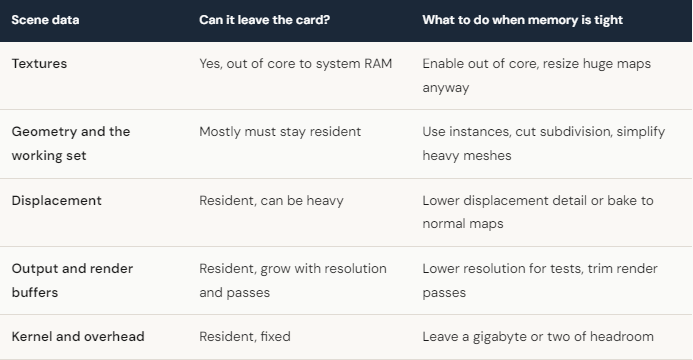
Octane has a reputation for being VRAM hungry, and it earns it because it keeps the scene resident on the GPU to trace rays fast. What helps is knowing exactly which parts of your scene can be pushed out of the card and which parts have to stay, because that decides what you cut.
Turn on out of core, then understand its limits
Octane can keep textures in system RAM instead of the card, which is the single most useful setting when you are a little over. Enable out-of-core and set a sensible system memory limit, and a texture-heavy scene that refused to launch will often start rendering. Reading textures from system memory is slower than reading them from the card, so the frame takes longer than a scene that fits entirely in VRAM, and that is a reasonable price to keep rendering at all.
Here is the part people miss. Out of core mostly rescues textures. Your geometry, the working set, and the render buffers still need to live on the card, so a scene that is heavy in polygons or displacement rather than textures will keep failing even with out of core on. When that happens, the fix moves back to the mesh: instances for repeated objects, lower subdivision, baked displacement where you can get away with it.
Does adding more GPUs let Octane render a bigger scene?
This trips up a lot of people who buy a second card hoping it solves their crashes. Octane scales beautifully across multiple GPUs for speed, close to linear on a single frame because it splits the samples between cards, so two 4090s render roughly twice as fast as one. What multiple GPUs do not do is combine their memory. Each card has to hold the whole scene on its own, so four 24GB cards still give you a 24GB ceiling, not 96. More GPUs make Octane faster. They do not make your scene fit.
So if your problem is speed, more cards are the answer. If your problem is a scene that will not fit in 24GB, the answer is either trimming it, leaning on out of core backed by a large system RAM pool, or rendering on a card with more memory.
When the scene is genuinely too big, and where iRender fits
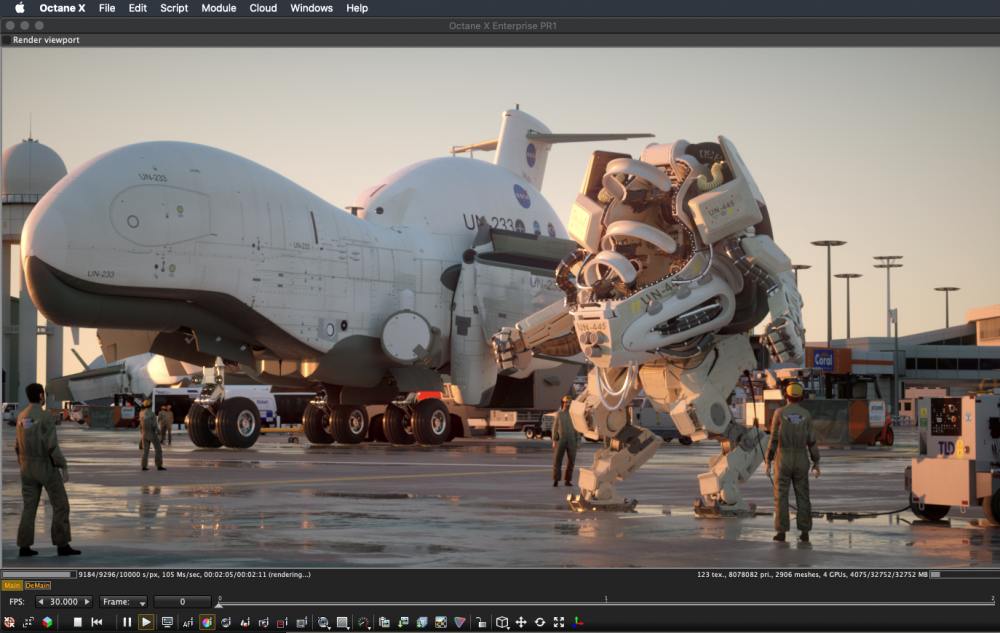
Say you have enabled out of core, instanced what you can, and the scene still wants more than the card holds in resident data. At that point you need either more VRAM or a lot of system RAM for the texture overflow. Every iRender GPU is an RTX 4090 with 24GB, and there is no larger card on offer, so a scene that needs more than 24GB of resident geometry will not be fixed by renting one. What the machines do give Octane is 256GB of system RAM per server for out of core textures, plus the option of up to 8 cards to push samples through a heavy frame fast. You set the machine up with your Octane plugin, your host app and your exact versions, so the render matches your local result because you configured it, which is the point of “your renders, your rules”.
Keep two things in mind so the cost stays predictable. The meter starts at boot and does not care whether Octane is rendering yet, so prepare your scene first and avoid leaving a machine idle between tests. Plan for fifteen to thirty minutes of installation on the first run, after which your saved environment makes later sessions quick, and lean on auto-shutdown so a finished overnight job does not keep billing. If you only want to drop a scene into a queue and collect frames later, a SaaS render farm is the simpler route. iRender suits you when you want Octane multi GPU speed and a big system memory pool for out of core work.
Frequently Asked Questions
Render faster and smarter on Octane Render with iRender’s servers
iRender stands out as one of the most powerful and flexible rendering platforms available for Octane users. iRender provides instant access to high-performance GPU servers, featuring top-tier hardware like the RTX 4090. Most importantly, we always update to the latest GPU technology, with options including 1/2/4/6/8 RTX 4090.
Under the IaaS (Infrastructure as a Service) model, you will have full control over the machine via a remote desktop app, similar to TeamViewer but more stable. You will be able to proactively install the software and use it on the server just like using a personal computer. In addition, you can find many server packages with high-end configurations that are extremely suitable for complex projects.
We’ve put the RTX 4090 and RTX 3090 to the test across different GPU configurations (1/2/4/6/8 GPUs) and the results are mind-blowing. In this video, we compare performance across 1, 2, 4, 6, and 8 GPUs to see how well Octane scales with more power.
Additionally, we run a real scene test to measure render speed, GPU scaling, and overall performance on server 8xRTX4090, so you can see exactly what to expect when rendering Octane projects on iRender render farm.
Let’s watch the results and find out which GPU configuration offers the best balance of speed and efficiency!


Why choose iRender?
- Rent machines with multiple GPUs (up to 8x RTX 4090)
- Flexible pricing based on your workflow
- Instant scaling—great for deadline crunches
- Perfect support for Redshift, Octane, Arnold, and more
- Access from Windows or macOS
Instead of spending thousands on hardware upgrades, you can scale your power only when you need it.
Below is information about iRender’s service packages:
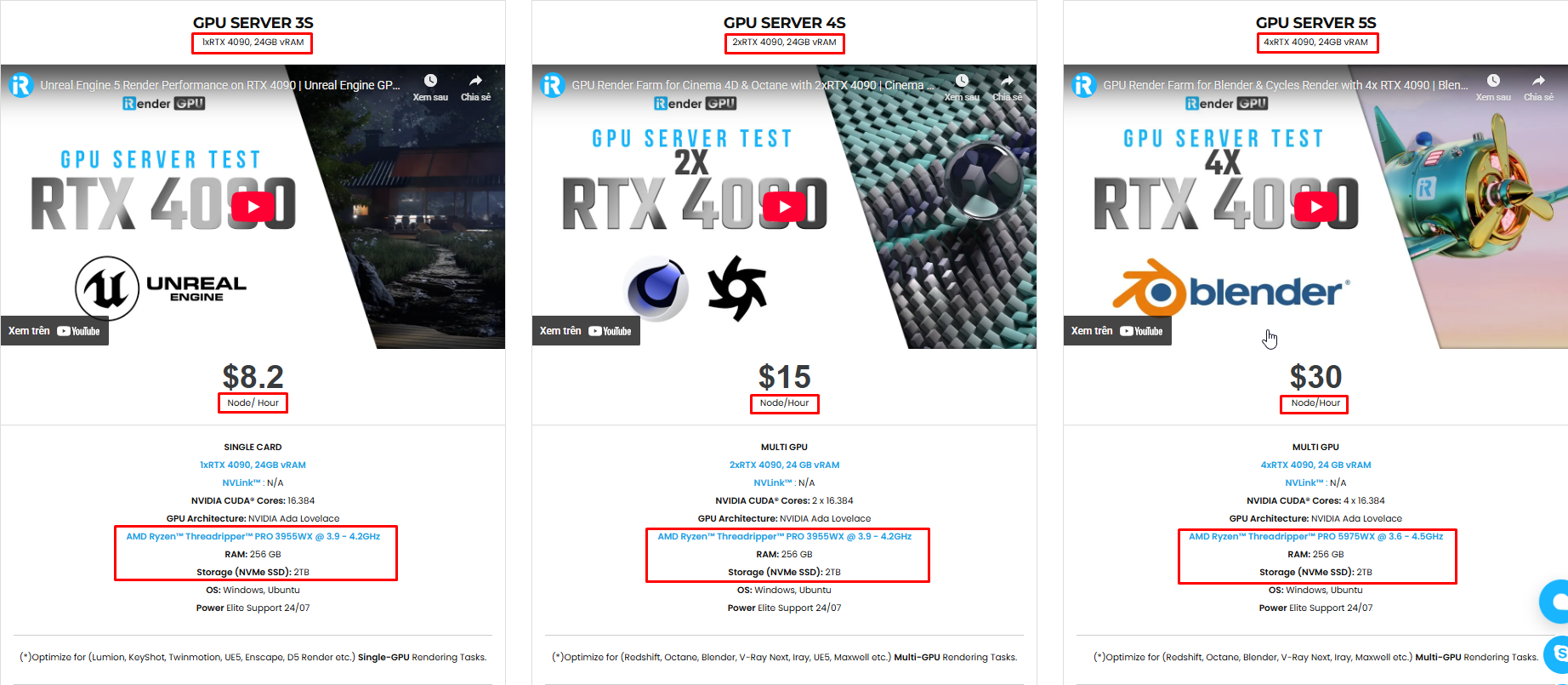

We’re always happy to help you with any questions. If you have any problems or questions, don’t hesitate to contact our 24/7 support team. Or via Whatsapp: 0912 785 500 for free advice and support.
Right now, iRender has a SPECIAL PROMOTION program with a 100% bonus for the first transaction. It means that you can get an extra 100% of the money you recharged the first time. And points never expire, so you can use them at any time.
Sign up for an account today to experience and enjoy our services.
Thank you & Happy Rendering!
Source and image: help.otoy.com

Related Posts
The latest creative news from Octane Cloud Rendering





