
How to Fix Blender Lagging or Freezing on Ubuntu?
If you’re a 3D artist running Blender on Ubuntu, you probably expect smooth performance, stability, and lower overhead compared to Windows. But for many users, Blender on Ubuntu becomes:
- Laggy during viewport navigation
- Unresponsive when rendering
- Frozen during heavy scenes
- Stuck at 0% GPU usage
- Or even completely freezing the entire system
One Ubuntu user, Samuel Adesola, reported that Blender caused his system to lock up entirely until he discovered the real cause and applied the correct fixes.
In this guide, iRender will learn why Blender lags on Ubuntu and the most effective fixes, based on Samuel’s experience and the Blender/Linux community. At the end of the article, you’ll also see why many professionals prefer running Blender on a Windows-based GPU service like iRender, especially for heavy rendering.
Why Blender Lags or Freezes on Ubuntu
- Incorrect or misconfigured NVIDIA GPU drivers
- Blender installed through Snap (sandboxed)
- Kernel or system updates are conflicting with drivers
- Misconfigured Blender system settings
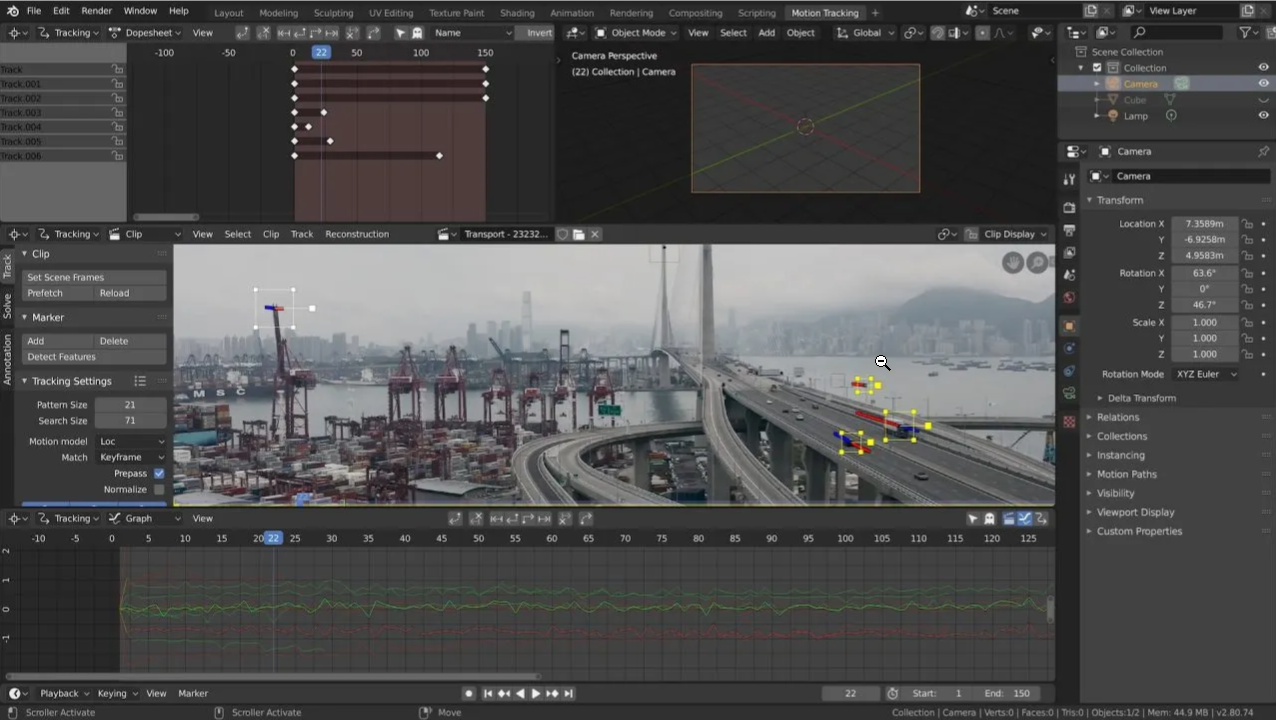
How to Fix Blender Lagging on Ubuntu
1. Enable GPU Rendering in Blender
Incorrect or conflicting render device settings can cause Blender to lag. Make sure Cycles is using the correct GPU backend and that your GPU is properly enabled.
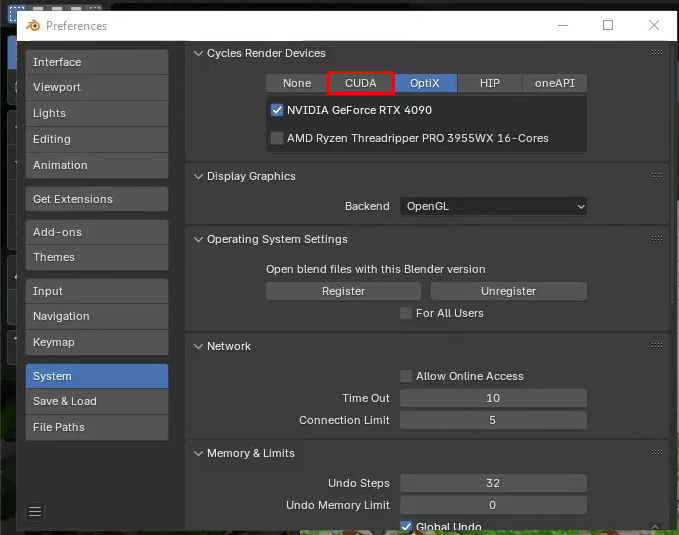
Step 1 – Select the Proper GPU Backend
Go to:
Edit → Preferences → System → Cycles Render Devices
For NVIDIA GPUs, choose either:
- CUDA (most stable), or
- OptiX (faster on RTX cards, but may fail on older drivers)
Ensure your GPU is listed and enabled.
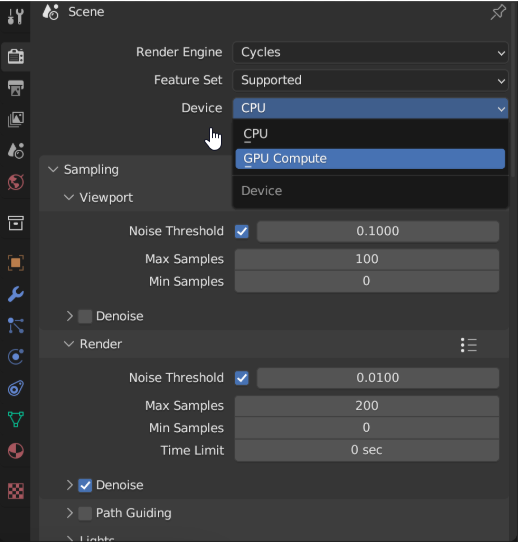
Step 2 – Verify Render Device in Render Properties
If Blender is set to CPU by mistake, kernel compilation can hang or take significantly longer. Open the Render Properties panel in Blender, then confirm:
- Device: GPU Compute
- Feature Set: Supported
2. Install the Correct NVIDIA Driver
To ensure Blender fully utilizes your GPU on Ubuntu, you need the proper NVIDIA driver installed. Using the wrong driver can lead to lag, freezes, or 0% GPU usage.
Follow these steps:
- Open a terminal and run:

- This will automatically detect and install the recommended NVIDIA driver for your GPU.
- Next, open Settings → Additional Drivers.
- Select the proprietary, tested NVIDIA driver (avoid the open-source Nouveau driver).
- Restart your computer to apply changes.
After reboot, your NVIDIA GPU should be recognized correctly, and Blender will be able to leverage it for fast rendering and smooth viewport performance.
3. Update Ubuntu and Resolve Kernel Issues
Keeping Ubuntu and its kernel up to date is crucial for maintaining stable GPU performance and ensuring smooth Blender operation. Outdated packages or mismatched drivers can cause freezes, crashes, or GPU errors.
Follow these steps carefully:
- Open a terminal and run:

- This updates all packages to their latest versions and ensures compatibility with your NVIDIA drivers.
- If your system experiences boot or kernel issues after driver updates:
-
- At the GRUB boot menu, choose Advanced Options → Previous Kernel to start Ubuntu with a stable kernel.
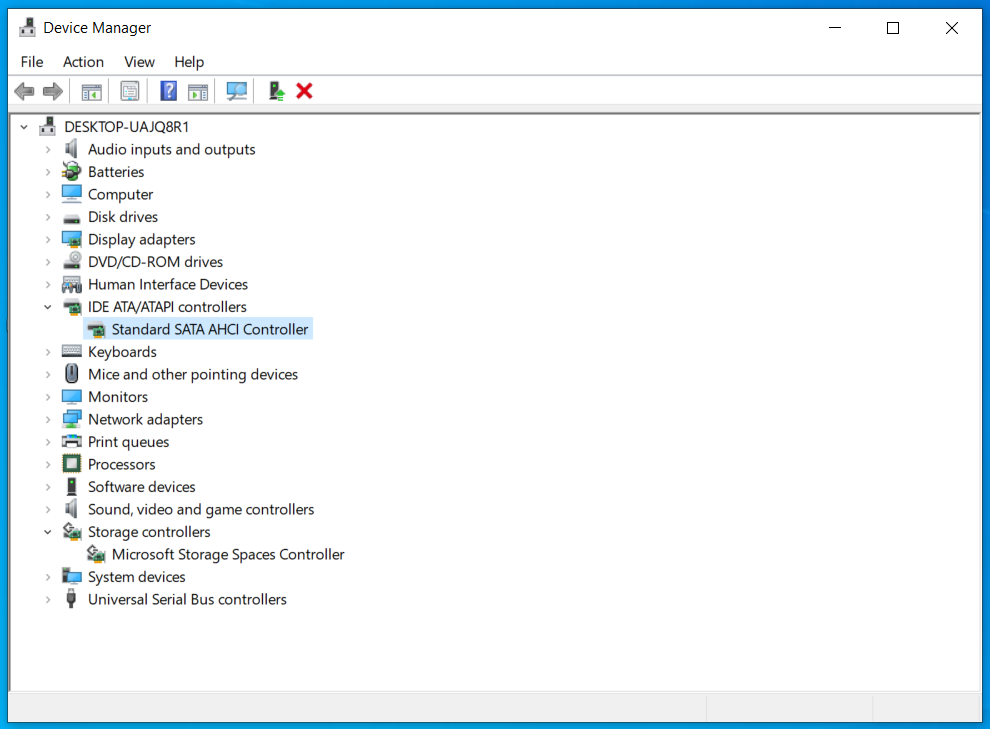
- In some cases (like Samuel Adesola’s experience), you may need to switch your BIOS SATA mode to AHCI to resolve boot errors.
- Reboot your system to apply updates and ensure the kernel is stable.
If Blender Still Lags on Ubuntu… Try Running Blender on a Windows Machine with iRender
Even with all fixes applied, Blender on Ubuntu can still be less stable. This is why thousands of 3D artists, animators, and rendering studios prefer running Blender on Windows-based cloud machines, especially with high-end GPUs.
Why iRender is a great solution:
iRender proudly offers high-performance workstation configurations optimized for Blender, giving you an incredible rendering experience without the limitations of traditional render farms. With iRender, you can enjoy full control over your remote workstation, just like using your personal computer, but on the cloud. Blender comes pre-installed and ready to go, so you can start immediately.
Fully Compatible with Blender
iRender allows you the freedom and flexibility to work the way you want, without restrictions.
- Install any version of Blender you need.
- Add your favorite plugins or specialized render tools.
- Whether you use OctaneRender, Redshift via Houdini Bridge, or export USD for Arnold, you can set up your environment exactly like your local machine.
Powerful Multi-GPU Workstations
iRender offers virtual machines with up to 8x RTX 4090, or high-VRAM GPUs for large scenes. These configurations are perfect for:
- OctaneRender: Linear scaling across multiple GPUs, ultra-fast path tracing.
- Redshift: Biased rendering optimized for animation, saving you time.
- Arnold GPU: Smooth OptiX multi-GPU support.
- V-Ray GPU: Trusted by archviz professionals for both stills and animations.
Scalable & Affordable Pricing
One of the biggest barriers to multi-GPU rendering is the upfront cost of hardware. With iRender, you pay only for the time you use, making it highly cost-effective whether you’re a freelancer rendering a single scene or a studio handling large projects with tight deadlines.
You can see the information about iRender’s service packages here.
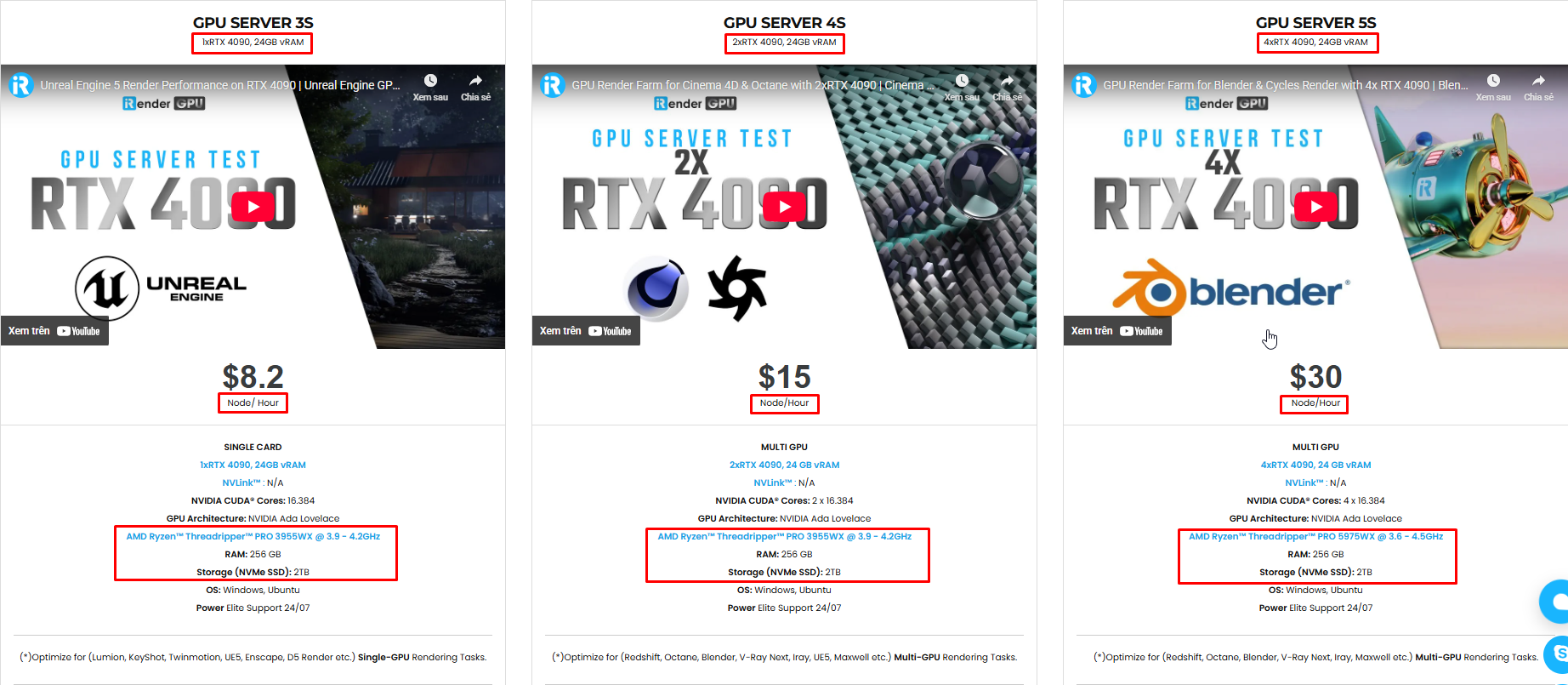
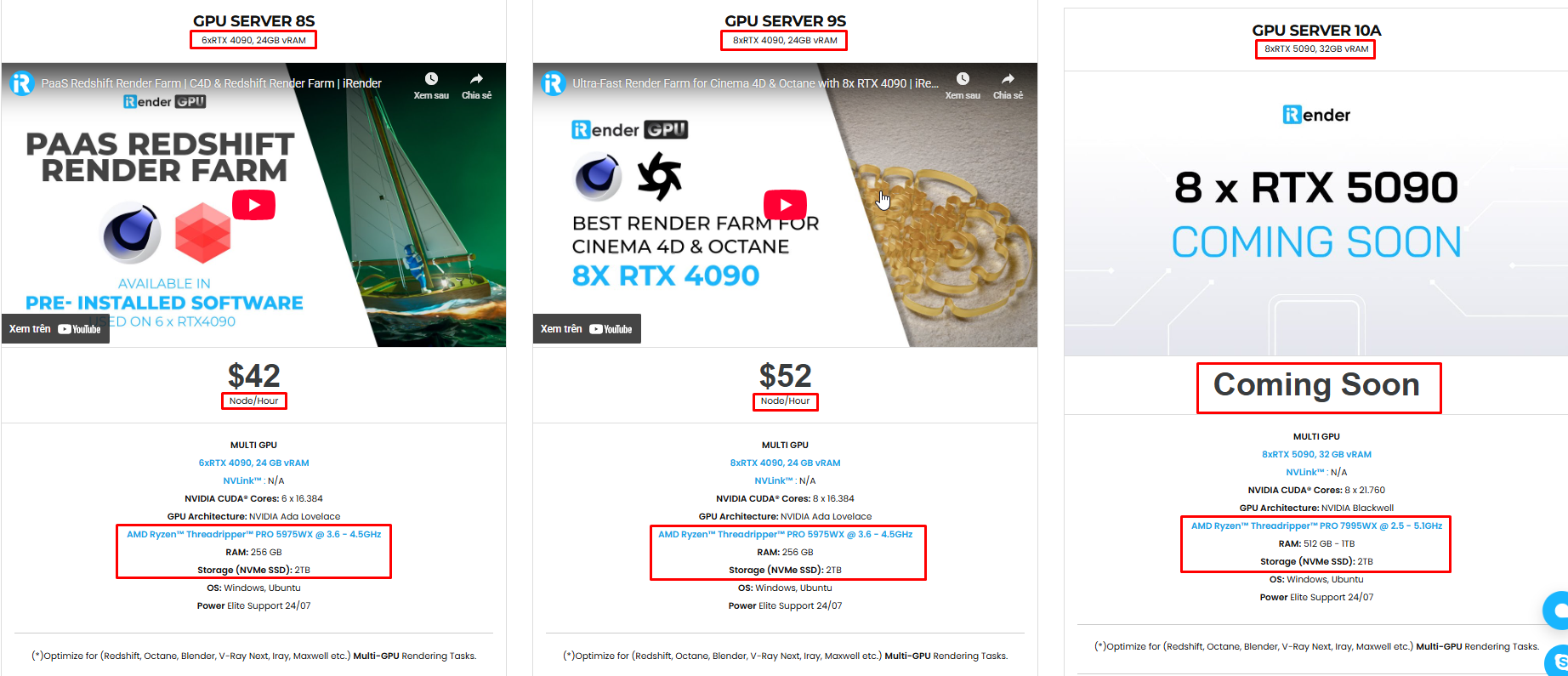
iRender is currently offering a SPECIAL PROMOTION: enjoy a 100% bonus on your first top-up. This means your first deposit will be doubled, and your points never expire, allowing you to use them whenever you need.
We’re always happy to help you with any questions. If you have any problems or questions, don’t hesitate to contact our 24/7 support team. Or via WhatsApp: 0912 785 500 for free advice and support.
Sign up for an account today to experience and enjoy our services.
Thank you & Happy Rendering!
Source and image:samueladesola.medium.com, blenderartists.org

Related Posts
The latest creative news from Blender Cloud Rendering





