
How to Fix Blender Stuck on “Loading Render Kernels” in Viewport?
One common issue artists face is Blender being stuck on loading render kernels when switching to Rendered View. It can be incredibly frustrating, especially when using Cycles GPU rendering. This message means Blender is trying to compile the render kernels needed for Cycles to start rendering, but something is slowing down or blocking the process.
In this guide, iRender will break down what causes the issue and how to fix it, so your viewport runs smoothly and you can get back to creating instead of waiting.
What Does “Loading Render Kernels” Mean?
When Blender says “Loading render kernels”, it’s preparing your GPU to start rendering. The kernel is the compiled shader code that Cycles uses to render your scene. This process involves:
- Compiling shaders for all materials in your scene
- Allocating GPU memory for textures and geometry
- Building the BVH (bounding volume hierarchy) for ray tracing
In short, it’s the step before your render actually begins. Normally, this should only take a few seconds, but if it’s taking forever, something is off.
Why Blender Gets Stuck on “Loading Render Kernels”?
- Outdated or Incompatible GPU Drivers
- GPU Acceleration Conflicts
- Missing or Corrupted Visual C++ Redistributables
- Blender Version Conflicts
- Misconfigured Render Device Settings
How to fix them effectively?
1. Update NVIDIA Drivers
Older or incompatible GPU drivers can prevent Blender from compiling kernels correctly. To update on the iRender server: right-click the desktop and open the NVIDIA Control Panel to check if it is the latest version.
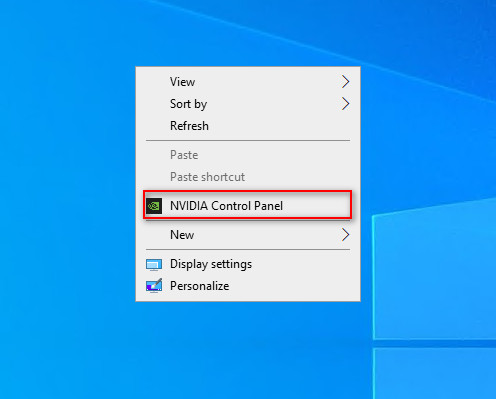
If it is not the latest version, you can update the NVIDIA Studio Driver. You can always go to X drive of the remote machine, then take the latest driver to the remote desktop and run it. After updating to the latest NVIDIA Studio Driver, you need to restart your computer. Wait for 2-5 minutes, then reconnect to the remote server.

2. Download the Visual C++ Redistributable
Blender relies on Microsoft Visual C++ libraries to run GPU operations. If these files are missing or outdated, Blender may hang while compiling kernels.
Install or repair the latest Microsoft Visual C++ Redistributables:
- Download from Microsoft’s official site
- Install both x64 and x86 versions
- Restart your system and try launching Blender again
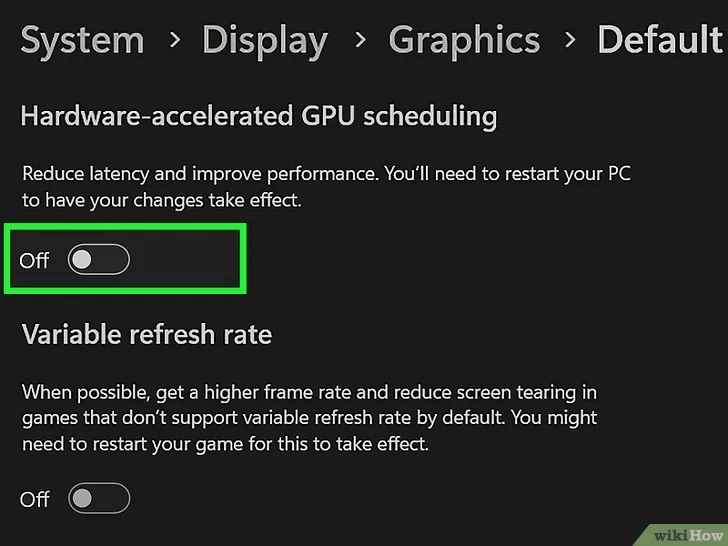
3. Turn off Hardware-accelerated GPU scheduling
Sometimes, GPU acceleration in other applications (like browsers, video players, or streaming tools) can interfere with Blender’s kernel loading process.
Try temporarily disabling GPU acceleration system-wide by following these steps:
- Click Start, then head to Settings > System.
- From the left-hand menu, select Display.
- Below Multiple Displays, click Graphics settings.
- Turn off the Hardware-accelerated GPU scheduling toggle.
- Restart your computer.
4. Check GPU Rendering Settings
Incorrect or conflicting render device settings can cause Blender to hang at “Loading Render Kernels.” Make sure Cycles is using the correct GPU backend and that your GPU is properly enabled.
Step 1 – Select the Proper GPU Backend
Go to:
Edit → Preferences → System → Cycles Render Devices
For NVIDIA GPUs, choose either:
- CUDA (most stable), or
- OptiX (faster on RTX cards, but may fail on older drivers)
Make sure your GPU is checked/enabled in the list.
Step 2 – Verify Render Device in Render Properties
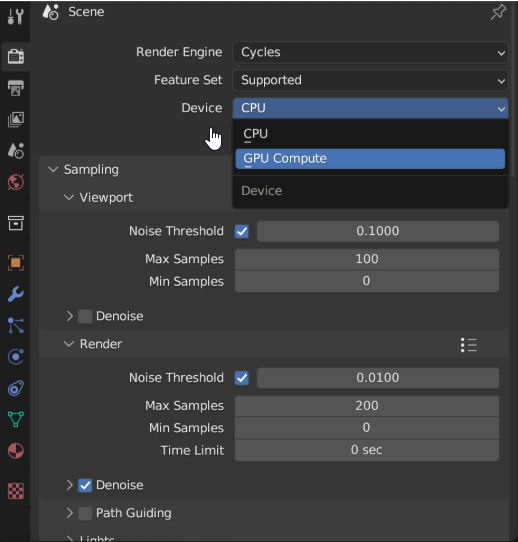
If Blender is set to CPU by mistake, kernel compilation can hang or take significantly longer. Open the Render Properties panel in Blender, then confirm:
- Device: GPU Compute
- Feature Set: Supported
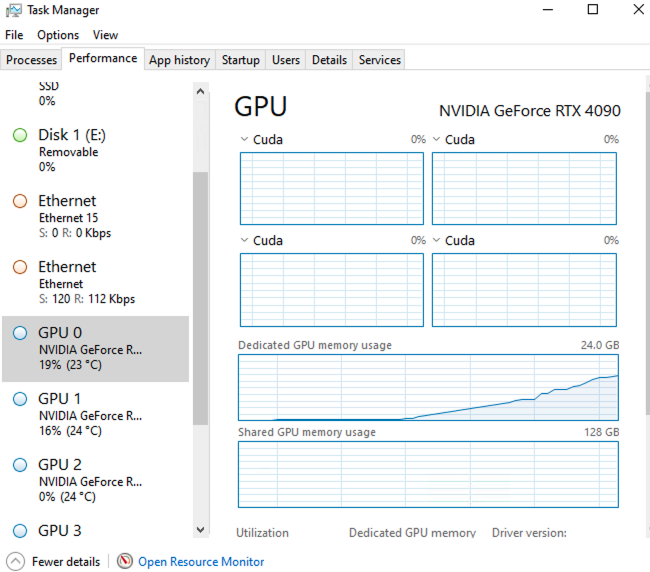
Step 3 – Test GPUs One by One (Important for Multi-GPU Users)
If you’re using more than one GPU, one card may fail to compile kernels, causing the entire system to freeze during “Loading Render Kernels.”
You can try on our server 3S(1RTX4090), it’s fixed rental with 1 hour (minimum) and costs $8.2/hour for machine run nonstop.

5. Install a lower version of Blender
Some Blender builds (especially experimental or new major versions) may contain compatibility issues with your GPU or drivers.
Try installing a lower stable version of Blender (for example, 3.6 LTS or 4.0) and test your project there. If it works fine, the issue may be tied to a bug in your current version.
iRender – Maximize Your Blender Rendering Performance
iRender is proud to be one of the best GPU service providers on the market. We provide you with high-configuration models with advanced specifications such as AMD Ryzen™ Threadripper™ PRO 3955WX @ 3.9 – 4.2GHz or AMD Ryzen™ Threadripper™ PRO 5975WX @ 3.6 – 4, 5GHz, 256GB RAM, 2TB NVMe SSD storage.
Under the IaaS (Infrastructure as a Service) model you will have full control over the machine via a remote desktop app, similar to Teamviewer but more stable. You will be able to proactively install the software and use it on the server just like using a personal computer. You can find many server packages with high-end configurations that are extremely suitable for complex projects. Our machines have preinstalled Blender, you can choose to create the machine at first then connect and render yourself
We’re always happy to help you with any questions. If you have any problems or questions, don’t hesitate to contact our 24/7 support team. Or via WhatsApp: 0912 785 500 for free advice and support.
Right now iRender has a SPECIAL PROMOTION program with a 100% bonus for the first transaction. It means you can get 100% of the money you recharged the first time. And points never expire so you can use them at any time.
Sign up for an account today to experience and enjoy our services.
Thank you & Happy Rendering!
Source and image: blenderartists.org, projects.blender.org

Related Posts
The latest creative news from Blender Cloud Rendering





