
How to fix missing objects in Unreal Engine’s Movie Render Queue?
Rendering cinematic sequences in Unreal Engine can be challenging, especially when objects that look great in the viewport suddenly disappear in the final result. This issue often occurs when working with the Movie Render Queue, and can be caused by some simple settings that you may have overlooked.
In this article, we will analyze the main causes of missing objects in Unreal Engine’s Movie Render Queue and how to fix them effectively.
Actor is Hidden in Game
One of the most common reasons for objects not appearing in the final render is that the ‘Actor Hidden in Game‘ option is enabled. This setting allows you to see the object in the viewport, but when you hit the Play button or render through the Movie Render Queue, the object disappears completely.
This is a useful feature when working with placeholder or greybox assets in development. But it can also be easily forgotten when you start rendering. To fix this, simply select the missing object, go to the Details panel, and uncheck ‘Actor Hidden in Game’.
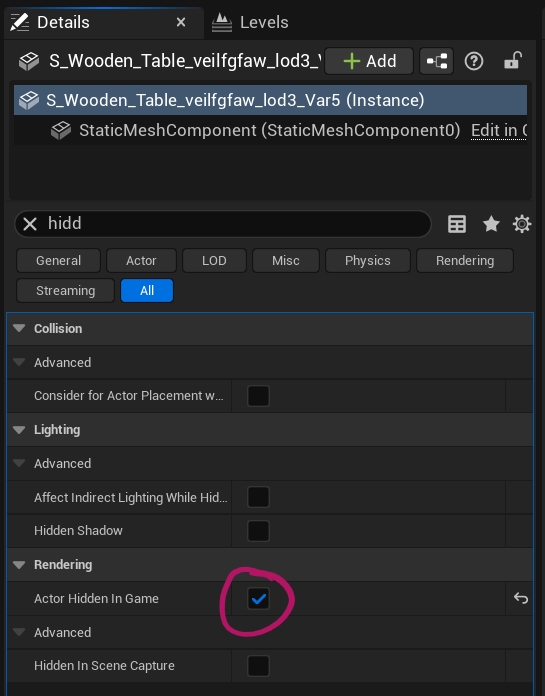
Also, this setting can be applied to individual components inside the Blueprint. If only part of your object or rig is not showing, double-check each component to make sure nothing is hidden in the game mode.
Levels and Streaming Method
Another common reason for objects not showing up in your Movie Render Queue results has to do with how Levels are loaded. In Unreal Engine, many users organize their projects into multiple Levels. For example, one Level for environments, one Level for characters, and one level for lighting or effects. This is useful for organization, but can be confusing when rendering cinematics.
If you notice everything from a particular Level is missing from your render, check the Streaming Method. Levels with a green dot next to their name are not always loaded by default, but rather rely on the Blueprint or Sequencer to load them as they run. So if you forget to enable it in your sequence, the entire level and all its objects will not appear in the final render.
To fix this, right-click on the Level in the Levels panel and set its Streaming Method to ‘Always Loaded’. This ensures that Unreal Engine always loads that Level during cinematic rendering and doesn’t accidentally lose anything.
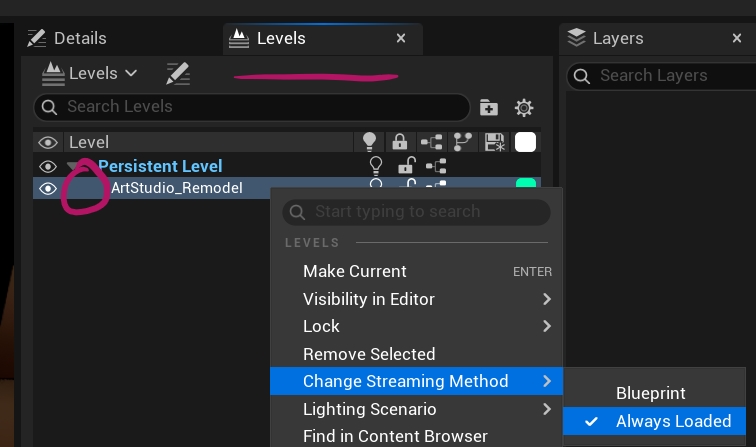
If your project uses World Partitions instead of traditional Levels, the same rule applies. Check your Data Layers and make sure the layers containing the missing objects are set to load properly. Just note that Unreal only allows you to use Levels or World Partitions, not both at the same time.
LOD Screen Size
Sometimes, the reason your objects aren’t appearing in the Movie Render Queue isn’t due to materials, rendering, or lighting, but a much simpler, yet harder-to-detect issue is the LOD Screen Size settings.
If a particular mesh is visible in the viewport but disappears completely when rendering, check its Levels of Detail (LOD). Open the mesh in the Static Mesh Editor and look for a parameter called Screen Size under LOD 0.
Usually, this value will be greyed out and set to 2, meaning the mesh will render normally. However, in some cases, this setting may have been changed to 0, which tells Unreal Engine not to display the mesh even during rendering.
To fix the issue, simply change the Screen Size value of LOD 0 to anything greater than 0, e.g., 1 or 2. Once done, the content will display correctly in your Movie Render Queue output.
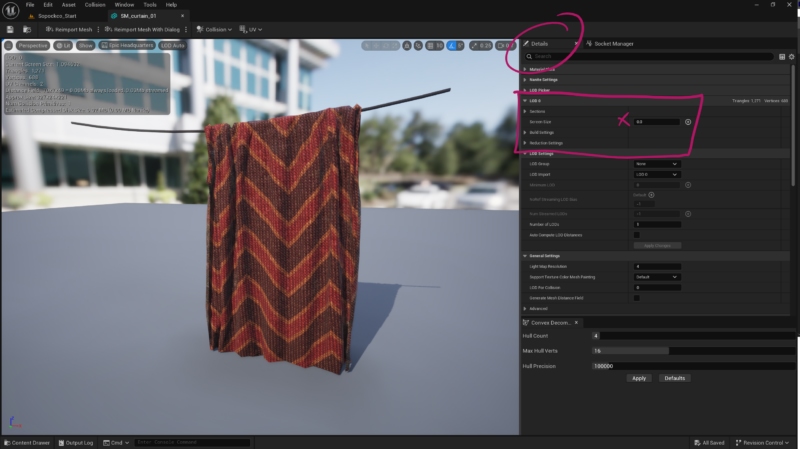
This core fix was pointed out by a developer named Daluz on the Epic Dev Forums, and it has helped many users solve the mysterious ‘invisible assets’ issue that seems to be impossible to track.
Final Thoughts
Sometimes the smallest setting can cause big problems. If an object is missing from the Movie Render Queue, don’t worry, just go through these checks. Most of the time, it’s something simple, such as a hidden actor or a streaming issue.
Once you get used to spotting these issues, troubleshooting becomes easy. And if you use iRender for your Unreal project, you’ll have the added benefit of our technical support team ready to help you get that perfect final render.
iRender - The Best Render Farm for Unreal Engine 5
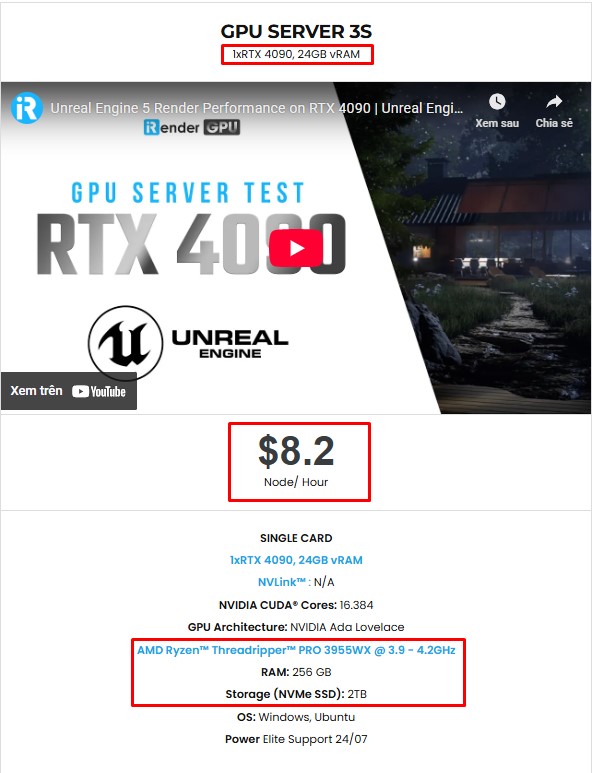
If you need more power than your local machine can handle, especially for large scenes, high-resolution screenshots, or heavy cinematic rendering, iRender is here to help. As one of the best cloud render farms for Unreal Engine, iRender offers high-performance RTX 4090 and CPU servers optimized for real-time workflows. All servers are equipped with:
- AMD Ryzen™ Threadripper™ PRO 3955WX (3.9-4.2GHz) or
- AMD Ryzen™ Threadripper™ PRO 5975WX (3.6-4.5GHz)
- (1/2/4/6/8x) – RTX 4090
- 256GB RAM
- 2TB NVMe SSDs
With Unreal Engine 5, a 3S (1xRTX 4090) server is the best choice with the most affordable price. You have full control over a powerful remote machine, with support for UE5 and all its plugins, so you can render faster, scale larger, and focus on being creative.
Why choose iRender?
Unlike other services, iRender lets you upload and download files without starting the server, saving you both time and money. We offer a Desktop app for Windows with a full feature set and a simple Drive app for macOS for easy file transfers. Here’s why iRender is a top choice for your rendering needs:
- 100% Software Support: We support all 3D software, their plugins, and render engines.
- Full Control: Our service will give you full control over the servers you rent. Therefore, you are free to create your own working environment.
- Go Green: We are committed to using 100% solar renewable energy towards environmental sustainability.
- Real-human 24/7 Support: Our professional support agents and technicians guarantee to bring you the best rendering experience.
Let’s see how Unreal Engine performs on our servers. You’ll definitely see the difference!


If you still wonder if this is the right place for your project, REGISTER NOW to get a trial and receive a 100% bonus promotion for your first transaction within 24 hours of registration with us.

For more detailed information, please contact us via Live chat 24/7 or WhatsApp: +(+84) 912-785-500 or Email: [email protected]
iRender – Happy Rendering!
References: versluis.com
Related Posts
The latest creative news from Unreal Engine Cloud rendering.






