
How to make Blender Cycles render faster?
When scenes become heavier and more detailed, artists often struggle to make Blender Cycles render faster. Complex shaders, high-resolution textures, dense geometry, and sub-optimal settings can cause render times to increase dramatically, slowing down the entire workflow. Even with strong GPUs or multi-GPU setups, Cycles can still render slower than expected if the scene or system isn’t properly optimized.
This guide walks you through 10 ways to help Blender Cycles render faster in real production environments. These methods are drawn from actual user experiences, Blender community discussions, and performance best practices. Whether you’re rendering still images or full animations, applying these optimizations can significantly speed up your renders without sacrificing visual quality.
10 Ways to Make Blender Cycles Render Faster
1. Enable GPU Rendering Correctly
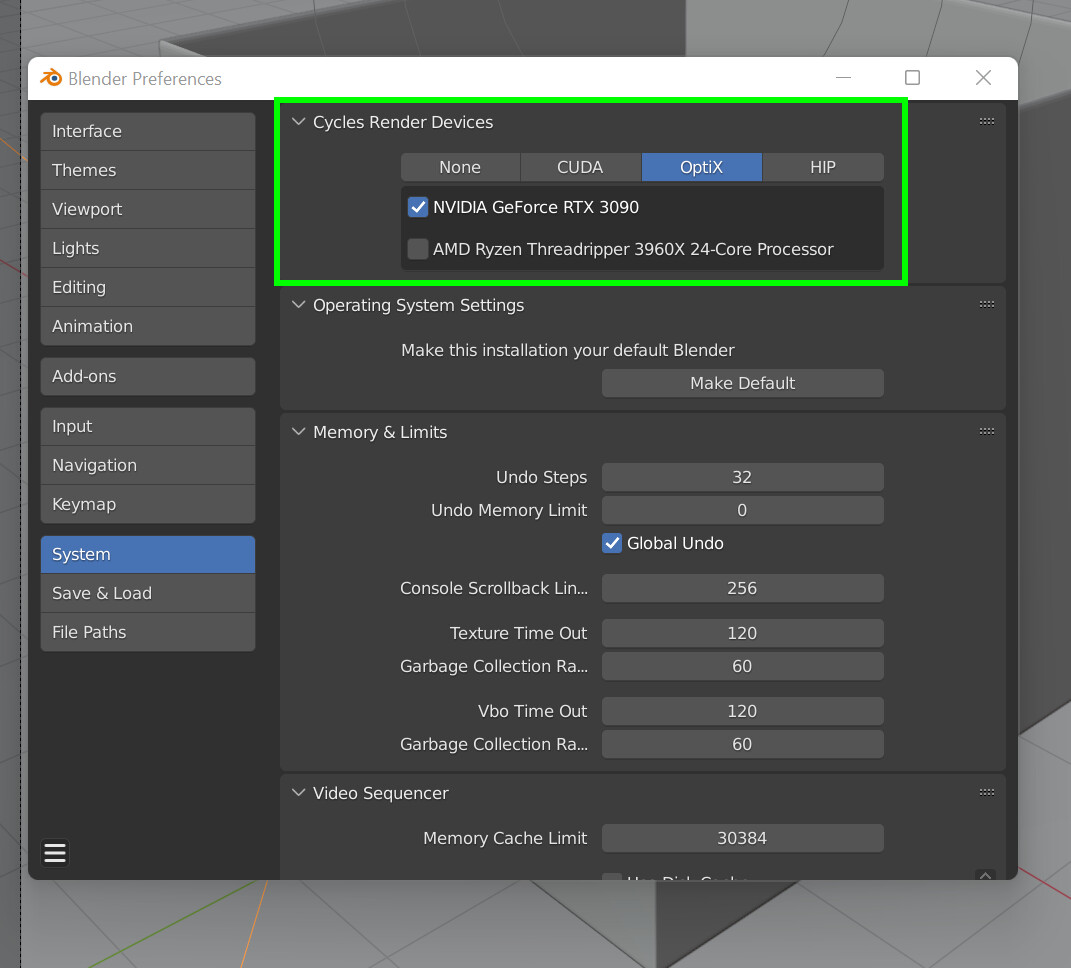
One of the most frequent reasons for Blender Cycles not rendering fast is incorrect hardware setup. If your GPU is not properly enabled in Blender, the program will default to CPU rendering or sometimes fail to start rendering at all. By enabling GPU, your Blender Cycles render faster.
How to do this:
- Go to Edit → Preferences → System → Cycles Render Devices
- Under Device, select your GPU type: CUDA, OptiX, HIP, or Metal
- Then open Render Properties → Device and choose GPU Compute
- Close the Preferences window and restart Blender before rendering again
Tip: CUDA tends to be more stable, OptiX might be a bit faster in some cases but more chance to crash.
2. Turn Off GPU Acceleration in Windows
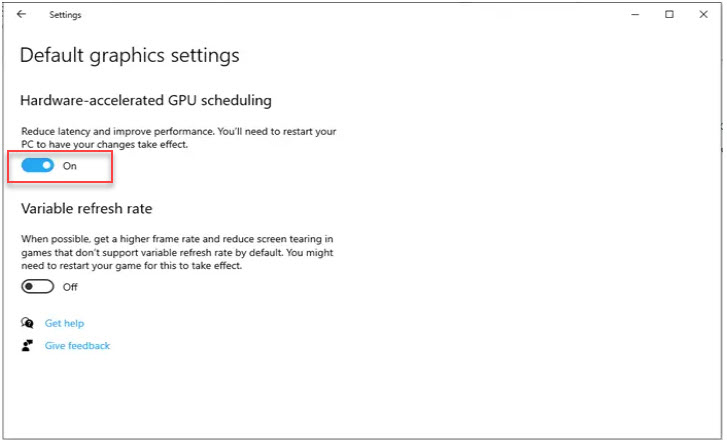
In some cases, Blender rendering slowly is caused by Windows hardware acceleration conflicts rather than Blender’s own settings. The feature called Hardware-Accelerated GPU Scheduling (HAGS) can occasionally interfere with GPU rendering, especially on certain NVIDIA drivers or Windows builds. To make Blender Cycles render faster, turn off HAGS.
How to do this:
- Open Windows Settings → System → Display
- Scroll down and click Graphics Settings under “Multiple Displays”
- Find Hardware-accelerated GPU scheduling and toggle it OFF
- Restart your PC before launching Blender again
Tip: After testing, you can re-enable this setting. If Blender Cycles does not render faster when HAGS is on, keep it disabled until the next GPU driver update for better stability.
3. Update or Reinstall GPU Drivers
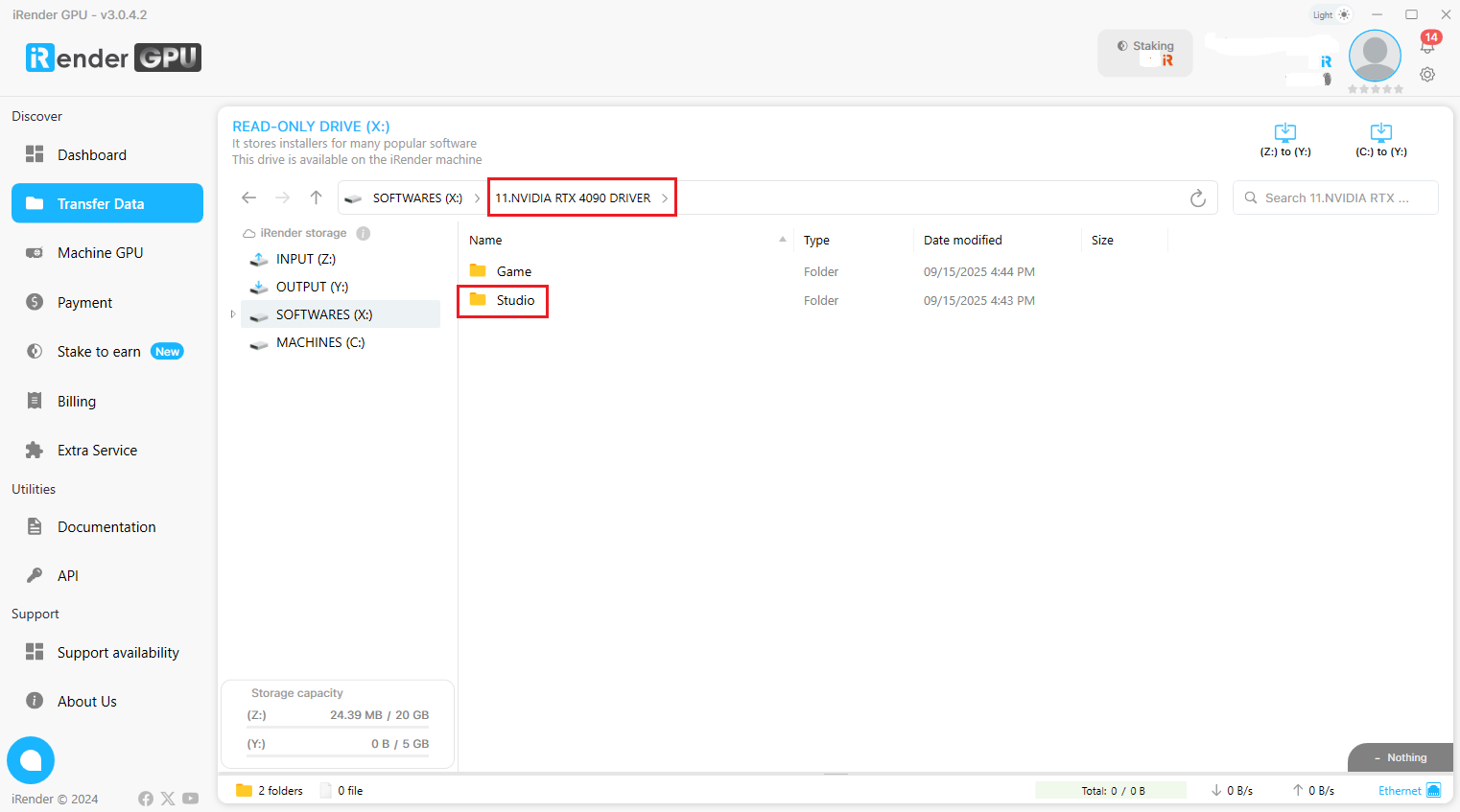
Outdated or mismatched drivers are a leading cause of rendering issues. Updating or Reinstalling GPU Drive can help Blender Cycles render faster.
How to do this:
- Visit your GPU manufacturer’s website
- Download the latest Studio Driver for your GPU model
- Choose the “Clean Install” option during setup to remove previous versions
- Restart your computer and test rendering again
Tip: Avoid automatic Windows updates overwriting your GPU drivers. They can reintroduce instability.
4. Reduce the Number of Samples
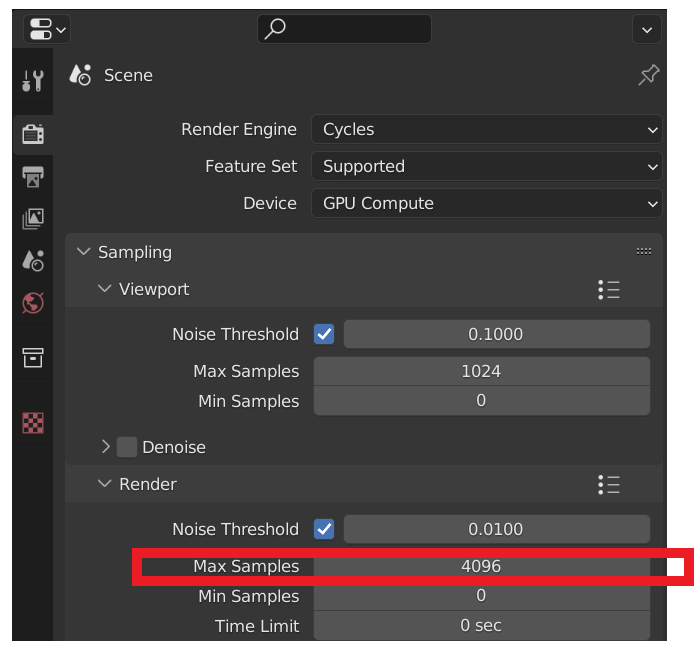
Lowering the sample count is one of the simplest ways to make Blender Cycles render faster. Many scenes don’t need extremely high samples, and reducing them while using denoising still gives clean results.
How to do it:
- Start with lower samples
- Open Render Properties → Sampling → Denoising → Viewport → Enable OptiX or OpenImageDenoise
- Increase samples only if the image remains noisy
5. Reduce Heavy Geometry
High-poly meshes and overly high subdivision levels force Cycles to compute far more data than necessary, slowing down the entire render. Cleaning up geometry is one of the most effective ways to make Blender Cycles render faster.
How to do it:
- Lower Subdivision Surface levels for objects not seen up close
- Use Shade Smooth instead of adding unnecessary geometry
- Apply Decimate or retopology for extremely dense meshes
- Disable Subdivision for distant or background objects
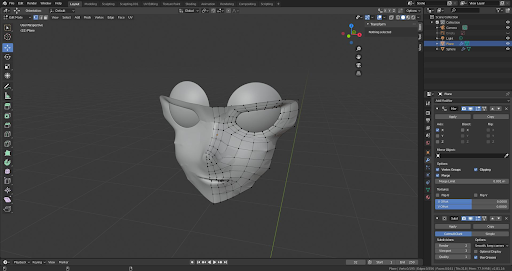
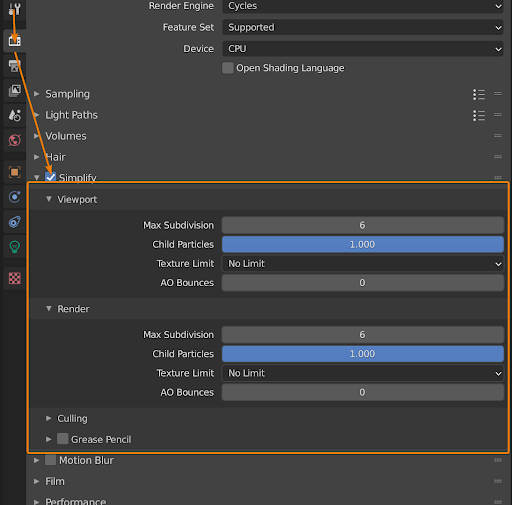
6. Simplify the Scene (Subdivision, Textures, and Particles)
A heavy scene makes Cycles work harder, especially when subdivision levels, texture sizes, and particle systems are higher than necessary. Simplifying these global settings can significantly help Blender Cycles render faster without changing your actual models.
How to do it:
- Go to Render Properties → Simplify
- Lower Max Subdivision to reduce scene density
- Set a Texture Limit (1K, 2K,…) for global texture control
- Reduce Particle Count or use simpler particle settings for large systems
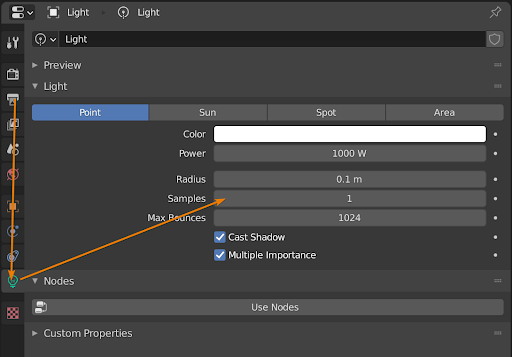
7. Reduce Light Complexity
Using too many lights or high bounce settings forces Cycles to calculate more light paths, which slows down rendering. Simplifying your lighting setup can help Blender Cycles render faster without losing overall visual quality.
How to do it:
- Lower Max Bounces in Render Properties
- Disable Caustics unless absolutely necessary
- Reduce the number of lights in the scene
- Use Area Lights or Sun Lights instead of many point lights
8. Optimize Materials and Shader Nodes
Complex shader networks with many layered or procedural nodes take longer for Cycles to calculate. Optimizing your materials can help Blender Cycles render faster, especially in scenes with many objects.
How to do it:
- Remove unnecessary nodes in complex shaders
- Bake procedural textures into image textures when possible
- Limit heavy effects like SSS, Transmission, and Volumetrics
- Use simpler shaders for background or distant objects
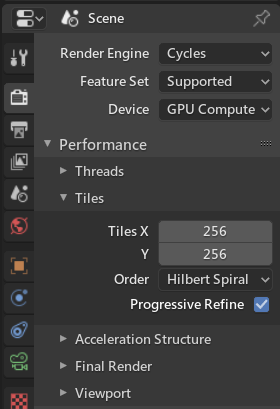
9. Turn Off Progressive Refine or Auto Tile Size
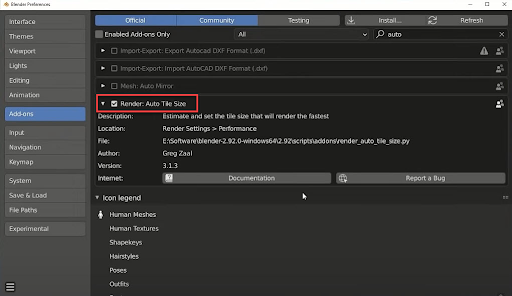
Older settings like Progressive Refine or third-party “Auto Tile Size” add-ons can slow down Cycles because they prevent efficient tile scheduling. Turning them off allows Cycles X to manage tiles automatically and helps blender cycles render faster.
How to do it:
- Go to Render Properties → Performance and make sure Progressive Refine is turned off
- OR Go to Edit → Preferences → Add-ons and Disable any Auto Tile Size add-on
- Let Cycles X use its built-in tile scheduler
- Restart Blender after disabling old add-ons
10. Separate the Scene and Composite Later
Very large scenes can slow Cycles down because everything is rendered at once. Splitting the scene into smaller layers (foreground, background, effects) makes blender cycles render faster and easier to control.
How to do it:
- Render foreground and background separately
- Use Render Layers or View Layers
- Combine them in Compositor
- Render only what needs full quality in each pass
Conclusion
Optimizing your Cycles workflow is essential for keeping projects efficient and maintaining a smooth creative process. By reducing unnecessary scene complexity, optimizing materials, managing textures, refining lighting setups, and disabling outdated settings, you can make blender cycles render faster and more responsive. These techniques help ensure that each render pass is as efficient as possible, whether you’re working on a single image or a full animation.
However, even with a well-optimized scene, demanding projects, high-resolution outputs, and tight deadlines often require more GPU power than a local machine can provide. That’s when a high-performance Render Farm service becomes invaluable, letting you scale your workload instantly and focus on creating, not waiting.
iRender - Powerful Render Farm for Blender
At iRender, you can install and run any 3D software or render engine you need, including Blender on our high-performance remote servers. Moreover, we have Blender pre-installed for you, so you can save time and money. Whether your workflow relies on CPU or GPU power, iRender gives you the flexibility to choose the right configuration for your projects.
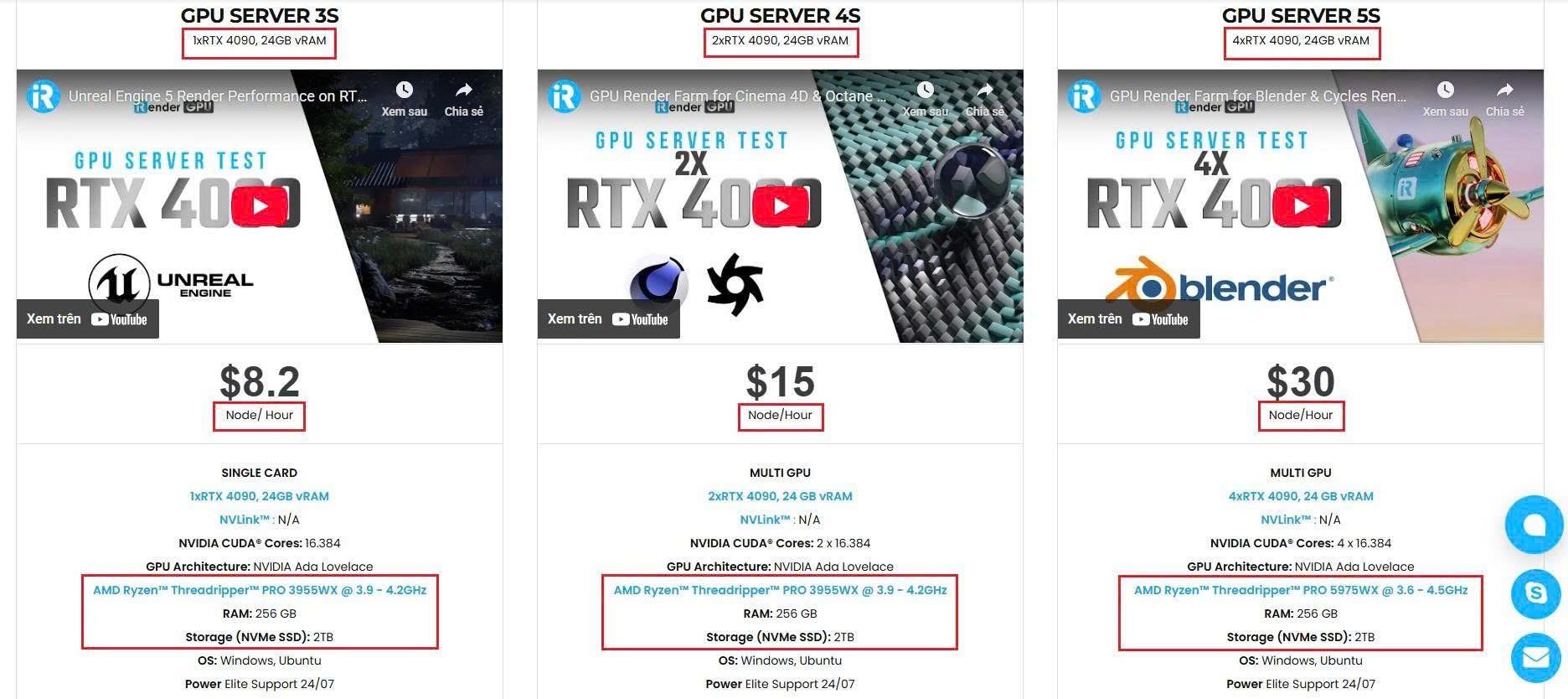
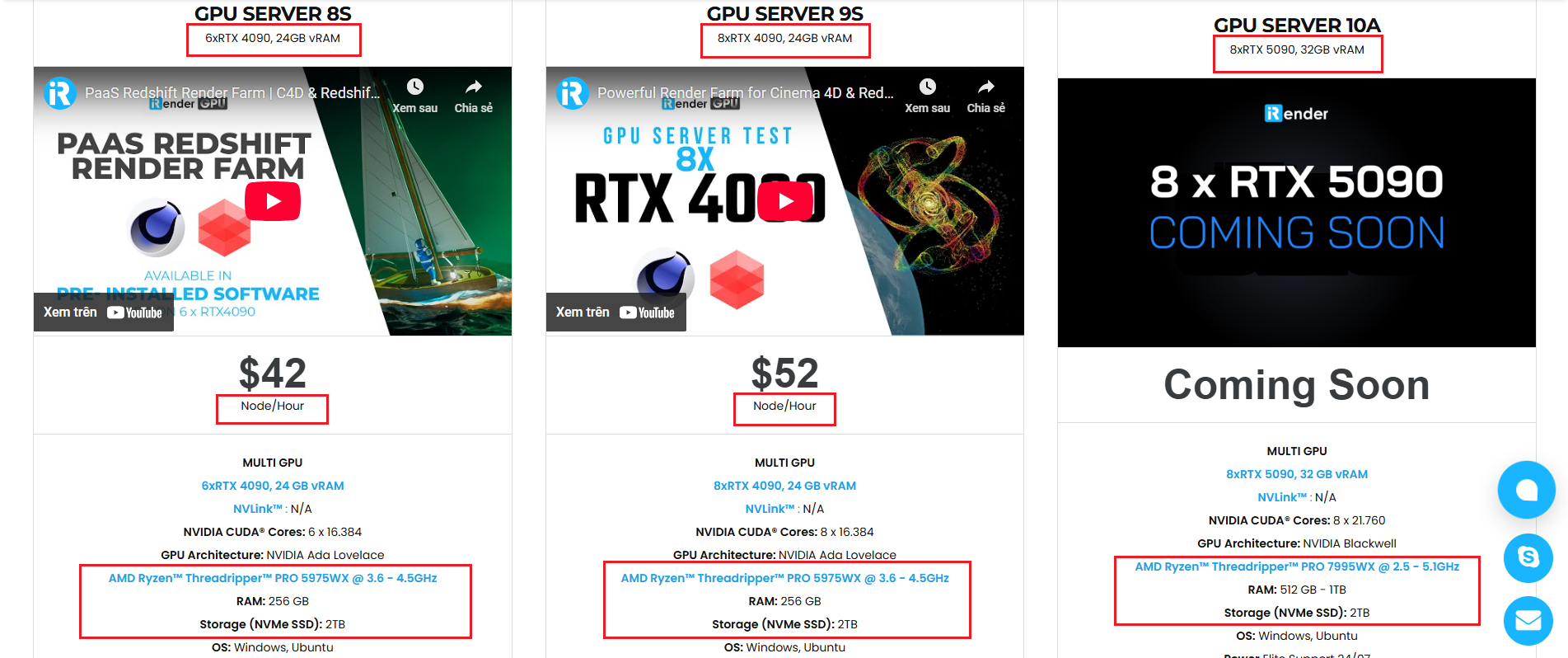
With access to powerful hardware such as the RTX 4090 GPUs and high-core CPUs (CPU AMD Ryzen Threadripper Pro 3955WX @ 3.90GHz – 4.2GHz and AMD Ryzen™ Threadripper™ PRO 5975WX @ 3.6 – 4.5GHz), you can:
- Render faster without being limited by your local workstation
- Scale your projects seamlessly, whether you’re working on small interiors or large architectural scenes
- Enjoy the freedom to set up your preferred tools, add your licenses, and work as if it were your own computer only faster and more reliable
Here is all our servers with detailed information:
Why choose iRender?
When projects become bigger and deadlines become tighter, finding a suitable and optimized renderer is no longer optional, it’s crucial. iRender’s mission is to help you make all your ideas become final products in a faster, stronger and more efficient way.
- Powerful performance: GPU RTX 4090 workstations, compatible with almost 3D/AI software. Moreover, iRender’s remote servers also provide CPU AMD Ryzen Threadripper Pro 3955WX @ 3.90GHz – 4.2GHz and AMD Ryzen™ Threadripper™ PRO 5975WX @ 3.6 – 4.5GHz, RAM 256GB and 2TB SSD NVMe Storage
- Flexible usage: Use the remote server anytime you want
- Secure & Privacy: Guarantee for your data safety and privacy
- Fast support: A customer support team ready to assist 24/7
- Cost-effective: Pay-as-you-go, pay for the time used
If you are still wondering, register now to get a free trial and receive a 100% bonus points (double your credits) for your first transaction.

REGISTER now to experience and for more detailed information, please contact us via Live chat 24/7 or WhatsApp: +(84) 962 868 890 or Email: [email protected].
iRender – Happy Rendering!
Source: Reddit, blender.stackexchange.com, blenderartists.org
Related Posts
The latest creative news from Blender Cloud rendering.






