
What Can We Do If Maya Keeps Crashing While Rendering?
Crashes can happen when rendering in Autodesk Maya for many reasons, from outdated GPU drivers to missing textures or unstable settings. In this guide, we’ll walk through the most reliable solutions to help you fix Maya render crashes and keep your workflow running smoothly. Let’s explore with iRender.
Why Does Maya Keep Crashing When Rendering?
When something in the system or project setup isn’t perfectly aligned, crashes can happen. Here are the most common reasons behind Maya instability during renders:
- Outdated or Incompatible GPU Drivers
- Missing or Broken File Paths
- Corrupted Preferences or Settings
- Incompatible Viewport or Evaluation Mod
- Overloaded System Resources
How to Stop Maya from Crashing During Rendering?
1. Keep Your Drivers Up to Date
Outdated or incompatible GPU drivers are one of the leading causes of Maya render crashes. If you’re using an Nvidia graphics card, avoid relying on generic drivers and instead install the latest NVIDIA Studio Driver, which is optimized for creative applications like Maya, Arnold, and V-Ray.
If you’re using GPU rendering, installing the latest NVIDIA Studio Drivers is crucial. On the iRender servers, you can right-click on the desktop and click the NVIDIA Control Panel to check if it is the latest version.
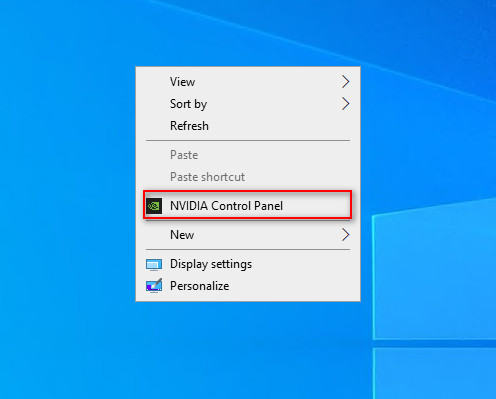
If it is not the latest version, you can update the NVIDIA Studio Driver. You can always go to X drive of the remote machine, then take the latest driver to the remote desktop and run it. After updating the latest version of the NVIDIA Studio Driver, you need to restart your computer. Wait for 2-5 minutes, then reconnect to the remote server.

2. Install Maya Updates
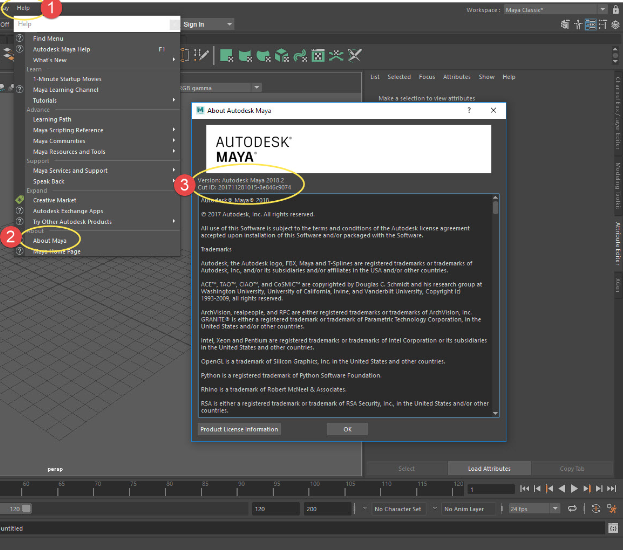
To confirm your current version:
- Go to Help in the top menu
- Select About Maya
- Note the version and update number displayed in the window
Then, visit Autodesk’s official update guide: Where to Find Updates and Add-ons for Maya to make sure you’re running the latest version.
When Updating Isn’t Enough
If updating doesn’t solve the problem, a clean reinstall may be necessary. Here’s what to do:
- Follow Autodesk’s official uninstall guide to remove Maya completely.
- Reinstall Maya, sticking to the default installation settings whenever possible. This ensures the most stable and compatible configuration.
A fresh install often resolves hidden corruption or misconfigured settings that lead to crashes.
3. Check for Missing Textures and Assets
A surprisingly common reason Maya crashes is due to missing or broken file paths. If Maya can’t locate a texture, cache, or reference during rendering, it can cause instability.
Maya provides a handy tool for this: the File Path Editor.
- Go to Windows > General Editors > File Path Editor
- Check for missing textures, references, or caches
- Relink or repath them to the correct directories
This video explains how to find and relink missing texture files using the File Path Editor in Maya:

4. Change the Viewport Rendering Engine and Evaluation Mode in Maya
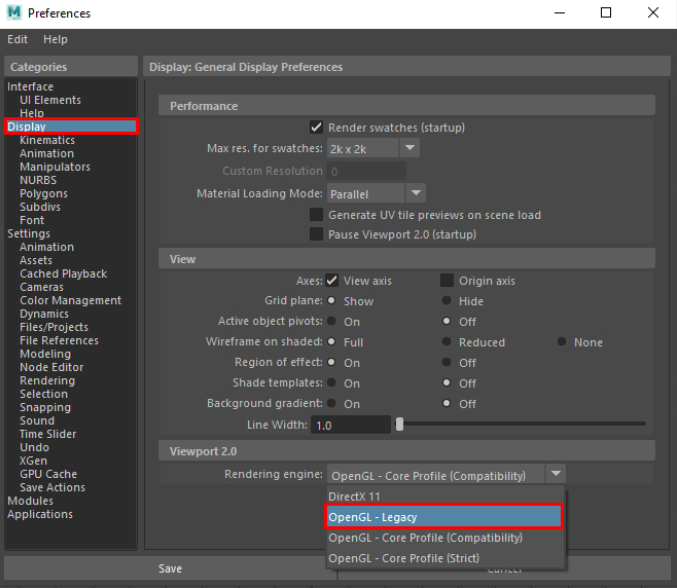
Sometimes Maya crashes are linked to the Viewport 2.0 rendering engine. Switching the rendering mode can help improve stability.
- Go to Windows > Settings/Preferences > Preferences > Display > Viewport 2.0
- Under Rendering Engine, change the setting from the default OpenGL – Core Profile to either OpenGL – Legacy or DirectX 11
In addition, Maya’s default Parallel Evaluation Mode can sometimes cause instability during heavy renders. Switching to DG mode may help.
- Navigate to Windows > Settings/Preferences > Preferences > Settings > Animation > Evaluation
- Change Evaluation Mode from Parallel (default) to DG
Elevate Your Maya Renders with iRender – Smart Workflow, Scalable Performance, Limitless Creativity.
iRender provides high-configuration servers that increase CPU and GPU rendering speeds. We offer the most powerful RTX 4090 configuration packages on the market, all equipped with AMD RyzenTM ThreadripperTM PRO 3955WX @ 3.9 – 4.2GHz and AMD Ryzen™ Threadripper™ PRO 5975WX @ 3.6 – 4.5GHz processors, 256GB RAM and 2TB NVMe SSD hard drive capacity. With a wide range of GPU servers (1/2/4/6/8x) – RTX 4090, you can choose the server that suits your needs to start the rendering process. You just need to transfer your files, connect to the remote machine, and install Maya, then add your software license and render yourself. Setting up ONCE will save your working environment and make it ready to use anytime.
In particular, if you use Maya with Redshift, you can connect to our remote server and use a free Redshift license. For Maya, install and use your license. Maya often uses third-party rendering engines such as Redshift, V-Ray, or the default Arnold renderer. If you use these render engines or not, you can still find a suitable rendering package at iRender. You can find a lot of server packages with extremely high-end configurations that are suitable for complex projects.
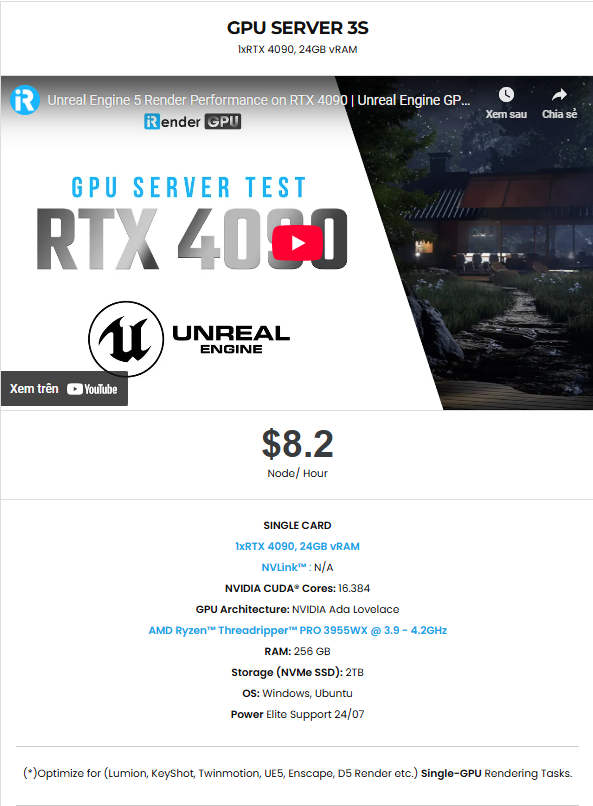
Below is information about iRender’s service packages. For Arnold Renderer in Maya, the server 3S is the most suitable with the Single Card 4090:
Not only powerful configurations, iRender also provides you with many more services. Free and convenient transfer tool iRender drive for macOS and Linux users. For Windows users, we recommend the iRender GPU application, you will not need to access our website anymore. The price at iRender is also very flexible with hourly rental (pay as you use), and daily/weekly/monthly rental with a 10-20% discount. Moreover, in this month we have a special promotion for users:
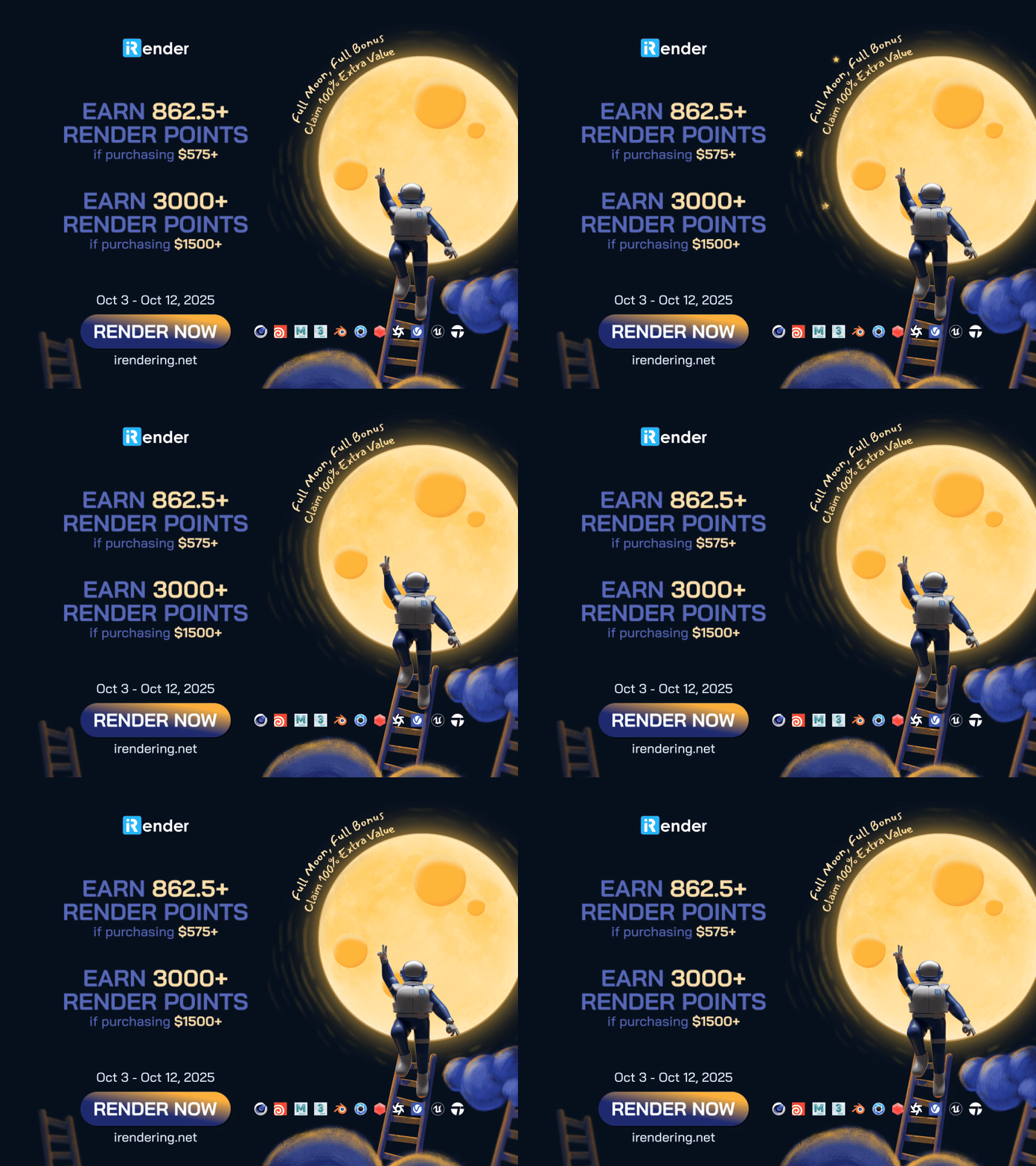
🌕✨ 𝐅𝐮𝐥𝐥 𝐌𝐨𝐨𝐧, 𝐅𝐮𝐥𝐥 𝐁𝐨𝐧𝐮𝐬 – 𝐂𝐥𝐚𝐢𝐦 𝟏𝟎𝟎% 𝐄𝐱𝐭𝐫𝐚 𝐕𝐚𝐥𝐮𝐞! ✨🌕
This full moon, your render power shines brighter!
🎁 Earn 862.5+ render points when you purchase $575+
🎁 Earn 3000+ render points when you purchase $1500+
📅 October 3rd – October 12th, 2025
Don’t miss out – double your value and supercharge your next project with extra render points! 🚀
We’re always happy to help you with any questions. If you have any problems or questions, don’t hesitate to contact our 24/7 support team. Or via WhatsApp: 0912 785 500 for free advice and support.
Right now iRender has a SPECIAL PROMOTION program with a 100% bonus for the first transaction within 24 hours of your registration. It means that you can get an extra 100% of the money you recharged the first time. And points never expire, so you can use them at any time.
Sign up for an account today to experience and enjoy our services.
Thank you & Happy Rendering!
Source and image:autodesk.com
Related Posts
The latest creative news from Maya Cloud Rendering






