
Enscape Real-Time Rendering Is Choppy: How to Smooth It Out
The camera jerks instead of gliding, walkthroughs stutter, and every time you nudge the view Enscape seems to catch its breath. That choppiness is your GPU falling behind the frame rate Enscape is trying to hold, and it has one extra twist that Lumion does not: Enscape runs as a plugin inside your CAD app, so the same graphics card is feeding both Revit or SketchUp or Rhino and the live Enscape window at once. When the card cannot keep up with that combined load at your quality and resolution, you get stutter.
| What makes Enscape choppy | How to smooth it out |
|---|---|
| Render quality set too high while editing | Drop to a lower quality preset for live work |
| High output or window resolution | Work in a smaller Enscape window, raise resolution for exports |
| Outdated GPU driver | Update to a current studio or game ready driver |
| VRAM full from a large model | Trim textures, purge unused assets in the CAD app |
| GPU feeding CAD app and Enscape together | Close other heavy windows, or move to a stronger GPU |
| Card simply too weak for the scene | Run on a faster GPU, locally or in the cloud |
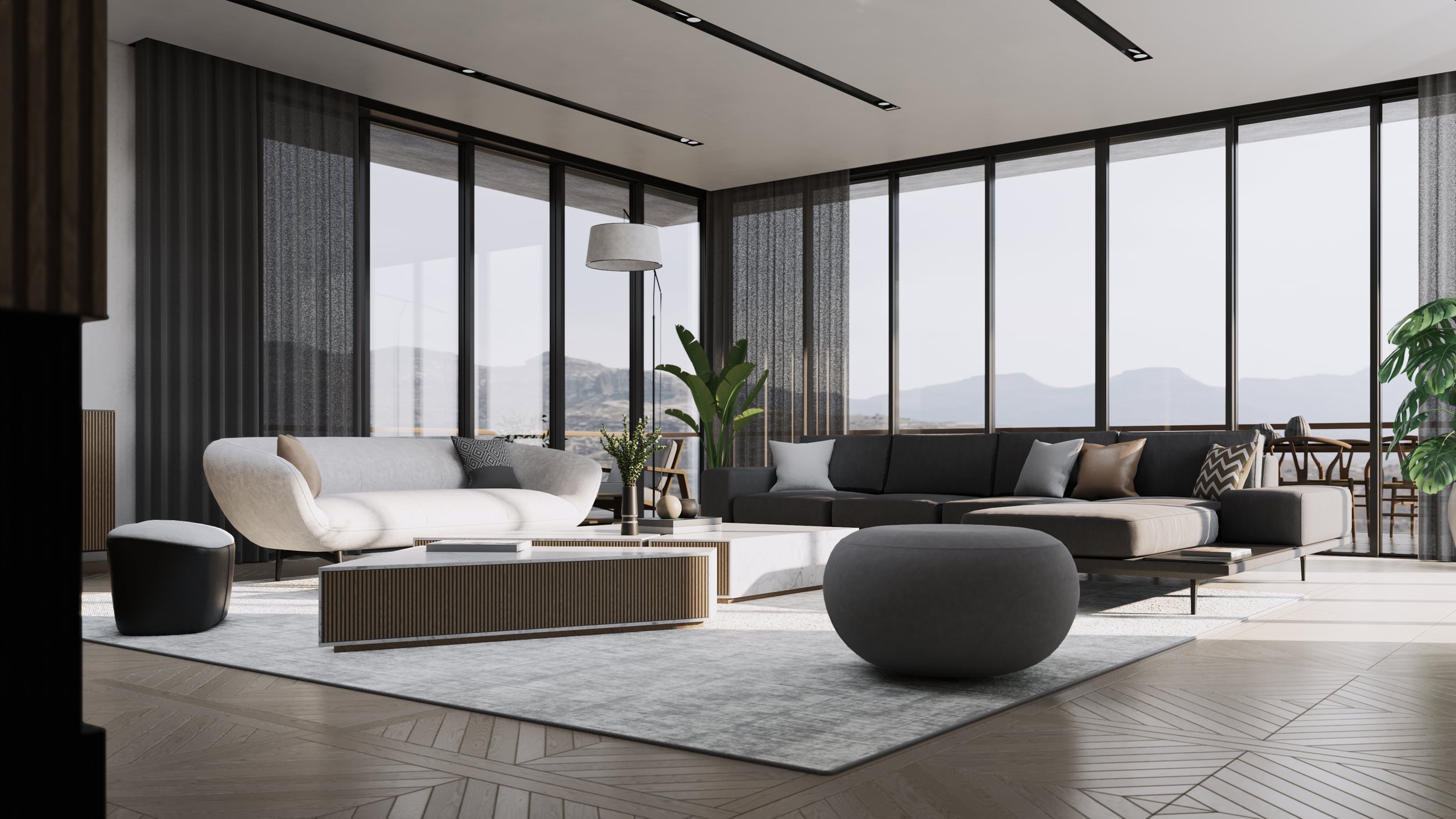
Why Enscape is a special case among real-time tools
Most real-time viewers own the whole machine while you use them. Enscape shares. It lives inside Revit, SketchUp, Rhino, or ArchiCAD, so your GPU is drawing the Enscape view and also serving the CAD software you are modeling in. On a big Revit model that host app is already asking a lot of the card, and Enscape stacks its live rendering on top. This is why an Enscape session can feel choppier than you would expect from the scene alone, and why closing other heavy windows sometimes brings back smoothness on its own.
Like the other tools in this family, Enscape runs its real-time view on a single GPU, so adding a second card does nothing for the stutter. What helps is a faster card and enough VRAM to hold both the model and Enscape’s own data without spilling over.
Smooth it out without new hardware first
Start with the quality preset. Enscape lets you drop to a lighter preset while you build and navigate, and raise it only when you want a preview or an export, which is the fastest way to turn a stuttering walkthrough into a smooth one. Keep the live window a sensible size rather than fullscreen at high resolution, since resolution multiplies the work per frame. Update your GPU driver, because a stale driver causes more real-time trouble than people credit. And watch VRAM on large models, purging unused assets in the CAD app and trimming oversized textures so the card is not fighting a full memory pool.
Once your settings are sensible and Enscape still stutters at the quality your presentation needs, the card is the ceiling, and a faster GPU is what smooths it for good.
Running Enscape on a stronger GPU with iRender
When your own card is the limit, you can run Enscape and its host CAD app on a remote machine with a much stronger GPU. A managed SaaS render farm is no help here, since Enscape is a live plugin you drive inside another application, not a scene you submit for frames. What works is a full remote desktop, which is what iRender gives you. You connect to a machine with an RTX 4090 and 24GB of VRAM, install your CAD app and Enscape, and navigate smoothly at a quality your laptop could not hold. Because you build the environment yourself, it works just like your own setup, which is what “your renders, your rules” means in daily use. Renting has its edges. You pay from boot rather than from the first frame you preview, an idle machine bills like a busy one, and live tethered VR still needs a card in your own machine, since the headset connects locally. The cloud smooths the heavy scene work and rendering, and auto-shutdown keeps a forgotten session from adding up.





