
Why Do Textures Turn Pink in Blender and How to Fix Them?
If you’ve ever opened a Blender project and found your model suddenly covered in bright pink, don’t worry – you’re not alone. This “pink texture” issue is one of the most common problems Blender artists encounter.
In this guide, we’ll break down why pink textures appear, what causes them, and most importantly, how to fix them so your materials render exactly as intended. Let’s explore in this blog with iRender.
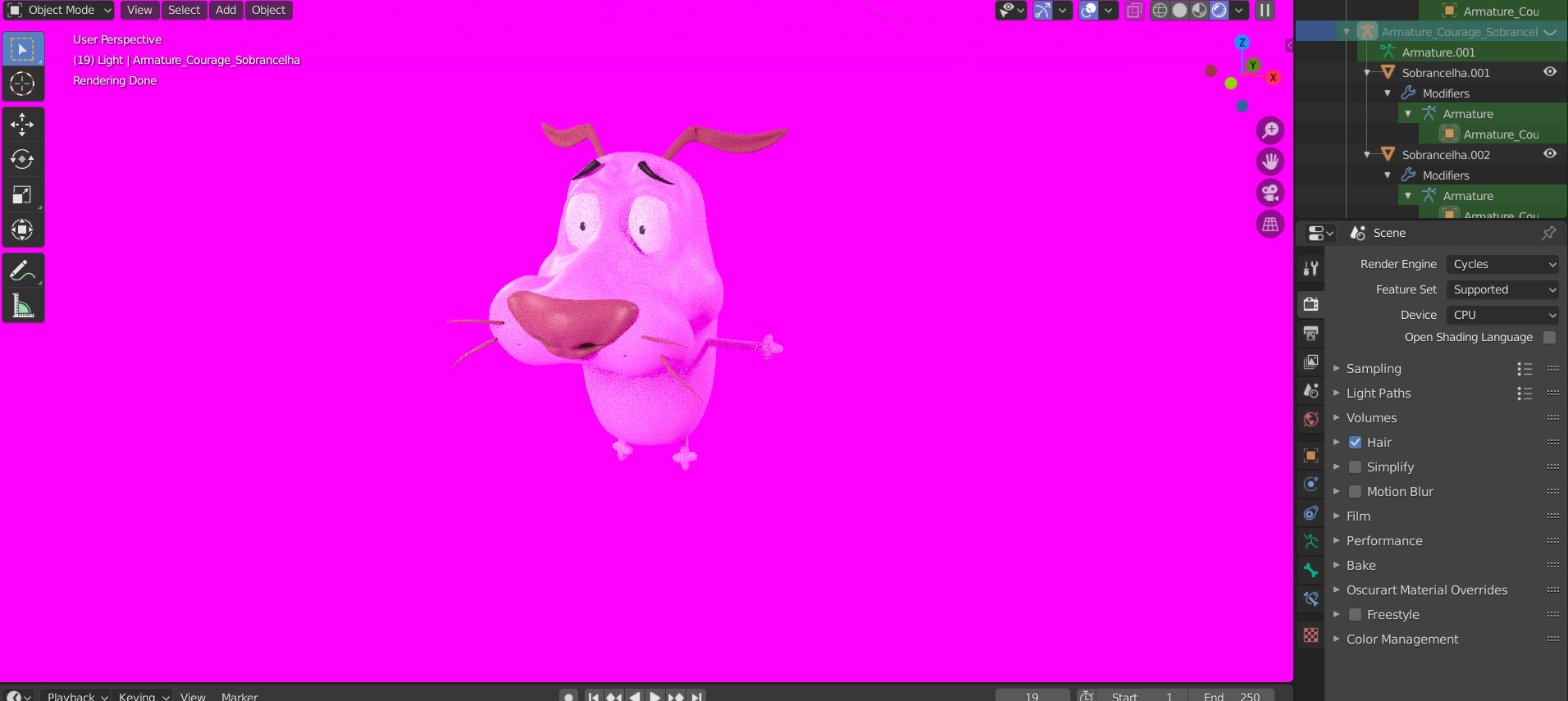
Why Does Blender Show Pink Textures?
When textures go pink (or magenta), it means Blender can’t find the image file linked to that material. The shader node is there, but the texture path is broken. This can happen for several reasons:
- You moved or renamed your texture files after setting up materials.
- The. blend file was relocated, breaking relative paths.
- You opened the project on another computer without transferring texture files.
- The image wasn’t packed into the. blend file.
How to Fix Pink Textures in Blender
1. Use “Find Missing Files” (Automatic relinking)
When multiple textures are missing, use this feature to locate them quickly:
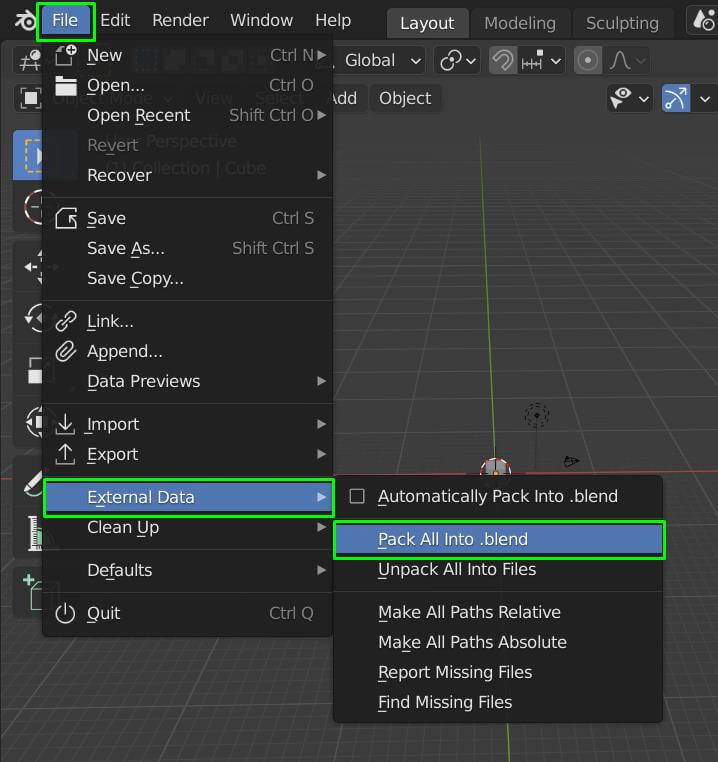
- In Blender’s top menu, go to File > External Data > Find Missing Files…
- Choose the folder where the texture files are stored.
- Blender will search and re-link the missing images.
- This is very convenient if your texture files are intact but simply relocated.
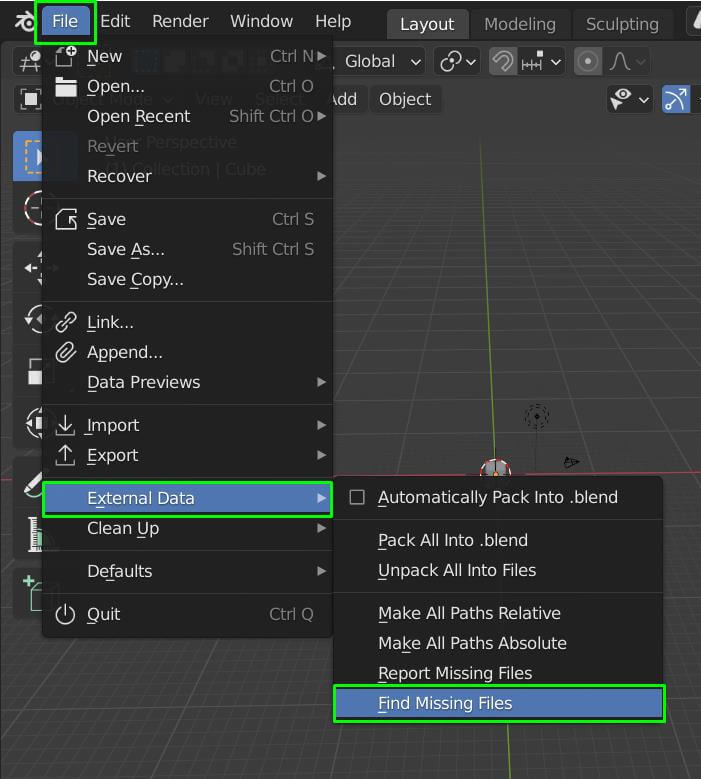
2. Make All Paths Absolute
If you move your project folder around or use cloud storage, absolute paths can break. Switch to relative file paths so Blender can locate images based on the project’s current location:
- Open your. blend in its original, correct location (i.e., ensure textures currently load).
- Go to File → External Data → Make All Paths Absolute
- Then save your. blend file.
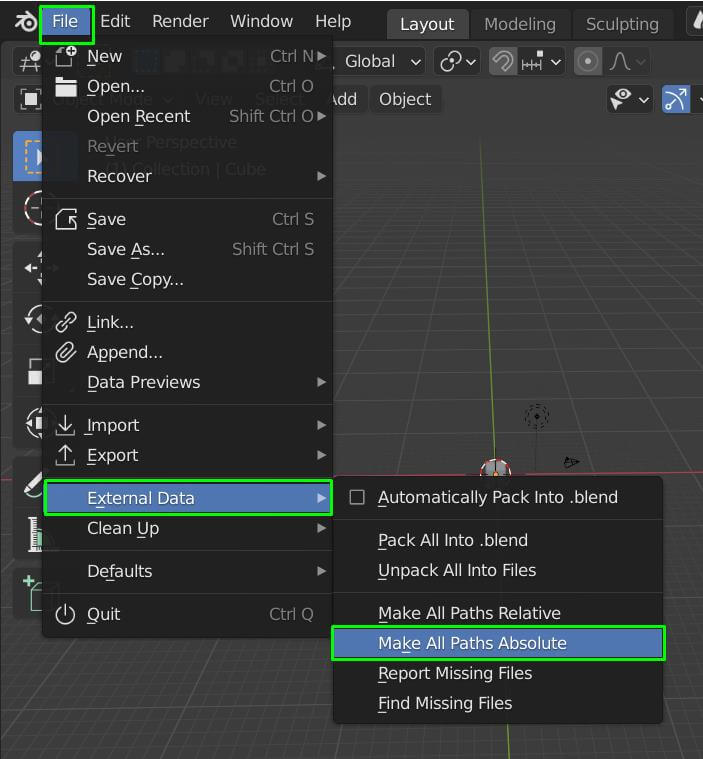
3. Pack Textures Into the .blend
To avoid missing files completely—especially when sending projects or rendering on another system—you can embed textures directly into the. blend file:
- In Blender, go to File → External Data → Pack Into. blend
- This embeds all referenced image textures into the. blend file itself.
When you save, Blender includes the image data inside, so you don’t need external files (at least for those textures). This increases your file size but ensures no external texture is left behind.
4. Understanding the CUDA Check
When you open Task Manager → Performance → GPU, you can switch any of the graphs (right-click the graph → Change graph to → CUDA) to see if Blender is actually using your GPU for rendering.
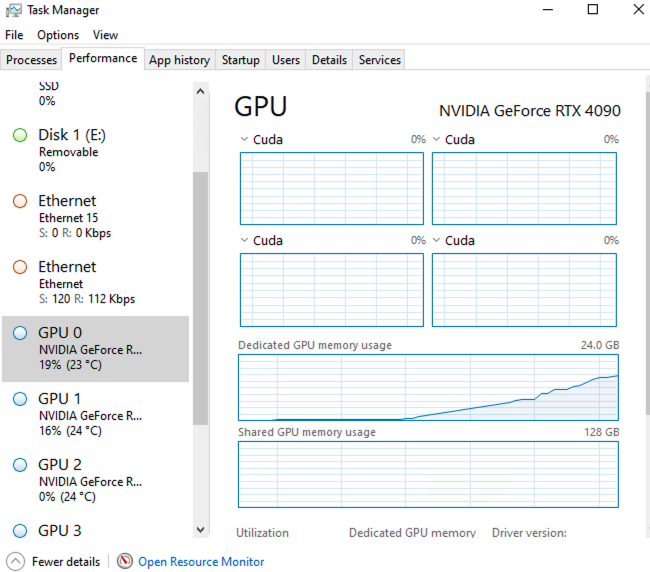
While missing or broken texture paths almost always cause the pink textures themselves, GPU rendering issues (such as CUDA not working) can cause Blender to fail to display textures even when the paths are correct.
To troubleshoot:
- Go to Edit → Preferences → System → Cycles Render Devices.
- Make sure CUDA, OptiX, or HIP (for AMD) is enabled.
- Restart Blender and check if the textures now load properly in rendered mode.
- Watch the CUDA graph in Task Manager to confirm your GPU is being used.
Conclusion
Pink textures in Blender might be frustrating, but it’s one of the easiest problems to solve once you know what it means. By relinking textures, packing them into your .blend, or keeping your folder structure organized, you can solve this in just a few clicks.
Still, sometimes texture or rendering issues are tied to hardware performance or GPU configuration, especially with large, complex scenes. That’s when having access to powerful hardware can make a big difference.
With iRender, you can take advantage of RTX-powered GPU servers designed for 3D artists and Blender users. With full support for CUDA, OptiX, and GPU rendering, iRender helps you diagnose rendering issues, speed up complex scenes, and produce final-quality renders without worrying about hardware limitations.
iRender – Maximize Your Blender Rendering Performance
iRender is proud to be one of the best GPU service providers on the market. We provide you with high-configuration models with advanced specifications such as AMD Ryzen™ Threadripper™ PRO 3955WX @ 3.9 – 4.2GHz or AMD Ryzen™ Threadripper™ PRO 5975WX @ 3.6 – 4, 5GHz, 256GB RAM, 2TB NVMe SSD storage.
Under the IaaS (Infrastructure as a Service) model you will have full control over the machine via a remote desktop app, similar to Teamviewer but more stable. You will be able to proactively install the software and use it on the server just like using a personal computer. You can find many server packages with high-end configurations that are extremely suitable for complex projects. Our machines have preinstalled Blender, you can choose to create the machine at first then connect and render yourself
We’re always happy to help you with any questions. If you have any problems or questions, don’t hesitate to contact our 24/7 support team. Or via WhatsApp: 0912 785 500 for free advice and support.
Right now iRender has a SPECIAL PROMOTION program with a 100% bonus for the first transaction within 24 hours of your registration. It means you can get 100% of the money you recharged the first time. And points never expire so you can use them at any time.
Sign up for an account today to experience and enjoy our services.
Thank you & Happy Rendering!
Source and image: poliigon.com, gachokistudios.com

Related Posts
The latest creative news from Blender Cloud Rendering





