
Cinema 4D + Octane Render: How Many GPUs Do You Actually Need?
For most Cinema 4D + OctaneRender projects, 4× RTX 4090 GPUs is the sweet spot. In our scaling test (250-frame C4D animation, 1920×1080), 4 GPUs delivered 3.7× speedup at only 10% higher total cost compared to 1 GPU. Going to 8 GPUs pushed speed to 7.0× but cost 59% more per project. The diminishing returns above 4 GPUs mean you’re paying significantly more for incremental speed gains. On iRender, a single RTX 4090 costs ~$8.20/hour; after Credit Back (20% weekends) and 100% first-deposit bonus, the effective rate drops to ~$3.50/hour per GPU. Use 1–2 GPUs for previews, 4 for production, 8 only when the deadline is yesterday.
| Config | Render Time | Speedup | Efficiency | Total Cost | Cost/Frame | Verdict |
|---|---|---|---|---|---|---|
| 1× RTX 4090 | ~3 hr 10 min | 1.0× | 100% | $25.90 | $0.104 | Budget / preview |
| 2× RTX 4090 | ~1 hr 38 min | 1.94× | 97% | $26.80 | $0.107 | Good balance |
| 4× RTX 4090 ⭐ | ~52 min | 3.7× | 92% | $28.40 | $0.114 | Sweet spot |
| 8× RTX 4090 | ~26 min | 7.0× | 88% | $41.30 | $0.165 | Deadline crunch only |
Why Does Scaling Efficiency Drop After 4 GPUs?
Image Source: Otoy
Octane is a great multi-GPU renderer — but it’s not perfect. At 2 GPUs, you get 97% efficiency: nearly double the speed for double the hourly rate. At 4 GPUs, it’s still 92%: excellent. But at 8, it drops to 88%.
The reason is communication overhead. Every GPU needs to synchronize its portion of the render — sharing tile assignments, compositing results, resolving overlapping computations. With 2–4 GPUs, this overhead is negligible. With 8, it becomes measurable. Each GPU does slightly less “real work” per cycle because it spends more time coordinating with the other 7.
From a cost perspective: your per-frame cost at 4× is $0.114. At 8×, it jumps to $0.165 — a 45% premium for 2× the speed. Whether that’s worth it depends entirely on your deadline. If a client needs the render in 30 minutes, 8× is the only option. If you have until tomorrow, 4× saves you $13 on every batch — and over a year of regular projects, that adds up to hundreds of dollars.
How Should You Choose Your GPU Count for Each Project?
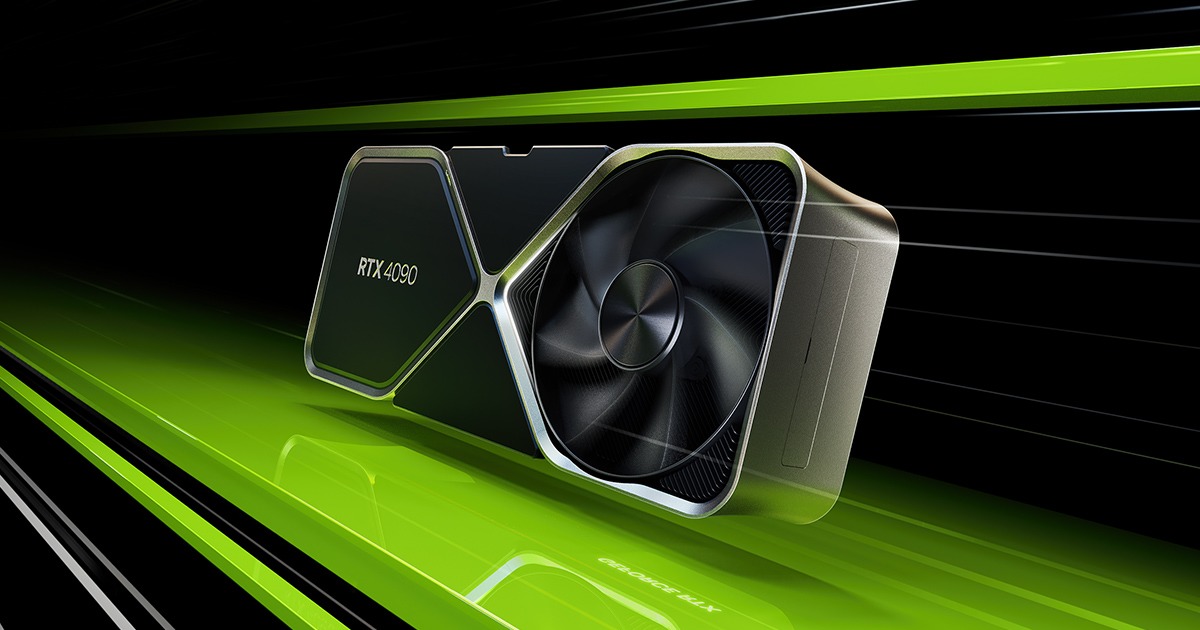
Image Source: NVIDIA
Quick previews and single-frame tests: 1× GPU. $8.20/hour, fast enough for iteration. Don’t burn credits on multi-GPU for a test render.
Production renders, standard deadlines: 4× GPU. The best balance of speed and cost. 52 minutes for 250 frames. With weekend Credit Back, total cost drops from $28.40 to ~$22.70. After first-deposit bonus, you’re looking at ~$11.35 effective. That’s for a complete production animation.
Emergency deadline: 8× GPU. 26 minutes flat. Yes, it costs $41.30 — but if the alternative is missing a client deadline, the math is obvious. Your renders, your rules — and sometimes the rule is “get it done now, worry about budget later.”
One workflow tip: start renders on 2× for the first 10 frames to verify everything renders correctly. Then scale up to 4× or 8× for the full batch. This costs maybe $3 extra but prevents the nightmare of discovering a texture error on frame 200 of a 250-frame 8-GPU render. We’ve seen it happen. It’s not fun.
- Find your Octane sweet spot — test 1×, 2×, 4×, 8× RTX 4090 on your own scene: Set up Octane on iRender
- 100% first-deposit bonus. Credit Back 20% weekends. Scale GPUs mid-session. Your Renders, Your Rules






