
How Much VRAM Do You Need for 3D Rendering? A Practical Guide (2026)
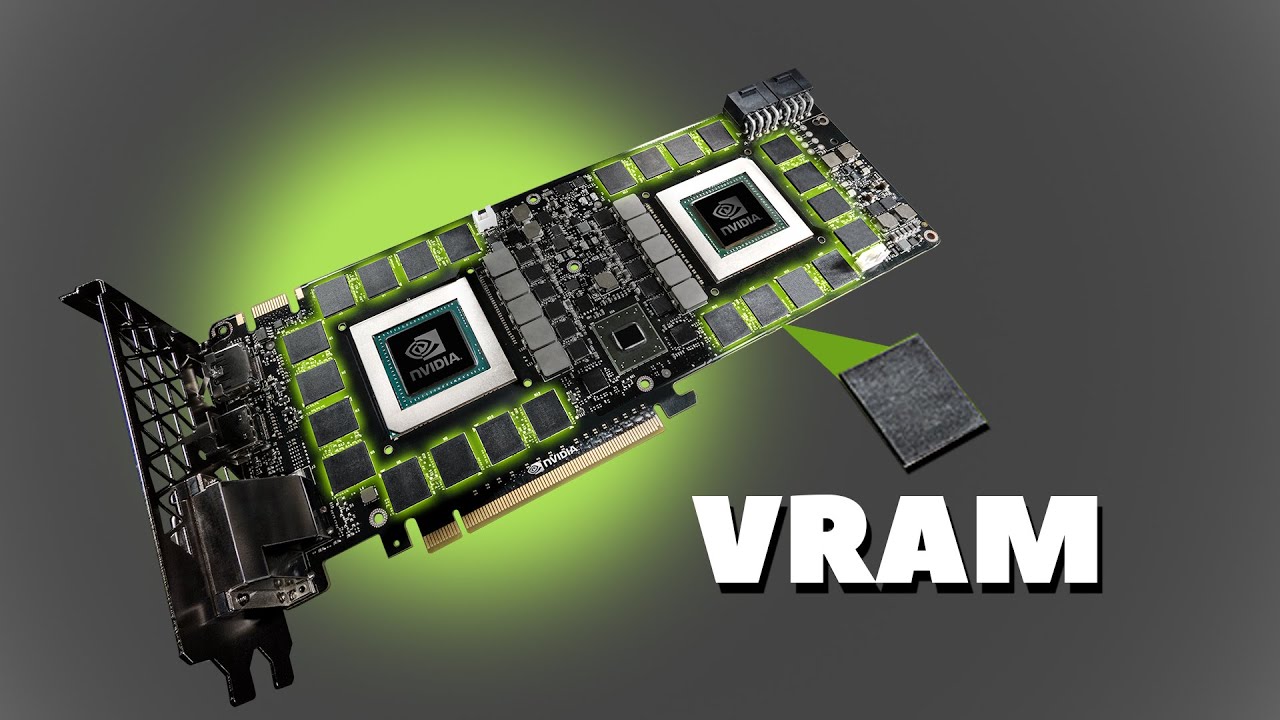
The VRAM you need depends on scene complexity and render engine. Simple product shots: 8GB is enough. Standard interior/exterior arch-viz: 12–16GB. Heavy VFX with 4K textures, displacement, and volumetrics: 24GB minimum. Multi-object environments with dense foliage and millions of polygons: 24–48GB+. Most mid-range GPUs (RTX 3060, 4070) have 12GB — sufficient for moderate scenes but not enough for production VFX. iRender’s RTX 4090 provides 24GB per GPU. With 4× GPUs (Redshift out-of-core pooling), that’s effectively ~96GB. With 8×: ~192GB. If your scene crashes locally with “CUDA out of memory,” cloud rendering with more VRAM is often faster and cheaper than spending hours optimizing.
| Scene Type | VRAM Needed | Fits on RTX 3060? | Fits on RTX 4090? | Solution If Over |
|---|---|---|---|---|
| Product shot (1 object, basic mat) | 4–6 GB | ✅ Yes | ✅ Yes | — |
| Interior arch-viz (moderate) | 8–12 GB | ⚠️ Tight | ✅ Yes | Reduce textures |
| Exterior with vegetation | 12–18 GB | ❌ Likely crash | ✅ Yes | Use instances |
| VFX scene (particles, volumes) | 16–24 GB | ❌ Crash | ⚠️ Tight | Out-of-core or 2× GPU |
| Dense city / forest environment | 24–48 GB | ❌ Crash | ❌ May crash | iRender 4× GPU (96GB) |
| Film-quality hero shot | 48–100+ GB | ❌ Crash | ❌ Crash | iRender 8× GPU (192GB) |
How Do You Know If Your Scene Is Using Too Much VRAM?
Most render engines tell you — if you know where to look. Redshift: check the render log for “GPU memory used” at the start of rendering. If it exceeds your GPU’s VRAM, Redshift will use out-of-core mode (slower). Octane: the render viewport shows memory usage in the bottom bar. Blender Cycles: System Console shows peak memory during render. V-Ray GPU: the render log reports texture and geometry memory usage.
A quick rule of thumb: if your scene has more than 20 high-res textures (4K+), uses displacement mapping, includes dense particle systems, or has heavy volumetrics — you’re likely exceeding 12GB. Every 4K texture consumes roughly 64MB of VRAM (uncompressed RGBA). Twenty 4K textures = ~1.3GB just for textures, plus geometry, displacement data, BVH acceleration structures, and render buffers.
The out-of-core fallback exists in Redshift, Octane, and V-Ray GPU — but it’s a performance penalty, not a solution. Rendering slows by 2–5× because data shuttles between GPU and system RAM through the PCIe bottleneck. If your scene consistently triggers out-of-core, you need more VRAM, not a workaround.
When Should You Optimize Your Scene vs Just Getting More VRAM?
Optimize first when: The fixes are easy. Replacing 4K textures with 2K on background objects takes 10 minutes and saves 30–50% VRAM. Using instances instead of duplicated objects takes 5 minutes and saves 20–60%. These should always be your first move — they’re free and fast.
Go cloud when: You’ve already optimized and the scene still exceeds your local VRAM. Or when the optimization would compromise visual quality that a client has already approved. Spending 2 hours reducing texture resolution to squeeze under 12GB is $100+ of lost productivity (at $50/hr freelance rate). A 1-hour render on iRender’s 24GB RTX 4090 costs $8.20 — or $3.50 effective after Credit Back and bonus. The math is obvious.
iRender’s multi-GPU configs solve even the most extreme cases. 4× RTX 4090 pools ~96GB. 8× pools ~192GB. We’ve had users bring scenes that crashed on every local GPU they tested — 3060, 3080, even a 4090 — and they rendered cleanly on iRender’s 4× config without changing a single setting. Your scene stays exactly as designed. Your renders, your rules — not your GPU’s memory limit.
For users who hit VRAM issues regularly, a practical workflow: model and texture locally on whatever GPU you have, then render finals on iRender’s 24–192GB VRAM. Keep your local machine for viewport work; let the cloud handle the heavy lifting.
- Scene crashing on 12GB? Render unchanged on 24–192GB VRAM in the cloud: Explore RTX 4090 servers
- 100% first-deposit bonus. Credit Back 10–20%. Weekend renders = 20% back. Your Renders, Your Rules.






