
Maya Arnold GPU Rendering in 2026: Setup, Performance & Cloud Options
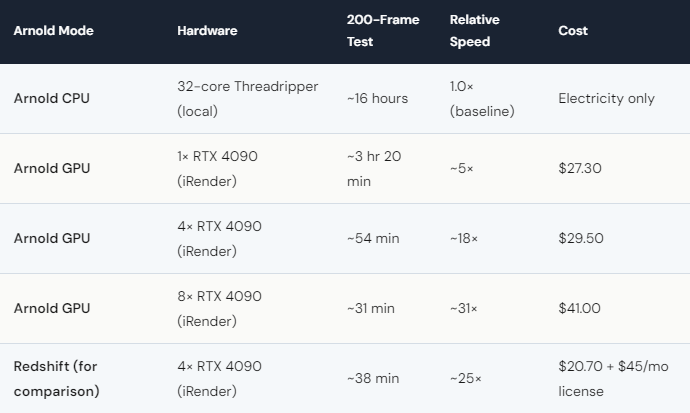
Arnold GPU is now a production-ready GPU renderer included free with every Maya license. Since Arnold 7.0, GPU rendering supports multi-GPU, OptiX denoising, and most Arnold shaders — making it a genuine alternative to third-party GPU engines. On a single RTX 4090, Arnold GPU renders approximately 5–8× faster than Arnold CPU on a 32-core workstation. On iRender’s 4× RTX 4090 (at ~$8.20/hour per GPU), the same scene renders 20–30× faster than CPU. The key advantage: no additional license cost. If you’re already paying for Maya, Arnold GPU is the fastest way to accelerate your renders without switching engines, re-doing shaders, or buying a Redshift subscription.
How Do You Switch from Arnold CPU to Arnold GPU in Maya?
It’s literally one setting. In Maya’s Render Settings, under the Arnold Renderer tab, change Render Device from “CPU” to “GPU.” That’s it. Arnold will automatically use all available NVIDIA GPUs.
There are a few caveats worth knowing. Not every Arnold shader is GPU-compatible. As of Arnold 7.3 (2026), most standard shaders work — Standard Surface, Standard Hair, Standard Volume. But some legacy shaders and certain third-party OSL shaders fall back to CPU silently, which means your render might be slower than expected without an obvious error. Check Arnold’s GPU-supported feature list for your specific shader setup.
The other thing: Arnold GPU uses VRAM, not system RAM. If your scene is heavily textured (8K maps, lots of displacement), it may exceed the 24GB VRAM on a single RTX 4090. Arnold handles this with automatic CPU fallback for out-of-VRAM data — it works, but it’s slower. On iRender’s 4× or 8× RTX 4090 config, you get 96–192GB of pooled VRAM, which essentially eliminates this bottleneck.
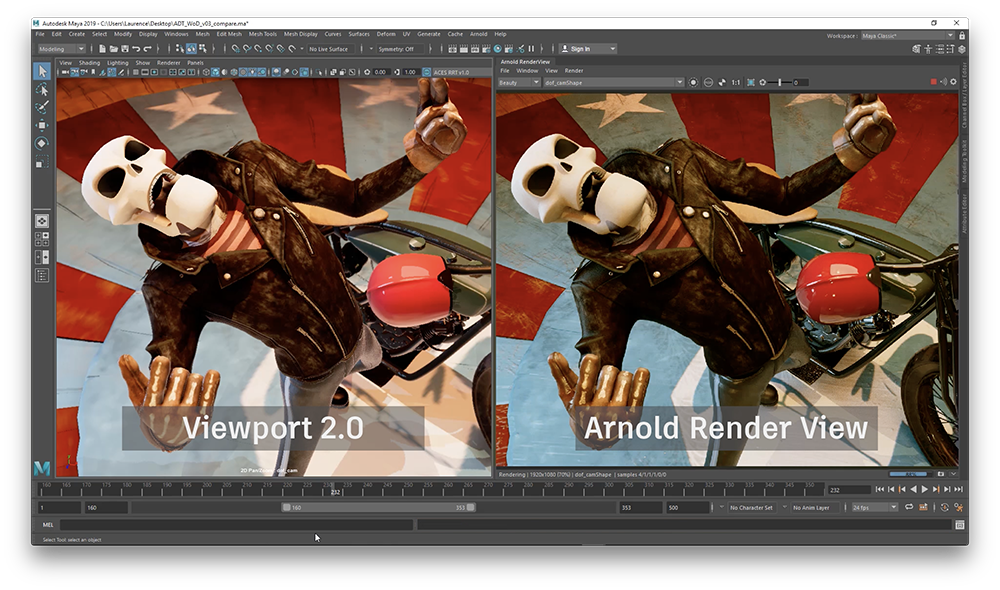
When Should You Render Arnold GPU Locally vs on Cloud?
Locally: If you have an RTX 3070 or better and your scene fits in GPU VRAM. Simple to moderate scenes render well on local GPU. No cost beyond electricity.
On cloud: Three situations. First, your scene exceeds local VRAM — the “CUDA out of memory” error. iRender’s 24–192GB VRAM solves this without scene optimization. Second, you need multi-GPU speed — local machines typically have 1 GPU, iRender offers up to 8. Third, you need your local machine free for other work. Cloud rendering means your workstation stays available for modeling, texturing, and client calls.
On iRender, Arnold GPU setup takes about 15 minutes the first time: connect via remote desktop, install Maya (or it’s pre-installed on some configs), open your scene, switch to GPU mode, render. Your Maya license — if it’s a subscription — works on the cloud server. Your plugins, your scripts, your render settings. Your renders, your rules. After the first session, reconnecting takes under 2 minutes.
The Credit Back system applies to all Arnold GPU sessions: 10% standard, 12% Happy Hours, 20% weekends. New users get 100% bonus on first deposit. A $230 top-up becomes $460 in credits — about 14 hours of 4× GPU time, enough for thousands of frames.
One honest note: if you’re doing CPU-only Arnold rendering (some studios prefer it for specific shading accuracy), a SaaS farm like GarageFarm handles it better. Their large CPU pools and automated submission are designed for this exact workflow. Don’t use IaaS for CPU Arnold — it’s overkill.






