
PC Keeps Crashing During Rendering? Troubleshooting Guide + Cloud Backup Plan
PC crashes during rendering are caused by 4 main issues: (1) GPU overheating — thermal throttling or shutdown above 90°C, (2) insufficient VRAM — scene exceeds GPU memory, (3) unstable overclock — GPU/RAM running beyond safe limits, and (4) inadequate power supply — PSU can’t deliver enough watts under full render load. Each has a specific fix. But if your hardware simply can’t handle the scene — not enough VRAM, not enough cooling, not enough power — the practical solution is offloading to cloud. iRender’s dedicated RTX 4090 servers run in temperature-controlled data centers with 24GB VRAM, 256GB RAM, and enterprise-grade power delivery. Scenes that crash your PC render cleanly on iRender — no hardware debugging required.
How Do You Diagnose Which Problem Is Causing Your Crash?
If the crash happens after 10–30 minutes of rendering: Almost certainly heat. GPU temperature climbs during sustained rendering. Open GPU-Z or HWMonitor and watch the temperature during a render. If it hits 90°C+ before crashing, it’s thermal. Clean your GPU fans, improve case airflow, or reduce the GPU overclock.
If the crash happens immediately at render start: Likely VRAM. The renderer tries to load the entire scene into GPU memory, fails, and crashes. Check your render engine’s log for “out of memory” messages. Fix: reduce texture resolution, use instances, or enable out-of-core rendering.
If crashes are random and unpredictable, Usually an unstable overclock or driver issue. Reset the GPU to stock clocks first. If crashes persist, try a different driver version — both newer and older. NVIDIA’s “Studio Driver” branch is generally more stable for rendering than the “Game Ready” branch.
If your entire PC shuts off (not just the app): Power supply can’t handle full GPU load. Modern GPUs draw 300–450W under rendering load. If your PSU is 550W and you have a power-hungry CPU too, there’s not enough headroom. Upgrade to 850W+ for a single GPU system.

When Should You Stop Troubleshooting and Just Use Cloud?
When fixing the hardware costs more than renting it. A new PSU: $100–150. More RAM: $60–120. A better-cooled GPU: $50–200. If you’re stacking multiple fixes, the total approaches the cost of months of cloud rendering.
On iRender, you skip all of this. The RTX 4090 runs in a data center with industrial cooling, enterprise power, and tested driver configurations. Scenes that crash your PC render without issues because the hardware is purpose-built for sustained rendering loads. The server has 256GB RAM (vs your 16–32GB), 24GB VRAM (vs your 8–12GB), and thermal management designed for 24/7 operation.
The hybrid approach works well: use your local PC for modeling, texturing, and preview renders (which don’t push hardware as hard). Offload final renders and batch jobs to iRender. Your PC handles the light work; the cloud handles the heavy lifting. No crashes, no debugging, no hardware shopping. Your renders, your rules — rendered on hardware that doesn’t crash.
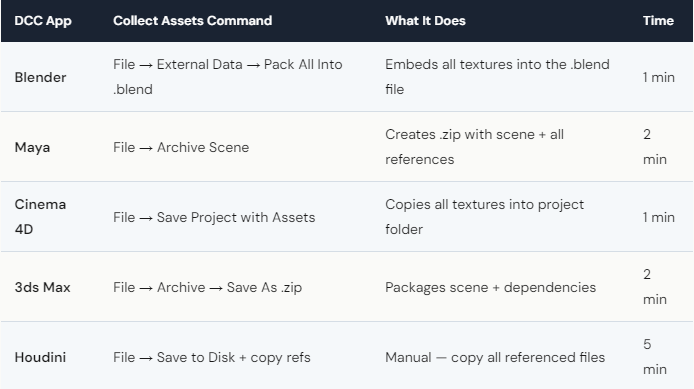
One thing cloud can’t fix: corrupted scene files. If your scene crashes on iRender too, the problem is in the file, not the hardware. Re-export from your DCC app, check for missing assets, and verify plugin compatibility. This applies equally to local and cloud rendering.






