
How to fix Premiere Pro Rendering Error?
Adobe Premiere Pro is a powerful video editing tool, but many users still encounter frustrating rendering errors, especially when working with GPU acceleration. These issues often appear suddenly, such as projects fail to export, renders get stuck, or Premiere crashes without a notification.
In many cases, the root cause isn’t your timeline or effects, it’s GPU configuration conflicts, particularly on systems with multiple GPUs or incorrect GPU assignments.
In this article, we’ll walk through two proven methods to fix Premiere Pro rendering errors by correctly managing GPU usage.
Why GPU Configuration Causes Rendering Errors in Premiere Pro
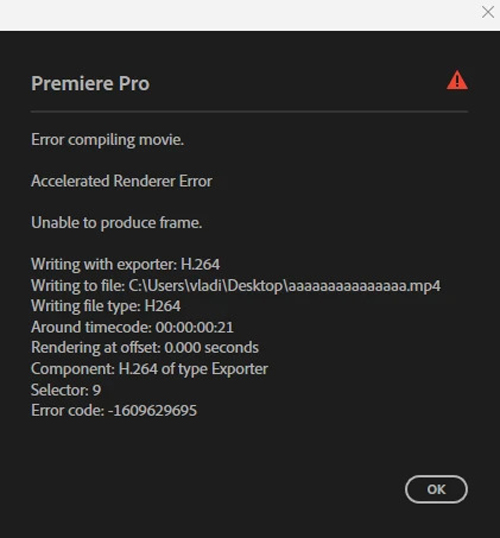
Image Source: Insipreme
GPU configuration is one of the most common but least obvious causes of rendering errors in Adobe Premiere Pro. Modern workstations and laptops often run multiple graphics processors at the same time, such as an integrated GPU (Intel UHD or Iris), a dedicated NVIDIA GPU, or even an external GPU. While this setup is designed to improve power efficiency and performance, it can confuse Premiere Pro during the rendering and export process.
When multiple GPUs are available, Premiere Pro may automatically select the wrong device or dynamically switch between GPUs while rendering. This can lead to instability, especially when CUDA acceleration is enabled. As a result, the software may lose access to GPU resources mid-render, causing export failures, frozen progress bars, or generic errors such as “Rendering Error” or “Error Compiling Movie.”
Driver-level conflicts can further amplify the problem. Integrated GPUs and dedicated GPUs often use different driver architectures, and when Premiere Pro tries to balance workloads across them, incompatibilities can occur. These conflicts are most noticeable in GPU-intensive tasks such as color grading, heavy effects, scaling, and encoding, where consistent GPU access is critical. Incorrect or inconsistent GPU assignment disrupts Premiere Pro’s rendering pipeline.
These situations can trigger:
- Rendering Error
- Error Compiling Movie
- Export freezing at a certain percentage
- Black frames or corrupted output
Let’s fix it!
Solution 1: Disable one of graphic cards (GPU)
In this method, the goal is to temporarily eliminate GPU conflicts by disabling one of the available graphics cards. On systems with multiple GPUs, Premiere Pro may struggle to consistently select the correct device during rendering, leading to export errors or unstable performance.
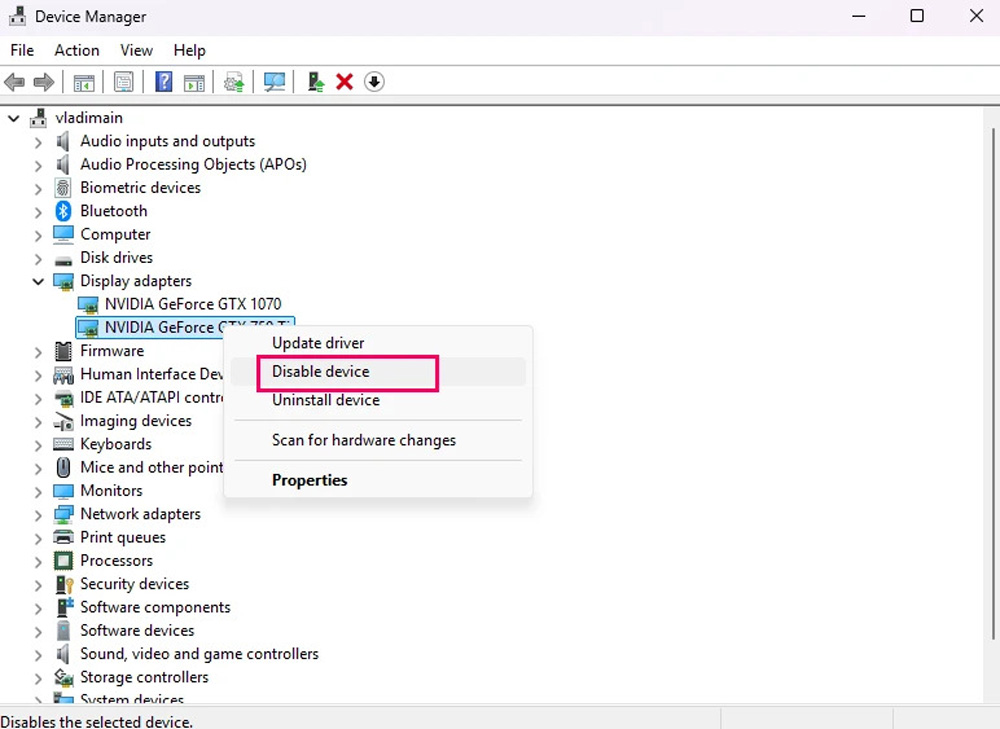
To apply this approach, open Windows Device Manager and navigate to Display adapters, where all detected GPUs are listed.
From there, select the GPU you want to disable, typically the integrated graphics, right-click it, and choose Disable device. After closing and reopening your Premiere Pro project, the rendering process should run smoothly because the application is now forced to use a single GPU.
It’s important to note that this solution is only a temporary workaround. Since the disabled GPU must be re-enabled later, this method is best suited for quick troubleshooting rather than long-term use. For a more stable and permanent fix, let’s explore the second approach.
Solution 2: Assigning the Correct GPU via NVIDIA Control Panel
Configuring GPU usage through the NVIDIA Control Panel provides a more robust and long-term solution to Premiere Pro rendering errors. Instead of disabling hardware, this method explicitly instructs the system to always run Premiere Pro and other Adobe applications on the high-performance NVIDIA GPU.
When Premiere Pro is assigned to the dedicated GPU at the driver level, it avoids ambiguity in GPU selection and prevents the application from falling back to integrated graphics during demanding tasks. This ensures stable CUDA acceleration, consistent memory access, and reliable performance during rendering and exporting.
This solution is especially important for professional workflows involving multiple Adobe applications, such as After Effects and Media Encoder, as it creates a unified GPU configuration across the entire production pipeline.
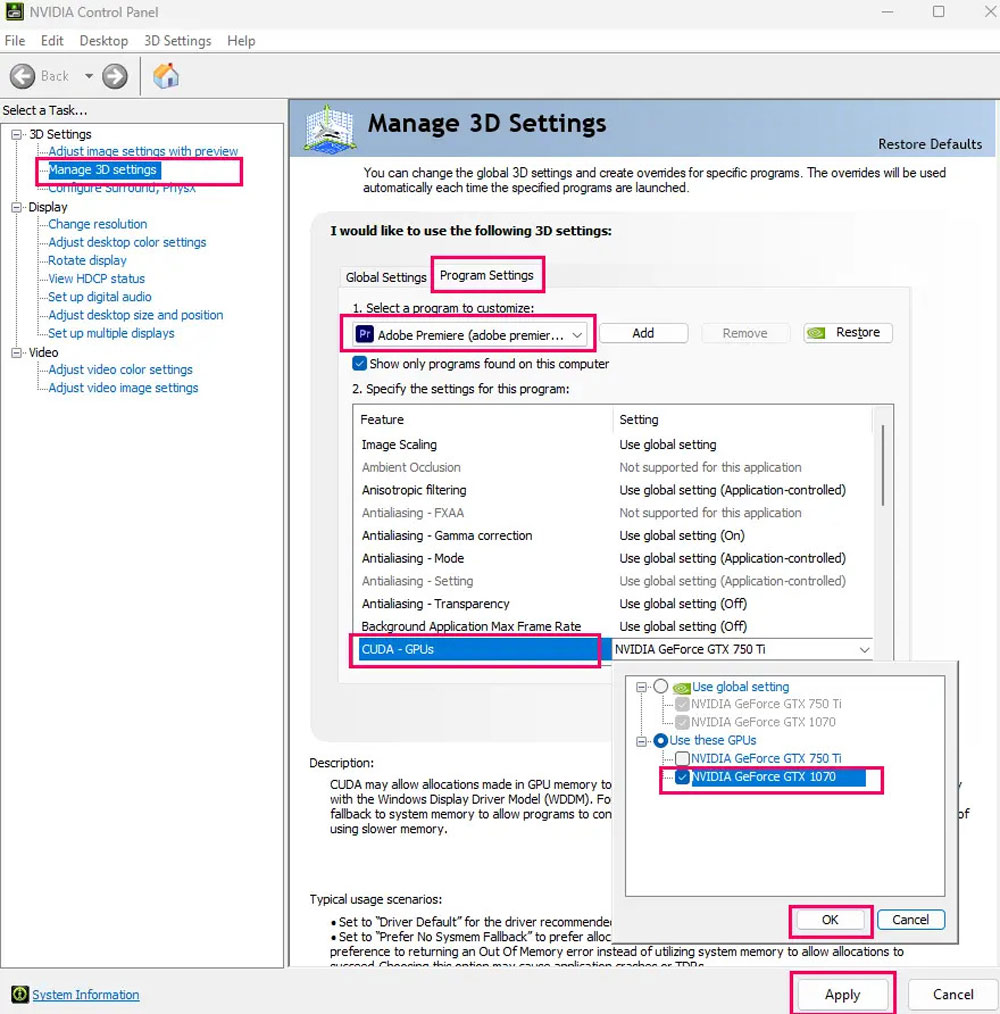
- Open the NVIDIA Control Panel and navigate to Manage 3D settings.
- Switch to the Program Settings tab, where you can configure GPU behavior for individual applications. From the application list, choose Adobe Premiere Pro.
- Next, locate the CUDA – GPUs option and specify the graphics card you want Premiere Pro to use.
- Finally, confirm the changes by clicking Apply to save the settings.
Premiere Pro rendering error has been fixed.
iRender - The Best Render Farm for Rendering in Adobe Premiere
iRender powers up your creativity with unlimited GPU rendering resources. Our GPU render farm houses the most powerful 3D rendering machines. Configure from 1 to 8 GPUs with top-tier RTX 4090, Threadripper Pro CPUs, 256GB RAM, and 2TB SSD storage. iRender’s machines can handle any 3D project demands. We support all 3D software, including Cinema 4D and Redshift.
Once renting our machines, you will own them as your personal workstations. Our server has Cinema 4D and Redshift pre-installed so you just upload all your files you need and render by yourself there. All our servers are equipped:
- AMD Ryzen™ Threadripper™ PRO 3955WX (3.9-4.2GHz) or
- AMD Ryzen™ Threadripper™ PRO 5975WX (3.6-4.5GHz)
- 1/2/4/6/8x – 4090
- 256GB RAM
- 2TB NVMe SSDs
Let’s check out some new tutorial videos at iRender!


Enjoy our FREE TRIAL to try our RTX 4090 machines and boost your rendering now!
For more detailed information, please contact us via Live chat 24/7 or WhatsApp: +(84) 912-785-500 or Email: [email protected].
iRender – Happy Rendering!






