
4 Lighting Tricks in Blender
Lighting can make or break a 3D render. You can spend hours on a perfect model, but if the lights are flat, the final result will be too.
In this article, we’re diving into 4 simple lighting tricks in Blender that will instantly add depth, mood, and professionalism to your work.
Light Linking for Targeted Illumination
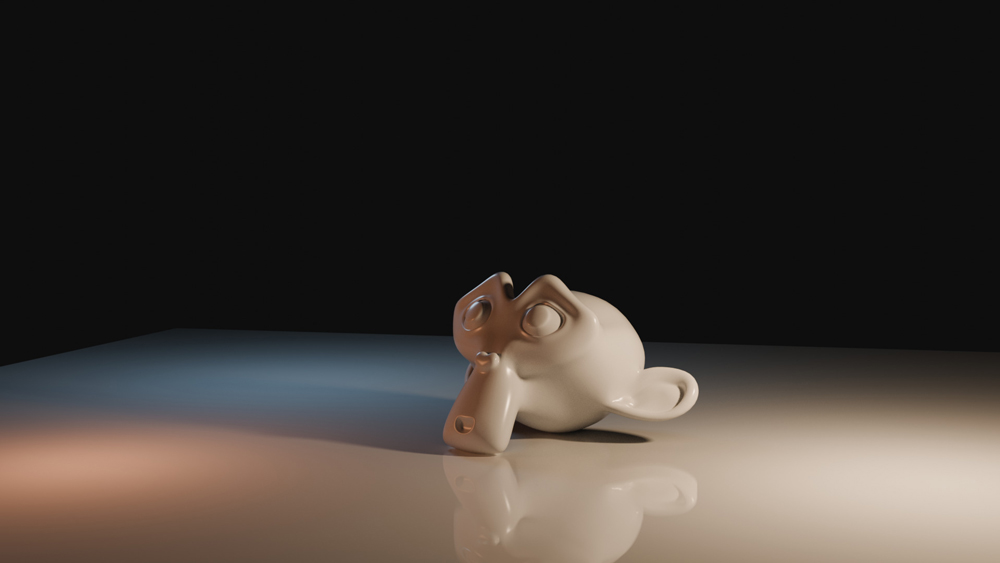
Image Source: Blender Artist
One of the most powerful features in a modern 3D workflow is Light Linking. This technique allows you to restrict a specific light source so that it only affects selected objects in your scene.
Why It Matters
In traditional lighting, a light hits everything in its path. This often creates “light spill,” where a light intended for a character’s face accidentally brightens the background, ruining the mood. Light linking prevents this unwanted spill and significantly reduces the need for manual masking during the compositing phase.
How to Apply It
- Select your light source.
- Open the Light Linking panel in the object properties.
- Assign the specific objects or collections you want the light to illuminate.
- Exclude all other geometry that should remain unaffected.
This level of precision is especially useful when combined with effects like the Blender Glare node to create targeted glows and blooms without washing out the entire scene.
Gobos for Structured Shadow Control
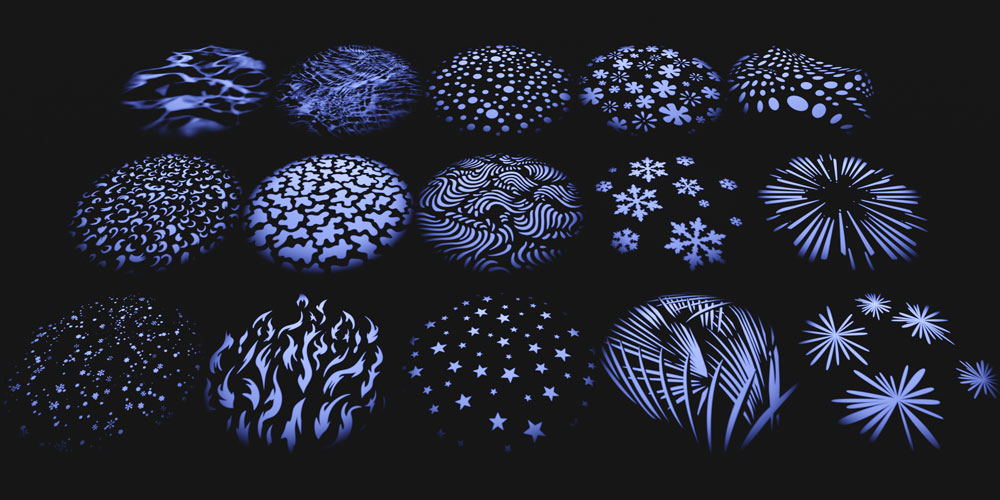
Image Source: Blender Market
A Gobo (short for “Go Between”) is a texture or shape placed in front of a light source to break up the illumination into specific patterns.
Why It Matters
Gobos add depth and surface variation to your renders without requiring you to model extra geometry. Whether it’s the dappled sunlight through tree leaves or the harsh shadows of a window frame, gobos create a sense of realism and “environment” that flat lighting cannot achieve.
How to Apply It
- Enable Nodes on your chosen light source
- Add an Image Texture node
- Connect the texture’s Alpha (or color) output to the Light Strength input
- Use an Invert node if you need to flip the shadow polarity (making the dark parts light and vice versa).
Fake God Rays Without Volumetrics
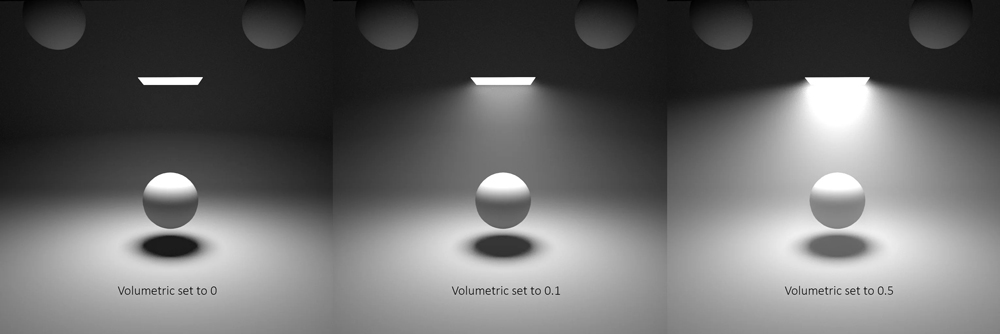
We all love the look of “God Rays” (crepuscular rays), but true volumetrics are notorious for increasing render times and introducing “fireflies” or noise. The solution is to fake it using geometry.
Why It Matters
True volume shaders calculate light scattering through a medium, which is computationally expensive. By using “fake” god rays, you can achieve cinematic atmospheric beams while maintaining high render efficiency and clean, noise-free images.
How to Apply It
- Add a cone or an elongated mesh and align it with the direction of your light
- Apply a transparent or gradient material to the mesh
- Adjust the opacity falloff so the beam appears to fade out naturally as it moves away from the source
This method is perfect for visual effects work where you need to balance high-end visual impact with fast production turnarounds.
Directional Lighting Shortcuts
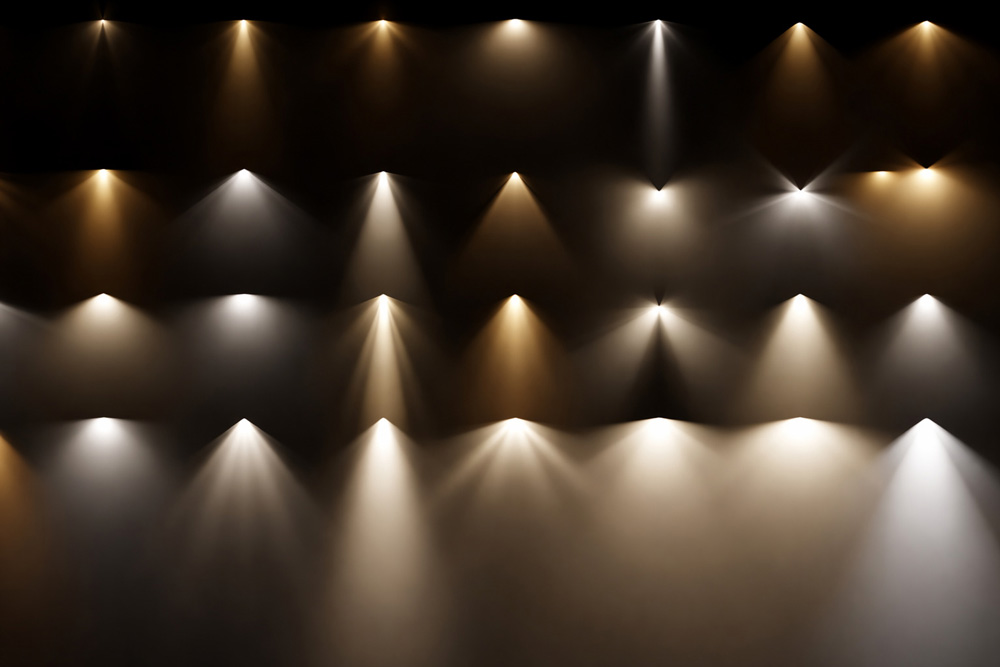
Manual rotation is one of the slowest ways to aim lights in a 3D scene. Directional lighting shortcuts use constraints to automate the process.
Why It Matters
When you are iterating on a scene, you often need to move your light while keeping it pointed exactly at your subject. Doing this manually is tedious. By using constraints, you can move the light anywhere in the 3D space, and it will automatically stay locked onto your target.
How to Apply It
- Add a Track To or Damped Track constraint to your light
- Assign a target object (like a character) or an Empty to the constraint
Now, you can adjust the distance and intensity of the light freely without ever having to re-aim it manually.
Conclusion
In conclusion, mastering a few simple lighting techniques can dramatically improve the quality of your Blender renders. By applying these four lighting tricks, you can create more depth, realism, and visual focus in your scenes. With the right lighting setup, even a simple model can look cinematic and professional.
iRender - The Best Render Farm for Blender
iRender provides a remote machine rental service by offering flexible configurations of 1, 2, 4, 6, and 8 GPU machines using the top-tier RTX 4090. Built with powerful CPUs (AMD Ryzen™ Threadripper™ PRO 3955WX @ 3.9 – 4.2GHz and AMD Ryzen™ Threadripper™ PRO 5975WX @ 3.6 – 4.5GHz), 256GB RAM, and 2TB NVMe SSD storage, our machines can handle even the most demanding scenes in your 3D projects.
Our server has pre-installed Blender 4.5.3. We grant you complete access to your rented machines. You can use your C4D, renderers, plugins, and/or any other software of any version on our machine. We treat your rented machines like your personal workstations – no restrictions apply. This freedom enables you, 3D artists, to realize creative visions without limitations. Moreover, iRender offers an iRender GPU app. In this all-in-one application, you can free your workflow from accessing iRender website, and just have to work on the iRender GPU app. This app is only for Window users.

Let’s check out some of our test videos on Blender!


Enjoy our FREE TRIAL to try our RTX 4090 machines and boost your rendering now!
For more detailed information, please contact us via Live chat 24/7 or WhatsApp: +(84) 912-785-500 or Email: [email protected].
iRender – Happy Rendering!
[/vc_section]






