
Does Unreal Engine use Ray Tracing?
Ray tracing has become one of the big leaps in the industry, promising visuals that were once only possible in big-budget Hollywood movies. If you’re a developer, a gamer, or just a tech enthusiast, you’ve likely wondered: “Does Unreal Engine use ray tracing?”
The short answer is: Yes, absolutely. Unreal Engine doesn’t just support ray tracing; it has fully embraced and integrated it into its core rendering pipeline to push the limits of real-time photorealism.
In this guide, we’ll break down how Unreal Engine uses this technology.
Let’s dive in!
How Unreal Engine Integrates Ray Tracing

Image Source: Epic Games
Unreal Engine has officially supported ray tracing since version 4.22, and with the release of Unreal Engine 5 (UE5), the feature set has reached a whole new level. It’s no longer just an “optional add-on”—it’s a fundamental part of how the engine handles light and geometry through systems like Nanite and Lumen.
At the hardware level, Unreal Engine leverages modern GPUs that support ray tracing through APIs such as DirectX 12 and Vulkan. When ray tracing is enabled, the engine builds acceleration structures, most notably Bounding Volume Hierarchies (BVH), to efficiently trace rays through complex scenes. These structures allow Unreal Engine to calculate accurate light interactions with geometry, producing physically correct reflections and shadows that respond dynamically to scene changes, camera movement, and lighting conditions.
Here are the primary ways Unreal Engine utilizes ray tracing to enhance visuals:
- Ray-Traced Reflections: Unlike traditional screen space reflections (SSR) that glitch when an object moves off-camera, ray-traced reflections accurately reflect the entire environment, including moving characters and high-detail materials like water or metal.
- Ray-Traced Global Illumination (GI): This creates natural light bounces. For example, if a bright light hits a red wall, you’ll see a soft red “bleed” onto the floor, making the scene feel grounded and realistic.
- Ray-Traced Shadows: No more pixelated shadows. Ray tracing provides soft, contact-accurate shadows that react dynamically to the smallest light movements.
- Translucency & Refraction: If you’re rendering glass, crystals, or ice, ray tracing calculates how light bends through those surfaces, giving them a high-end “chef’s kiss” look.
- Ambient Occlusion: It adds realistic depth and “dirt” in the nooks and crannies where surfaces meet, far more accurately than older techniques like SSAO.
The Difference Between Ray Tracing and Lumen
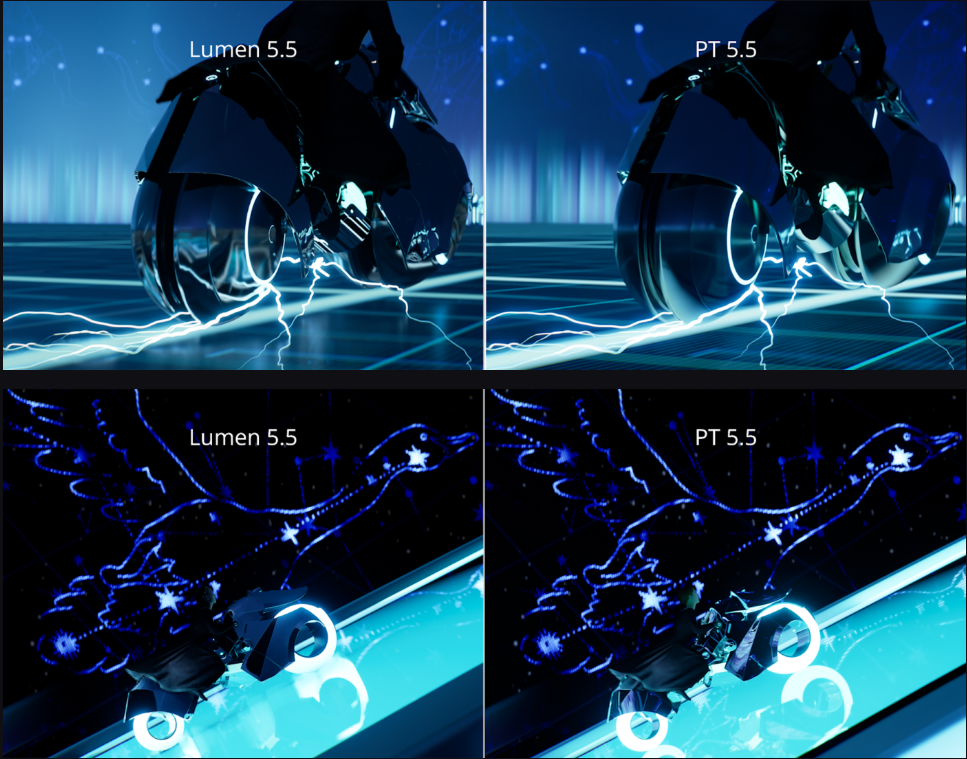
Image Source: Epic Games
One of the most common questions we can see is whether Lumen (UE5’s signature lighting system) is the same thing as ray tracing. Lumen is a global illumination system that can use ray tracing, but it’s flexible. It offers two modes:
- Software Lumen: This runs without dedicated ray tracing hardware, making it great for mid-range PCs.
- Hardware Lumen (Ray-Traced Lumen): This utilizes hardware-accelerated ray tracing on supported GPUs. When you flip this on, you get significantly better reflections, more accurate GI, and overall higher lighting quality.
This flexibility is one of UE5’s greatest strengths; you can choose the best balance between performance and photorealism for your specific project.
About Path Tracing, for those working in film, architecture (archviz), or high-end commercials, Unreal Engine also includes a Path Tracer. While standard ray tracing is built for real-time performance (games), the Path Tracer is meant for offline rendering. It is slower but provides Pixar-quality frames that are incredibly accurate. It’s perfect for cinematic sequences where you don’t need to maintain a high frame rate for gameplay.
Hardware Requirements for Using Ray Tracing in Unreal Engine

Image Source: Unreal Engine
Loading millions of light rays every second requires considerable computing power. To use hardware ray tracing in Unreal Engine, you’ll need specific hardware:
- Minimum GPU: You need a card with hardware ray tracing support, such as the NVIDIA RTX 2000 series or later, or AMD Radeon RX 6000 series or later.
- Recommended for Professional Work: An RTX 4090 or 5090 is ideal for a smooth workflow.
- The High End Setup: For those doing heavy cinematic path tracing, an RTX 4090 or even a multi-GPU workstation is recommended.
- Memory: At least 32GB of RAM and a fast NVMe SSD are highly recommended to handle the data load.
How to Enable Ray Tracing in Unreal Engine
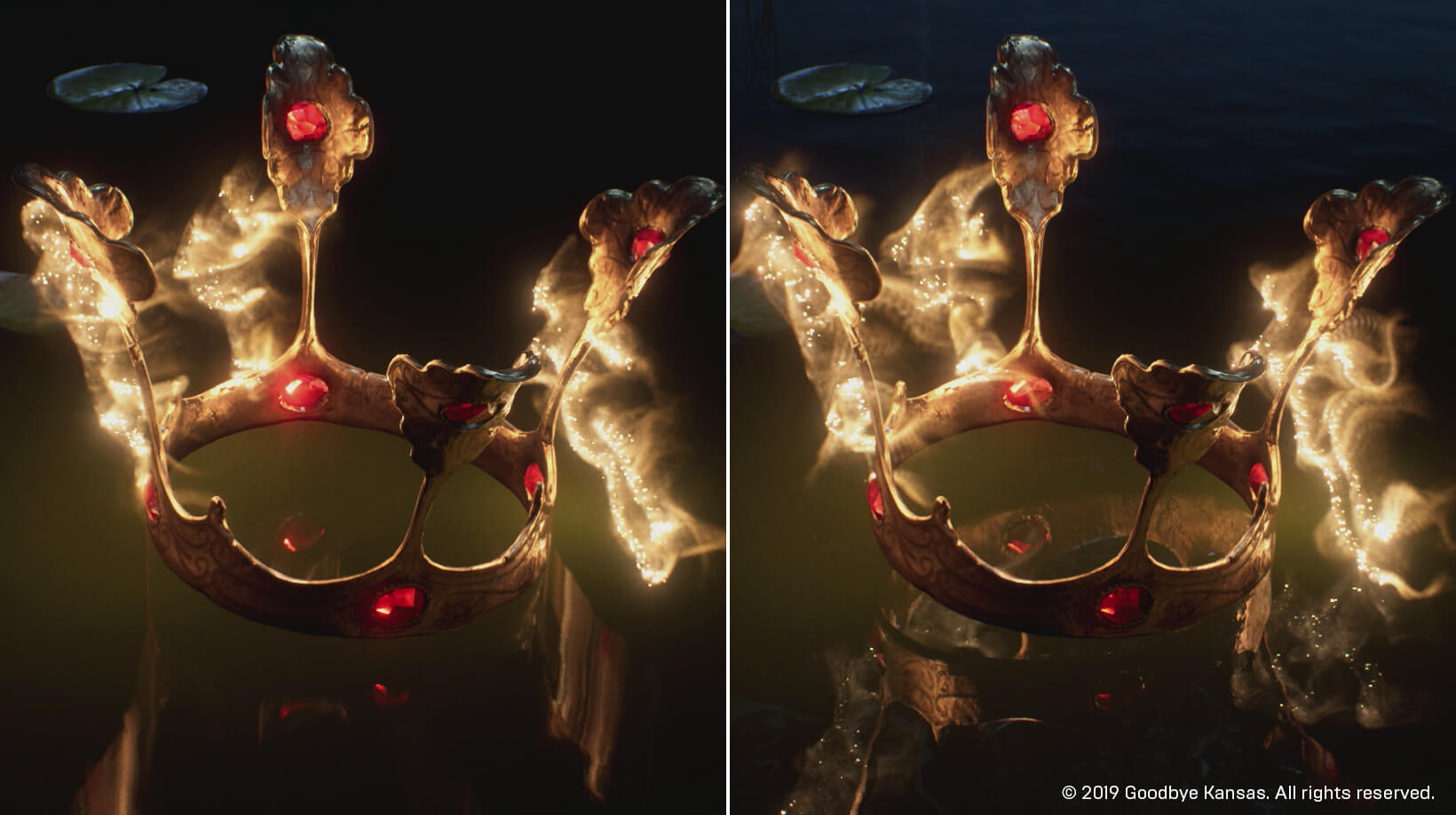
Image Source: Unreal Engine
Make sure your GPU supports hardware ray tracing (such as NVIDIA RTX or AMD RDNA2+). Ray tracing will not work on unsupported or low-end graphics cards.
Step 1: Open your project settings
Launch Unreal Engine 5 and open your project. Go to Edit → Project Settings.
Step 2: Enable DirectX 12
In Platforms → Windows, set Default RHI to DirectX 12. This is required for hardware ray tracing to function properly.
Step 3: Enable Hardware Ray Tracing
Scroll to the Rendering section and turn on Support Hardware Ray Tracing. Unreal Engine will ask you to restart the editor, confirm, and restart.
Step 4: Activate ray-traced features
After restarting, return to Rendering settings and enable features such as Ray Traced Shadows, Ray Traced Reflections, or Ray Traced Ambient Occlusion, depending on your project needs.
Hardware Lumen (Optional): In the same settings, search for “Lumen” and toggle on Hardware Ray Tracing for even better quality
The Pros and Cons of Using Ray Tracing in Unreal Engine
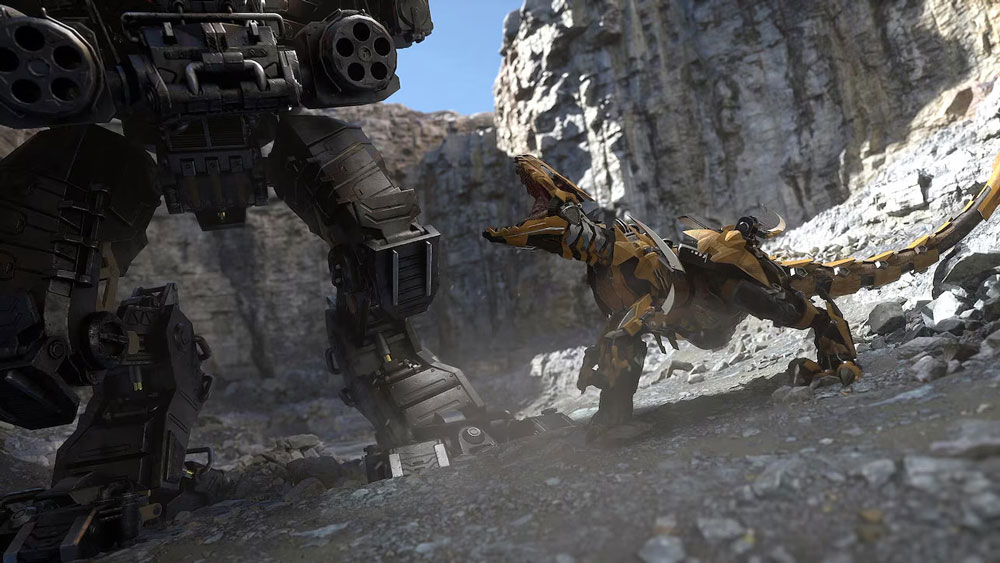
Image Source: Unreal Engine
- The Pros
One of the biggest advantages of ray tracing in Unreal Engine 5 is the significant improvement in visual realism. Ray-traced lighting, reflections, and shadows behave in a physically accurate way, producing more natural results than traditional rasterization techniques. Reflections can accurately show off-screen objects, transparent materials, and complex surfaces, while shadows appear softer and more realistic based on distance and light source size.
Another major benefit is consistency across lighting scenarios. With ray tracing, global illumination, and ambient occlusion respond dynamically to changes in the scene, reducing the need for baked lighting or manual adjustments. This makes iteration faster, as artists can modify lights, materials, or geometry and immediately see accurate results in real time.
Ray tracing in Unreal Engine 5 also integrates smoothly with modern rendering systems such as Lumen. When hardware ray tracing is enabled, Lumen can achieve higher accuracy and stability, particularly in reflections and indirect lighting.
- The Cons
One of the biggest drawbacks of using ray tracing in Unreal Engine is its extremely heavy demand on GPU resources. Real-time ray tracing requires the GPU to calculate complex light paths, reflections, and shadows every frame, which significantly increases the rendering workload. For projects aiming for smooth real-time performance, this GPU intensity can become a major bottleneck.
Another important limitation is that ray tracing is not suitable for low-end or older hardware. Hardware-accelerated ray tracing relies on modern GPUs with dedicated ray tracing cores, meaning many users simply cannot access these features. This creates challenges for beginners or small studios.
Ray tracing requires significantly more optimization when used in games. Unlike offline rendering, real-time applications must maintain stable frame rates under constantly changing conditions. Developers must carefully control ray counts, bounce limits, resolution scaling, and denoising to avoid a performance drop.
Final Thoughts
Does Unreal Engine use ray tracing? Yes, deeply and extensively. Whether you are building the next triple-A game, a cinematic masterpiece, or a virtual production set, Unreal Engine provides one of the most advanced ray tracing pipelines in the world. Unreal Engine does indeed use ray tracing, but it approaches the technology smartly and flexibly rather than relying on it exclusively. By combining hardware-accelerated ray tracing with traditional rasterization and modern systems like Lumen, Unreal Engine allows creators to achieve high levels of realism while still maintaining control over performance. This makes ray tracing a powerful option, not a mandatory feature.
Whether ray tracing is the right choice depends on your project’s goals, target hardware, and performance requirements.
iRender - The Best Render Farm for Unreal Engine 5
iRender powers up your creativity with unlimited GPU rendering resources. Our GPU render farm houses the most powerful 3D rendering machines. Configure from 1 to 8 GPUs with top-tier RTX 4090, Threadripper Pro CPUs, 256GB RAM, and 2TB SSD storage – iRender’s machines can handle any 3D project demands. We support all 3D software including Unreal Engine 5.
Once renting our machines, you will own them as your personal workstations. Therefore, you can install UE 5 there. All our servers are equipped:
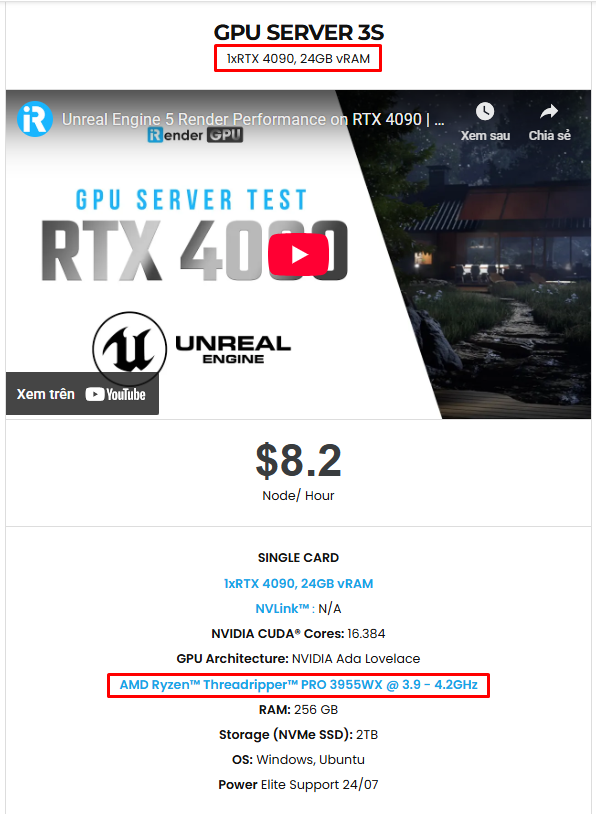
- AMD Ryzen™ Threadripper™ PRO 3955WX (3.9-4.2GHz) or
- AMD Ryzen™ Threadripper™ PRO 5975WX (3.6-4.5GHz)
- 1/2/4/6/8x – 4090
- 256GB RAM
- 2TB NVMe SSDs
With Unreal Engine 5, it only utilizes 1 GPU so our server single card 4090 is the best choice. You can refer to its configuration here:
Let’s check out some of our test videos on Unreal Engine!


Enjoy our FREE TRIAL to try our RTX 4090 machines and boost your rendering now!
For more detailed information, please contact us via Live chat 24/7 or WhatsApp: +(84) 912-785-500 or Email: [email protected].
iRender – Happy Rendering!
Related Posts
The latest creative news from Unreal Engine Cloud rendering.






