
Can You Change the Focal Length of a Camera in Blender?
Yes, definitely you can. If you’re not doing it intentionally, you’re leaving a lot of creative control on the table.
Focal length is one of the most powerful and underused settings in Blender. It shapes how your scene feels, how space is compressed or expanded, and whether your render looks cinematic or amateur. In this article, we will break down exactly how to change it, when to use different values, and how to think about it like a real-world cinematographer.
What Is Focal Length?
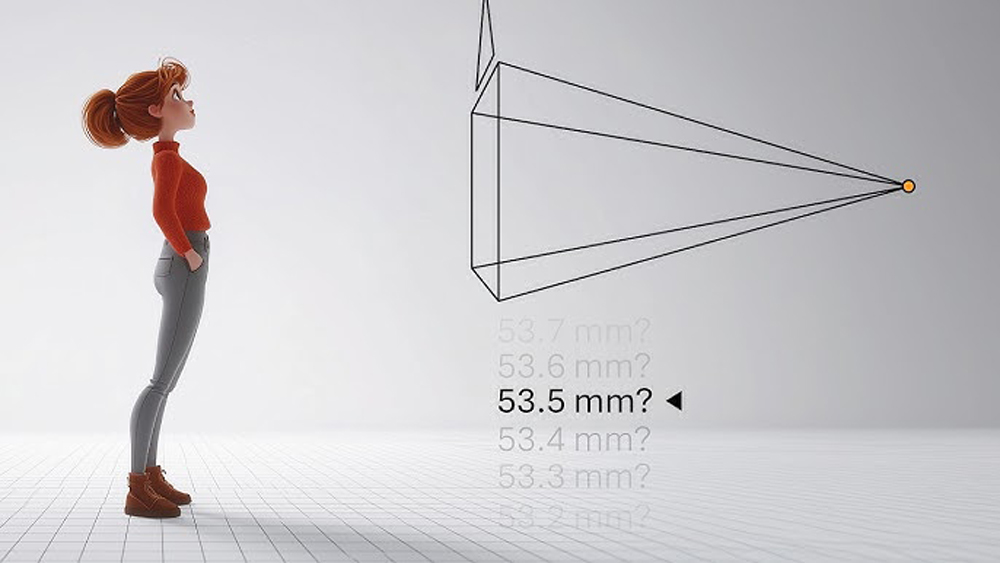
Image Source: Robin Squares
Focal length determines your camera’s field of view essentially, how much of the scene the lens “sees” and how objects relate to each other in space.
- Short focal length (e.g., 18–24mm): Wide field of view, dramatic perspective, noticeable distortion at the edges. Great for environments, less flattering for faces.
- Mid focal length (e.g., 35–50mm): Close to natural human vision. Versatile for product shots, architecture, and general scenes.
- Long focal length (e.g., 85–135mm+): Telephoto compression, minimal distortion. The go-to for character close-ups and portrait-style renders.
Getting this wrong doesn’t just affect aesthetics — it can make a scene feel spatially wrong in ways that are hard to diagnose if you don’t know what to look for.
How to Change the Focal Length in Blender
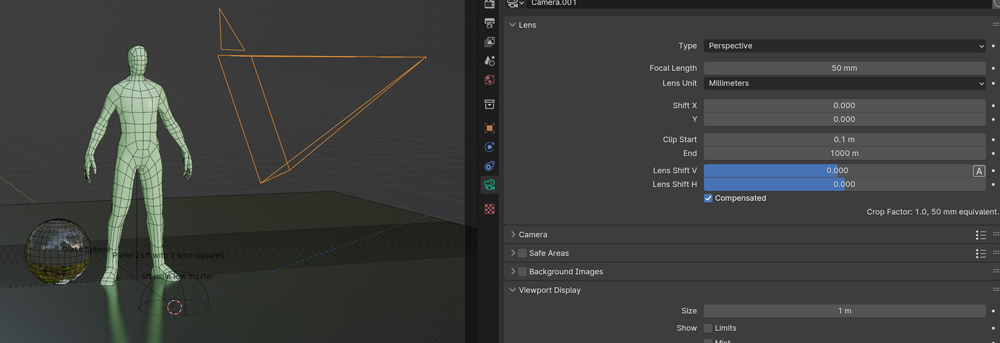
The process is straightforward:
Step 1: Select your camera
Click on the camera object in the viewport or the Outliner panel.
Step 2: Open Camera Properties
In the Properties panel (right sidebar), click the Camera icon (looks like a film camera).
Step 3: Adjust the Focal Length
Under the Lens section, find the Focal Length field. Type in your desired value in millimeters.
Step 4 (Optional): Check Sensor Size
Blender defaults to a 36mm sensor, which mimics a full-frame camera. If you’re targeting a specific real-world look (say, a crop sensor or a specific cinema camera), adjust the sensor size accordingly to keep the field of view accurate.
Quick tip: If you notice heavy distortion or objects looking unnaturally stretched, your focal length is probably too low. Start at 35mm and go up from there.
Choosing the Right Focal Length for Your Scene
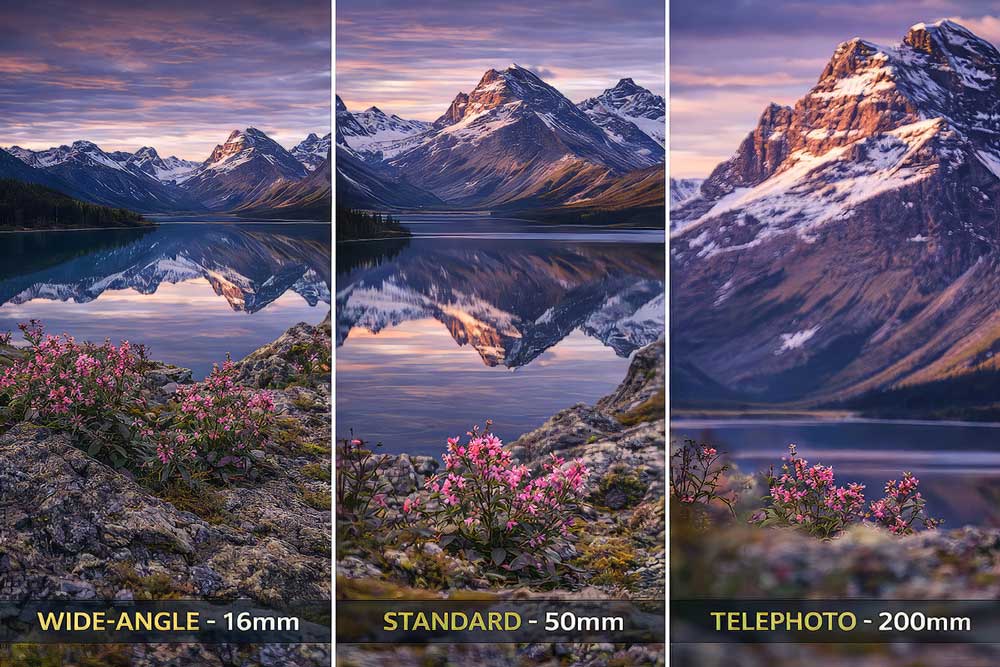
Image Source: Face The Outdoors Photography
Character & Portrait Renders
Recommended range: 50–85mm
This range minimizes facial distortion and gives characters a natural, believable look. Going below 35mm on a close-up face will stretch features in ways that feel uncanny — unless that’s intentional (dream sequences, horror, surreal animation).
If you’re working across multiple shots with different framing, the add-on The View Keeper lets you store multiple focal length presets per camera, which saves significant time in complex scenes.
Architectural & Interior Visualization
Recommended range: 20–35mm
Wide lenses help capture full rooms or large exterior facades. Just watch the edges — extreme wide angles (below 18mm) can make straight lines appear curved, which is problematic for architectural clients expecting accurate spatial representation.
Environment & Landscape Renders
Recommended range: 18–28mm
Wider focal lengths exaggerate depth and make landscapes feel vast. Combined with a low camera angle, this can give an epic, cinematic quality to outdoor scenes.
Product Visualization
Recommended range: 35–50mm
The goal here is to present the product accurately. Mid-range focal lengths keep proportions honest while still allowing for interesting close-up framing.
Conclusion
Focal length affects render complexity indirectly. A wider lens means more of the scene is visible and more of the scene needs to be rendered. For complex scenes with heavy geometry, volumetrics, or ray-traced lighting, a tighter focal length can meaningfully reduce render time by excluding off-screen elements from calculation.
Rendering at Scale with iRender
Once your camera work is locked in, the next bottleneck is almost always render time. Even with a well-optimized Blender scene, rendering high-quality frames locally can take hours per frame and that’s before factoring in animation sequences or iteration cycles. iRender provides a remote machine rental service by offering flexible configurations of 1, 2, 4, 6, and 8 GPU machines using the top-tier RTX 4090. Built with powerful CPUs (AMD Ryzen™ Threadripper™ PRO 3955WX @ 3.9 – 4.2GHz and AMD Ryzen™ Threadripper™ PRO 5975WX @ 3.6 – 4.5GHz), 256GB RAM, and 2TB NVMe SSD storage, our machines can handle even the most demanding scenes in your 3D projects.
Our server has pre-installed Blender 4.5.3. We grant you complete access to your rented machines. You can use your C4D, renderers, plugins, and/or any other software of any version on our machine. We treat your rented machines like your personal workstations – no restrictions apply. This freedom enables you, 3D artists, to realize creative visions without limitations. Moreover, iRender offers an iRender GPU app. In this all-in-one application, you can free your workflow from accessing iRender website, and just have to work on the iRender GPU app. This app is only for Window users.

Let’s check out some of our test videos on Blender!


Enjoy our FREE TRIAL to try our RTX 4090 machines and boost your rendering now!
For more detailed information, please contact us via Live chat 24/7 or WhatsApp: +(84) 912-785-500 or Email: [email protected].
iRender – Happy Rendering!
Related Posts
The latest creative news from Blender Cloud Rendering.
[/vc_section]





