
How to solve Unreal Engine rendering slowly or throwing errors?
Rendering in Unreal Engine is one of the most rewarding parts of game development and 3D visualization. However, it can also be one of the most frustrating if your render is slow or constantly throwing errors.
In this guide, iRender will explore the most common causes and guide you on how to solve Unreal Engine rendering slow or throwing errors.
What causes Unreal Engine to render slowly or fail?
Before jumping into solutions, it’s important to understand what’s going wrong. Unreal Engine can experience slow rendering or even rendering failures due to a variety of factors. Here are some common causes:
| Problem types | Common causes |
| Slow Rendering | High scene complexity, real-time lighting (Lumen), large textures, high resolution, or inefficient materials |
| Error or crashes | Out-of-memory (VRAM/RAM), driver issues |
| Viewport Lag or Freezes | Real-time preview overload, Nanite-heavy meshes, or post-processing effects |
| Movie Render Queue Failures | Missing frame output folders, codec issues, GPU timeouts, or insufficient system resources |
Slow Rendering
Optimize Unreal Engine Rendering Settings
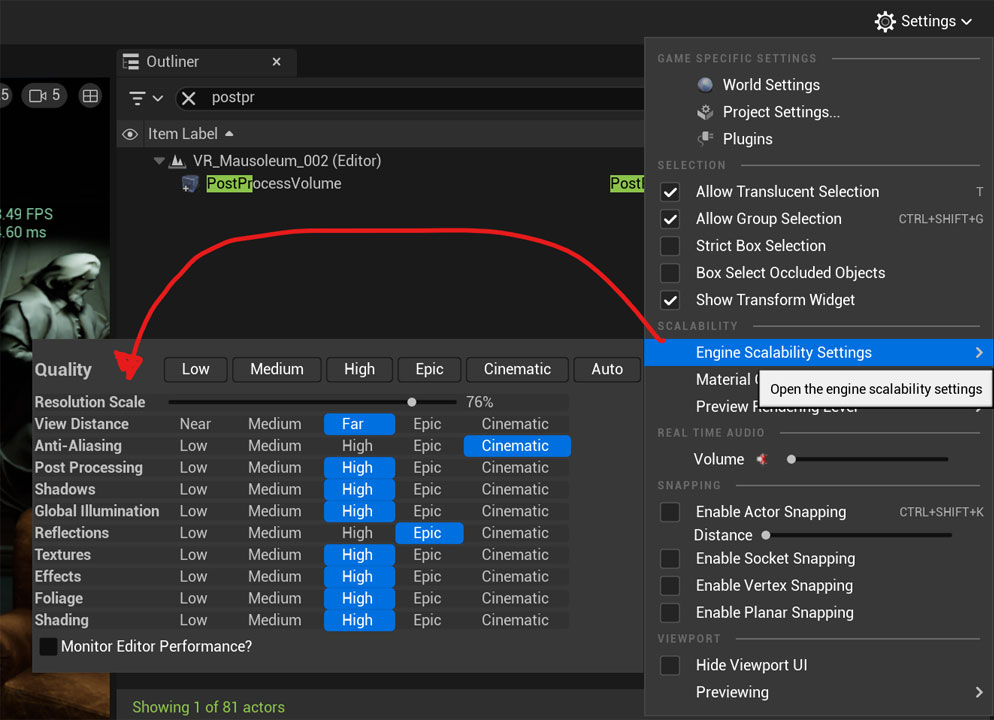
The fastest way to improve performance is by adjusting Unreal Engine’s scalability and rendering settings. Try setting everything to Medium or Low when previewing or testing your project.
Once you’re ready for final rendering, gradually increase the most important ones (such as Shadows and Textures).
Source: unrealengine
Turn Off Heavy Post-Processing
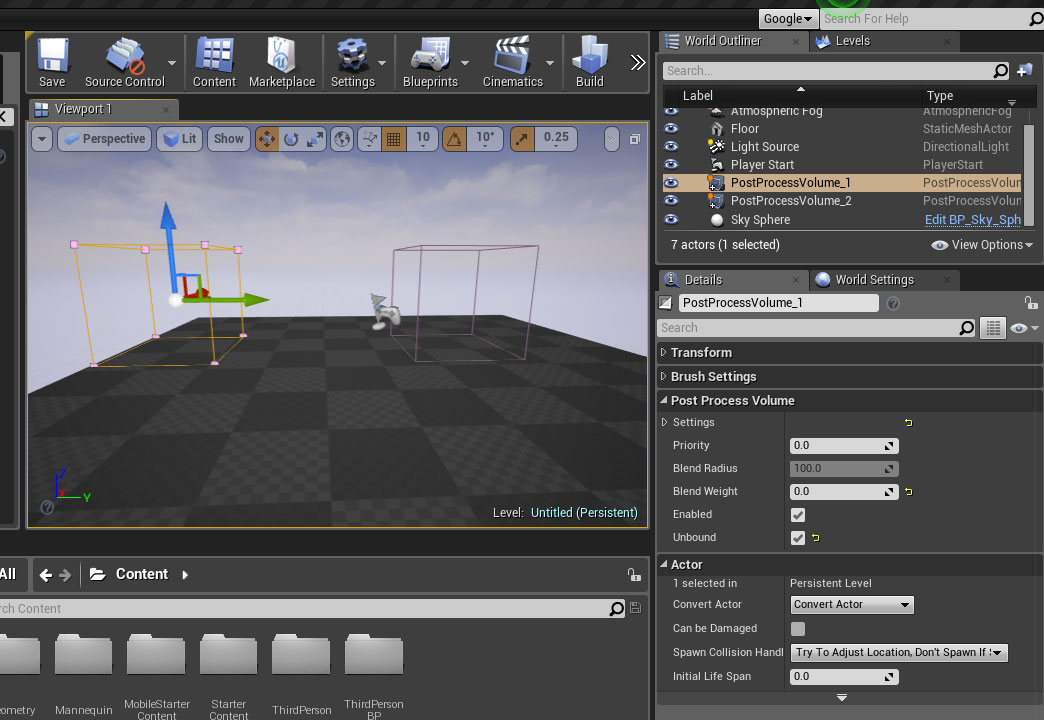
If your renders feel slow, laggy, or even unstable, disabling or reducing post-processing is one of the fastest ways to boost performance.
To turn off heavy post-processing in Unreal Engine, you can adjust individual Post Process Volumes by disabling them or setting their “Blend Weight” to 0, and for project-wide changes, uncheck “Enable Post Processing” in your Project Settings.
Source: Unreal Engine Forums
Error or Crashes
Update NVIDIA Studio driver
Unreal Engine relies heavily on your GPU for real-time rendering, ray tracing, and shader compilation.
Updating your NVIDIA Studio Driver is often one of the most effective fixes for Unreal Engine rendering issues such as slow rendering or crashing issues.
If you got the issues on iRender machine, you can try to update NVIDIA Studio driver.
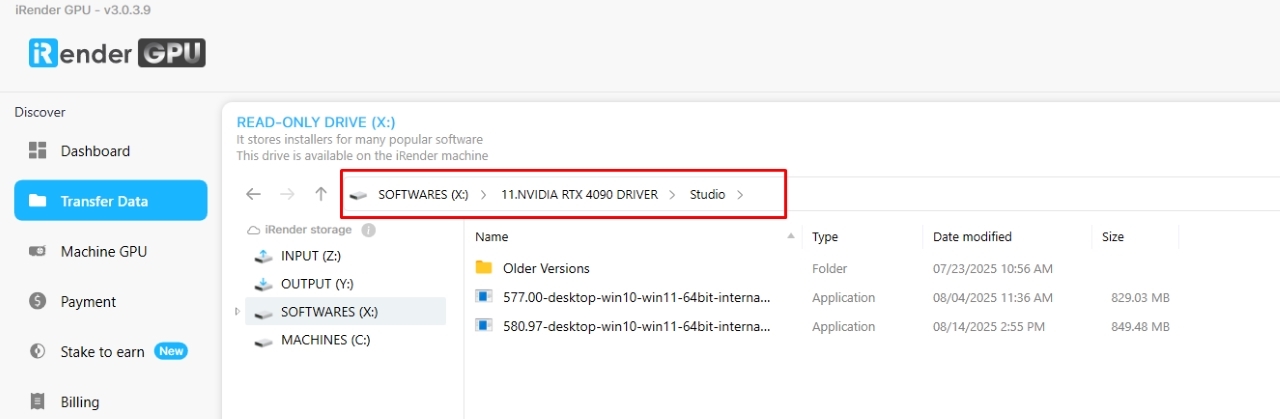
Step 1: Go to the X: Drive on the remote machine and open the folder: 11. NVIDIA RTX 4090 DRIVER > Studio
Step 2: Find the latest Studio Driver installer
Step 3: Copy it to the remote desktop and run it.
Step 4: After installation, restart the machine.
Turn on GPU accelerated
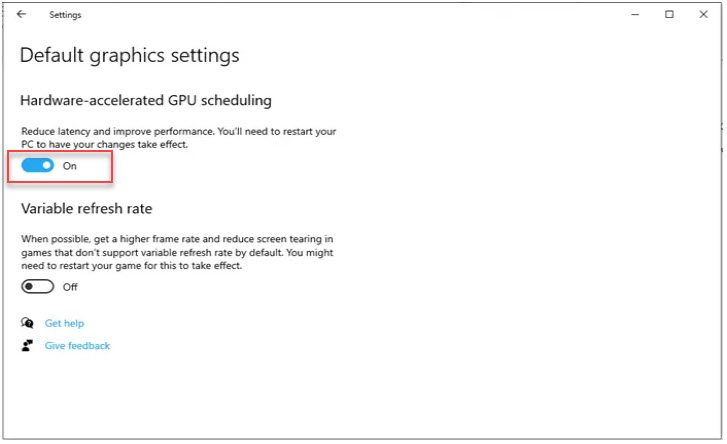
Turning on Hardware-Accelerated GPU rendering can help fix some rendering errors in Unreal Engine. You can follow all the steps following:
Step 1: Open Windows Settings> Go to: System → Display
Step 2: Access Graphics Settings. Click on Graphics Settings under Multiple Displays
Step 3: Locate: Hardware-accelerated GPU scheduling then switch the toggle to ON
Step 4: Restart the machine
Viewport Lag or Freezes
By default, the Unreal Engine viewport runs in real-time mode — meaning it constantly re-renders your scene every frame (just like a live game).
Turning off real-time rendering can:
- Reduce lag and stuttering in the viewport
- Lower GPU and CPU usage (keeps system cooler)
- Speed up your rendering
Movie Render Queue Failures
The Movie Render Queue (MRQ) in Unreal Engine is the best way to export high-quality cinematics, game trailers, or architectural walkthroughs.
If your MRQ renders crash, stop mid-way or fail to start, you can follow this to fix:
- Open Movie Render Queue.
- Select your render job.
- Add a new Render Pass → Settings → Post Process Material / Override Settings.
Final Thoughts
Unreal Engine rendering issues usually come from performance bottlenecks, outdated drivers, or heavy settings. The fastest way to fix them is to update your GPU drivers, disable unnecessary real-time and post-processing effects, and optimize your project’s render settings. With these simple habits, you’ll keep Unreal Engine running smoothly — delivering fast, error-free, and cinematic-quality renders every time.
What makes iRender the best for Unreal Engine?
If Unreal Engine rendering is slowing you down or your system can’t handle complex cinematic scenes, iRender is the smartest and most efficient solution.
Why choose iRender for Unreal Engine?
- GPU Power on Demand: iRender provides access to top-tier NVIDIA RTX 4090 GPUs — perfectly optimized for Unreal Engine’s demanding real-time and ray-traced rendering.
- Full Control, Real-Time Access: Unlike traditional render farms, iRender gives you a full virtual workstation. You can install Unreal Engine and plugins, then add your own license and render yourself.
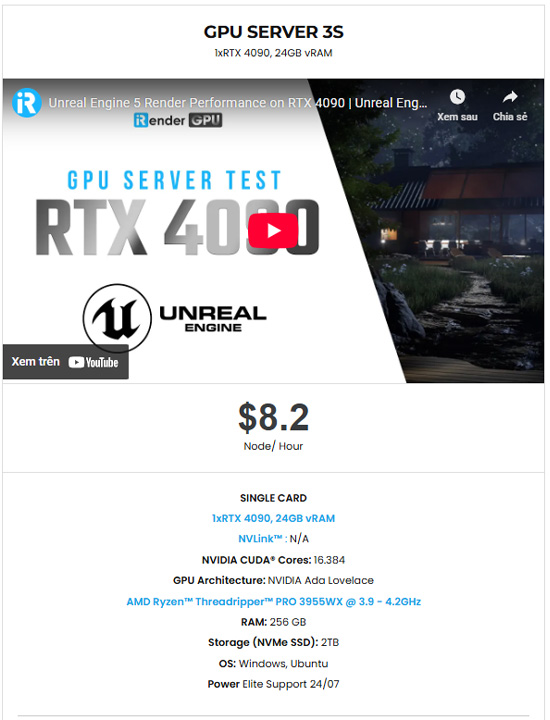
- Flexible price: With Unreal Engine, a 3S (1xRTX 4090) server is the best choice with the most affordable price. It costs only 8.2$ per hour, making it ideal for small studios, indie creators, or large teams working on big projects with tight deadlines.
- Free Transferring tools: iRender offers a powerful and free file transfer tool iRender drive for macOS/Linux user and iRender GPU app is for Windows.
- Fast Support: iRender offers 24/7 technical support — ensuring your rendering process runs smoothly at any time.
Let’s see how Unreal Engine performs on our powerful servers. You will see the speed and performance.


We’re excited to welcome new users with an exclusive 100% Bonus Program. You should deposit after your registration, and we’ll double your credits instantly — giving you twice the value to explore and enjoy! Don’t miss out — recharge today and make the most of your first deposit!

Register an account today to experience our service or contact us via the email [email protected] or WhatsApp: (+84) 912075500 for advice and support.
iRender – Happy Rendering!
References: unrealengine
Related Posts
The latest creative news from Unreal Engine Cloud rendering.






