
Troubleshooting GPU Crashes and D3D Device Issues in Unreal Engine
In the vibrant world of game development, a seamless experience can often hinge on the performance of your graphics hardware. Unfortunately, GPU crashes and D3D device issues can disrupt your creative flow, halting progress and leading to frustrating setbacks. But fear not! This blog will help you troubleshoot these GPU crashes and D3D device errors, equipping you with powerful solutions to keep your projects running smoothly and your artistic vision intact.
Get ready with iRender in this blog!
GPU Crashes and D3D Device Issues
GPU Crashes and D3D Device Issues refer to problems that can occur with the graphics processing unit (GPU) and the Direct3D (D3D) interface, which is a key component of DirectX used for rendering graphics in applications like Unreal Engine and other game development environments.
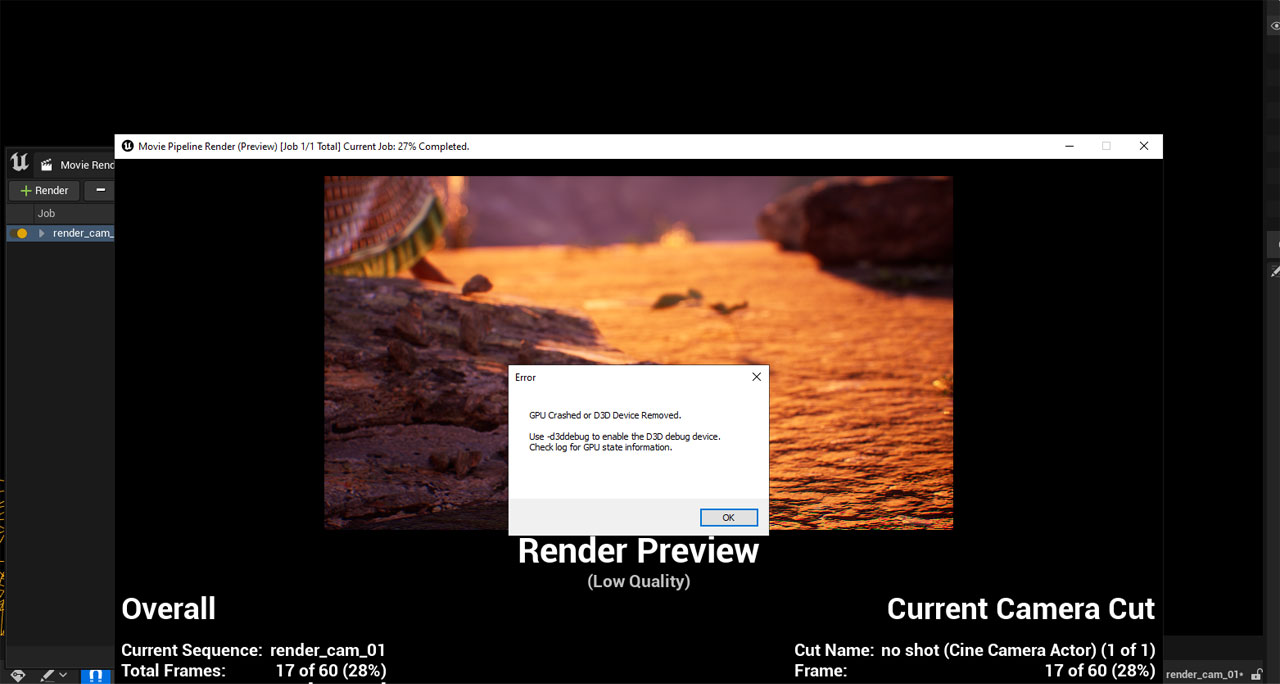
In the latest version of Unreal Engine 5 (UE 5.1.1), some users have reported issues of crashing or displaying errors that D3D device has been removed. The error interface will look like the image shown below – ‘GPU crashed or D3D device removed. Use -d3ddebug to enable the D3D debug device. Check the log for GPU state information’. Let’s check the image following:
Common Causes of GPU Crashes and D3D Device Issues
GPU Overheating and Overload
One of the most common reasons for Unreal Engine crashing is GPU overheating. When rendering complex scenes, compiling shaders, or simulating physics, Unreal can push the GPU to its limit. If your GPU doesn’t have adequate cooling or is operating in a poorly ventilated environment, it may overheat. This causes the hardware to throttle performance or shut down completely, resulting in crashes or a “device removed” error from Direct3D (D3D).
Out of GPU drivers
Another frequent culprit is outdated or corrupted GPU drivers. Unreal Engine relies heavily on the latest DirectX and GPU APIs. If your drivers are outdated, or if recent updates introduced bugs, it can result in the GPU crashing or being removed by Windows.
TDR( Timeout Detection and Recovery Errors)
Windows includes a system called TDR (Timeout Detection and Recovery), which checks if the GPU is unresponsive. If Unreal Engine loads the GPU with a heavy task that doesn’t complete in time (typically 2 seconds), Windows assumes the GPU has crashed and resets it — which in turn causes Unreal to crash.
Corrupted Engine or Project Files
Sometimes, the issue lies within corrupted cache files, shader data, or engine configurations. Unreal stores temporary and compiled data in folders such as DerivedDataCache, Intermediate, and Saved. Over time, these files can become corrupted, especially if the engine or system was interrupted during compilation. If only one project is crashing, try clearing these folders and restarting the engine. You can also regenerate Visual Studio project files if you’re working with C++.
Troubleshooting GPU Crashes and D3D Device Issues in Unreal Engine
Update the latest driver
Updating your graphics drivers is an important step to ensure that your GPU operates optimally, especially for software like Unreal Engine.
You should visit the NVIDIA website and download GeForce Experience if you haven’t installed it. This software automatically checks for driver updates and allows for easy installation. After the installation is complete, it’s often necessary to restart your computer for the changes to take effect.
You can check the driver version in the Device Manager to confirm that the update was successful by right-clicking on your graphics card under Display adapters and selecting Properties > Driver tab.
Change or add values in Registry Editor
You need to add two registry keys to your graphics drivers. Follow these steps to add the registry keys.
- Type ‘run’ into the Windows operating system search bar. Open the Run application.

After opening the Register editor, you can follow all steps via the instruction link How to change TDR.
Then you should Restart the remote server and connect to it to use normally.
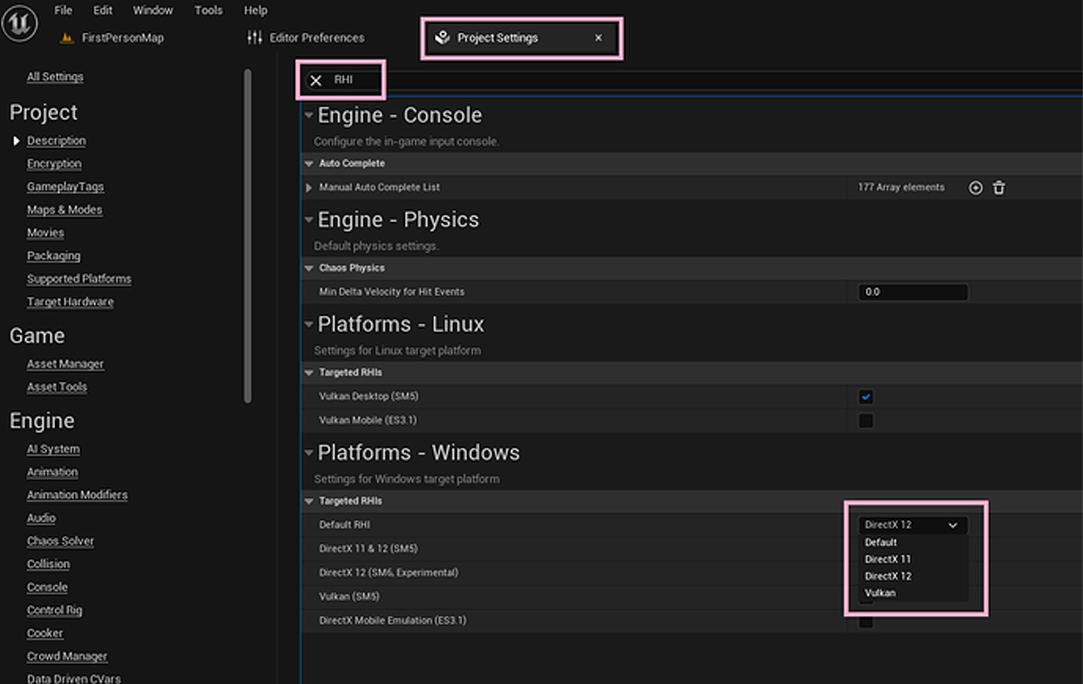
Adjust Unreal Engine Settings( Switch from DX12 to DX11)
To switch to DirectX 11 in Unreal Engine, you can modify the projects or use launch arguments. The primary method involves editing the DefaultEngine.ini file to set the DefaultGraphicsRHI to DefaultGraphicsRHI_DX11. Alternatively, you can use the -dx11 launch argument when starting the editor or the game build.
Consider Windows Issues
- System Updates: Ensure Windows is fully updated. OS updates may include important fixes that resolve compatibility issues with Unreal Engine and graphical performance improvements.
- Compatibility Settings: Running Unreal Engine with compatibility settings for an earlier version of Windows may help. Right-click on the Unreal Engine executable, go to Properties > Compatibility, and try settings like “Run this program in compatibility mode for” a previous version of Windows.
- Disable Hardware Scheduling: In Windows 11, disabling hardware-accelerated GPU scheduling may help.
Lower Resolution
In Unreal Engine, one of the way of troubleshooting GPU crashes and D3D device issues in Unreal Engine is by lowering the rendering resolution. High-resolution rendering puts significant stress on the GPU, especially in complex scenes with detailed assets and effects.
By reducing the screen resolution and adjusting scalability settings such as texture and effects quality, developers can reduce the GPU workload. This helps identify whether the crashes are caused by excessive GPU strain. If the engine becomes stable at lower settings, it’s a clear sign the hardware is being pushed too hard or is encountering thermal or power issues. This simple adjustment is a crucial first step before diving into deeper troubleshooting.
Conclusion
In conclusion, effectively troubleshooting GPU crashes and Direct3D device issues in Unreal Engine requires a systematic approach. Start by ensuring your drivers and Unreal Engine are up to date, then check system compatibility and performance settings. Use the built-in profiling tools to diagnose performance bottlenecks, and examine log files for specific error messages. Implementing hardware checks, optimizing resource management, and considering the use of validation layers can also aid in identifying and resolving these issues. By following these steps, you can enhance stability and improve the overall performance of your Unreal Engine projects.
iRender - The Best Cloud Rendering Service for Unreal Engine
iRender is a perfect option to render projects in PC optimization for rendering tasks, CGI, and VFX with over 30.000 customers. To bring the best experiences for customers, iRender has been improving the quality and updating the newest technology every day. We provide high-configuration dedicated servers (physical computers/machines) specifically optimized for GPU rendering.
iRender provides high-configuration servers that increase CPU and GPU rendering speeds. We offer the most powerful RTX 4090 configuration packages on the market, all equipped with AMD RyzenTM ThreadripperTM PRO 3955WX @ 3.9 – 4.2GHz and AMD Ryzen™ Threadripper™ PRO 5975WX @ 3.6 – 4.5GHz processors, 256GB RAM and 2T NVMe SSD hard drive capacity. With a wide range of GPU servers (1/2/4/6/8x) – RTX 4090, you can choose the server that suits your needs to start the rendering process.
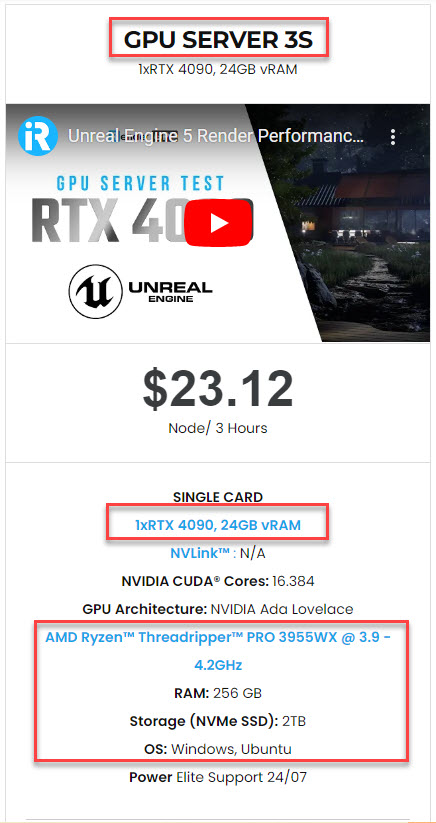
We have many server packages, from single GPU to multiple GPUs. For real-time rendering software like Unreal Engine, we suggest our server 3S with the high-end hardware such as CPU AMD Ryzen Threadripper Pro 3955WX at 3.9GHz clock speed, core 16, thread 32. RAM 256GB Storage NVMe SSD 2TB and Video card RTX4090. You can see the 3S server’s configuration following:

In case you have any problems or questions, don’t hesitate to contact the 24/7 support team. We will be happy to help you with your questions and problems at all times.
This month, we are running a SPECIAL OFFER: 100% Additional Bonus for new clients who register an account and make a top-up within 24 hours after their registration.
- 50% BONUS for all transactions from $575
- 100% BONUS for all transactions from $1500

Happy Rendering!
Reference source: unrealengine
Related Posts
The latest creative news from Unreal Engine Cloud rendering.






