
Why Blender Is Not Rendering and How to Fix It
Your Blender not rendering? You hit the Render button in Blender and nothing happens. The window stays black, the progress bar freezes, or the program crashes altogether. If you’ve faced this frustrating situation, you’re not alone. Many users encounter the same problem of Blender not rendering their scenes properly, and it can happen for many different reasons.
Rendering is the final and most resource-intensive stage in any 3D workflow, turning your models, materials, and lighting into the finished image or animation. When Blender fails to render, it usually points to issues with your hardware, drivers, or scene configuration,…
This guide will help you understand why Blender is not rendering and how to fix it effectively. Let’s dive into the most common causes and practical solutions.
1. Understanding the “Blender Not Rendering” Problem
Before diving into fixes, it’s important to understand what the issue actually looks like. The phrase “Blender not rendering” can describe several different scenarios, and identifying which one you’re facing is the first step toward solving it.
In most cases, users report one of the following situations:
- Blender doesn’t start rendering at all. You click Render Image or Render Animation, but nothing happens. The screen stays blank, the progress bar never moves, or the render window immediately closes.
- Blender renders but shows a black or empty frame. This can happen when the wrong camera is active, lights are disabled, or materials fail to load properly.
- Blender crashes or freezes during rendering. Often caused by GPU driver issues, insufficient memory, or corrupted assets.
It’s also useful to note that the behavior can differ depending on the rendering engine you’re using – Cycles, Eevee, or Workbench. Cycles relies heavily on the GPU or CPU for ray tracing; Eevee depends on real-time rendering; and Workbench is mainly for fast previews. Each engine interacts with your hardware differently, meaning a setting that works in one may cause errors in another.
In short, when Blender is not rendering, the root cause could lie in your hardware, software, or scene configuration. The next sections will break down these causes in detail and show how to fix each one.
2. Common Causes of Blender Not Rendering
When Blender is not rendering, several technical or configuration issues may be responsible. Below are the most common reasons why the rendering process fails to start or complete:
- Incorrect GPU or CPU configuration: Blender may not recognize your GPU if it isn’t enabled in the system preferences, or if the selected backend (CUDA, OptiX, HIP, or Metal) doesn’t match your hardware. This often leads to Blender not rendering
- Insufficient VRAM or system memory: High-resolution textures, heavy geometry, and complex lighting setups can exceed the available GPU memory, leading to freezing, crashing, or incomplete frames
- Outdated or incompatible drivers: Older GPU drivers may not fully support new Blender features like OptiX denoising or ray tracing, causing instability and Blender not rendering properly
- Incorrect output or camera setup: The active camera might be missing or disabled, or the output path could be invalid, leading to blank or black frames even when rendering appears to run
- Scene complexity or corrupted assets: Large, linked, or damaged project files can contain missing textures, unsupported materials, or broken links that causes Blender not rendering
In most cases, Blender not rendering results from one or more of these problems. Recognizing which category your issue falls into will make troubleshooting much faster in the next section.
3. How to Fix Blender Not Rendering
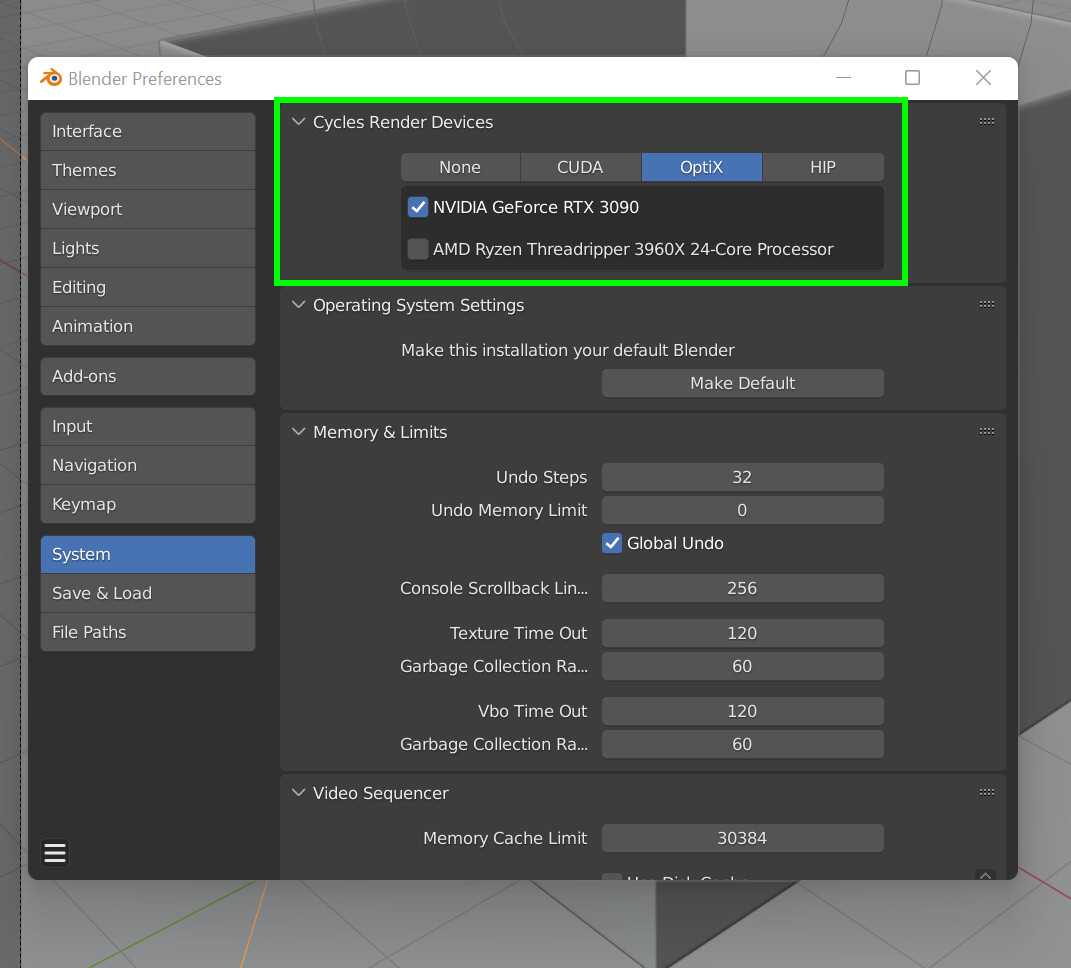
3.1. Enable GPU Rendering Correctly (Incorrect GPU or CPU configuration)
One of the most frequent reasons for Blender not rendering is incorrect hardware setup. If your GPU is not properly enabled in Blender, the program will default to CPU rendering or sometimes fail to start rendering at all.
Follow these steps:
- Go to Edit → Preferences → System → Cycles Render Devices
- Under Device, select your GPU type: CUDA, OptiX, HIP, or Metal
- Then open Render Properties → Device and choose GPU Compute
- Close the Preferences window and restart Blender before rendering again
💡Tip: CUDA tends to be more stable, OptiX might a bit faster in some case but more chance to crash.
3.2. Reduce Memory Usage and Scene Complexity (Insufficient VRAM or system memory)
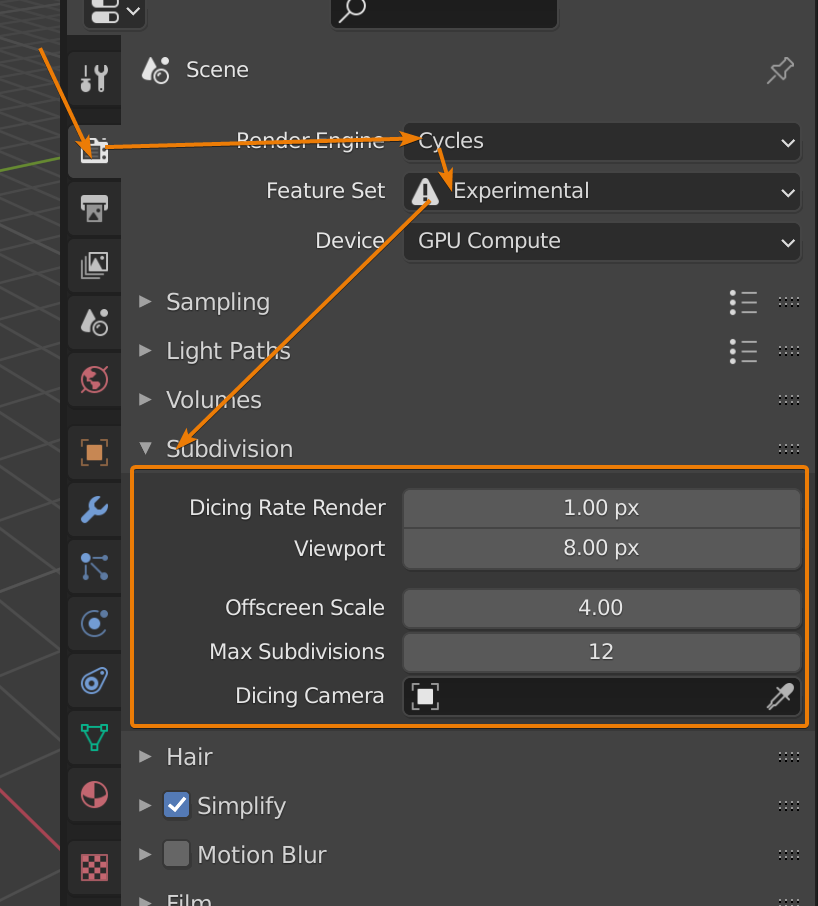
If your scene is too heavy, Blender may fail to render due to insufficient GPU memory (VRAM).
To reduce memory load:
- Lower texture resolution (4K → 2K or 1K)
- Simplify geometry using modifiers like Decimate
- Limit light bounces in Render Properties → Light Paths
- Delete hidden or unused objects, and enable Simplify mode to limit detail
💡Tip: Use CPU rendering as a quick test. If it works, the problem is likely VRAM-related.
3.3. Turn Off GPU Acceleration in Windows
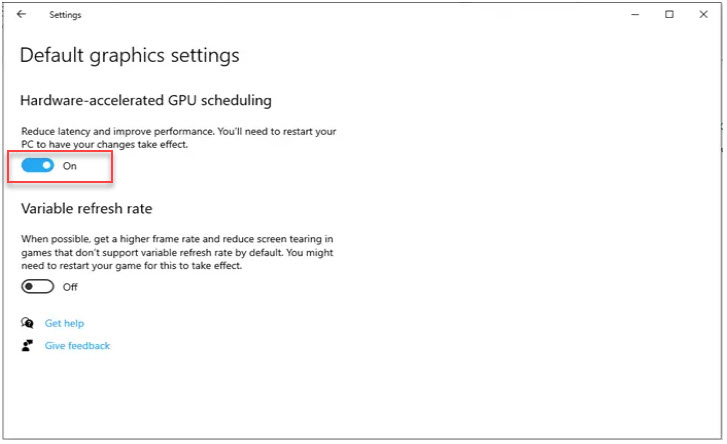
In some cases, Blender not rendering is caused by Windows hardware acceleration conflicts rather than Blender’s own settings. The feature called Hardware-Accelerated GPU Scheduling (HAGS) can occasionally interfere with GPU rendering, especially on certain NVIDIA drivers or Windows builds.
To rule out this issue, you can temporarily disable it and restart your computer.
Steps:
- Open Windows Settings → System → Display
- Scroll down and click Graphics Settings under “Multiple Displays”
- Find Hardware-accelerated GPU scheduling and toggle it OFF
- Restart your PC before launching Blender again
💡 Tip: After testing, you can re-enable this setting. If Blender not rendering still happens when HAGS is on, keep it disabled until the next GPU driver update for better stability.
3.4. Update or Reinstall GPU Drivers (Outdated or incompatible drivers)
Outdated or mismatched drivers are a leading cause of rendering issues.
To fix this:
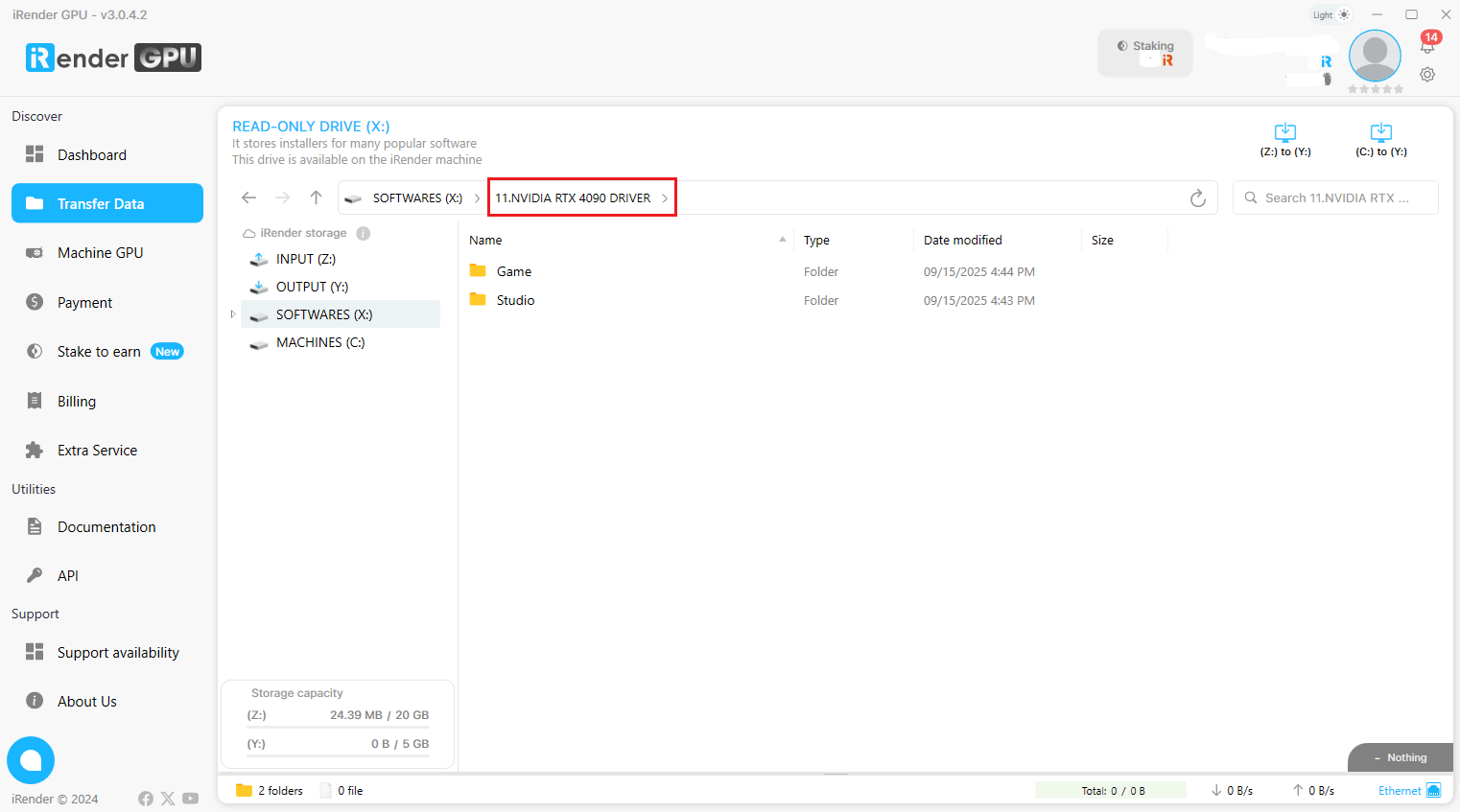
- Visit your GPU manufacturer’s website (e.g., NVIDIA Studio Drivers)
- Download the latest Studio Driver for your GPU model
- Choose the “Clean Install” option during setup to remove previous versions
- Restart your computer and test rendering again
💡Tip: Avoid automatic Windows updates overwriting your GPU drivers. They can reintroduce instability.
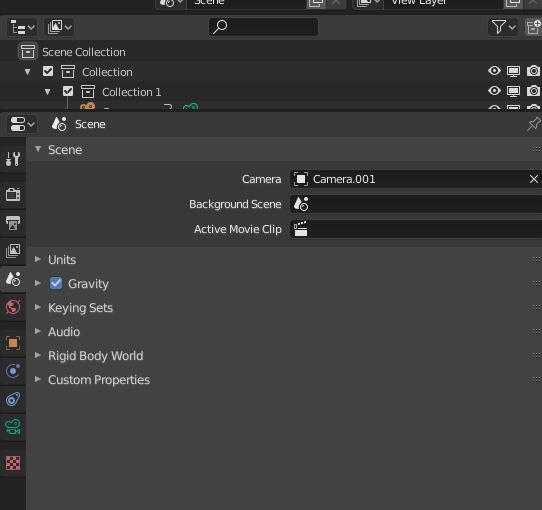
3.5. Verify Output Path and Camera Settings (Incorrect output or camera setup)
Sometimes Blender not rendering is due to simple scene setup mistakes.
Double-check the following:
- Make sure the correct camera is active (press Ctrl + 0 to assign the active camera)
- Confirm that your Output File Path exists and doesn’t contain invalid characters
- Ensure Render Layers are enabled in the Outliner
- For animations, select Image Sequence instead of video format to prevent crashes
💡Tip: Use the Render Image (F12) command before Render Animation (Ctrl + F12) to confirm your setup.
3.6. Restart Blender or Test with a New File (Scene complexity or corrupted assets)
If none of the above fixes solve the issue, the problem causing Blender not rendering may lie within Blender’s configuration or your project file.
Try the following:
- Save your current project
- Create a new empty file and use File → Append to import a few objects from the old scene
- Render the new file: If it works, the original scene likely contains corrupted data or missing links
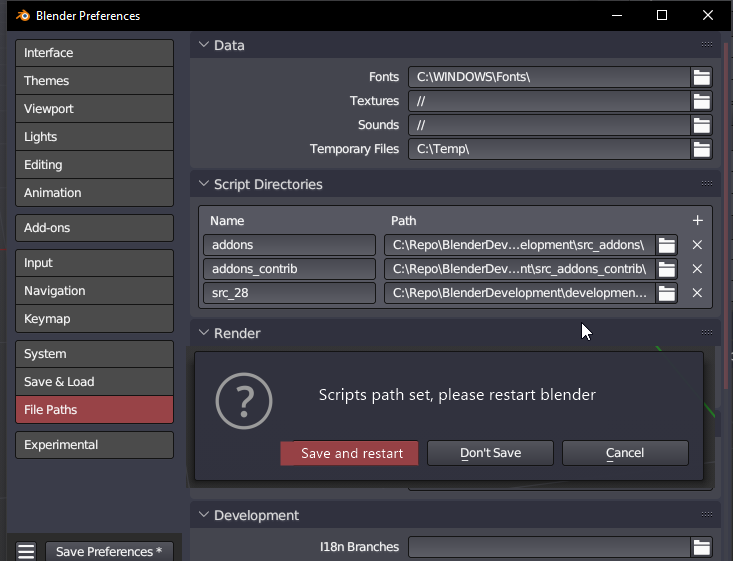
- Optionally, delete Blender’s preference folder to reset all settings to default
Conclusion
When Blender is not rendering, it can feel frustrating, especially after spending hours perfecting your scene. Fortunately, most rendering problems stem from a few predictable sources: GPU misconfiguration, driver incompatibility, insufficient VRAM, or minor scene setup mistakes.
By enabling GPU rendering correctly, updating your drivers, optimizing your project, checking your output settings, and testing with a clean file, you can solve nearly all cases where Blender refuses to render. For Windows users, disabling Hardware-Accelerated GPU Scheduling can also resolve conflicts that prevent stable rendering.
In short, Blender not rendering doesn’t mean your file is broken, it usually means your system needs a quick adjustment. Once everything is configured properly, Blender performs as reliably as any professional 3D tool.
💡 If you’re still experiencing crashes or performance limits on your local machine, try rendering on a high-performance GPU cloud server like iRender. With powerful RTX 4090 or multi-GPU setups, you can eliminate hardware bottlenecks entirely and focus on creating your best work.
iRender - Powerful Render Farm for Blender
At iRender, you can install and run any 3D software or render engine you need, including Blender on our high-performance remote servers. Whether your workflow relies on CPU or GPU power, iRender gives you the flexibility to choose the right configuration for your projects.
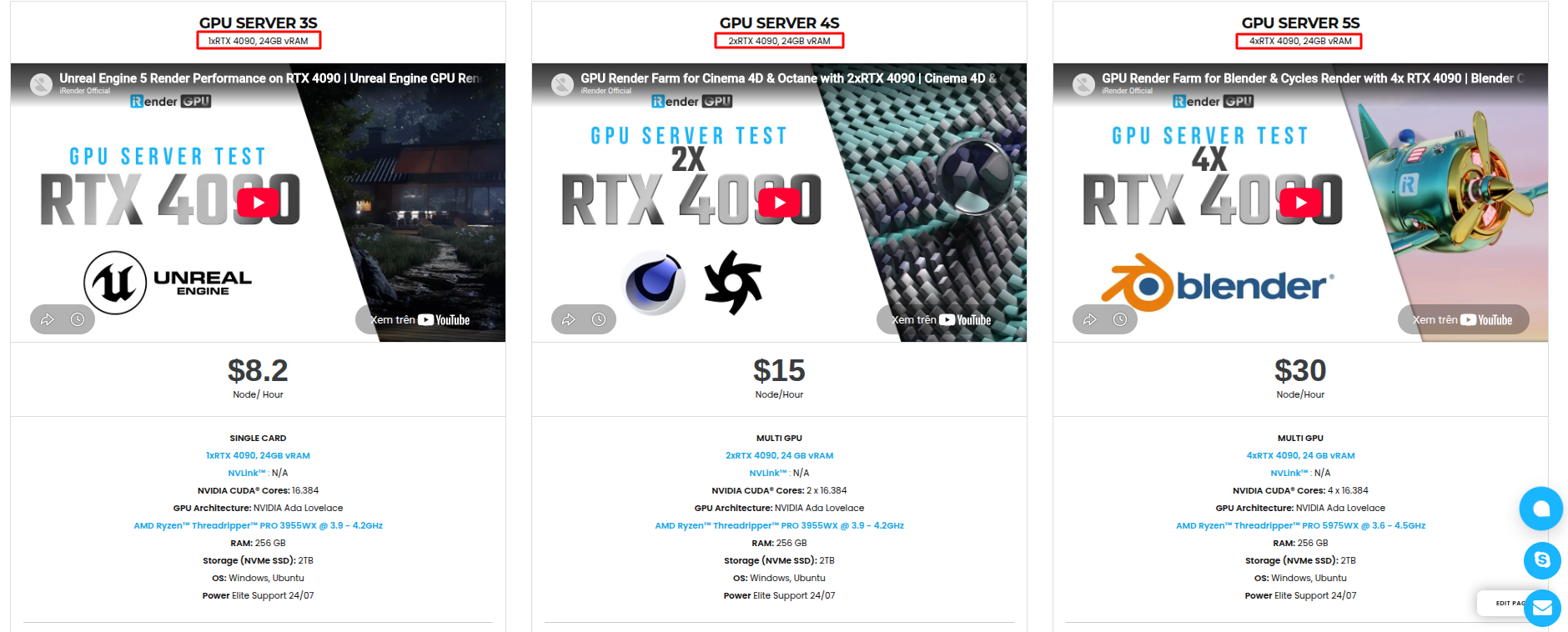
With access to powerful hardware such as the RTX 4090 GPUs and high-core CPUs (CPU AMD Ryzen Threadripper Pro 3955WX @ 3.90GHz – 4.2GHz and AMD Ryzen™ Threadripper™ PRO 5975WX @ 3.6 – 4.5GHz), you can:
- Render faster without being limited by your local workstation
- Scale your projects seamlessly, whether you’re working on small interiors or large architectural scenes
- Enjoy the freedom to set up your preferred tools, add your licenses, and work as if it were your own computer only faster and more reliable
Here is all our servers with detailed information:
Why choose iRender?
When projects become bigger and deadlines become tighter, finding a suitable and optimized renderer is no longer optional, it’s crucial. iRender’s mission is to help you make all your ideas become final products in a faster, stronger and more efficient way.
- Powerful performance: GPU RTX 4090 workstations, compatible with almost 3D/AI software. Moreover, iRender’s remote servers also provide CPU AMD Ryzen Threadripper Pro 3955WX @ 3.90GHz – 4.2GHz and AMD Ryzen™ Threadripper™ PRO 5975WX @ 3.6 – 4.5GHz, RAM 256GB and 2TB SSD NVMe Storage
- Flexible usage: Use the remote server anytime you want
- Secure & Privacy: Guarantee for your data safety and privacy
- Fast support: A customer support team ready to assist 24/7
- Cost-effective: Pay-as-you-go, pay for the time used
If you are still wondering, register now to get a free trial and receive a 100% bonus points (double your credits) for your first transaction within 24 hours of registration.

REGISTER now to experience and for more detailed information, please contact us via Live chat 24/7 or WhatsApp: +(84) 962 868 890 or Email: [email protected].
iRender – Happy Rendering!
Source: docs.blender.org, https://blenderartists.org
Related Posts
The latest creative news from Blender Cloud rendering.





