
Why Blender Only Uses One GPU and How to Fix
When working on complex scenes in Blender, many artists are surprised to find that Blender only uses one GPU even though their workstation has multiple powerful graphics cards. This issue leads to slower rendering, wasted hardware potential, and inconsistent performance across different projects. Understanding why Blender behaves this way and how to fix it is essential for anyone who wants to optimize their rendering workflow, especially in demanding production environments.
Understanding Blender only uses one GPU
The issue occurs when Blender only uses one GPU during rendering, regardless of how many graphics cards are installed in the system. Instead of distributing the workload across multiple GPUs, Blender activates only the primary card while the others remain idle. This results in significantly longer render times, reduced efficiency, and under-utilized hardware. For artists working on large scenes, animations, or high-resolution frames, this problem quickly becomes a bottleneck in the workflow.
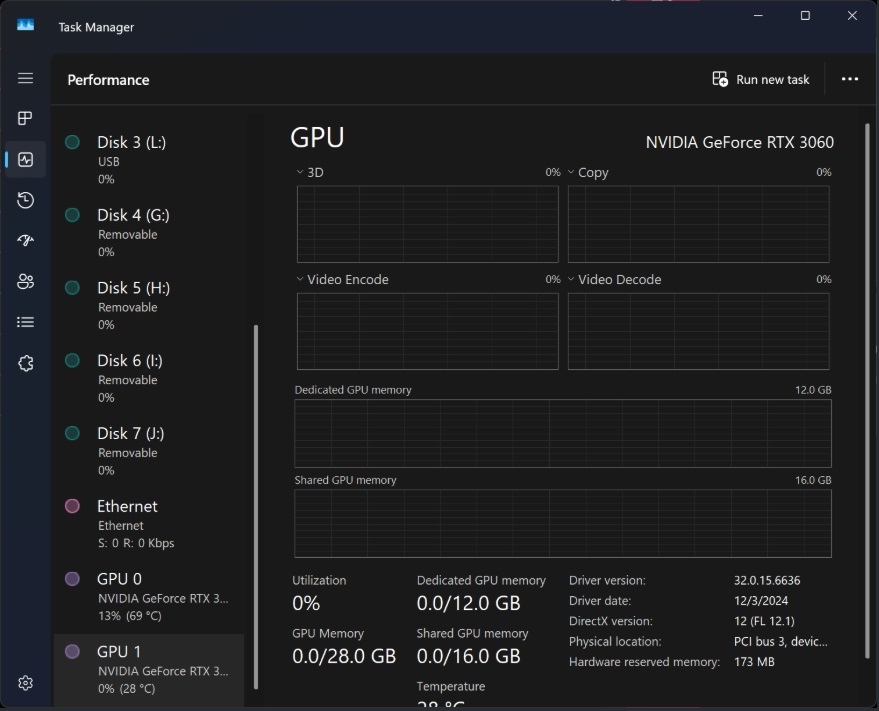
Why does Blender only use one GPU?
- Multi-GPU is not enabled in Blender Preferences
- Different compute platforms between GPUs
- Driver issues or outdated drivers
- VRAM mismatch or hardware limitations,…
How to fix Blender only uses one GPU
1. Check the Render Engine
Before coming to other solutions, please check the render engine you’re using. There is a common misunderstood thing that many people don’t know. Blender has two main engines: Eevee and Cycles and they handle GPU usage very differently.
- Eevee → Always uses a single GPU
- Cycles → Supports multi-GPU rendering
Therefore, if you are using Eevee and see that it only uses one GPU, it’s normal. Howevre, if you’re using Cycles but only one GPU is active, the issue is likely elsewhere (drivers, compute devices, VRAM mismatch, etc.). Please come to the next solution.
2. Update or Reinstall the official GPU Driver
Updating or reinstalling your GPU Driver is one of the most effective ways to fix the issue where Blender only uses one GPU. Outdated or corrupted drivers often cause Blender to ignore secondary GPUs during rendering.
Steps:
- Visit the official NVIDIA, AMD, or Intel driver page
- Download the latest driver for your GPU model
- Choose Clean Install (NVIDIA) to remove old files and conflicts
- Restart your PC
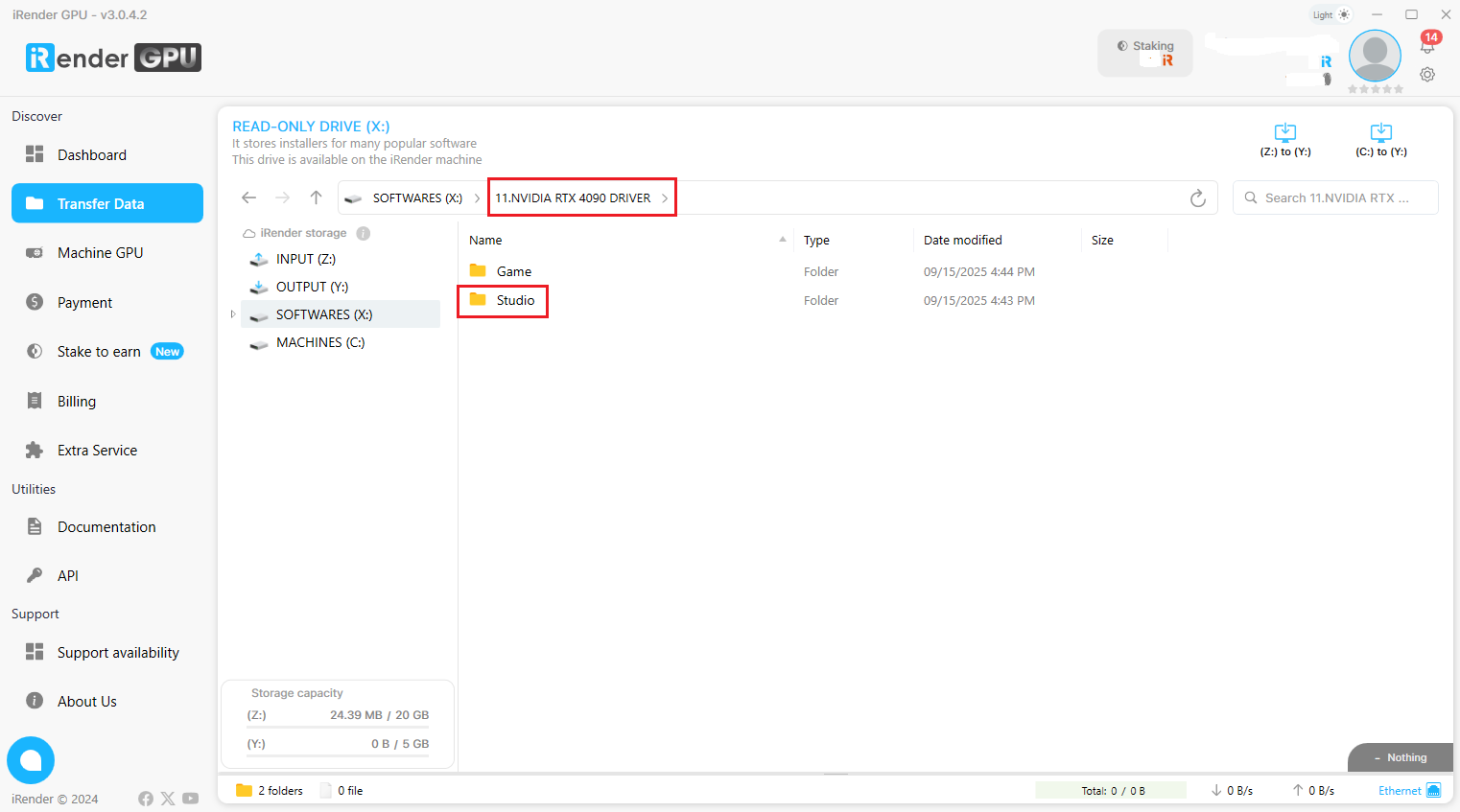
If you are using iRender servers, you just need to follow these simple steps to update your NVIDIA Drive:
- Go to the X: Drive on the remote machine and open the folder: 11. NVIDIA RTX 4090 DRIVER
- Find the latest Studio Driver installer
- Copy it to the Desktop/C Drive to install
- Restart the machine
3. Enable All GPUs in Blender Preferences
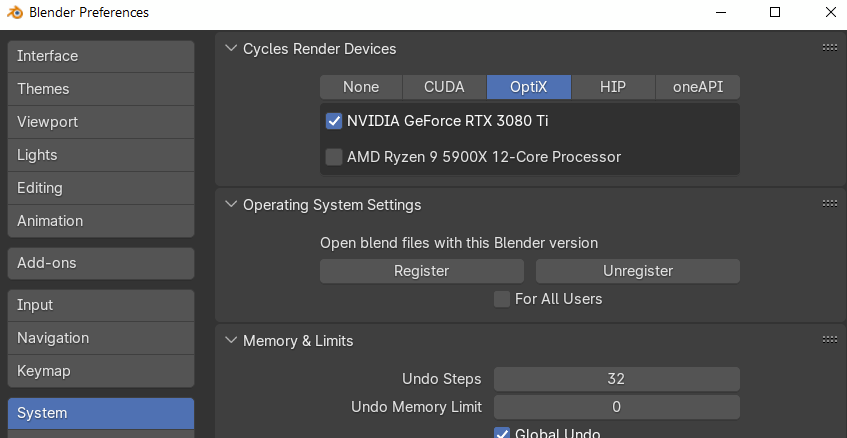
Blender will always use only one GPU unless you manually enable all available devices in Preferences. Even if your system has multiple GPUs installed, Blender ignores the others if they aren’t activated for Cycles.
Steps:
- Open Edit → Preferences → System
- Under Cycles Render Devices, tick all GPUs detected
- Switch Device to CUDA, OptiX, or HIP depending on your GPU
- Restart Blender and test the render again
4. Mismatched Compute Platforms Between GPUs
If your GPUs use different compute platforms (CUDA, OptiX, HIP, oneAPI), Blender may only activate one of them. Mixed-brand setups (NVIDIA + AMD) often cannot render together, causing Blender to rely on a single GPU.
Steps:
- Check whether all GPUs support the same compute backend
- For NVIDIA, use CUDA/OptiX; for AMD, use HIP
- Avoid mixing different GPU brands for Cycles rendering
- Test rendering again using only GPUs on the same platform
5. VRAM Differences or Hardware Limitations
When GPUs have very different VRAM capacities, Blender may disable the weaker GPU to avoid memory overflow. Cycles requires all active GPUs to load the full scene, so the GPU with lower VRAM can become a bottleneck or be ignored entirely.
Steps:
- Check each GPU’s VRAM capacity in your system
- Ensure the scene fits within the smallest GPU’s VRAM
- If not, disable the weaker GPU for that render task
- Consider rendering via tile-based multi-instance instead of multi-GPU
Conclusion
When Blender only uses one GPU, the issue almost always comes down to configuration, driver problems, or hardware limitations. By checking the render engine, updating your GPU drivers, enabling all devices in Blender Preferences, ensuring matching compute platforms, and understanding VRAM constraints, you can quickly identify the root cause and unlock full multi-GPU performance in Blender. Whether you’re working on large scenes or high-resolution animations, proper setup ensures your system delivers the speed and efficiency it was built for.
iRender - Powerful Render Farm for Blender
At iRender, you can install and run any 3D software or render engine you need, including Blender on our high-performance remote servers. Moreover, we have Blender pre-installed for you, so you can save time and money. Whether your workflow relies on CPU or GPU power, iRender gives you the flexibility to choose the right configuration for your projects.
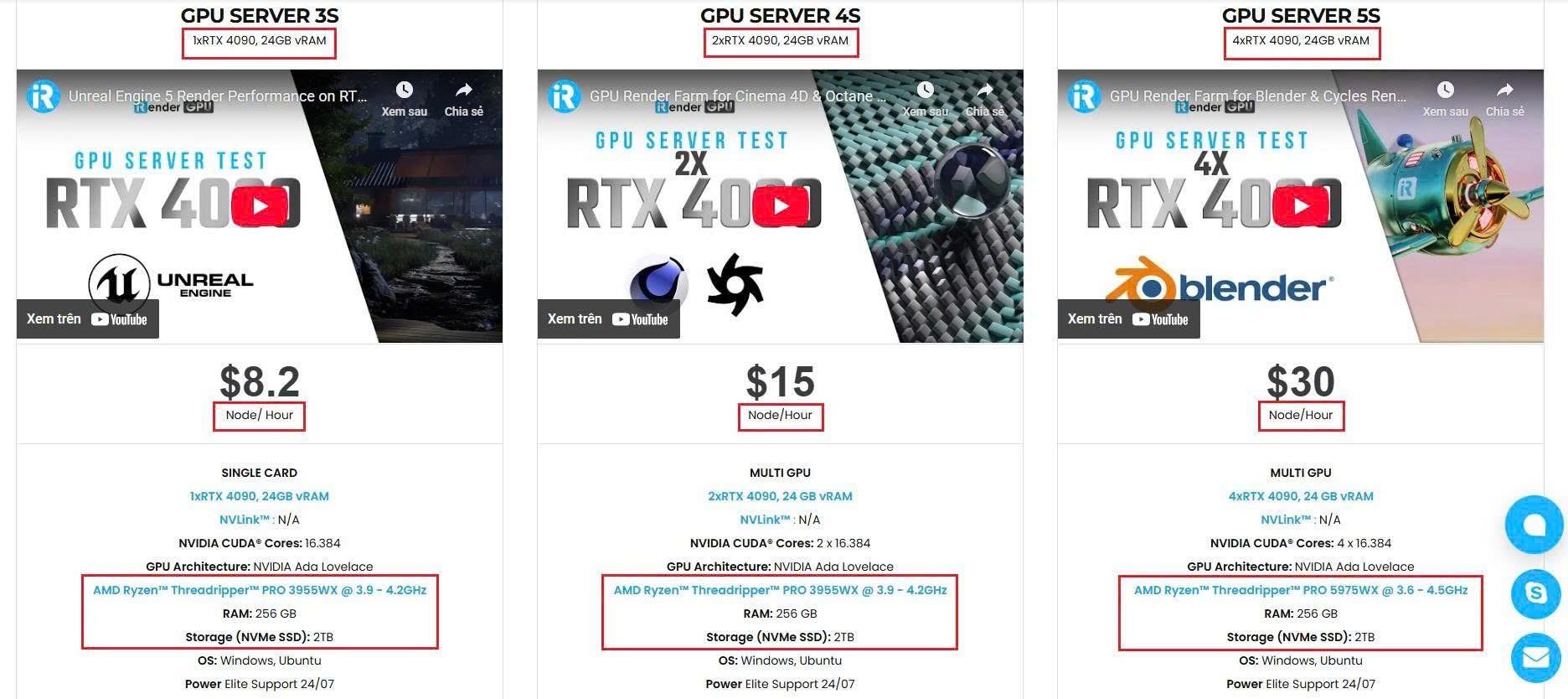
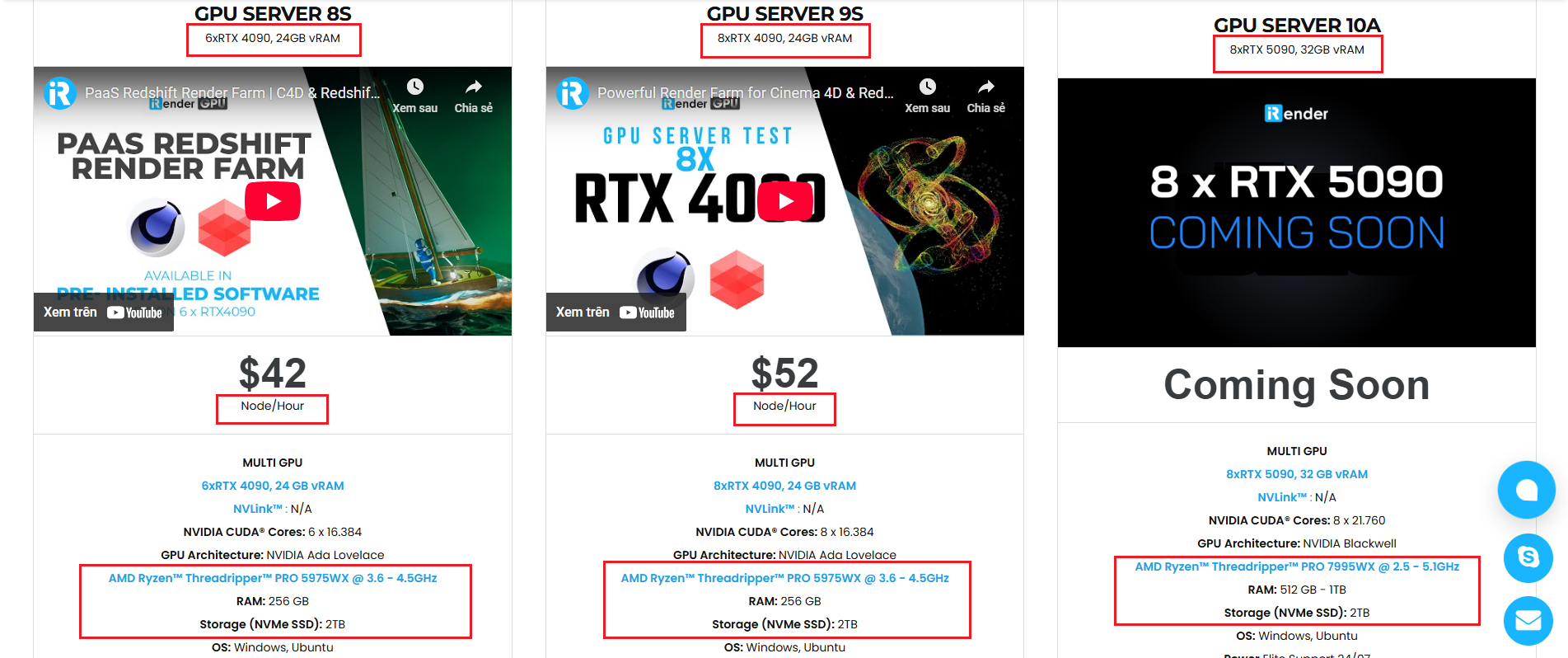
With access to powerful hardware such as the RTX 4090 GPUs and high-core CPUs (CPU AMD Ryzen Threadripper Pro 3955WX @ 3.90GHz – 4.2GHz and AMD Ryzen™ Threadripper™ PRO 5975WX @ 3.6 – 4.5GHz), you can:
- Render faster without being limited by your local workstation
- Scale your projects seamlessly, whether you’re working on small interiors or large architectural scenes
- Enjoy the freedom to set up your preferred tools, add your licenses, and work as if it were your own computer only faster and more reliable
Here is all our servers with detailed information:
Why choose iRender?
When projects become bigger and deadlines become tighter, finding a suitable and optimized renderer is no longer optional, it’s crucial. iRender’s mission is to help you make all your ideas become final products in a faster, stronger and more efficient way.
- Powerful performance: GPU RTX 4090 workstations, compatible with almost 3D/AI software. Moreover, iRender’s remote servers also provide CPU AMD Ryzen Threadripper Pro 3955WX @ 3.90GHz – 4.2GHz and AMD Ryzen™ Threadripper™ PRO 5975WX @ 3.6 – 4.5GHz, RAM 256GB and 2TB SSD NVMe Storage
- Flexible usage: Use the remote server anytime you want
- Secure & Privacy: Guarantee for your data safety and privacy
- Fast support: A customer support team ready to assist 24/7
- Cost-effective: Pay-as-you-go, pay for the time used
If you are still wondering, register now to get a free trial and receive a 100% bonus points (double your credits) for your first transaction.
🎁Special Offer from iRender
From November 25 to December 2, 2025, iRender is running a special promotion:
- Earn 862.5+ Render Points with purchases from $575+
- Earn 3000+ Render Points with purchases from $1500+
It’s the perfect time to try iRender’s high-performance servers with CPU or GPU, whatever is suitable for your projects. Double Credits, Zero Waiting!

REGISTER now to experience and for more detailed information, please contact us via Live chat 24/7 or WhatsApp: +(84) 962 868 890 or Email: [email protected].
iRender – Happy Rendering!
Source: Reddit, blenderartists.org, projects.blender.org
Related Posts
The latest creative news from Blender Cloud rendering.





