
Why Cinema 4D Crashes When Rendering All Frames and How to Fix It
Many Cinema 4D users have recently encountered a confusing issue: the software renders single frames without any trouble, but the moment they switch to “render all frames”, Cinema 4D suddenly freezes or crashes. This problem has become increasingly common recently, especially in projects using Redshift, Octane, or Arnold, leading to countless discussions around the recurring Cinema 4D render all frames crash.
The frustrating part is that hardware seems normal, the scene looks fine, and no clear error message appears. Yet the crash happens consistently during multi-frame rendering. In this article, we break down why this occurs and provide solutions for you to solve this problem.
Understanding Cinema 4D Render All Frames Crash Issue
The issue occurs when Cinema 4D renders a single frame without any difficulty, but becomes unstable as soon as the user initiates rendering all frames. Instead of progressing through the animation, the application may freeze, stop responding, or crash entirely right after moving to the next frame. Because no clear error message appears, the problem is not immediately obvious and often feels unpredictable.
Why Does Cinema 4D Render All Frames Crash Happens?
Cinema 4D handles multi-frame rendering very differently from rendering a single frame. During animation, the software must repeatedly refresh memory, rebuild GPU kernels, reload textures, update simulations, and synchronize data between frames. If any part of this process becomes unstable, Cinema 4D may freeze or crash when transitioning from one frame to the next. The most common underlying causes include:
- Memory leaks or excessive memory usage: VRAM or RAM can increase gradually during animation rendering if resources are not released correctly. Once memory usage spikes beyond available limits, Cinema 4D may crash as soon as the next frame begins.
- Unbaked or unstable simulations: Cloth, Rope, Soft Body, Bullet, MoGraph dynamics, or X-Particles simulations that are not cached force Cinema 4D to recalculate physics every single frame.
- Render engine instability or incompatibility: GPU render engines may behave differently under multi-frame rendering conditions compared to single-frame tests. Certain settings, drivers, or shader behaviors can cause unpredictable crashes only during animation sequences.
- Plugin conflicts: Outdated or incompatible plugins may appear stable when rendering one frame but fail during continuous rendering, especially if they rely on per-frame calculations.
- Material or shader issues: Some materials or node-based shaders may not update correctly between frames. When Cinema 4D rebuilds textures or shaders repeatedly across an animation, this can lead to unexpected crashes.
- Simulation or scene incompatibility between Cinema 4D versions: Scenes created in older versions of Cinema 4D may behave differently when opened in newer builds, particularly when using newer simulation systems.
- Software bugs: Like any 3D application, Cinema 4D occasionally contains version-specific bugs that affect animation rendering. In some releases, users have reported consistent crashes during sequence rendering despite having stable hardware and clean scenes.
How to fix Cinema 4D Render All Frames Crash Issue
1. Update or Roll Back NVIDIA Drivers
GPU driver issues are a common cause of multi-frame crashes in Cinema 4D. Some driver versions may cause memory spikes, CUDA errors, or instability when the renderer switches from one frame to the next. Updating to the latest Studio Driver or rolling back to a previously stable version can quickly restore stability.
- Visit the official NVIDIA, AMD, or Intel driver page
- Download the latest driver for your GPU model
- Choose Clean Install (NVIDIA) to remove old files and conflicts
- Restart your PC
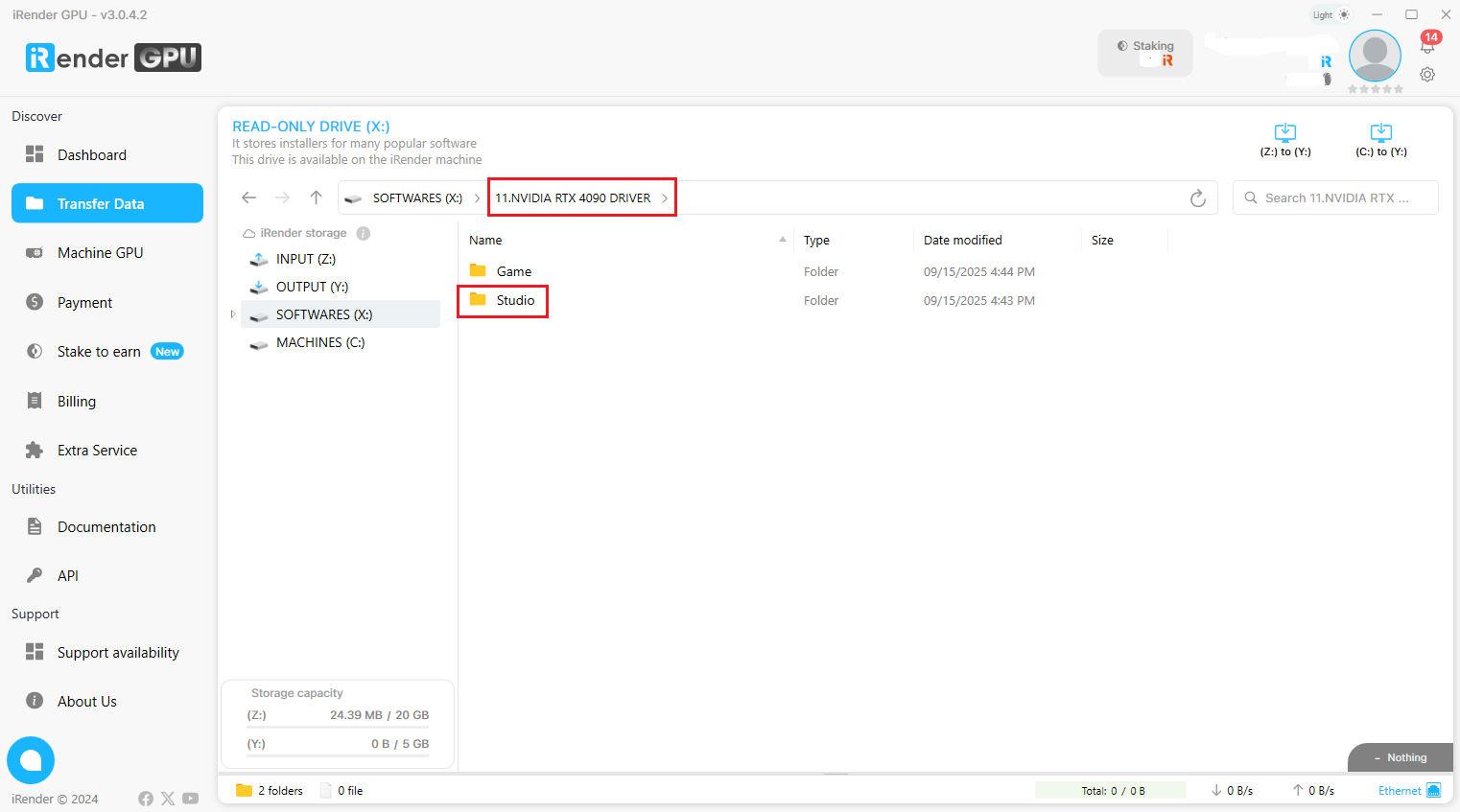
If you are using iRender servers, you just need to follow these simple steps to update your NVIDIA Drive:
- Go to the X: Drive on the remote machine and open the folder: 11. NVIDIA RTX 4090 DRIVER
- Find the latest Studio Driver installer
- Copy it to the Desktop/C Drive to install
- Restart the machine
2. Update/Reinstall Cinema 4D and Your Render Engine
Crashes during multi-frame rendering often come from mismatched or unstable software builds. Updating Cinema 4D and rendering engine to a stable, compatible version helps fix memory handling issues, GPU instability, and shader refresh errors that only appear when switching between frames.
Corrupted installation files, incomplete updates, or broken dependencies can cause Cinema 4D or render engines to crash during multi-frame rendering. A clean reinstall ensures all components, libraries, and GPU hooks are properly restored.
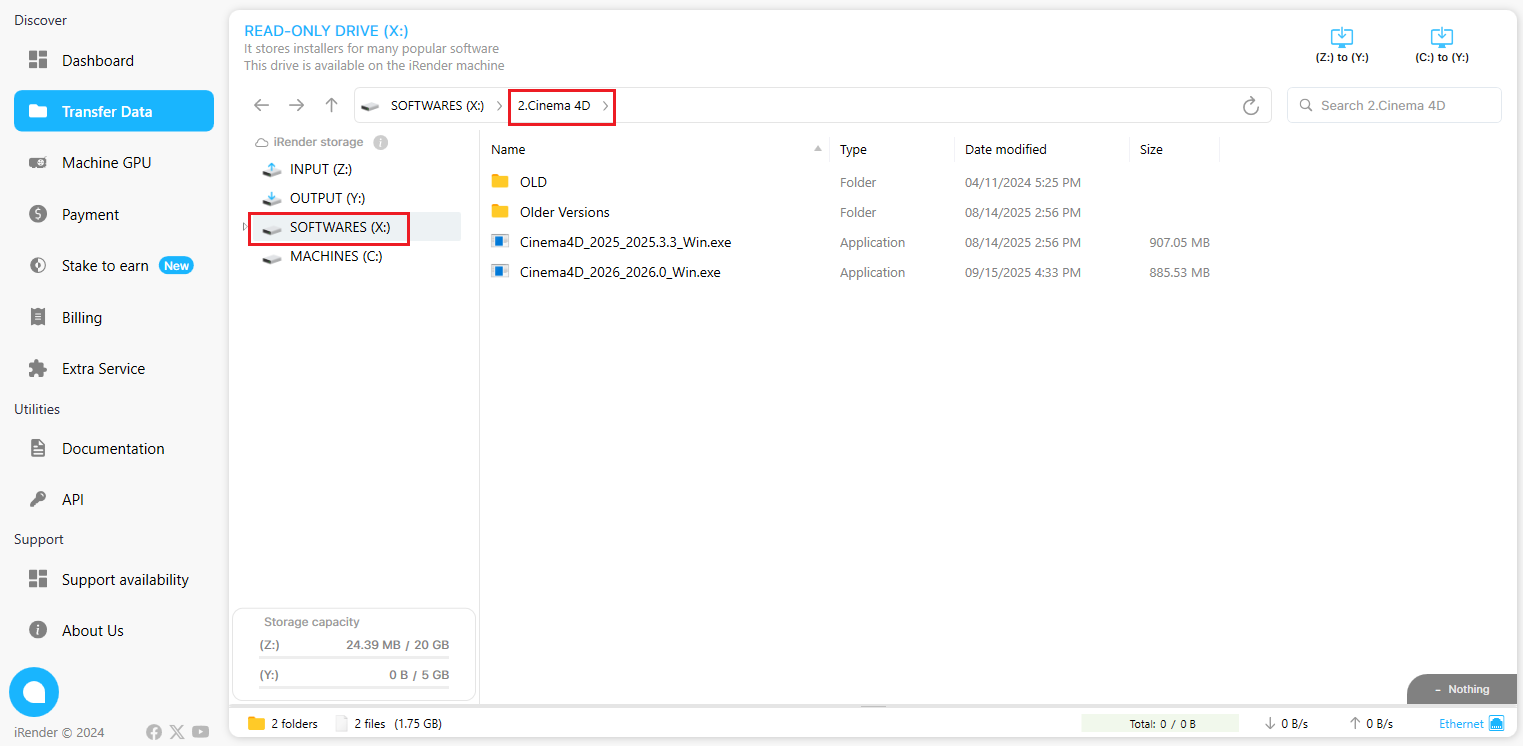
If you are iRender users, you just need to come to X Drive, copy the Cinema 4D installer (with the version you want) to Desktop and install.
3. Roll Back to a Previously Stable Version
If the issue starts after an update, the crash may come from a temporary instability or software bug in your current Cinema 4D or render engine build. Rolling back to a version that has previously rendered your project successfully is often the most reliable way to restore stability.
Similarly with updating Cinema 4D, you come to X Drive, copy the old version of Cinema 4D installer to Desktop and install.
4. Optimize Memory Usage
Multi-frame rendering requires Cinema 4D to reload textures, geometry, and GPU kernels repeatedly. If VRAM or RAM usage spikes too high, the render may crash when switching frames. Reducing texture sizes, lowering subdivision levels, or simplifying displacement helps keep memory stable throughout the sequence.
- Reduce subdivision levels on high-poly models
- Convert heavy displacement to normal maps
- Remove unused objects, lights, and texture tags
- In Redshift/Octane/Arnold:
- Lower sample settings
- Reduce bucket size
- Disable unnecessary AOVs
- Enable “Save Image per Frame” so memory is released after each frame
5. Bake All Simulations
Uncached simulations like Cloth, Bullet dynamics, MoGraph, or X-Particles can cause crashes when Cinema 4D recalculates them on every frame. Baking or caching these simulations ensures consistent data across the sequence and prevents the software from failing when moving between frames.
- Cloth/Rope/Soft Body: Simulation → Cache → Bake
- MoGraph: Add MoGraph Cache tag → Bake
- Bullet dynamics: Select the dynamics tag → Cache tab → Bake
- X-Particles: Open XP Cache → choose Bake or Cache to DiskLower texture resolution (2K or 4K instead of 8K–16K)
6. Rebuild or Simplify Problematic Materials
Some materials or node-based shaders may not refresh correctly between frames, causing Cinema 4D to crash during multi-frame rendering. Rebuilding or simplifying these materials stabilizes the sequence.
- Identify materials with heavy displacement, multi-layer nodes, or complex procedural networks
- Convert legacy materials to node-based materials
- Replace extreme displacement with normal maps where possible
- Test by temporarily assigning a simple test material to see if the crash disappears
7. Adjust Frame Rate and Render Settings
A mismatch between the project’s timeline frame rate and the render settings can sometimes cause instability during multi-frame rendering. Ensuring both values match helps Cinema 4D process frames consistently and prevents unexpected crashes.
- Check Project Settings → FPS
- Check Render Settings → Output → Frame Rate
- Make sure both values are the same (e.g., 24/30/60 FPS)
- Re-render the sequence after syncing the settings
8. Change Bucket Size or Bucket Pattern
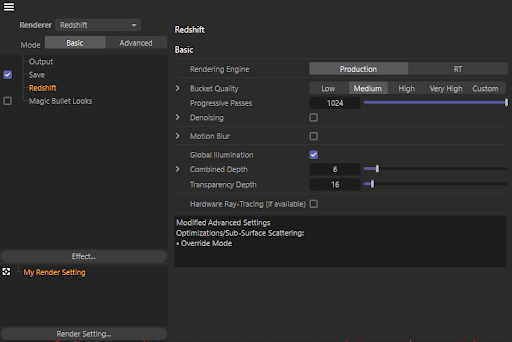
Some GPU render engines become unstable when using heavy bucket configurations during animation. Adjusting the bucket size or changing the bucket pattern can prevent frame-to-frame crashes.
- Open your renderer’s Render Settings → Bucket/Sampling
- Reduce bucket size (e.g., from 256 → 128 or 64)
- Switch bucket pattern (Hilbert Curve, Spiral, or Line)
- Re-test multi-frame rendering to confirm stability
9. Run Cinema 4D as Administrator
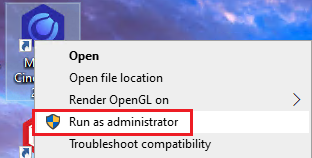
Cinema 4D may fail to access certain system folders, GPU permissions, or temporary cache locations during multi-frame rendering. Running the application with administrator privileges ensures it has full access to the required resources.
- Close Cinema 4D
- Right-click the Cinema 4D icon → Run as Administrator
- (Optional) Set it permanently: Right-click → Properties → Compatibility → Run this program as an administrator
- Try rendering the sequence again
10. Simplify or Reset Your Scene Cache
Corrupted or outdated cache files (especially from simulations, deformers, or render engines) can cause Cinema 4D to crash when processing multiple frames. Clearing and rebuilding these caches ensures the renderer uses fresh, stable data.
- Delete existing caches:
- Simulation Cache: Simulation → Clear Cache
- MoGraph Cache Tag: Remove tag or click Clear Cache
- X-Particles: Open XP Cache → Clear/Delete Cache
- Remove temporary render folders in your system’s temp directory
- Reopen the project and regenerate the cache by baking or letting the software rebuild it
Conclusion
Cinema 4D render all frames crash issue can come from a variety of factors: memory usage, unbaked simulations, unstable plugins, heavy materials, or even minor software inconsistencies that only appear during multi-frame rendering. The good news is that most of these problems can be solved with practical adjustments such as baking simulations, optimizing memory, updating key components, or clearing caches. And in rare cases where the crash persists, rolling back to a previously stable version remains a reliable final option.
By identifying what triggers the instability in your specific scene and applying the targeted fixes above, you can restore smooth animation rendering and avoid unexpected interruptions in your workflow.
iRender - Powerful Render farm for Cinema 4D
At iRender, you can access our remote server that has pre-installed Cinema 4D + Redshift/Octane. You don’t need to install it, which helps you save time and money. In addition, you will receive a combo license Cinema 4D + Redshift/Octane for free. With other renders such as Corona Render, Arnold Render, Lumion, D5 Render, Twinmotion,… you can completely install in the iRender remote server by yourself, add your license and use it as your local computer.
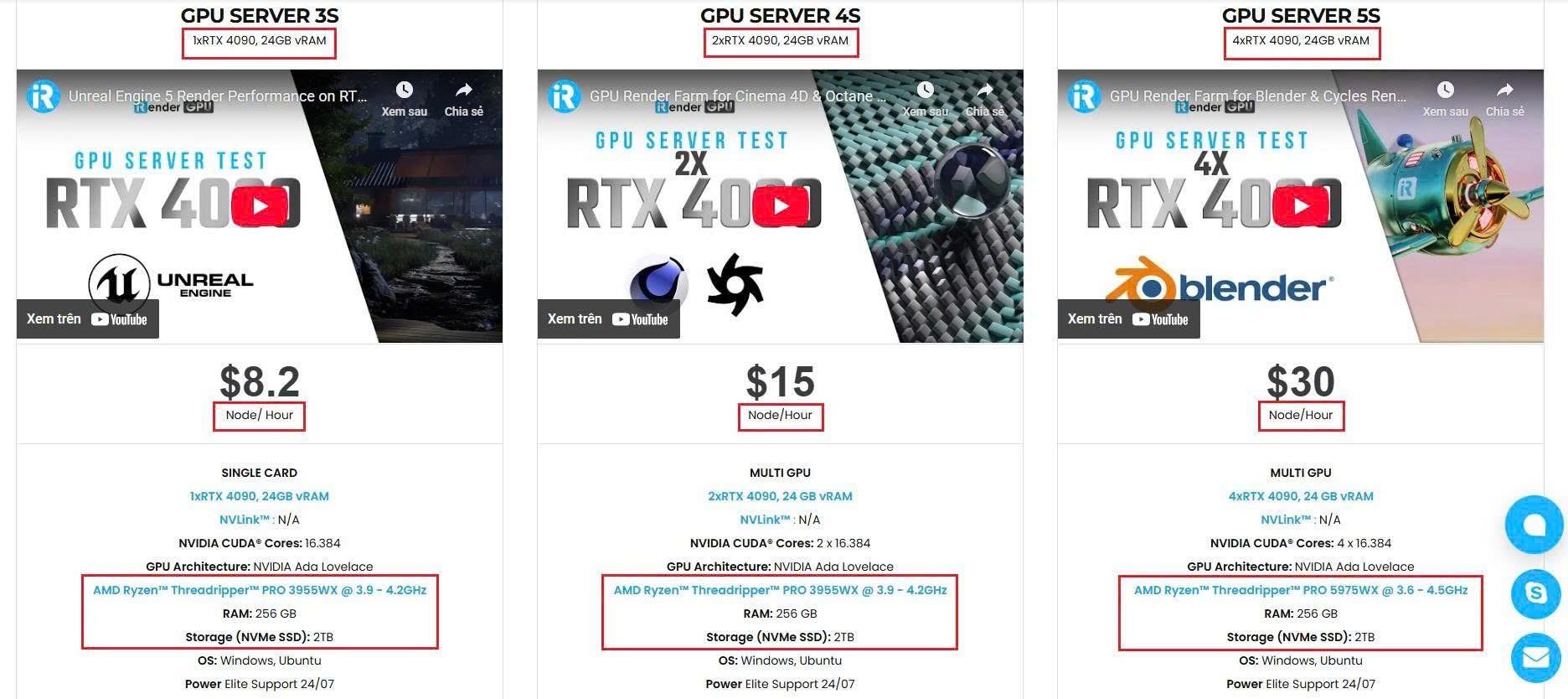
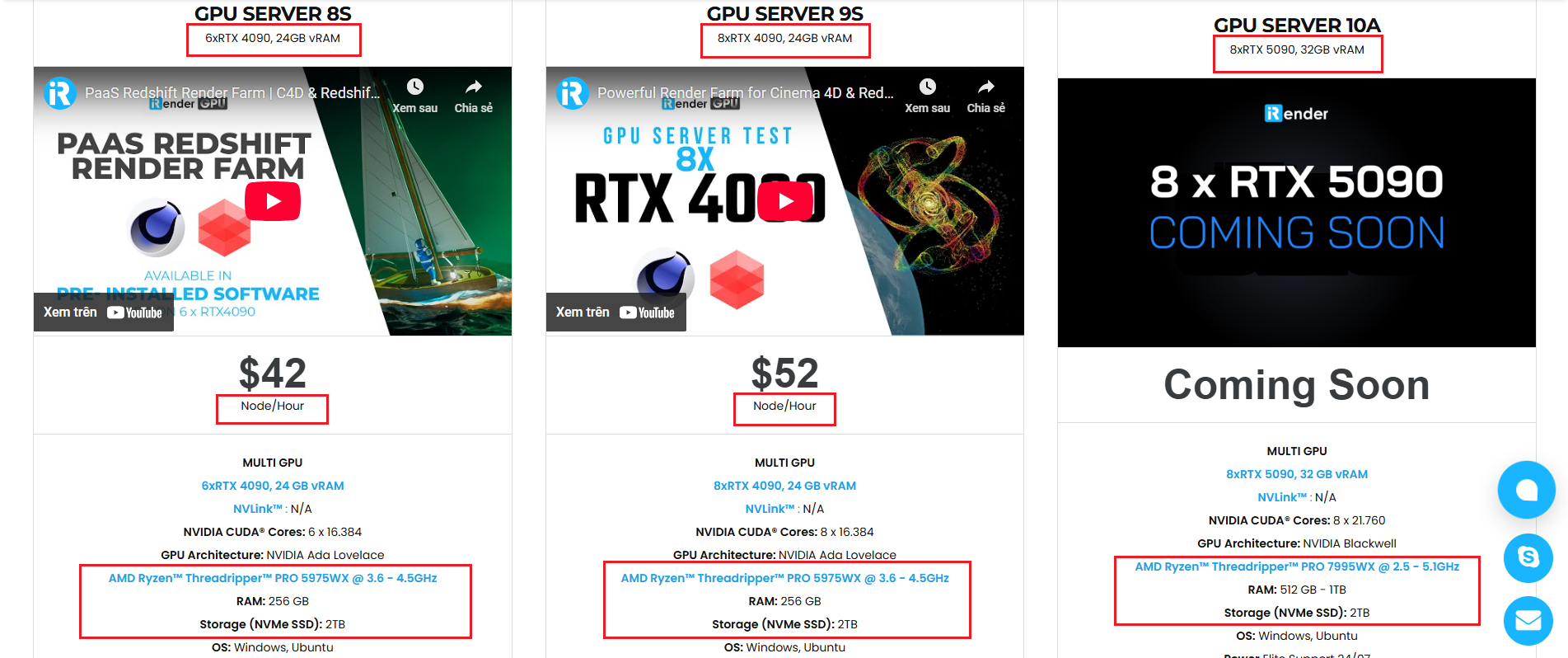
With access to powerful hardware such as the RTX 4090 GPUs and high-core CPUs (CPU AMD Ryzen Threadripper Pro 3955WX @ 3.90GHz – 4.2GHz and AMD Ryzen™ Threadripper™ PRO 5975WX @ 3.6 – 4.5GHz), you can:
- Render faster without being limited by your local workstation
- Scale your projects seamlessly, whether you’re working on small interiors or large architectural scenes
- Enjoy the freedom to set up your preferred tools, add your licenses and work as if it were your own computer only faster and more reliable
Let’s watch some test video about Cinema 4D on our remote server:


Here is all our servers with detailed information:
Why choose iRender?
When projects become bigger and deadlines become tighter, finding a suitable and optimized renderer is no longer optional, it’s crucial. iRender’s mission is to help you make all your ideas become final products in a faster, stronger and more efficient way.
- Powerful performance: GPU RTX 4090 workstations, compatible with almost 3D/AI software. Moreover, iRender’s remote servers also provide CPU AMD Ryzen Threadripper Pro 3955WX @ 3.90GHz – 4.2GHz and AMD Ryzen™ Threadripper™ PRO 5975WX @ 3.6 – 4.5GHz, RAM 256GB and 2TB SSD NVMe Storage
- Flexible usage: Use the remote server anytime you want
- Secure & Privacy: Guarantee for your data safety and privacy
- Fast support: A customer support team ready to assist 24/7
- Cost-effective: Pay-as-you-go, pay for the time used
If you are still wondering, register now to get a free trial and receive a 100% bonus points (double your credits) for your first transaction within 24 hours of registration.

REGISTER now to experience and for more detailed information, please contact us via Live chat 24/7 or WhatsApp: +(84) 962 868 890 or Email: [email protected].
iRender – Happy Rendering!
Source: Reddit
Related Posts
The latest creative news from Cinema 4D Cloud Rendering , 3D VFX Plugins & Cloud Rendering.





