
How to Stop Blender from Crashing While Rendering in 2026
As Blender becomes more powerful with each update, so does its demand on hardware. For many 3D artists in 2026, Blender is the go-to tool for modeling, animation, and rendering — but if you’ve ever faced a crash halfway through a render, you know how painful it can be. In this article, we’ll explore why Blender often crashes during rendering, and more importantly, how to fix or prevent it using practical, tested methods. Let’s explore in this blog with iRender.
Why Does Blender Keep Crashing When Rendering?
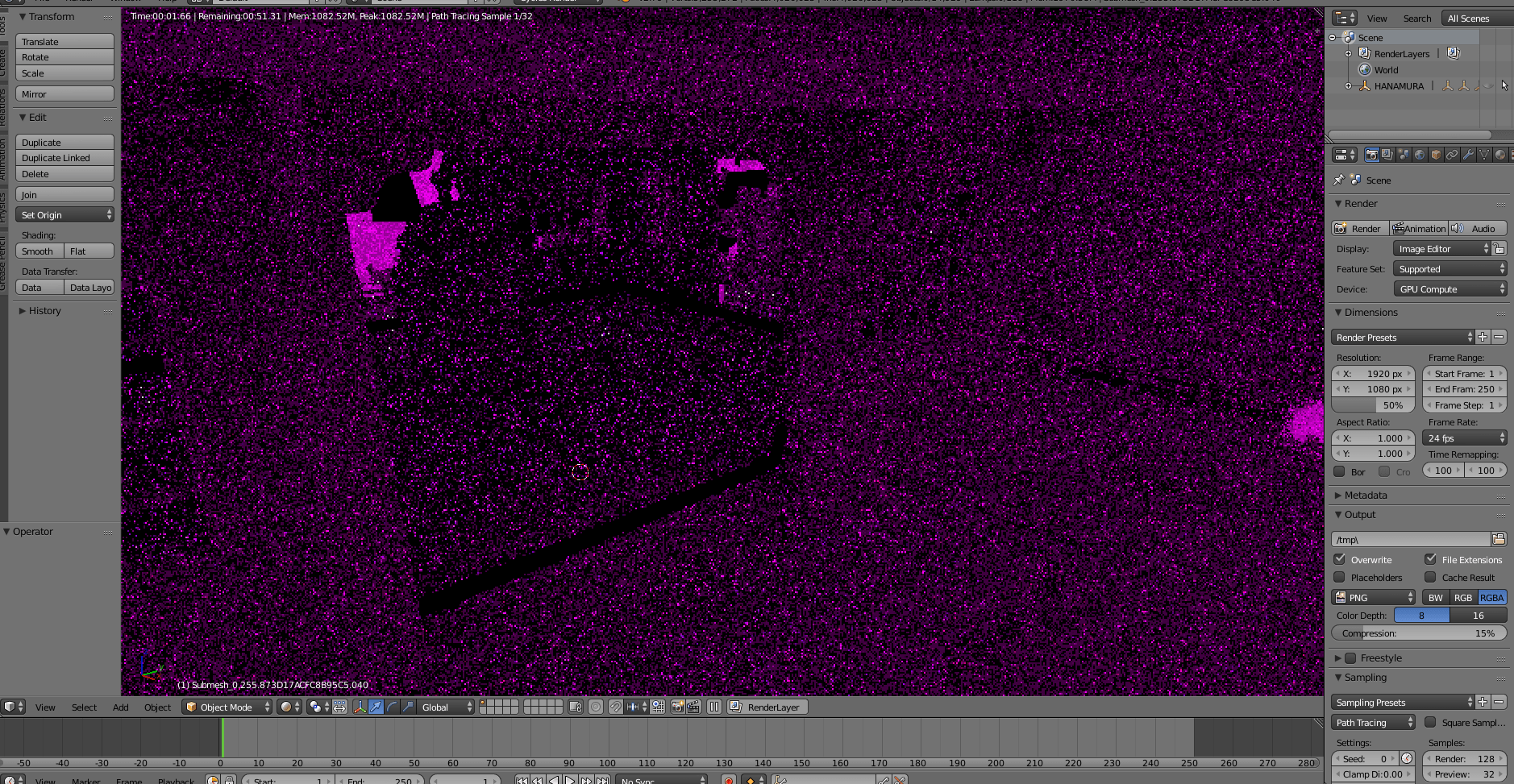
1. GPU or system memory overload
There are several reasons Blender may crash while rendering, and most of them relate to memory management and system strain. The most common culprit is GPU or system memory overload. When rendering heavy scenes with large textures, high subdivision levels, or complex particle systems, your GPU can quickly run out of VRAM. Once that happens, Blender may freeze, crash abruptly, or revert to CPU rendering, which can itself strain your RAM and CPU. If you’re rendering animations, these crashes can interrupt the sequence or result in corrupted output files.

2. Overloaded Scene Complexity and Incompatible or Outdated Add-ons
A high number of polygons, volumetrics, hair simulations, and shader nodes can put your hardware under intense load. Even scenes that render fine in the viewport can crash when fully loaded in final render mode.
Additionally, outdated or conflicting add-ons are often overlooked sources of instability. Some third-party render engines or custom scripts may not be fully compatible with the latest version of Blender, especially if they’re not actively maintained.
3. Driver or Blender Version Issues
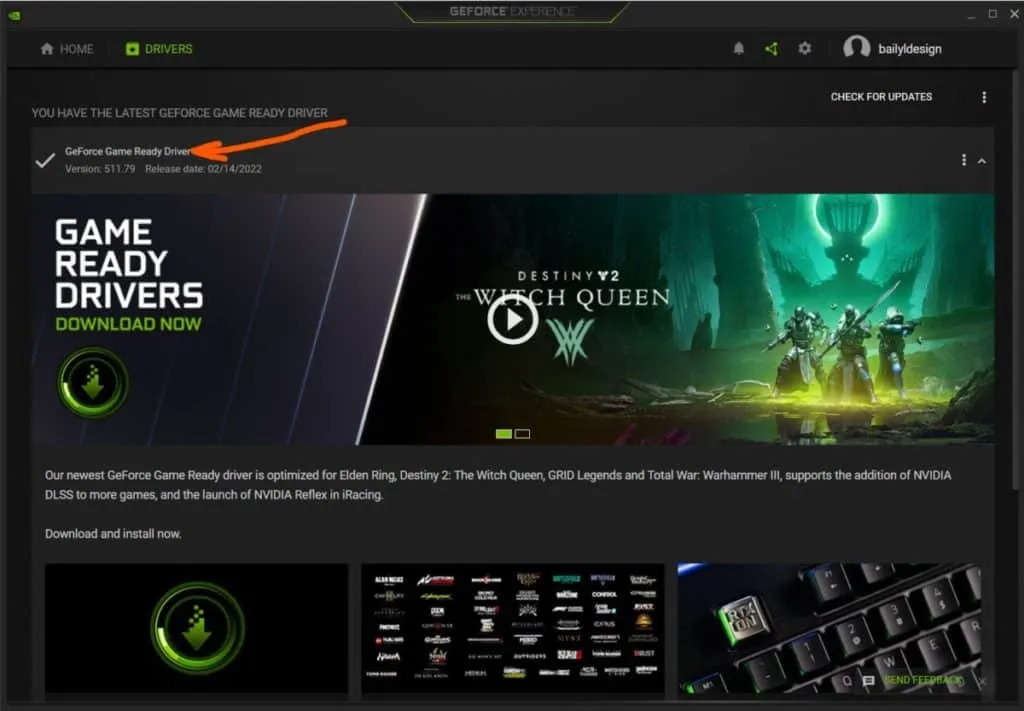
Outdated GPU drivers or bugs in specific Blender versions (especially alpha/beta builds) can cause instability.
Blender requires the latest version of your graphics driver to run properly. If you’re using an outdated driver, you may miss out on important features and improvements. Even if you’re using the newest version of Blender, not updating your graphics driver can reduce your GPU’s performance and limit its full potential.
How to Stop Blender from Crashing While Rendering
1. Optimize Your Scene for Performance
One of the first and most effective strategies is to reduce the overall complexity of your scene. Start by evaluating the number of polygons in your models — especially objects in the background or those partially hidden. Use the Decimate modifier to lower the vertex count on less important assets, and replace duplicated objects with linked instances (Alt+D) instead of full copies. This can save significant memory during rendering.
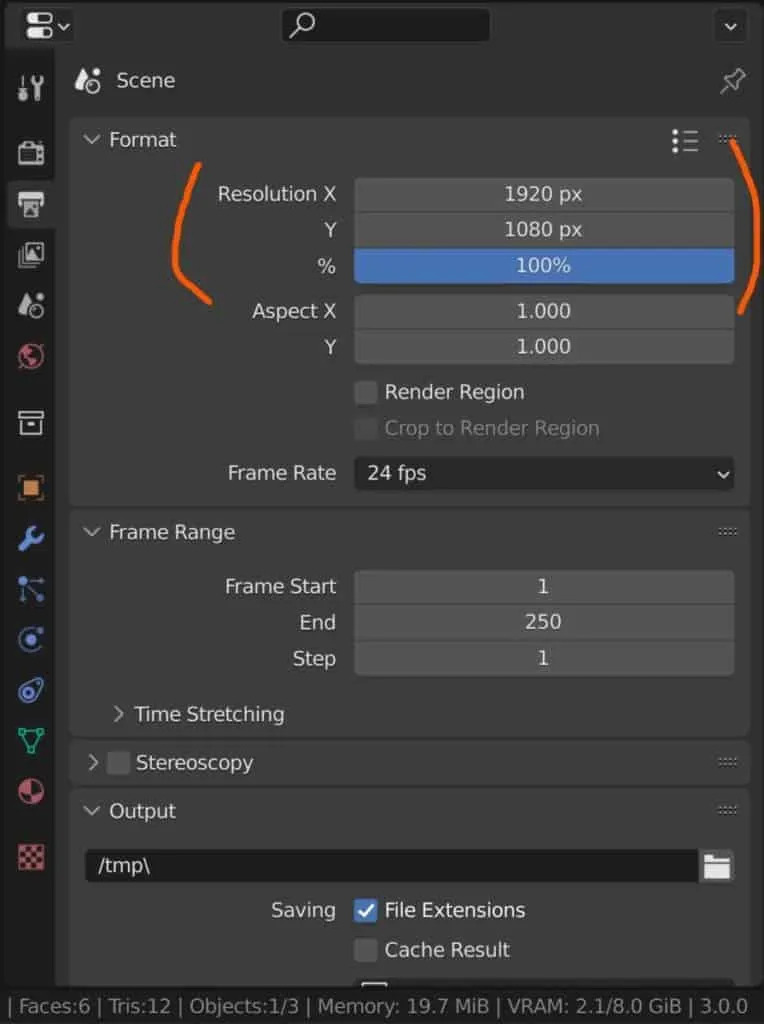
Next, review your textures. Large 8K textures look great up close but may be overkill for background elements. Consider reducing them to 2K or even 1K where possible. Blender’s Simplify settings (found in the Render Properties panel) allow you to globally cap texture sizes and subdivision levels during rendering, helping you manage performance without affecting your working viewport scene.
Also, avoid using unnecessarily high subdivision levels on characters or objects that don’t need extreme detail. Use adaptive subdivision selectively, especially when using displacement. A lighter scene will always render more reliably.
2. Monitor and Manage GPU Memory
When using GPU rendering (via CUDA, OptiX, or Metal), your system relies heavily on your graphics card’s VRAM. If Blender exceeds this limit, the renderer may fail, freeze, or crash completely. That’s why it’s critical to monitor your GPU’s memory usage during render tests. You can use tools like GPU-Z (on Windows) or system monitoring tools (on macOS) to see how much memory Blender is using during each frame.
To manage memory more efficiently, adjust your tile size under Render Properties > Performance. For GPU rendering, smaller tile sizes like 128×128 or 256×256 are ideal, as they help reduce memory spikes and distribute the load more evenly. This is especially important for scenes with many light bounces, reflections, or subsurface scattering materials.
You can also reduce GPU memory load by disabling viewport preview rendering (LookDev or Rendered mode) while running final renders, since this keeps an extra copy of the render in memory.
3. Use the Latest Blender Version and Drivers
Always work with the latest stable release of Blender, as newer versions often include performance improvements, memory fixes, and crash-prevention features. Avoid using alpha or beta builds unless you’re specifically testing new features, as these versions are more prone to bugs and instability.
Along with Blender itself, keep your GPU drivers up to date. In 2026, driver-level optimizations from NVIDIA, AMD, and Apple can significantly impact how Blender performs under load. Many crashes, especially black screen or driver reset errors, are directly linked to outdated or buggy drivers. Check your manufacturer’s website regularly and update accordingly.
Also, verify that your third-party add-ons and render engines are compatible with your Blender version. Sometimes a crash isn’t caused by Blender at all, but by a conflicting add-on script or unsupported shader configuration.
4. Render in Chunks or Image Sequences
If you’re working on an animation or a long render, never render the entire sequence as a video file directly in Blender. Instead, render to image sequences (e.g., PNG or EXR frames) and then compile them into a video using the Video Sequencer or external tools like DaVinci Resolve or FFmpeg. This ensures that if Blender crashes during frame 210 of 300, you don’t lose the entire render — you can simply resume from where it left off.

5. Save Frequently and Use Auto Save
It might sound obvious, but saving often is the most important habit you can build. Blender includes an Auto Save feature that can be enabled via Edit > Preferences > Save & Load. Set it to save every 2–3 minutes. In addition, create incremental file versions (e.g., project_v01.blend, project_v02.blend) so you can roll back to a stable version if something goes wrong.
Backups are equally important. Sync your working files to an external drive or cloud storage like Google Drive or Dropbox (but pause syncing during final renders to free up resources).
6. Free Up System Resources Before Rendering
Before starting a long or memory-intensive render, close all unnecessary applications. This includes web browsers, music players, screen recorders, and even other 3D applications. These programs consume RAM and CPU/GPU cycles that Blender needs to run efficiently. In Windows, you can monitor usage with Task Manager, and on macOS, use Activity Monitor.
Also, disable real-time syncing services temporarily — they can interfere with render output or slow down your system by backing up large .blend or cache files during the rendering process.
iRender - The Best Cloud Rendering For Blender
iRender is proud to be one of the best GPU service providers on the market. We provide you with high-configuration models with advanced specifications such as AMD Ryzen™ Threadripper™ PRO 3955WX @ 3.9 – 4.2GHz or AMD Ryzen™ Threadripper™ PRO 5975WX @ 3.6 – 4, 5GHz, 256GB RAM, 2TB NVMe SSD storage.
Under the IaaS (Infrastructure as a Service) model you will have full control over the machine via a remote desktop app, similar to Teamviewer but more stable. You will be able to proactively install the software and use it on the server just like using a personal computer. You can find many server packages with high-end configurations that are extremely suitable for complex projects. Our machines have preinstalled Blender, you can choose to create the machine at first then connect and render yourself
We’re always happy to help you with any questions. If you have any problems or questions, don’t hesitate to contact our 24/7 support team. Or via WhatsApp: 0912 785 500 for free advice and support.
Right now iRender has a SPECIAL PROMOTION program with a 100% bonus for the first transaction within 24 hours of your registration. It means you can get 100% of the money you recharged the first time. And points never expire so you can use them at any time.
Sign up for an account today to experience and enjoy our services.
Thank you & Happy Rendering!
Source and image: blenderbasecamp.com

Related Posts
The latest creative news from Blender Cloud Rendering






