Quickest and easiest way to point a camera somewhere in Blender
You may have come across a scenario where you just want to point a camera to an object or a specific area in your scene to get an idea of how it will look in the final render. Other 3D packages usually have a camera setting that allows us to “point at” an object. This can be either part of a scene or a null object which doesn’t show up but can be animated. The idea behind this is that no matter where you move the camera, it will always frame your object of choice.
What’s the most painless hasslefree way to point a camera in Blender? In Blog’s Today, we definitely have the answer.
In this post, we are going to look at:
- How to point a camera to the 3d-cursor in the scene
- How to point a camera to the selected object(s) in your scene
Method 1: Align active camera to view after normal navigation in Blender’s 3d viewport
Find a good position in the 3d viewport by navigating as normal with the mouse
From the 3d view header, go to View > Align View > Align Active Camera to View to position/point the camera in the direction you are facing in the viewport.
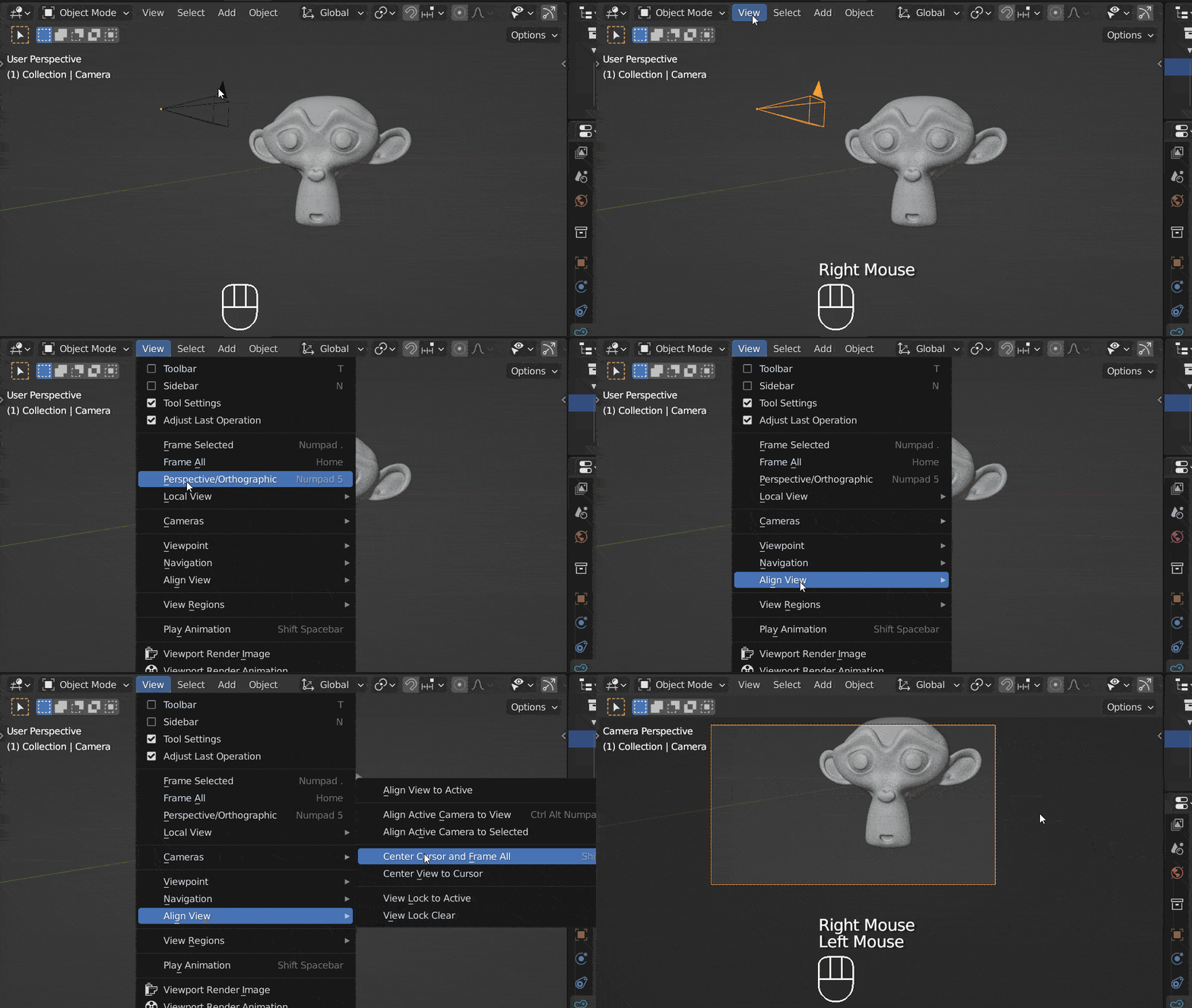
Or select the camera and use Ctrl + Alt + Numpad 0

Method 2: Align camera to view using the ‘Track To’ constraint. The best method for moving/animated target
Alternatively, to point the camera towards an object, you can use the ‘Track To’ constraint.
- Select the camera
- Go to the constraints tab and add a ‘Track To’ constraint
- Choose your target object in the Target field, -Z in the To field, and Y in the Upfield.

The camera will now point at the object no matter where the camera or object is moved. If possible, point the camera towards an empty.
This is the way to point a camera in Blender. iRender hopes it to be helpful for your work!
The Best Multi-GPU Cloud Rendering for Blender
iRender is a Professional GPU-Acceleration Cloud Rendering Service provider in HPC optimization for rendering tasks, CGI, VFX with over 20.000 customers and being appreciated in many global rankings (e.g. CGDirector, Lumion Official, Radarrender, InspirationTuts CAD, All3DP). Users will remotely connect to our server, install any version of Blender only one time and easily do any intensive tasks like using their local computers.
Based on our previous analysis, AMD Ryzen Threadripper PRO 3955WX is highly recommended for Blender. This is the world’s only processor family supporting PCIe 4.0, which delivers twice the I/O performance over PCIe 3.0. Moreover, it can accelerate workflows with next-gen GPUs and high-speed storage devices and support 128 PCIe lanes as well. As a final brief, this is a great choice for driving Multi-GPUs. That’s why I suggest our server 5P (4x RTX 3090) or server 8A (6x RTX 3090) or server 9A (8x RTX 3090) if you are using Blender to render as well.
Take your render performance to the next level with the AMD Ryzen Threadripper PRO 3955WX. Featuring 16 cores and 32 threads with a 3.9 GHz base clock frequency, 4.3 GHz boost frequency, and 64MB of L3 cache, this processor significantly reduces rendering times for 8K videos, high-resolution photos, and 3D models. A faster CPU will allow you to extract mesh data, load textures, and prepare scene data more quickly. Check out our Blender on multi-GPU at iRender below:


Elite support is available 7 days a week by hotline, live chat, Skype, WhatsApp and email. Register an ACCOUNT today and get FREE COUPON to experience our service. Elite support is available 7 days a week by hotline, live chat, Skype, WhatsApp and email.
Thank you & Happy Rendering!
Source: gachokistudios.com